Custom Pages Modules
Custom Page Modules are similar to Learning Modules — pages are built in the Course Designer using panels. The difference is purpose. Learning pages are viewed in the Course Player for delivering learning. Custom pages can be used to:
- Insert pages into the My Learning Dashboard using string resources or the Pin to Dashboard feature.
- Make pages available in other places in the system using the Menu setting.
- Make web pages available outside the CLS using the Allow Unauthenticated Access feature.
A common use is a welcome message or instructions on the system landing page. Like any web page, media such as video and images can be added.

Note
Custom Pages Modules are an additional CLS option that must be switched on at the global level. Contact your account manager to enable.
Create a custom page module
Browse to Design > Modules.
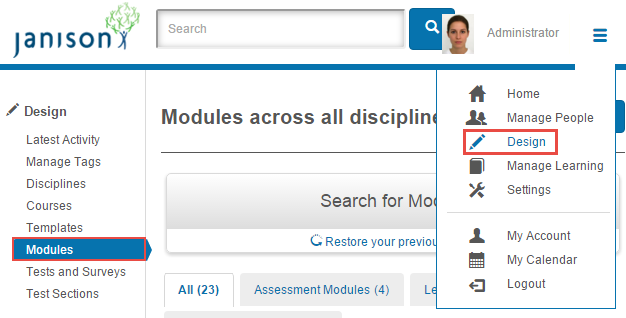
From the Actions dropdown, select Add Custom Page Module.
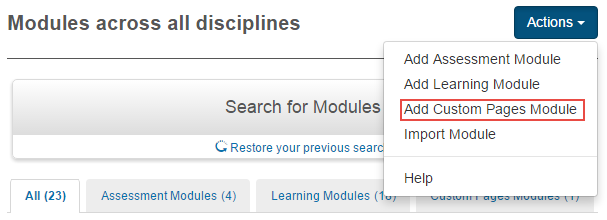
Managing custom page modules is the same as managing learning modules — see Learning Modules.
Create custom pages
Creating a custom page involves the same steps as creating learning pages.
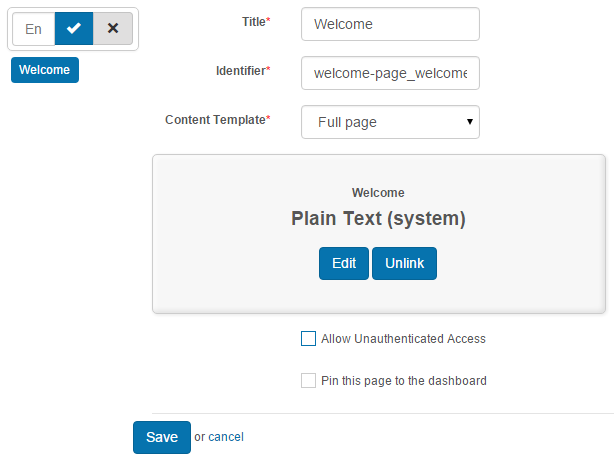
Two unique options are available on a custom page: Allow Unauthenticated Access and Pin this page to the dashboard. See below.
Pin a page to the dashboard
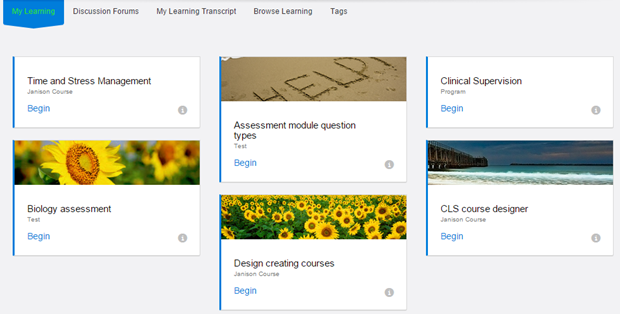
The My Learning Dashboard is where learners access their catalogue enrolments. You can add pages from a Custom Page Module as tiles on the My Learning screen.
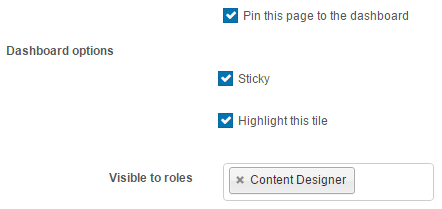
Two configurations are required:
-
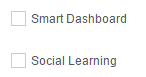
The Smart Dashboard plugin must not be active. Contact Janison support to deactivate if required.
-
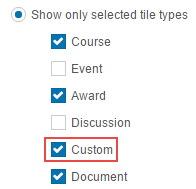
In Settings > My Learning Dashboard Settings, the tile type Custom must be checked.
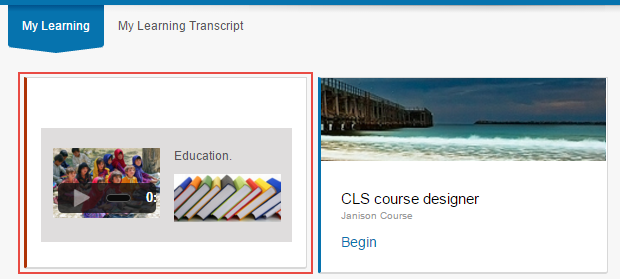
Check Pin this Page to the dashboard to make the page appear as a tile.

The custom page appears on the dashboard:
Sticky
Forces the tile to appear in the top-left corner. If unchecked, the tile appears at the end of the page.

Highlight this tile
Applies the site Accent Primary colour to the tile background. See the document on Styles and Images for how these values are set.

Insert a page into the dashboard
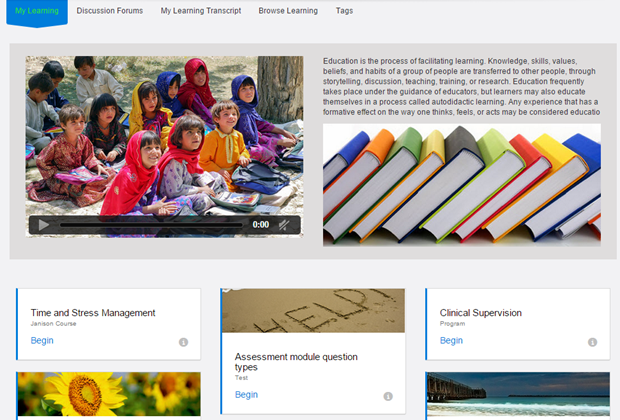
You can also add a custom page to the top of the My Learning Dashboard, providing instructions or info in the form of videos, images, text, or other media.
Note
This option is only available if the Smart Dashboard plugin is active. Contact Janison support to activate.
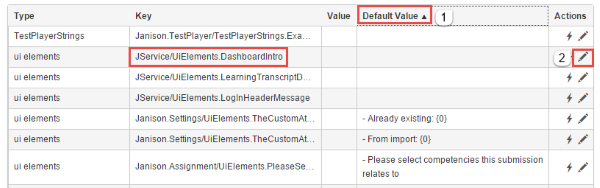
Locate and update a string resource with the key JService/UiElements.DashboardIntro.
Select Settings > String Resources.
- Sort by Default Value by selecting the column heading — resources with blank values are listed first.
-
Select the pencil icon to edit.
-
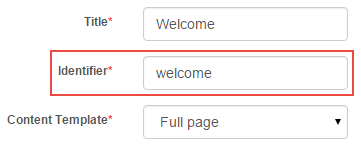
Paste the snippet into Value, replacing the identifier with the identifier of your custom page.
The custom page now appears on the dashboard.
Allow unauthenticated access

This option makes the page accessible without logging into the CLS. It can only be accessed on the CLS site where the page was created. Uses include a public welcome page or a diagnostics page that checks a computer's readiness for an upcoming event without requiring a log in.
The web address of a custom page is:
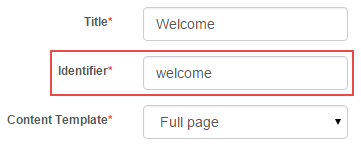
<site address>/pages/<page identifier> — for example, http://help.cls.janison.com/pages/welcome.
The site address is the address of the CLS where the page was created.

The identifier is the identifier of this page.
A custom page accessed without authentication shows no menus — view-only.

Link custom pages to menus
You can link custom pages to CLS menus. In the screenshot below, a Help and Support page has been added to the top menu.
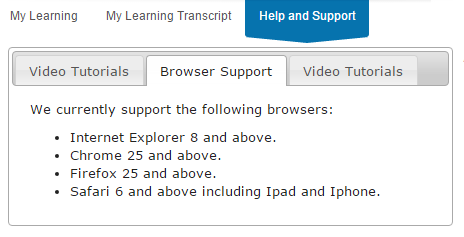
The menu is adjusted in Settings > Menu. See the document on customising menus for instructions.
The XML snippet adds the Help and Support custom page to the top menu (where help is the identifier).

Restrict access with roles
In the Visible to Roles box, select one or more roles from the dropdown to specify which users see this page. Leave blank for all users.
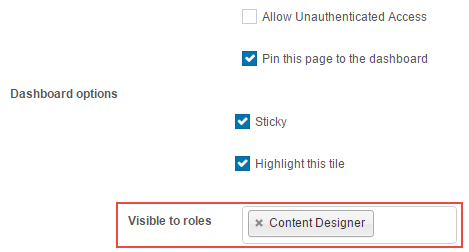
Add a discussion forum
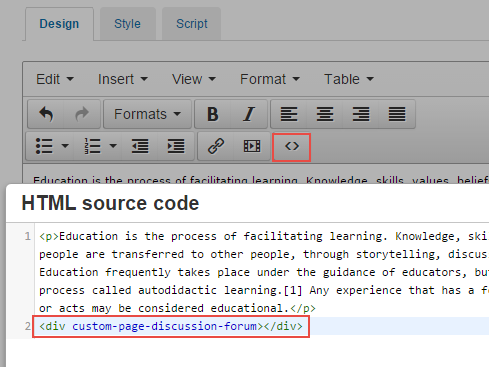
You can add a Discussion Forum to a page by adding code to the source of the page.
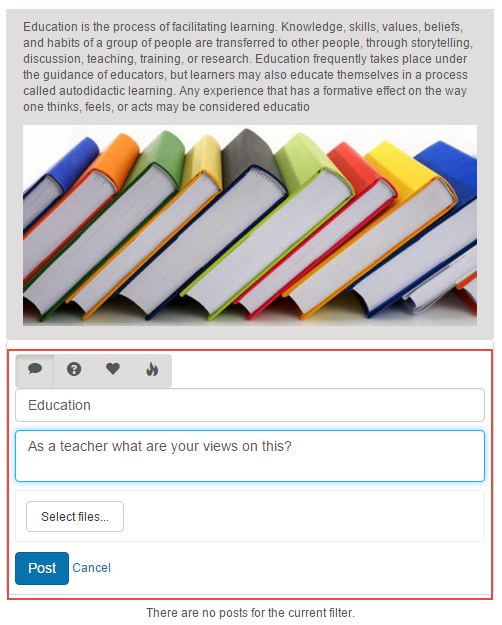
Use the source-code button  to enter source-code mode. Paste the required code.
Settings
Several platform settings affect Custom Page Modules.
Administrators can configure the following settings:
My Learning Dashboard Settings (Settings > My Learning Dashboard Settings) — enable tile type Custom for pinned pages to appear.
String Resources (Settings > String Resources) — edit JService/UiElements.DashboardIntro to inject a custom page into the dashboard.
Menu (Settings > Menu) — link custom pages to system menus.
Smart Dashboard plugin — controls which dashboard injection approach is available. Contact Janison.
Custom Pages Modules option — must be enabled globally by your account manager.