Catalogue item workflows
Catalogue item workflows provide a process for approval of a catalogue item by one or more approvers before it's published. Workflows are useful when a catalogue item needs to be approved by a subject matter expert before being published to learners.
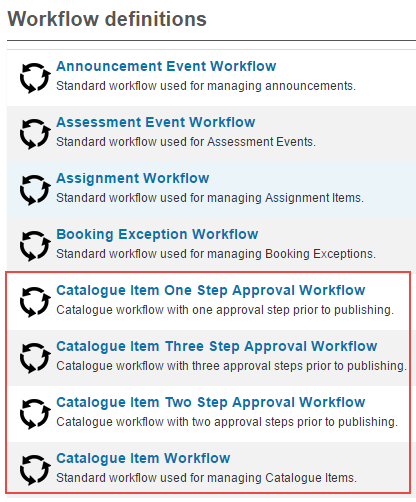
There are four catalogue item workflows — one with no approval stages and three with one to three approval stages:
- Catalogue Item Workflow — no approval stages
- Catalogue Item One Step Approval Workflow
- Catalogue Item Two Step Approval Workflow
- Catalogue Item Three Step Approval Workflow
Workflow definitions can be viewed in Settings > Workflow definitions.
Workflow setup
Several steps are required to make catalogue item workflows function for the first time:
- A catalogue item template with a relevant Workflow must be created. This template can be reused for all catalogue items.
- Relevant roles must be assigned to users who become approvers.
- A catalogue item must be created and linked to the template.
Create a catalogue item template
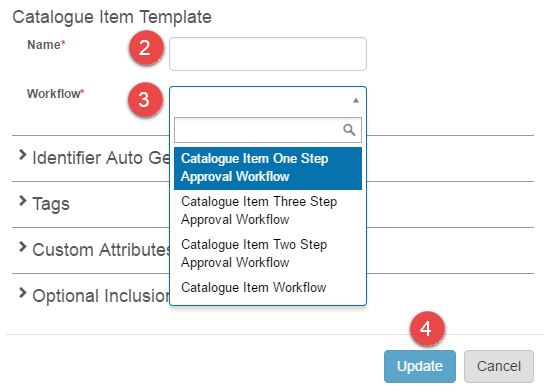
Browse to Settings > Catalogue Item Templates.
-
Select Add new template.

-
Enter a Name.
- Select the required Workflow.
-
Select Update.
See Catalogue Item Templates for more on creating templates.
Assigning roles to approvers
Approver roles are assigned to users as User Extra Roles. Contact the customer support team to configure the appropriate roles.
Workflow notification roles
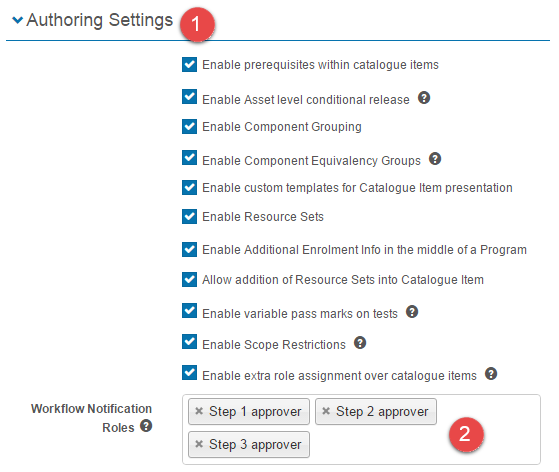
When notification roles are set, users with approver roles receive notifications on workflow state transitions.
Browse to Settings > Catalogue Item Templates.
- Select Authoring Settings.
-
Enter the required Workflow Notification Roles.
-
Select Save Settings.

Create a catalogue item with a workflow attached
Browse to Manage Learning > Manage Catalogue.
-
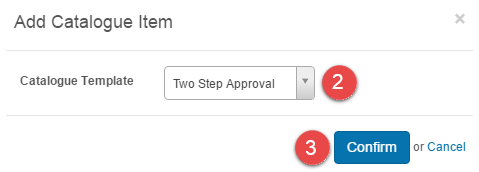
Select Add Catalogue Item.

A popup is displayed.
- Select the template with the required workflow.
-
Select Confirm.
Follow the steps in the Manage Catalogue document for complete instructions.
End-user experience
The experience differs based on the workflow type and selections made. This is an example of the three-step approval workflow with no declines or resubmissions.
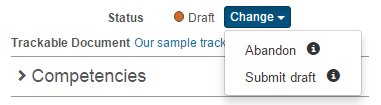
A new catalogue item is saved and goes into Draft status. The user has two options and selects Submit draft.
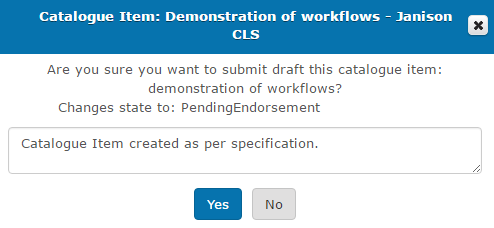
A confirmation popup is displayed showing the state the catalogue item will change to. Optional text is entered and the selection is confirmed.
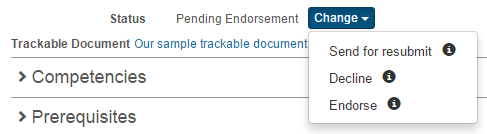
The first approver receives a notification email. The approver has three options and selects Endorse.
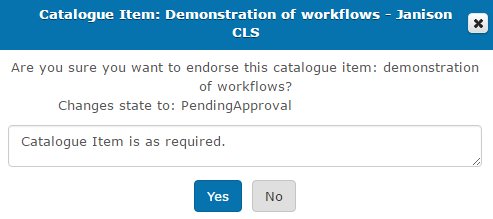
A confirmation popup is displayed.
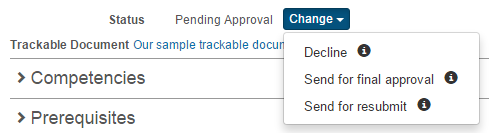
The second approver receives a notification email and selects Send for final approval.
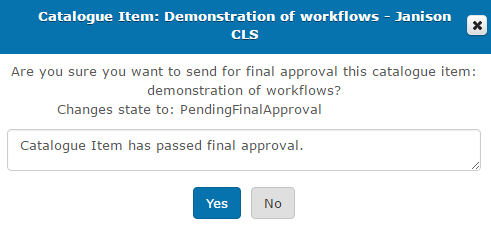
A confirmation popup is displayed.
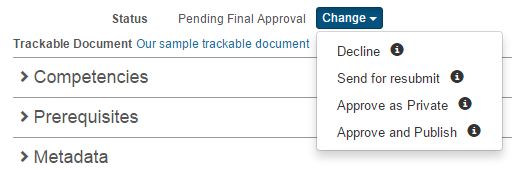
The third approver receives a notification email and selects Approve and Publish.
A confirmation popup is displayed.
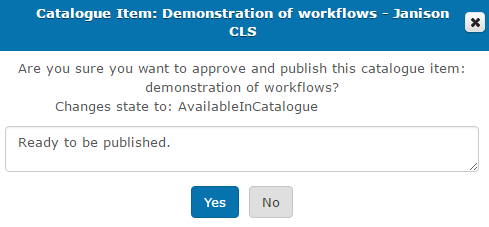
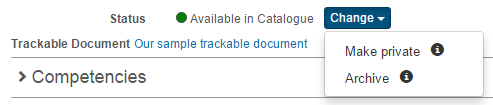
The catalogue item is published to the library. Options exist to make the catalogue item private or to archive it.
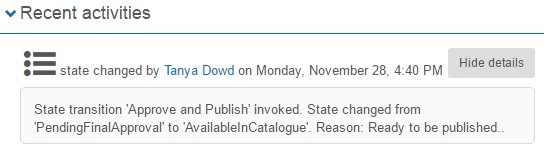
The details of all workflow state changes can be accessed in the Recent activities section of the catalogue item.
Message templates
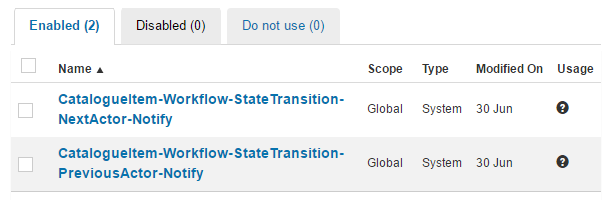
There are two types of notifications:
- CatalogueItem-Workflow-StateTransition-NextActor-Notify — sent to the next approver responsible for the workflow state change.
- CatalogueItem-Workflow-StateTransition-PreviousActor-Notify — sent to the author and/or previous approvers when the status has changed.
See the document on Message Templates for more.
Settings
Several platform settings affect catalogue item workflows.
Administrators can configure the following settings:
Catalogue Item Templates (Settings > Catalogue Item Templates) — create templates with the required workflow attached.
Authoring Settings (Settings > Catalogue Item Templates > Authoring Settings) — set the Workflow Notification Roles that determine which approver roles receive notifications.
Workflow definitions (Settings > Workflow definitions) — view the four available catalogue item workflows.
Roles — approver roles are assigned as User Extra Roles. Contact Janison customer support to configure the appropriate roles.
Message Templates (Settings > Message Templates) — customise the next-approver and previous-actor notification emails.