Token-based payments
With token-based payments, providers can order token codes and distribute them to their users. Tokens are pre-purchased by buyers or administration and grant users access to courses that would otherwise require payment on enrolment.
Token orders are best used against catalogue items where there's an enrolment fee but also a limited number of seats or licensed uses.
Initial settings — Self enrolment settings
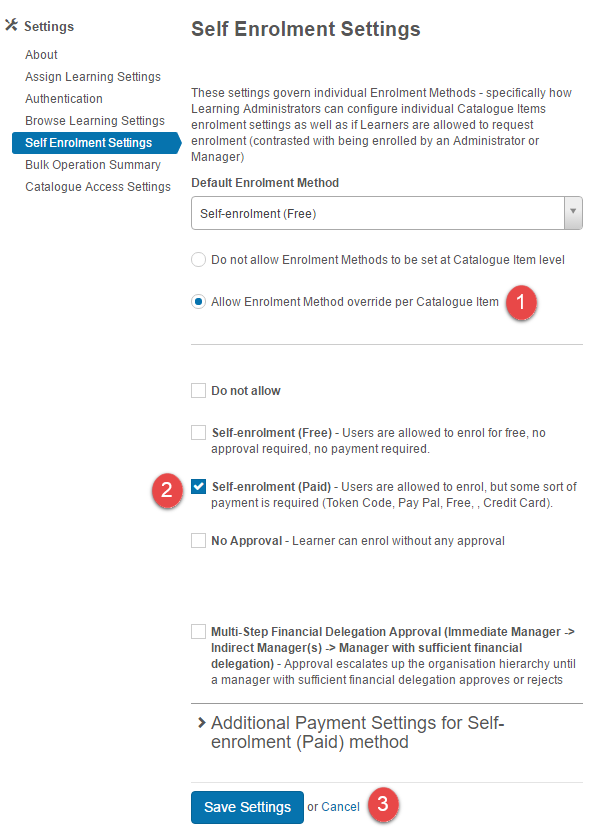
For token-based payments to function, the paid self-enrolment setting must be activated.
Navigate to Settings > Self Enrolment Settings.
- Select Allow Enrolment Method override per Catalogue Item.
- Select Self-enrolment (Paid).
- Select Save Settings.
Important
If the items described in this document are missing from your site, the plugin may not be active. Contact your account manager for assistance.
Initial settings — Catalogue items
Before ordering tokens, set up catalogue items to allow tokens.
Navigate to Manage Learning > Manage Catalogue.
-
Select Add Catalogue Item.

-
Set a Price for the catalogue item.
- Select the Self Enrolment Settings section.
- Set Enrolment Method to Self-enrolment (Paid).
-
Set Payment Method to TokenBased. Multiple methods can be set.
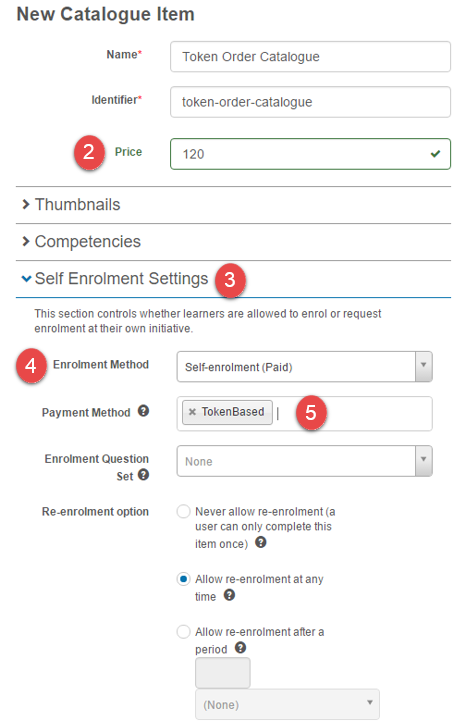
Select Save Catalogue Item.

Creating token orders
Adding token orders
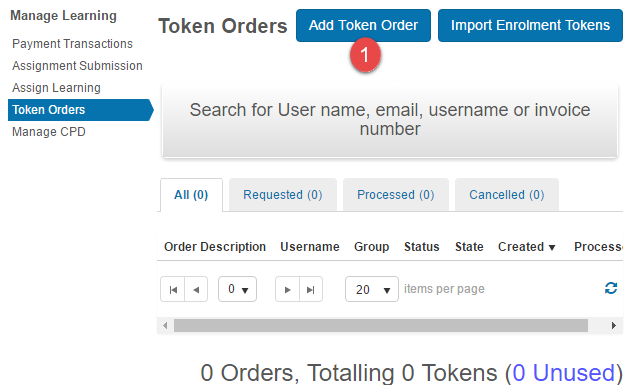
Navigate to Manage Learning > Token Orders.
-
Select Add Token Order.
-
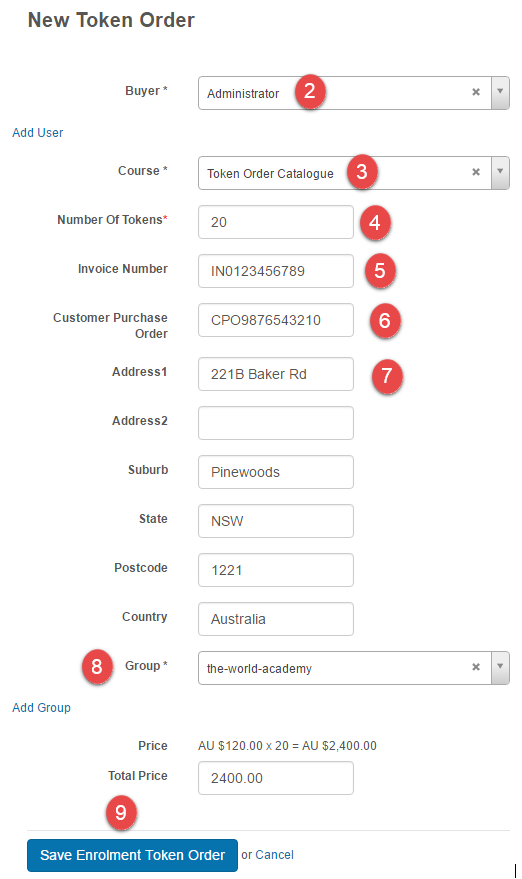
Select a user as the Buyer.
- Select the Course the tokens apply to.
- Select the Number Of Tokens to be purchased.
- Optionally enter a unique Invoice Number.
- Optionally enter a unique Customer Purchase Order code.
- Enter the buyer's billing address.
- Select the group users enrolling via the token will be placed into.
-
Select Save Enrolment Token Orders.
Requesting token orders
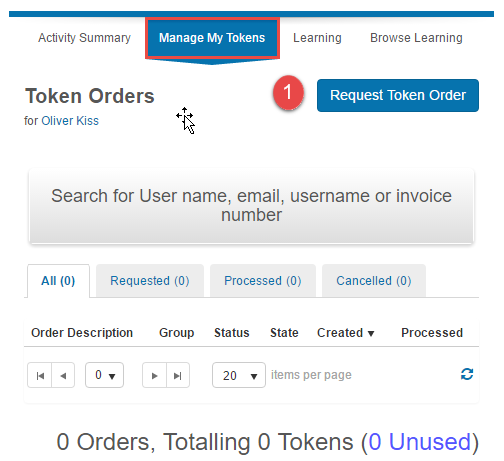
Users without the role privileges to Add Token Orders must Request Token Orders. Navigate to Manage My Tokens from the home page.
-
Select Request Token Order.
-
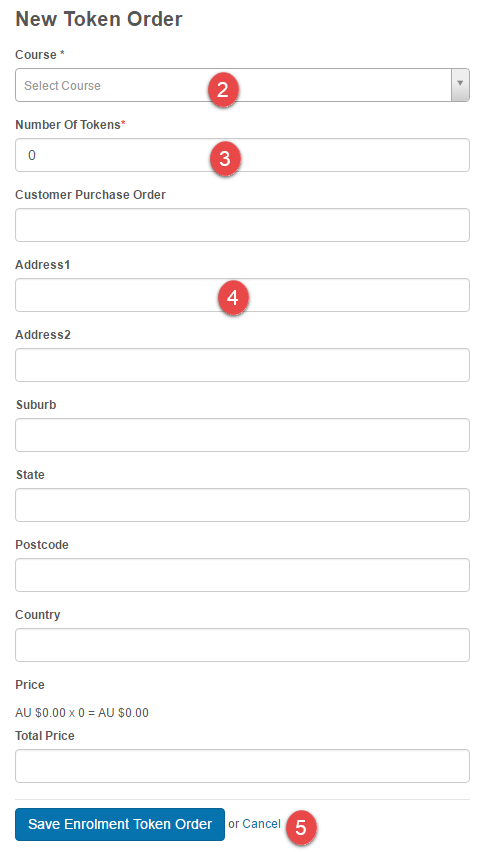
Select the Course.
- Select the Number of tokens.
- Enter your billing address.
-
Select Save Enrolment Token Order.
Processing orders
When a token order is created, it's placed into Requested status. No tokens have been generated yet.
Approving token orders
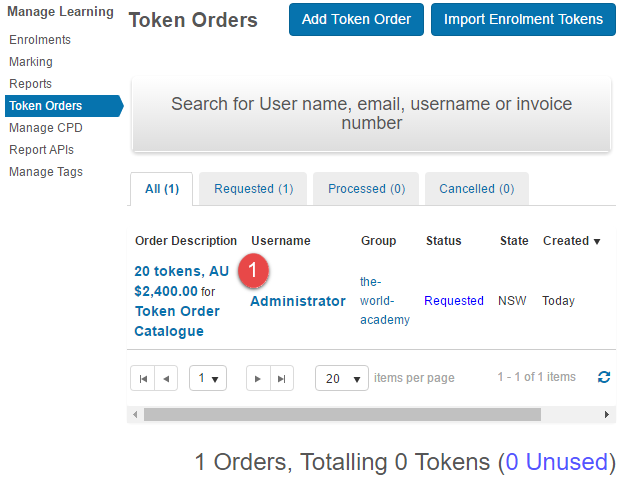
Navigate to Manage Learning > Token Orders.
-
Select the Token Order to approve.
-
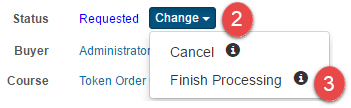
Select the Change dropdown next to the order's status.
-
Select Finish Processing. A popup appears.
-
Select Yes to approve and generate the tokens.
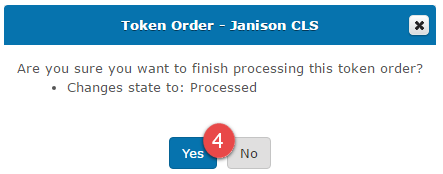
After a short load time, the status changes to Processed and the tokens are generated.
Cancelling token orders
Token orders can be cancelled at any time.
- Select the Change dropdown.
-
Select Cancel.
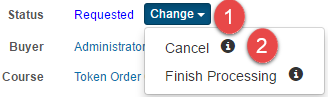
-
Select Yes to confirm.
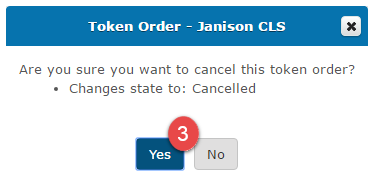
Cancelling invalidates unredeemed tokens and changes the status to Cancelled.
Managing tokens
Token status
Navigate to Manage Learning > Token Orders and select a token order. As a buyer, access your token orders from the home page by selecting Manage My Tokens.
-
Select the Tokens section to see the status.
-
A — Redeemed tokens display the user's name, enrolment status, and date.
- B — Cancelled tokens display as cancelled and can't be redeemed.
- C — Unredeemed tokens display with no data and can be redeemed unless the token order is cancelled.
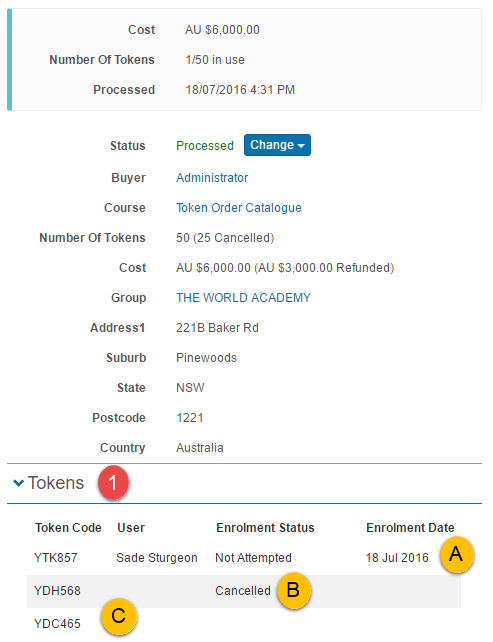
Emailing tokens
Once a token order is processed, send the tokens to the buyer.
Navigate to Manage Learning > Token Orders and select the order.
-
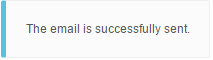
Select Email list of available Tokens.

An email is sent to the buyer containing all the tokens.
Cancelling tokens
Navigate to Manage Learning > Token Orders and select an existing order.
-
Select Cancel Tokens.

-
Enter the Number Of Tokens to cancel.
- Enter the Refund Amount — this doesn't autofill.
-
Select Save Token Order Cancellation.
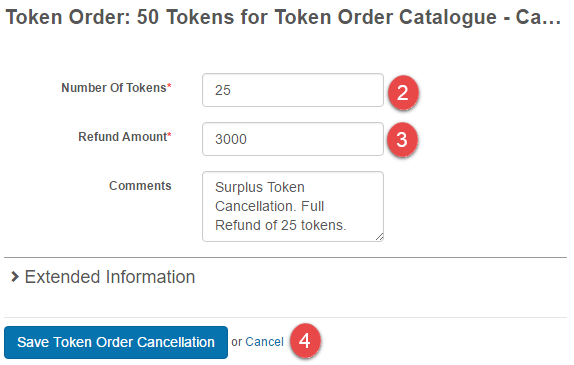
The system cancels unused tokens of the specified amount. Redeemed tokens can't be cancelled.
Token cancellations / refunds
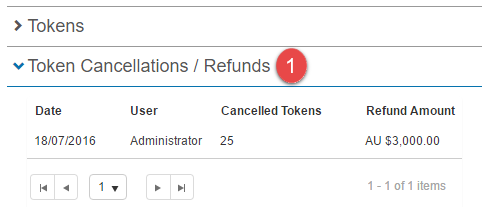
Past cancellations and refunds can be reviewed.
-
Select the Token Cancellations / Refunds section.
Redeeming tokens
When token orders are processed and tokens generated, users receive tokens either from the buyer or administration. Tokens are redeemed on enrolment.
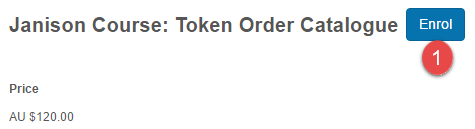
Browse to a catalogue item where TokenBased payment is enabled.
-
Select Enrol.
-
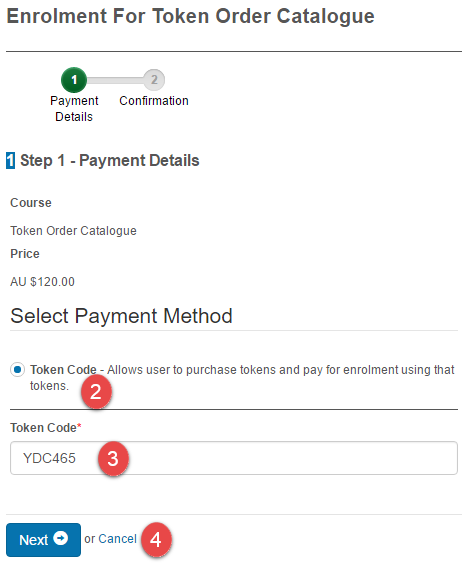
Select Token Code as the payment method.
- Enter the token in the Token Code input.
-
Select Next.
-
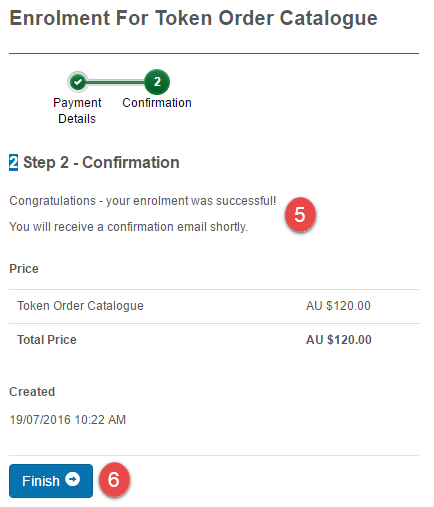
Review the enrolment.
-
Select Finish.
Settings
This page is itself the Settings documentation for token-based payments. All operations span Settings > Self Enrolment Settings (enable the Self-enrolment (Paid) method) and Manage Learning > Token Orders (creating, approving, and managing orders).
Related settings:
Self Enrolment Settings (Settings > Self Enrolment Settings) — Self-enrolment (Paid) must be enabled.
Payment Settings (Settings > Payment Settings) — for credit card / PayPal payment methods (see Payment).