Learning module tests
Learning modules are specialised for learning and oriented towards enhancing and monitoring the learning experience. Their tests have a limited number of question types and are designed to assist with learning rather than assess. For example:
- If a learner gets a question incorrect, the system can allow them to retry until they select the correct response.
- If a learner gets a question incorrect, the system can provide feedback with the correct response or a clue.
Note
If you're not sure whether a learning module test is the most appropriate test for your purpose, see Tests.
Questions are integrated in the panels of pages — see Test panels in learning modules. Questions are presented in the Course Player, which contains learning material as well as one or more tests.
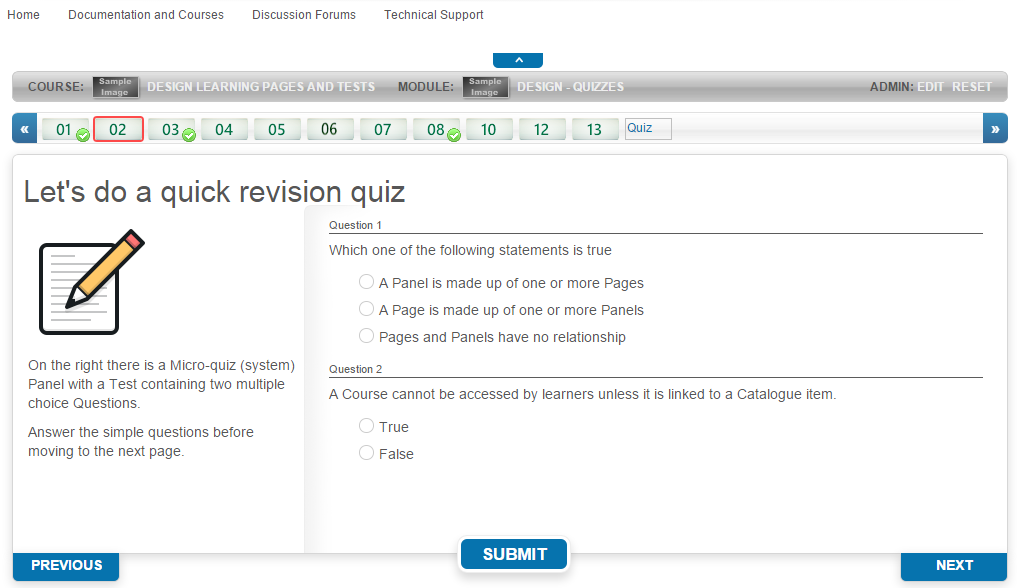
The settings for a test in a learning module depend on the kind of panel it's linked to.
Create a test
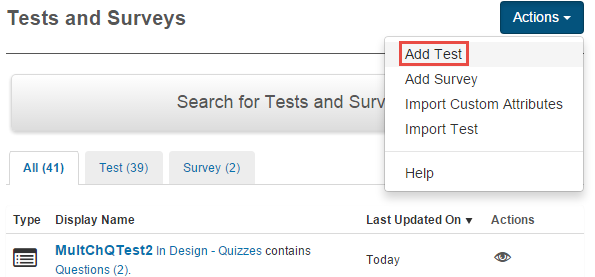
Navigate to Design > Tests and Surveys and select Add Test from the Actions dropdown.
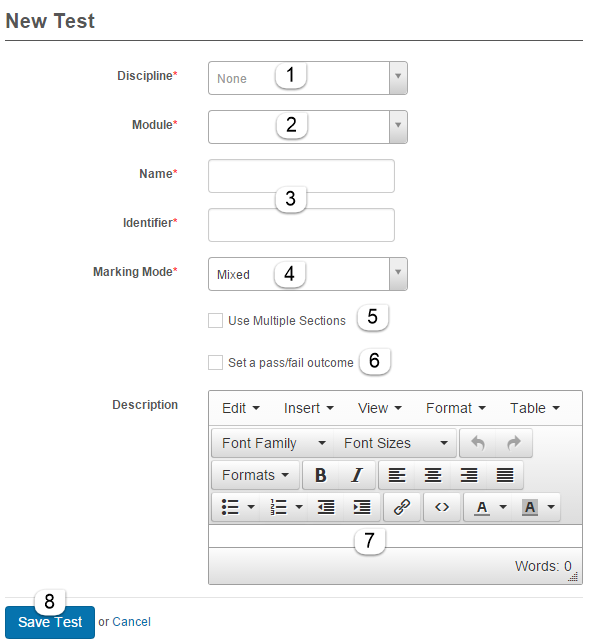
- Select the Discipline the test belongs to.
- Select a Learning Module.
- Enter a Name and unique Identifier.
- Set the Marking Mode appropriate for the panel template.
- Use Multiple Sections isn't applicable in a learning module — leave unchecked.
- Set pass/fail outcome enables setting a pass mark, used in certain panel templates.
- Optionally enter a Description.
-
Select Save Test.
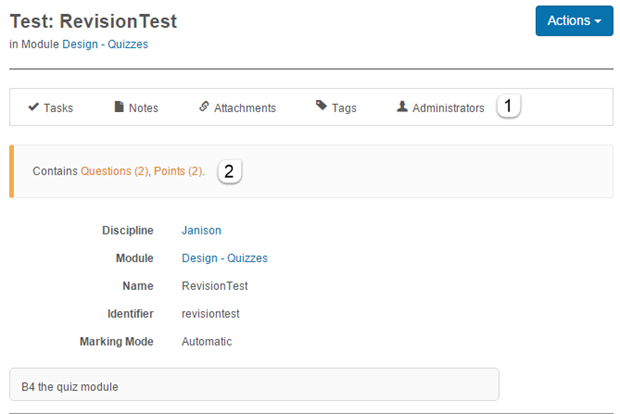
Additional sections become available once saved.
Test body
Edit via Actions > Edit Test.
- Standard widgets for tasks, notes, attachments, tags, and administrators.
-
A listing of linked questions and points — also links to those questions.
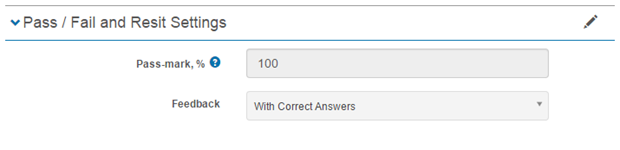
Pass/Fail and Resit Settings
- Pass-mark, % — only applicable for certain test panels.
- Feedback — not applicable in a learning module.
Questions
Two icons are available to manage and add questions.
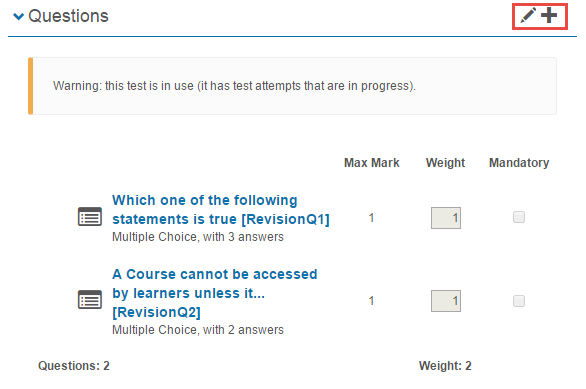
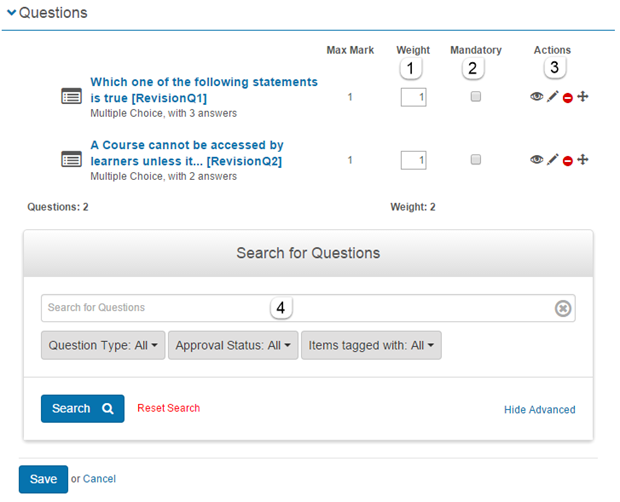
The pencil icon  opens editing options:
- Weight — the value of the question.
- Mandatory — not applicable. Questions are mandatory by default.
- Actions — preview
 , edit , remove
  , or reorder
  .
. -
Search for questions.
Response Analysis
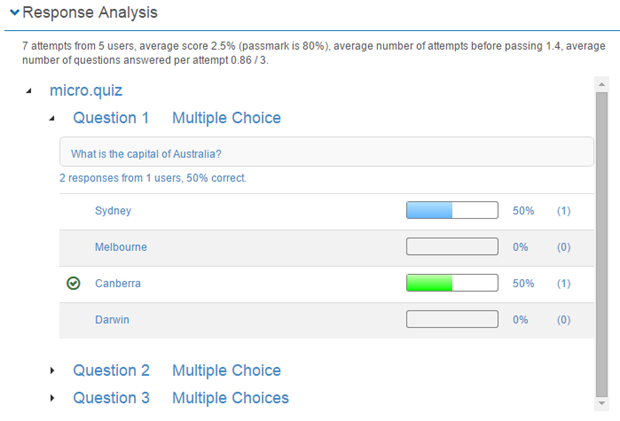
This section analyses results — for example, identifying a question consistently marked incorrect (which may indicate an issue with the question). You can also use customisable reports for this data.
Copy a test
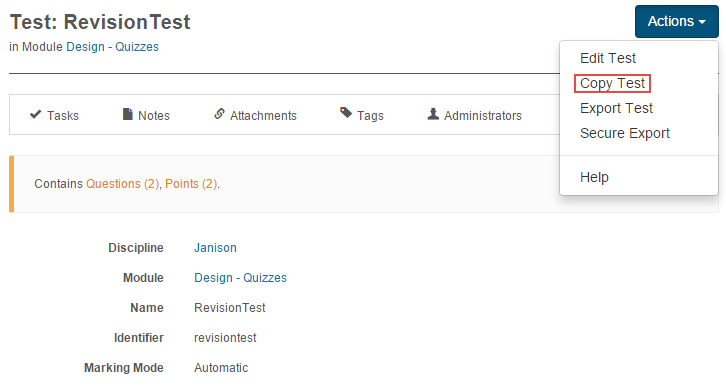
A test can be copied via Actions > Copy Test. The copy is made in the same module as the original. Questions are not copied.
Export a test
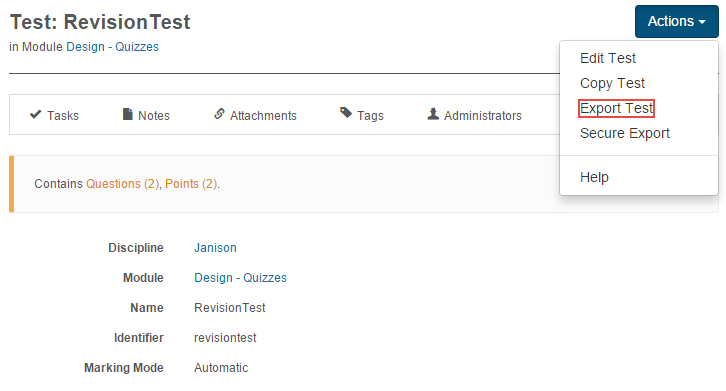
A test can be exported to a zip file via Actions > Export Test. Secure Export isn't applicable for a learning module test.
Settings
Several platform settings affect learning module tests.
Administrators can configure the following settings:
Test Designer Settings (Settings > Test Designer Settings) — control which authoring features (marking modes, pass/fail outcomes, etc.) are visible.