Resource designer
Resource designer settings let you customise options on the resource and stimuli pages. The settings are grouped into five sections:
- Resource options
- Stimulus options
- Identifier auto generation
- Available stimuli templates
- Available resource types
Navigate to Settings > Resource Settings.
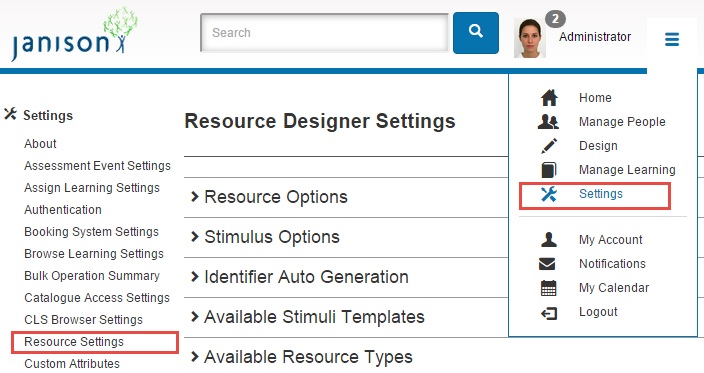
Resource options
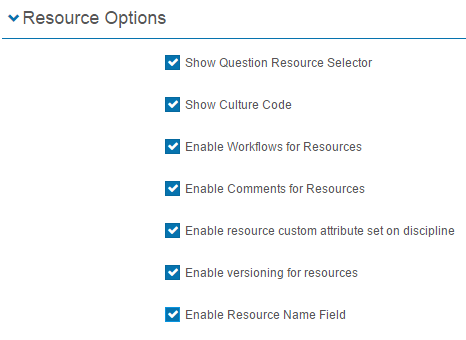
Show culture code
Enables setting a language other than English. Multiple languages can be set and switched between.

Enable workflows for resources
A workflow is a review system that lets you appoint multiple reviewers during question development to manage quality and approval. Workflows can be attached to questions, resources, and stimuli.
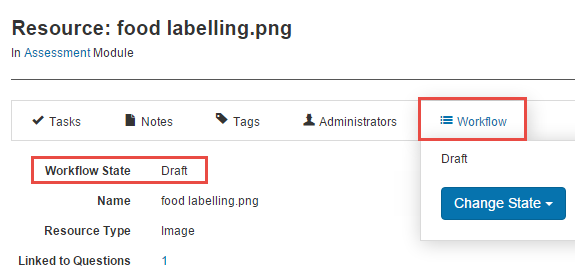
When checked, a workflow status displays on the resource details page if the resource is linked to an assessment module with a workflow status set. Workflow transitions only appear if the user has the right permissions.

Enable comments for resources
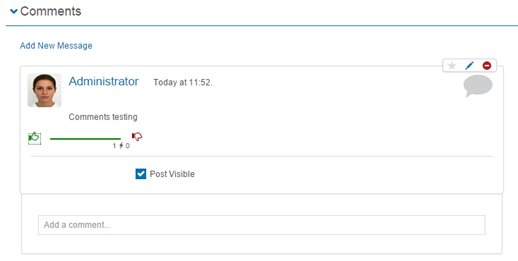
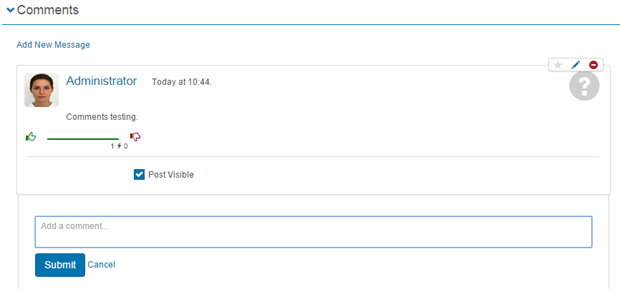
When checked, a comments section appears on the details page of the resource. Comments can be posted, viewed, liked, disliked, and replied to. Comments can be edited using the pencil icon. Clearing Post Visible hides the post from others.

Enable resource custom attribute set on discipline
When checked, you can link a custom attribute to a resource — useful for filtering, sorting, searching, and reporting. See Custom Attributes.

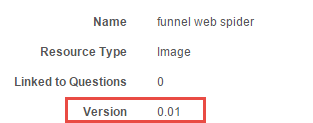
Enable versioning for resources
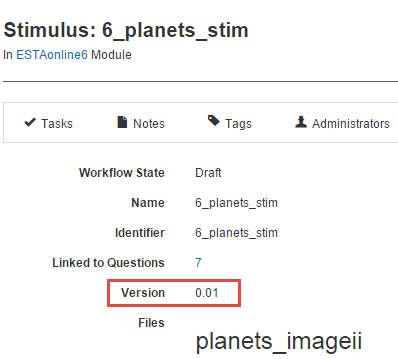
Versioning assigns unique version numbers to states of the resource. Versions have major and minor components — for example, 1.53 has major version 1 and minor version 53.
When checked, a Version field appears on the resource details page.

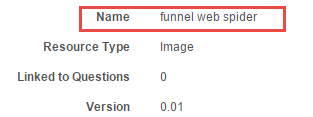
Enable resource name field
Includes a mandatory Name field on resources, alongside the identifier.

Stimulus options
Four options are available.
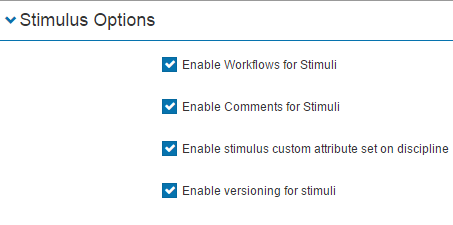
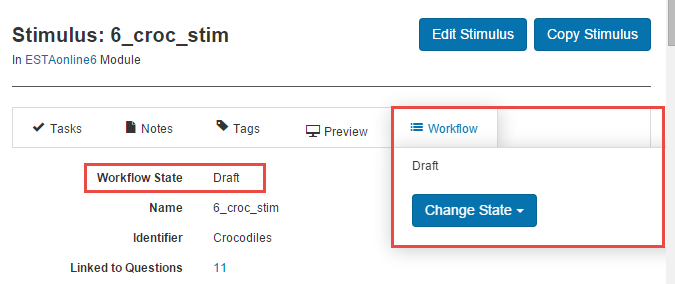
Enable workflows for stimuli
Same as for resources but applied to stimuli.

Enable comments for stimuli
Same as for resources but applied to stimuli.

Enable stimulus custom attribute set on discipline
Lets you link a custom attribute to a stimulus.

Enable versioning for stimuli
Adds a Version field on the stimulus details page.

Identifier auto generation
Configures the format for auto-generated identifiers for both resources and stimuli.
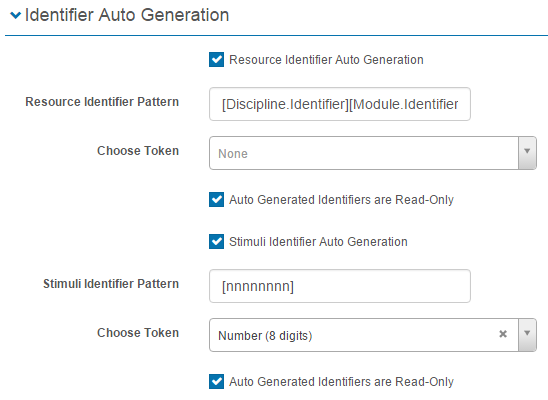
Tick the Resource Identifier Auto Generation or Stimuli Identifier Auto Generation checkbox before adding details — until then the fields are greyed out.
To add identifier patterns:
- Select a token from the Choose Token dropdown. It's added to the related identifier pattern field.
- Select additional tokens as required.
You can also add free text — for example, prefixing all new identifiers with a.
Select Save Resource Designer Settings.
The identifier field is auto-populated on creation of the resource.
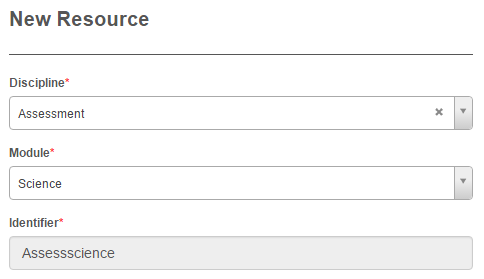
For a stimulus with the Number (8 digits) token, the identifier is auto-populated with 8 zeros.
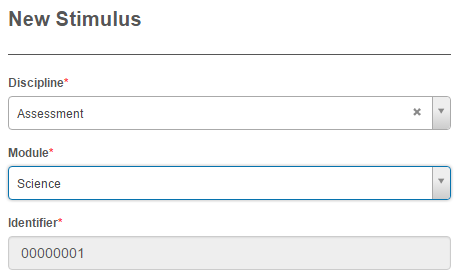
Auto generated identifiers are read-only
If checked, the identifier field can't be edited by users creating resources or stimuli.

Available stimuli templates
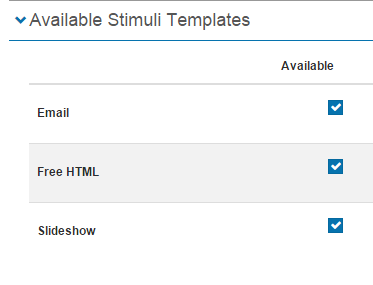
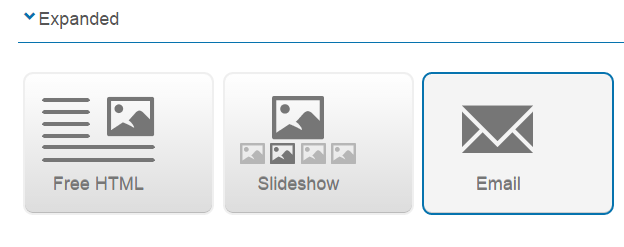
Three stimuli templates are available: Email, Free HTML, and Slideshow. Setting them to Available makes them appear in the list when creating or editing stimuli.
To access stimuli templates, navigate to Design > Stimuli > Add Stimulus and expand the chevron next to Expanded.
Available resource types
Several resource types are available. Setting them to Available makes them appear in the resource type list.
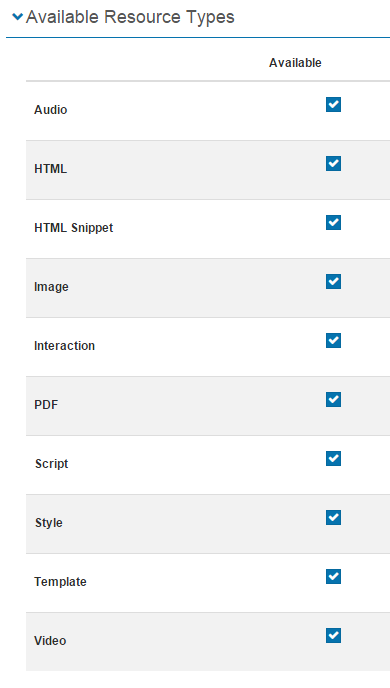
To access resource types, navigate to Design > Resources and select Add Resource from the Actions dropdown.

Settings
This page is itself the Settings documentation for the resource designer. All options are configured at Settings > Resource Settings.
Related settings:
Custom Attributes (Settings > Custom Attributes) — used by the Enable resource custom attribute set on discipline and Enable stimulus custom attribute set on discipline options.