Learning plans
A Learning Plan is an enhanced learning journal for an individual. Plans are often established for a particular period of time and can be subject to administrator involvement.
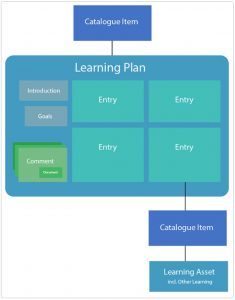
A plan starts with an analysis of the knowledge and skills the learner needs to achieve career and personal goals. The most important components are a series of entries describing specific learning objectives and logging their achievement. Entries can optionally be linked to learning inside or outside the CLS. The plan also contains space for personal comments and linked professional documents.
A Learning Plan is personal to the learner and contains:
- An introduction by the plan's creator
- A statement of the learner's broad goals and direction
- A number of Learning Plan Entries — sets of specific learning objectives and activities
- A journal of different kinds of comments
Learning Plan Entries
Each entry has:
- A description of the learning objective
- The action the learner will take to meet that objective
- A date by which the learner would like to meet that objective
- Optionally, the completion date
- Optionally, links to catalogue items the learner will complete or has completed
- Optionally, links to external learning conducted outside the CLS
- A completeness indicator
Learning Plan Entries can be added or removed by the learner as desired unless they've been made mandatory. The creator can add entries and tag types to direct and guide learning, and can add new entries to a plan within its duration to respond to changing professional expectations.
When a learner completes a catalogue item, this information is linked back to the plan. If the learner undertakes learning outside the CLS, they can get credit using the Log external learning feature.
The comments journal lets learners record questions and answers, reflect on learning, and upload artefacts for future job applications and audits (CV, references, certificates).
Note
- Learners complete a Learning Plan Entry when they enter its completion date — regardless of how far they've progressed through any linked catalogue items.
- Dated learning plans can be set to a completed status by learners whenever they choose, regardless of the dates set for the plan's duration and whether entries and linked catalogue items have all been completed.
Learning Plans function in almost all respects like any other learning asset in the CLS — they can be added to catalogue items, enrolled in, completed, and subject to enrolment rules and group enrolments. Learners can have more than one plan at once, provided the learning asset is added to more than one catalogue item.
Note
Administrators can only delete a learner's enrolment in a Learning Plan if all comments have been deleted.
Setting up for Learning Plans
Required plugins
You need:
- Plans plugin
- Other Learning plugin (if using the Log external learning feature)
Contact your Janison support team or account manager for more.
Link Learning Plans to external learning
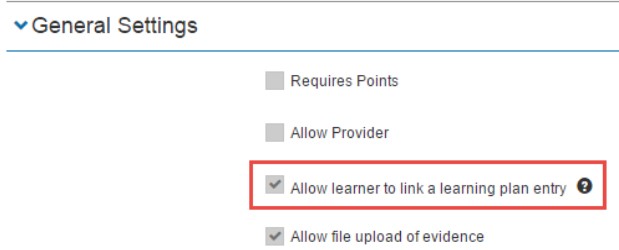
To allow a learner to link an Other Learning type to their plan:
- Go to Manage Learning > Manage Learning Assets.
- Search for and select the required Other Learning asset.
- Select Edit Other Learning.
- Check Allow learner to link to learning plan entry.
-
Select Save Other Learning.
Additional set-up considerations
Before users can have a learning plan, do some set-up work:
Do you want users to link plans to professional standards? If so, set up a tag for each standard and group them into tag types. The administrator can connect tag types to a plan; learners can link tags from those types to entries. This also filters the list of catalogue items they can link to that entry.
Do you want to manage learning? Some organisations want learning grouped into areas or want to record competencies. If learners need to meet continuing professional development (CPD) requirements, set up CPD points linked to tags and catalogue items beforehand.
Do you want users to record learning outside the CLS? Set up a learning asset of type Other Learning and link it to a catalogue item. The catalogue item should only contain one Other Learning asset.
Create and edit a Learning Plan
Note
Learning Plans don't count as learning for the purposes of learning transcripts.
Step 1: Create the plan
- Browse to Manage Learning > Manage Learning Assets.
- Select Add Learning Asset.
- Select New Plan.
-
Complete the form:
- Name
- Identifier (auto-populated)
- Description
-
Select Save Plan.
After saving you see the plan details screen with separate setting categories.
Step 2: Introduction text
Enter instructions or information for learners. Rich text is supported, so you can link videos or other media. This appears at the top of the learner's main plan screen.

Step 3: Plan settings
To let learners link catalogue items to entries, check the option. Learners can then link catalogue items to an entry and receive an acknowledgement within the entry tile when complete.

Note
You can edit this setting once a plan is under way. Removing the option also removes references to catalogue items from existing plans.
Step 4: Completion rules
Three main options:
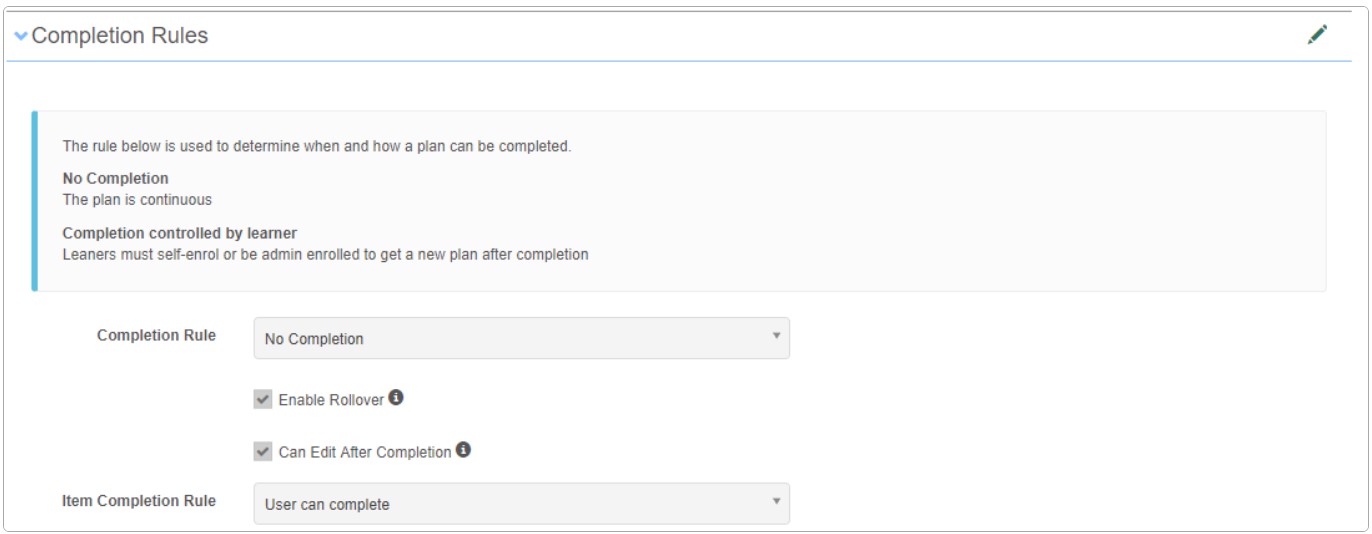
Completion Rules (Entire Plan):
- No Completion — the plan is continuous; the learner can't change the status indicator from In Progress.
- Completion controlled by learner — the learner can complete the plan by changing its status.
Item Completion Rule (Items within the Plan):
- User can complete — the user can complete the learning item.
- Completion requires approval — the learner can complete an item but it must be approved.
Additional Completion Options:
- Enable Rollover — lets a learner create a new plan from the current one, carrying forward incomplete items. Rollover also completes the current plan.
- Can edit after completion — lets a learner edit a plan once it's been completed.
Step 5: Start and end date rules
Set and configure start and end dates for the plan.
Allow Start/End Date:
- When not selected, the plan is continuous with no start/end dates.
-
When selected, additional options appear:
- Allow learners to control dates
- Start Date Rule:
- Not Set
- Enrolment created date — plan starts on the day the learner is enrolled
- Day of current calendar year — plan starts on a particular day this year (even if past)
- Day of year from today — plan starts on the next occurrence of a date
- End Date Rule:
- Not Set
- Number of days after a start date — specify days, weeks, or months after start
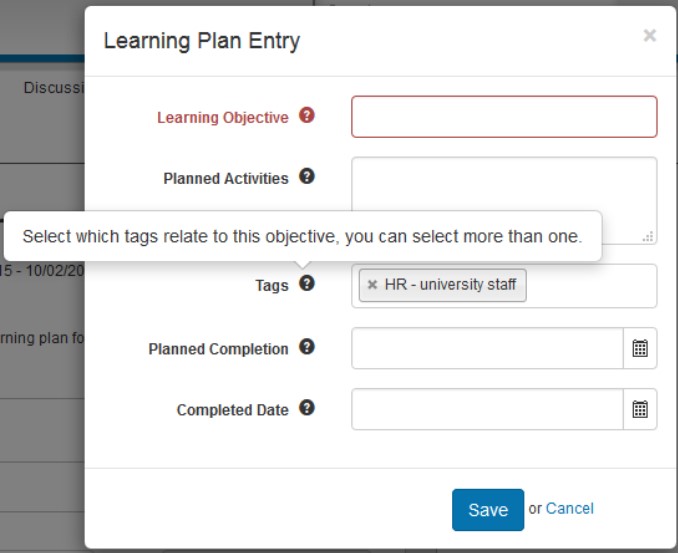
Step 6: Plan Entry Tag Types
If specified, learners can link one or more tags to a plan entry. The list of tags is filtered by the tag types specified here.
Step 7: External learning
Let learners record learning that happens outside the CLS. Select catalogue items containing one Other Learning asset to make them available for selection.
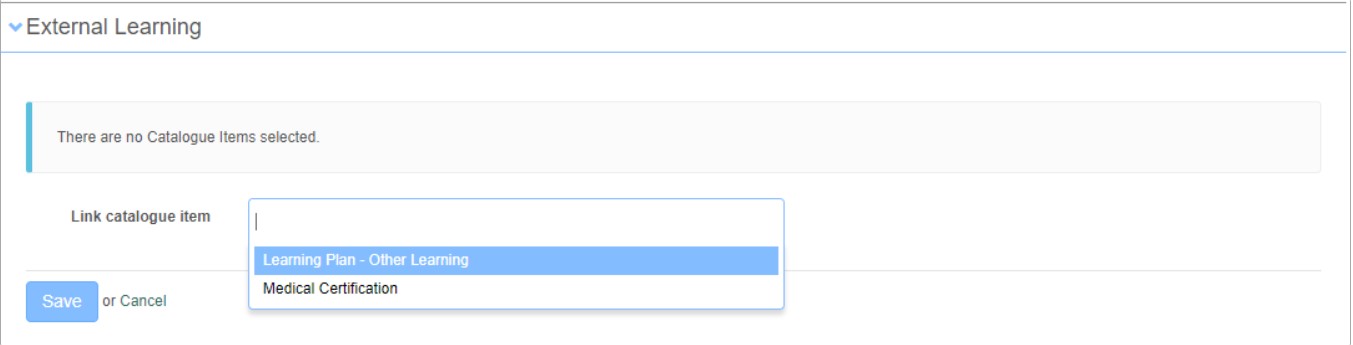
If your Other Learning item isn't visible:
- Confirm it's in a catalogue item, not just a learning asset.
- Confirm Allow learner to link to learning plan entry is checked in the Other Learning set-up.
- Confirm the Other Learning asset is the only asset in the catalogue item.
Step 8: Default entries
You can add default entries that all users must complete. Defaults can be mandatory.
- Go to Manage Learning > Manage Learning Assets.
- Search for and select the plan.
- Expand the Default Entries section.
- Select + Add Default Entry.
-
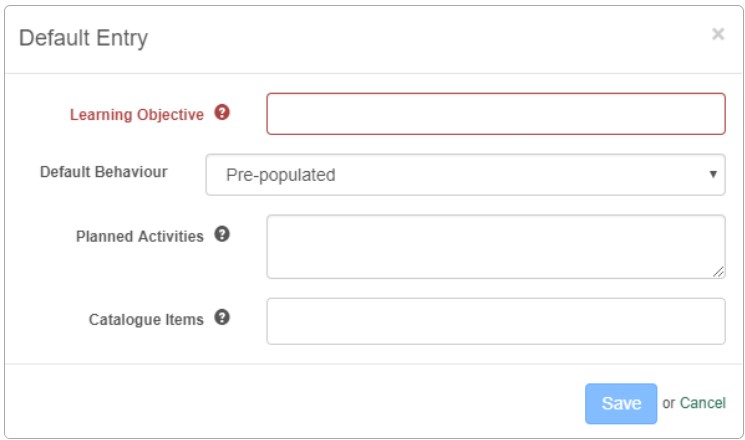
Complete the form:
- Learning Objectives
- Default Behaviour — Pre-populated (not mandatory) or Mandatory
- Planned Activities
- Catalogue Items
-
Select Save.
Edit or delete default entries
- Go to Manage Learning > Manage Learning Assets.
- Search for and select the plan.
- Expand the Default Entries section.
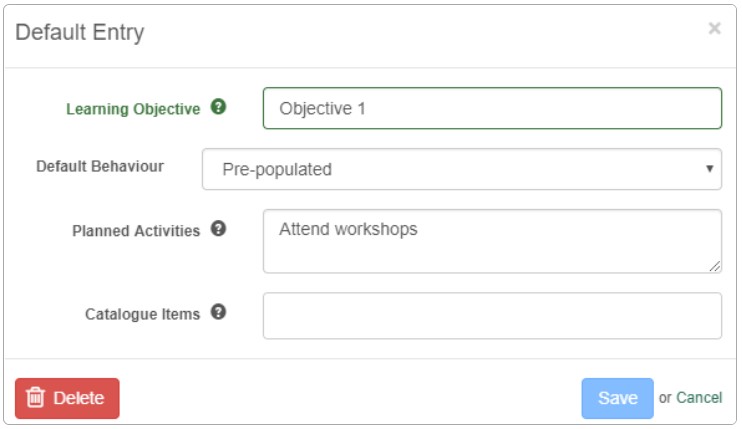
- Select the edit pencil on the entry.
-
Change details and Save, or Delete to remove.
Sorting learning plan entries
Entries are sorted automatically:
- Items with a completed date go to the end.
- Items with a planned completion date are sorted by date ascending.
- Items are sorted by Learning Objective alphabetically.
To control order, use numbered prefixes (1, 2, etc.) in the objective text.
Learner experience
Learning Plans offer a versatile way to plan and record learning. Learners can:
- Start from a blank plan or a template (from rollover or default entries)
- Have multiple plans running concurrently
- Link courses from the CLS to help meet goals, or record learning undertaken outside the CLS
Learners can enrol in more than one Learning Plan, but can't enrol in the same plan a second time until they've completed the first or rolled it over.
Starting a new plan
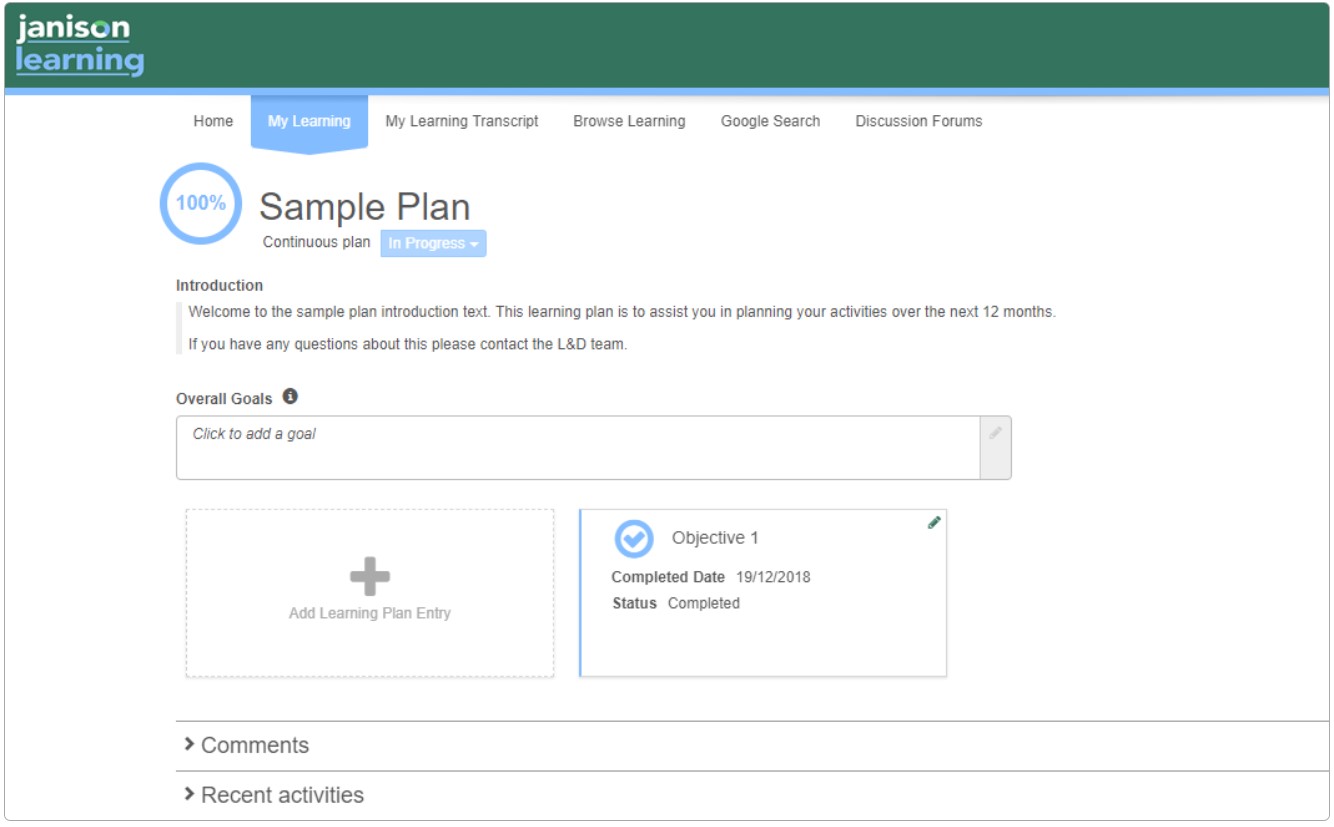
The learner must be enrolled to access content. When they open a new plan they see:
- The name of the plan.
- Completion status indicator.
- Plan dates if applicable, otherwise continuous plan.
- The status widget. If the plan is continuous and has no end date, the status widget can't be changed.
- The introduction text from the plan's creator.
- A text field for overall goals.
- Dates, if applicable.
- A tile for Learning Plan Entry creation and any default plan entries.
-
A comments section accessed via the chevron.
Populating the plan
Add overall goals: Select the Overall Goals text field, add goals, and select the tick to save.

Add Learning Plan Entries:
- Select + Add Learning Plan Entry.
-
Complete the form:
- Learning Objectives
- Planned Activities
- Catalogue Items
- Planned Completion
- Completed Date
-
Select Save.
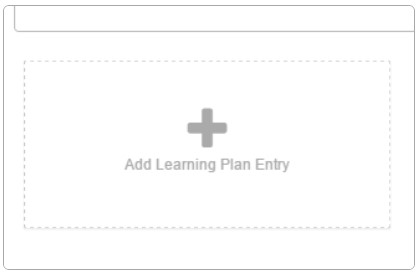
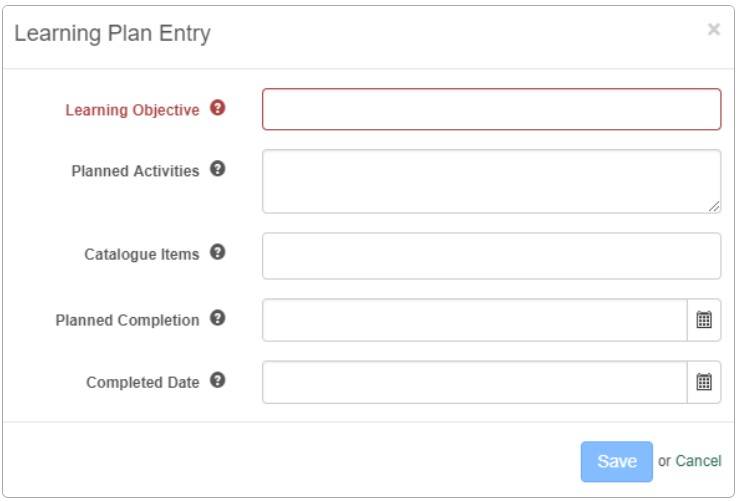
To edit, use the pencil icon at the top right of the tile. To delete, edit then select Delete at the bottom left (if it's missing, the administrator has disabled it).
Log external learning
When enabled, an additional link appears called Log External Learning.
- Select Log External Learning.
- Select the presented option.
-
Complete the External Learning form:
- Plan Entry — dropdown to select the plan entry
- The validation field (depends on configuration)
- Learner Submission Notes
-
Select Save.
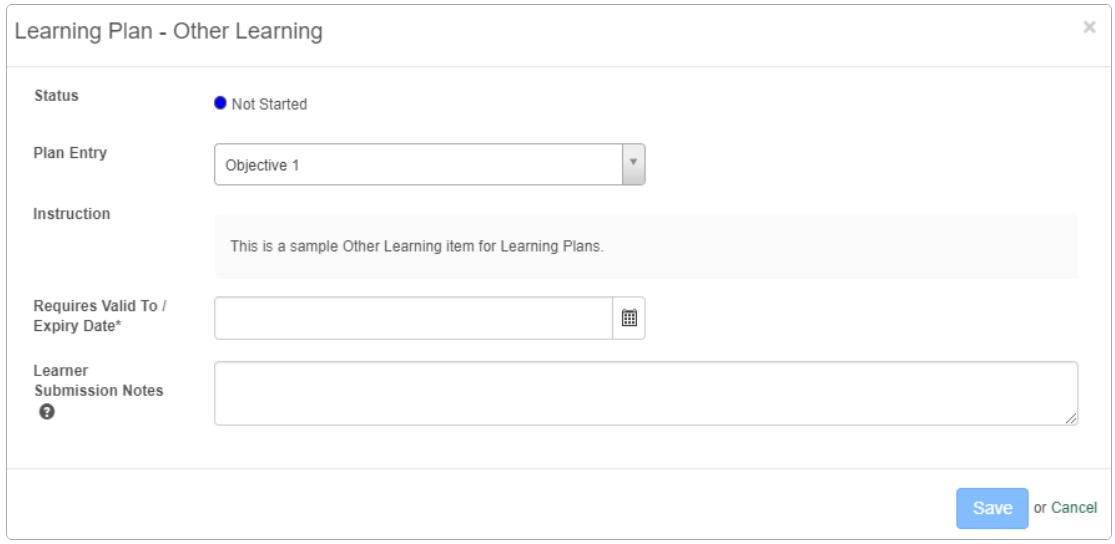
If points have been configured, extra fields appear for the CPD point categories.
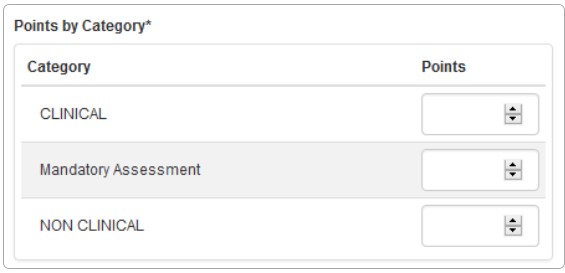
Make comments
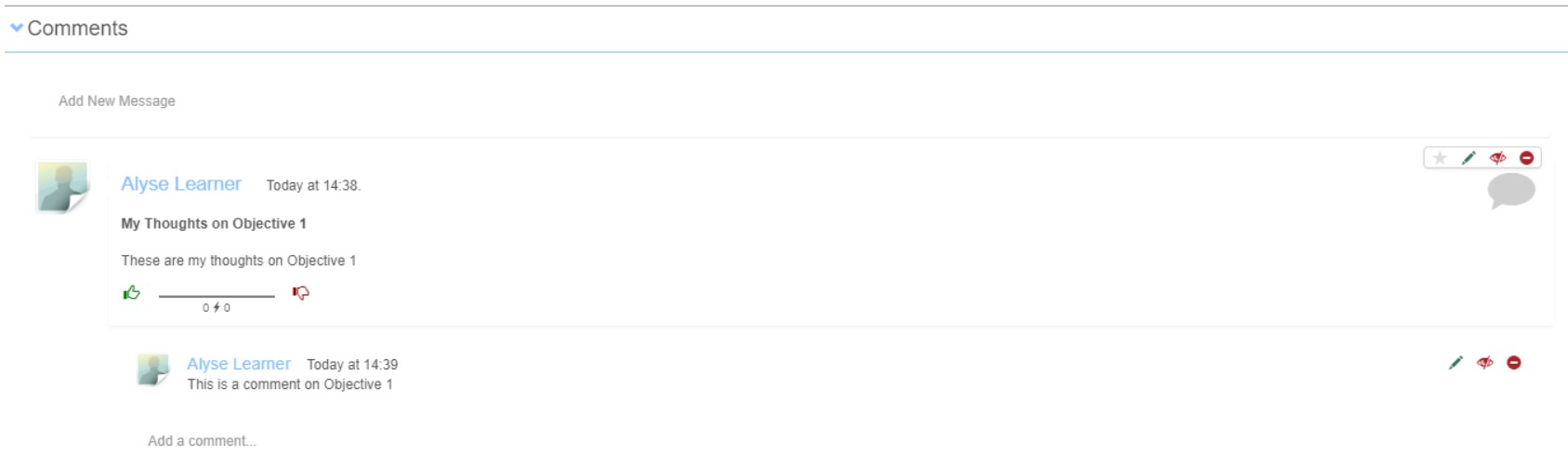
The journal is specific to the plan and only the learner can see what they write. They can:
- Add a new message — reflections, questions, file attachments
- Add a comment to an existing message
Completing the plan
When the learner has completed all requirements:
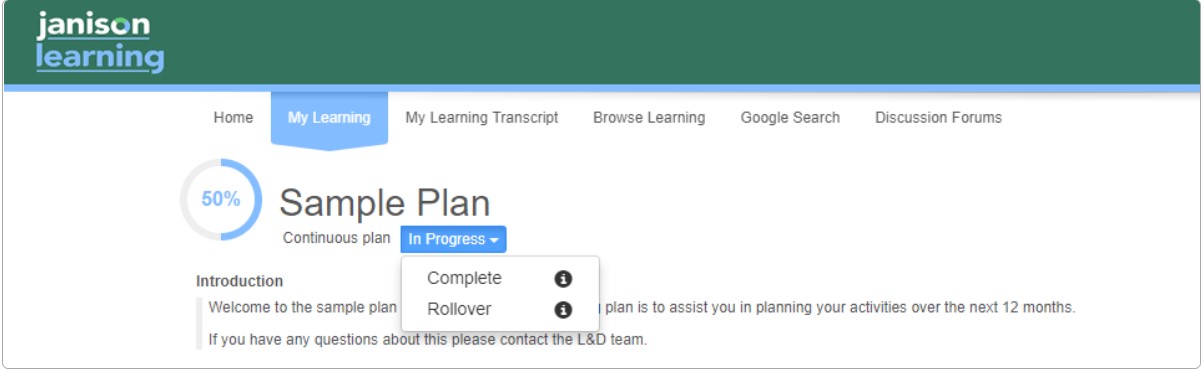
- Go to the Learning Plan.
- Select the In Progress widget.
-
Select either:
- Complete — completes the plan but not any unfinished entries
- Rollover — completes the plan and creates a new plan containing any incomplete entries
Settings
Several platform settings affect Learning Plans.
Administrators can configure the following settings:
Plans plugin — must be enabled. Contact Janison support or your account manager.
Other Learning plugin — required for the Log external learning feature.
Tag Types (Design > Manage Tags > Manage Tag Types) — define the tag types that learners can link to plan entries.
Points Settings (Settings > Points Settings) — configure CPD points linked to tags for use with learning plans.