Accreditations
An accreditation is a formal recognition of competence in a specified subject or area of expertise. Accreditation is necessary for any person or institution that needs to prove that they meet a general standard of quality.
Important
Accreditations is a paid plugin. Contact your account manager for pricing.
Setup
Activate the plugin
Accreditations is a paid plugin — contact your account manager for pricing and activation.
Browse learning settings
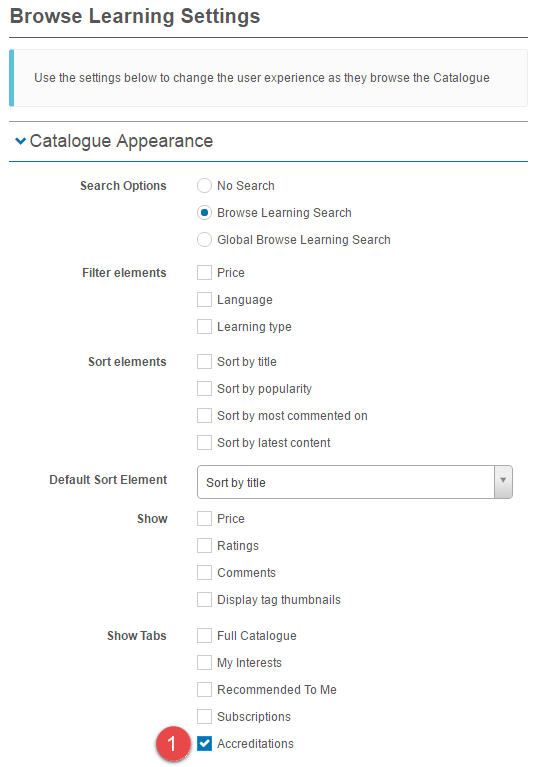
This setting is required to make the accreditation dashboard available to learners.
Browse to Settings > Browse Learning.
-
Select Accreditations.
Set up a catalogue item template
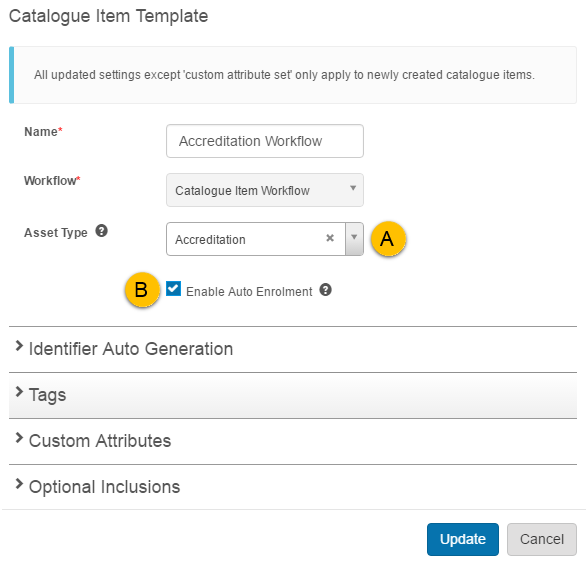
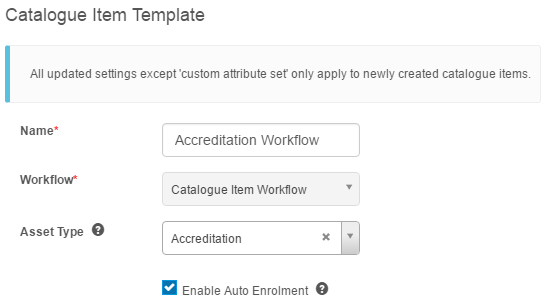
An accreditation workflow catalogue item template becomes available when the plugin is activated. You can use this template or create your own — see Catalogue Item Templates for more.
- The setting that makes this template specific to accreditations is Asset Type: Accreditation. Creating a catalogue item using this template automatically creates an asset of accreditation type and links it to the catalogue item.
-
If Enable Auto Enrolment is checked, learners have accreditations automatically approved without requiring user approval. The approval is actioned automatically by a scheduled task.
Create an accreditation catalogue item
Browse to Manage Learning > Manage Catalogue.
-
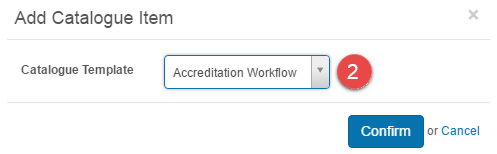
Select Add Catalogue Item.

A popup is displayed.
-
Select a Catalogue Template with the asset type of accreditation enabled.
Note
Components aren't added to the catalogue item. Catalogue items and groups are added to the prerequisite section of the accreditation catalogue item.
Prerequisites
Requirements that need to be met for accreditation are set in this section. Catalogue items and groups are available options.
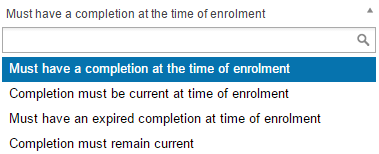
Prerequisite requirement type
This relates to learner progress status on the catalogue item:
- Must have a completion at the time of enrolment
- Completion must be current at time of enrolment
- Must have an expired completion at time of enrolment
- Completion must remain current
Completion must remain current requires that the learner have a completion in the catalogue item that hasn't expired. For example, a first aid certificate with a validity of two years — if this learning expires, the accreditation lapses until refreshed.
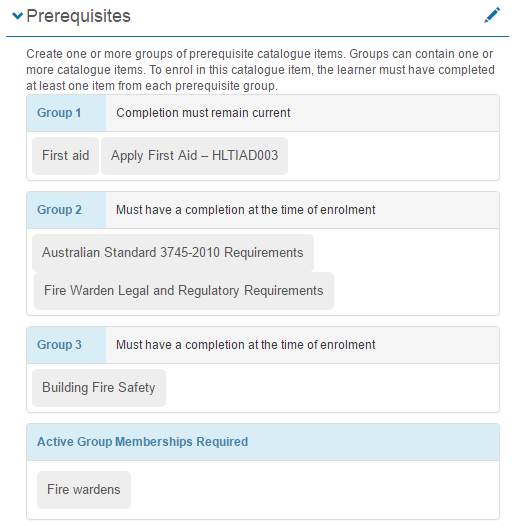
In the example below, to be eligible for accreditation a learner must:
- Have a current completion in one of the catalogue items in group 1. If this completion expires, the accreditation lapses.
- Have a completion in one of the catalogue items in group 2.
- Have a completion in the catalogue item in group 3.
- Belong to the Fire wardens group.
Set an accreditation expiry period
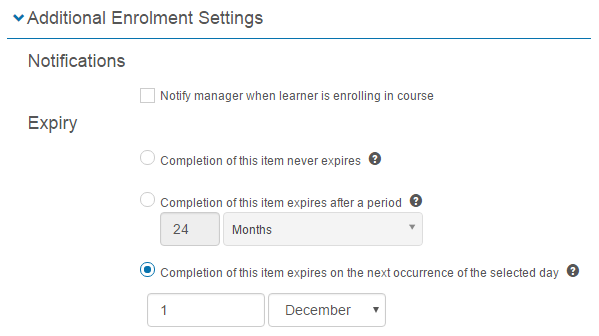
Accreditations can be set to expire in the Additional Enrolment Settings section.
Adjust expiry baseline date
If the expiry date is set to Completion of this item expires on the next occurrence of the selected day, an additional section appears in the catalogue item.
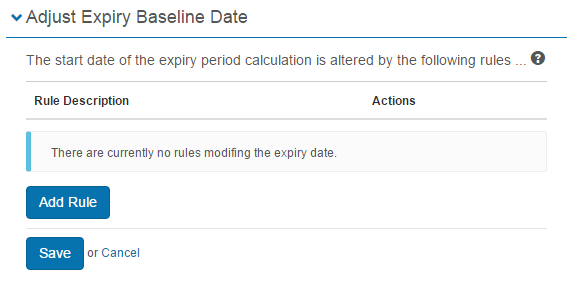
Rules set here change the start of the expiry date calculation.
-
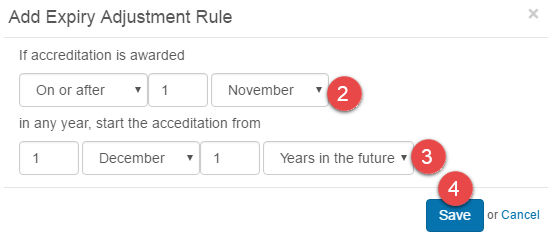
Select Add Rule.

A popup is displayed.
- Select the time period for which the accreditation is awarded.
- Select the date or number of years in the future for the start of the expiry date calculation.
-
Select Save.
The rule is clearly defined once saved. The rule below means: if an accreditation is awarded on or after the 1st of November in any year, start the expiry period from the 1st of December 1 year in the future.
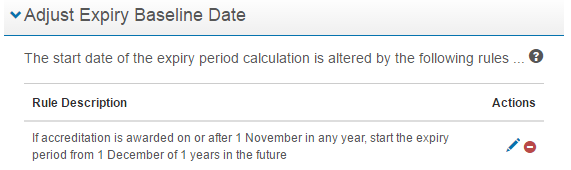
If more than one rule is created, the rules execute from the top down. If there's an overlap, the rule at the top executes and the overlapping rule is ignored.
View, search, and manage accreditations
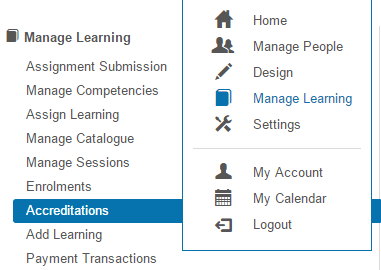
Accreditations can be viewed, searched, and managed from the Accreditations screen in the Manage Learning menu.
Browse to Manage Learning > Accreditations.
This screen displays enrolments of catalogue items with the learning type of accreditation.
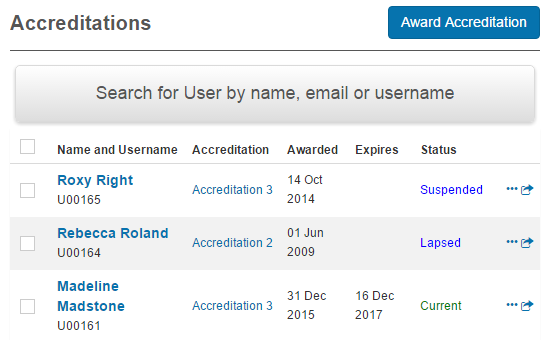
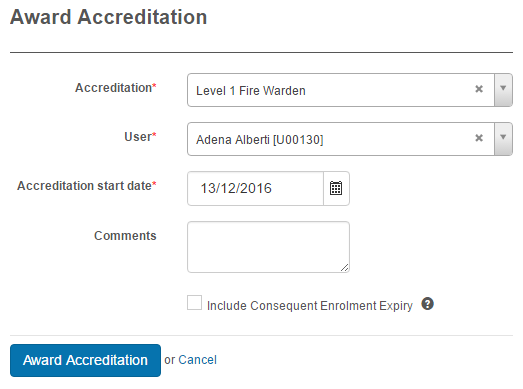
Award an accreditation
Award an accreditation by selecting the  button.
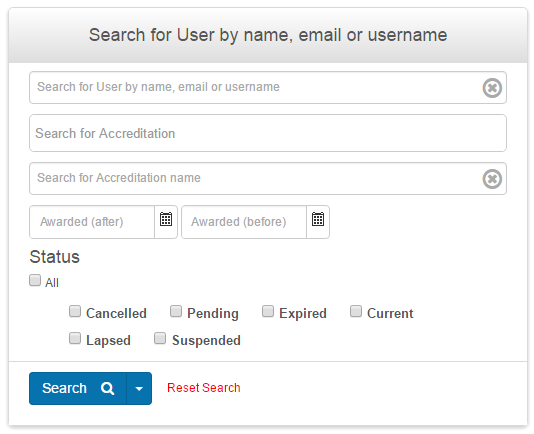
Search
The search facility lets you search for users and accreditations and filter by date and status.
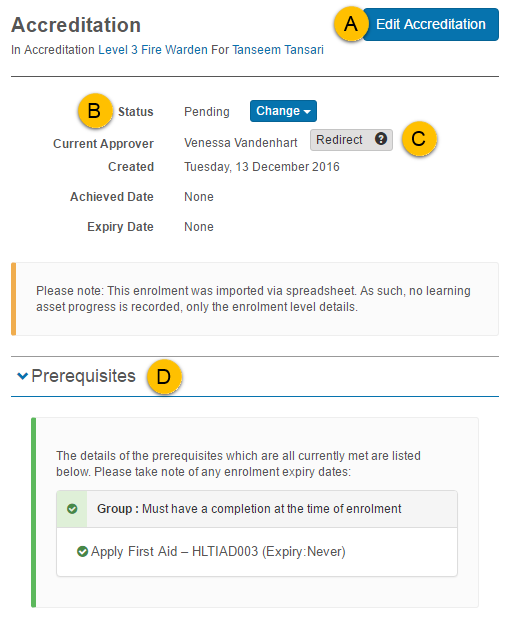
Manage
Manage an accreditation by selecting the  icon.
icon.
- Dates relating to the accreditation can be edited.
- Status can be set to suspend, lapse, or reinstate.
- Redirect lets you change the Current Approver.
-
This section provides a summary of requirements.
End-user experience
End users won't have access to the Accreditation dashboard until it's enabled by an administrator in Browse Learning (see Setup above).
Note
Accreditations show in My Learning Transcript but don't show in My Learning.
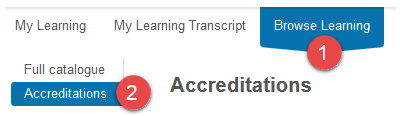
Browse to the home page.
- Select Browse Learning. A new left-hand menu item, Accreditations, is displayed.
-
Select Accreditations.
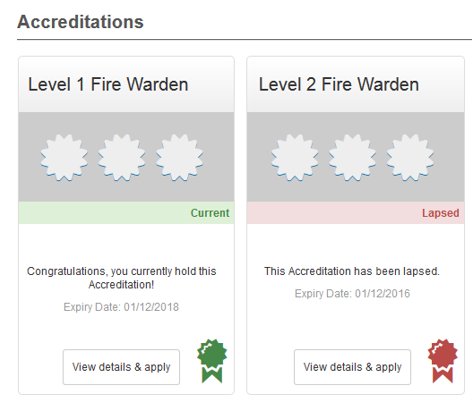
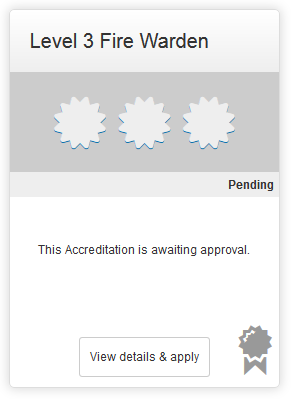
The accreditations dashboard is displayed. The tiles display information on the status and provide a link to access the prerequisites.
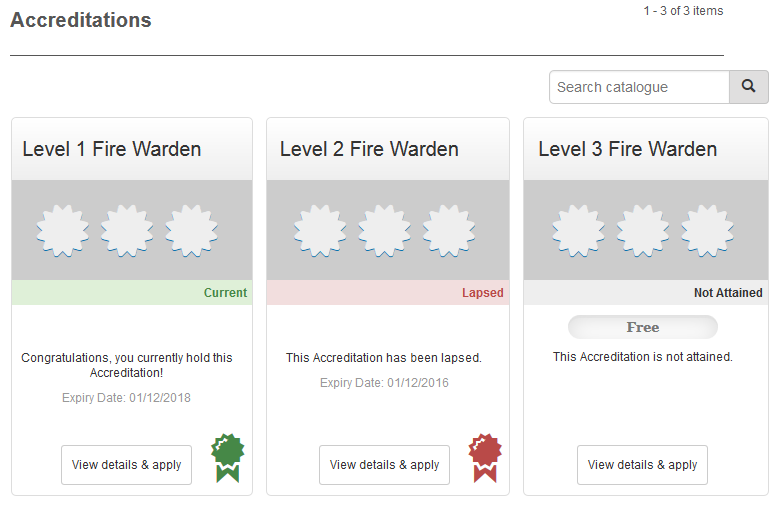
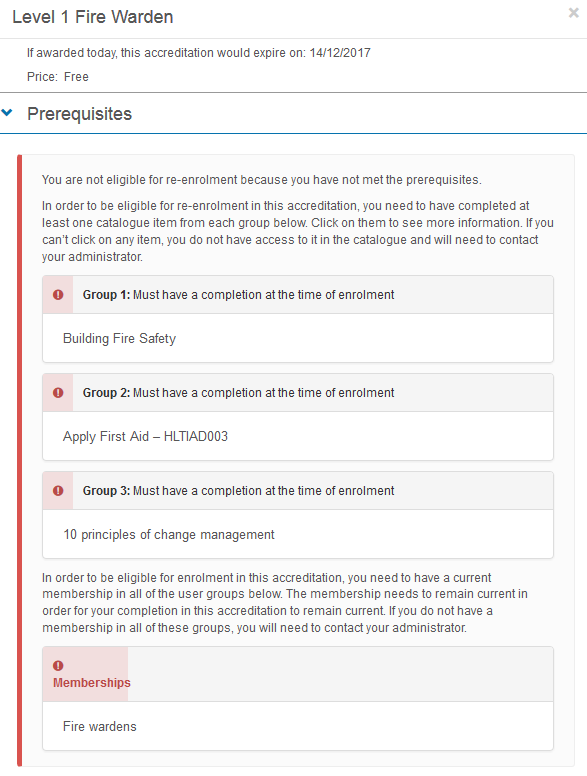
If View details & apply is selected, a popup is displayed with information on the prerequisite requirements and links to access the learning.
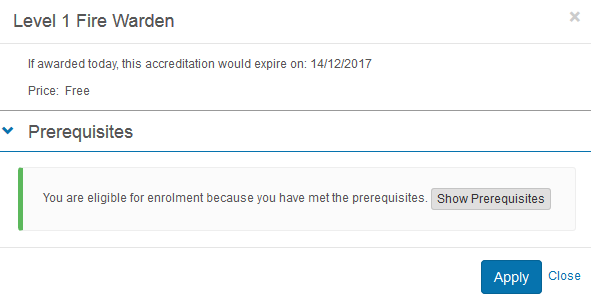
When the prerequisites are completed, an Apply button is displayed.
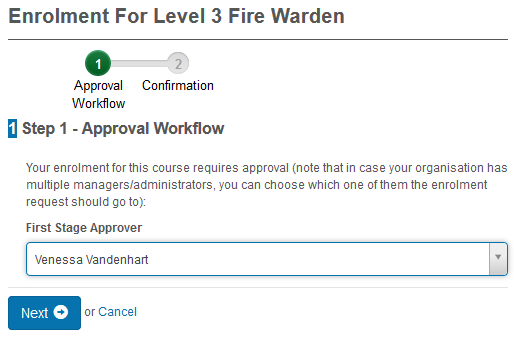
When a learner selects Apply, they're taken through the approval workflow. The workflow may differ depending on the approval workflow set in the catalogue item.
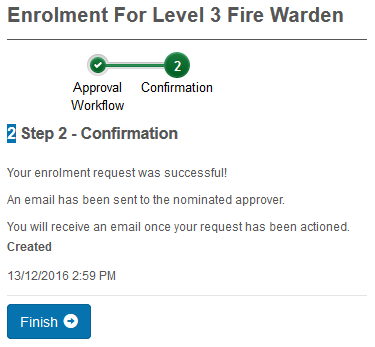
The enrolment request is placed in an approval queue (accessed in Assess Accreditations). The accreditation tile moves to a status of Pending.
Assess accreditations
Accreditation approvals can be viewed and managed in Assess Accreditations.
Note
If the catalogue item template has Enable Auto Enrolment selected, the approval is actioned by a scheduled task (see Set scheduled job below).
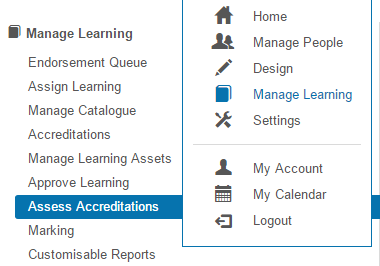
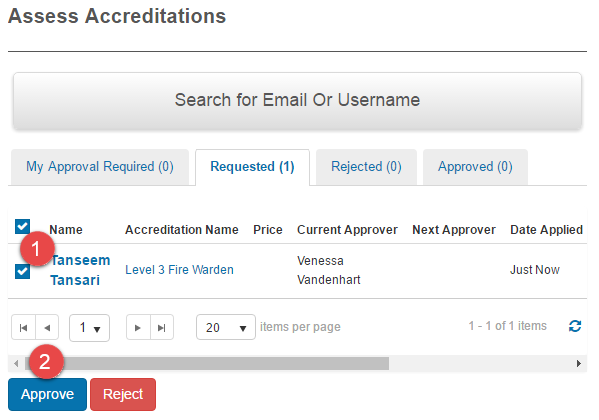
Browse to Manage Learning > Assess Accreditations.
Two options are available to manage enrolments.
Option one:
- Select the checkbox at the top to manage all users, or the checkbox next to selected users to manage individually.
-
Select Approve or Reject.
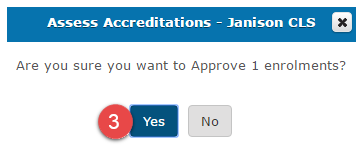
A popup is displayed.
-
Select Yes.
Option two: Use the Manage workflow described above.
Set a scheduled job
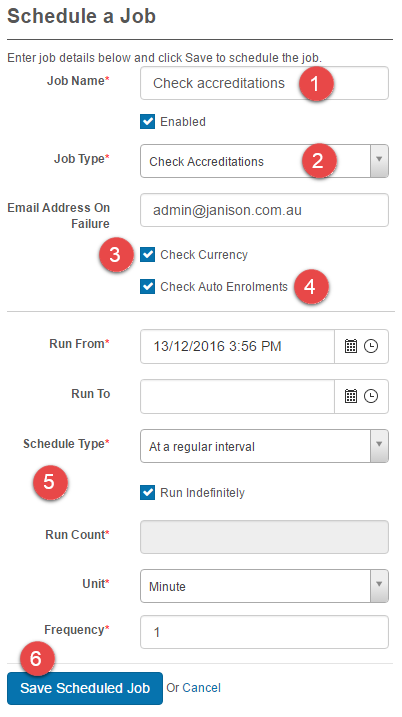
A scheduled job can lapse and expire accreditations and check auto enrolments.
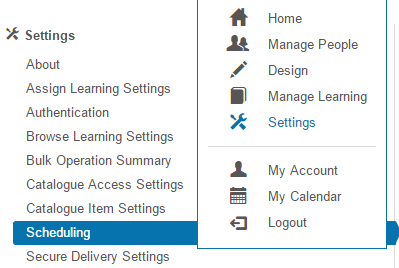
Browse to Settings > Scheduling.
- Enter a Job Name.
- Select Check Accreditations.
- Select Check Currency.
- Select Check Auto Enrolments.
- Set the timing options.
-
Select Save Scheduled Job.
Settings
Several platform settings affect accreditations.
Administrators can configure the following settings:
Browse Learning (Settings > Browse Learning) — enable Accreditations to make the accreditation dashboard available to learners.
Catalogue Item Templates (Design > Catalogue Item Templates) — set up templates with Asset Type: Accreditation and optionally enable Auto Enrolment.
Scheduling (Settings > Scheduling) — schedule jobs to check accreditations, currency, and auto enrolments.
Self Enrolment Settings — control the approval workflow that runs when learners apply for accreditation.