Message templates
Message templates are used for the automatic emails sent to users — for example, the welcome message for new users.
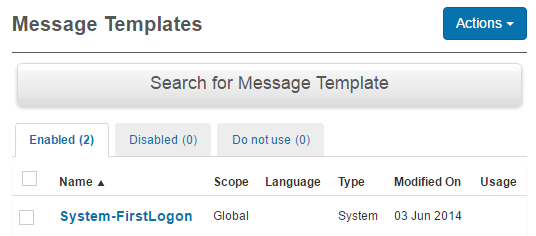
The system comes with a set of default message templates that can be customised.
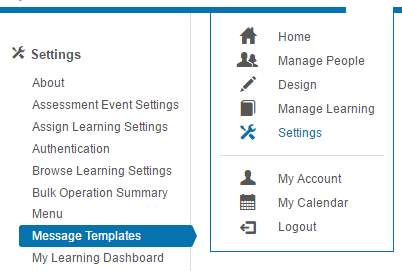
Navigate to Settings > Message Templates.
Edit and test
Note
Templates with the scope set to Global can't be edited. Create a local version if customisation is required.
Create a local template
Steps may vary slightly depending on the template you're editing.
-
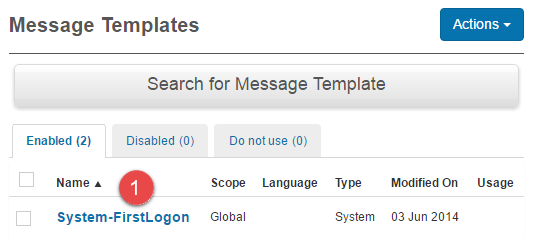
Select the template you wish to edit.
-
Select Create Local Message Template.
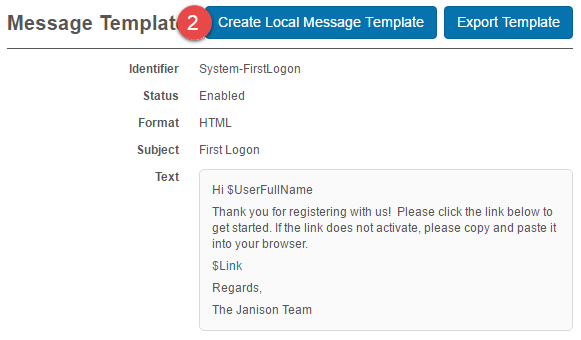
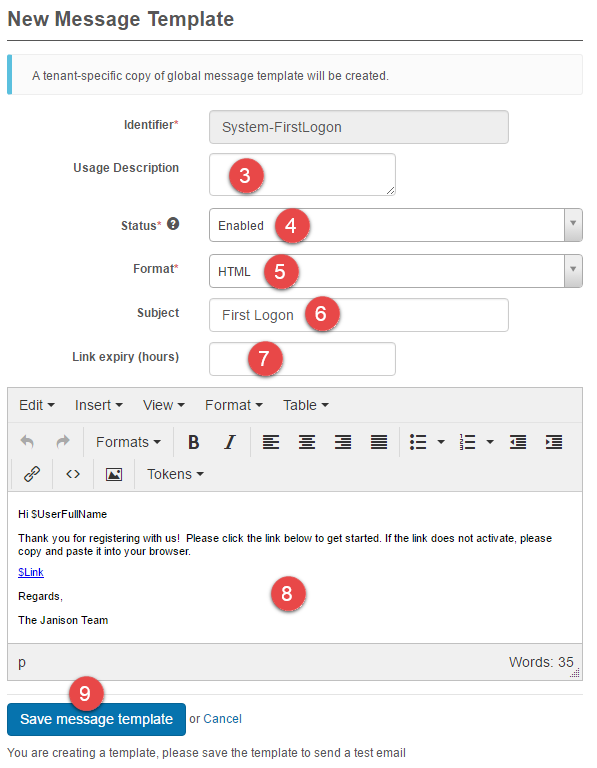
You're directed to the New Message Template screen.
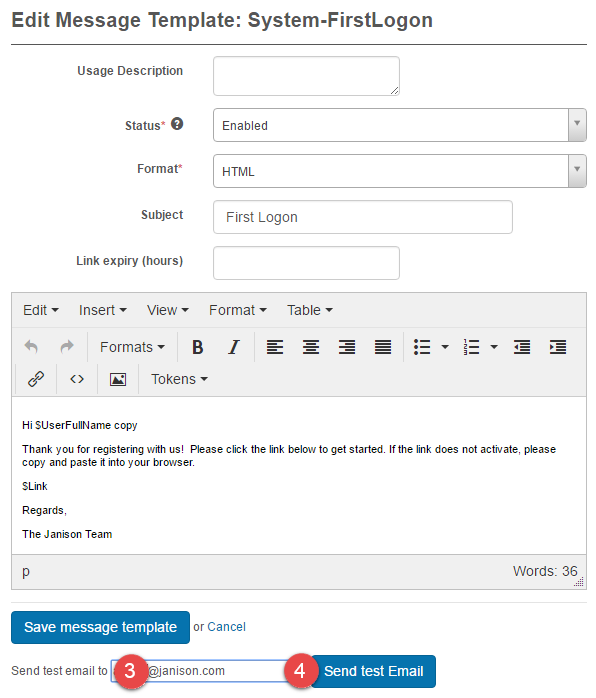
- Enter a Usage Description (optional).
- Optionally set the Status. The default is Enabled — other options are Disable and Do not use. Hover over the info icon for details.
- Optionally set the Format. The default is HTML but can be changed to Plain Text.
- Enter a Subject that will appear in the subject field of the email.
- Enter a time in hours that the link should remain valid for (optional).
- Edit the message — see Message tokens below.
-
Select Save Message Template.
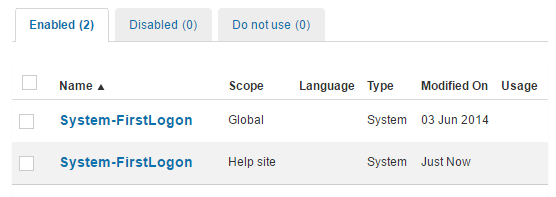
A local version of the template is now available.
Send a test email
-
Open the newly created template. The Scope won't be Global.
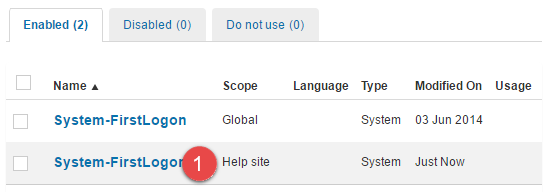
-
Select Edit Message Template.
You're directed to the Edit Message Template screen.
- Enter an email address.
-
Select Send Test Email.
Revert a message template
You can revert an edited template to the original text.
-
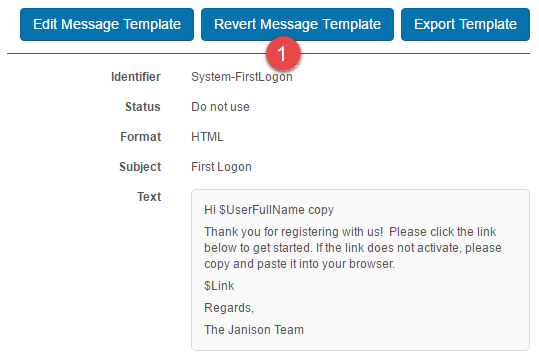
Open the template and select Revert Message Template.
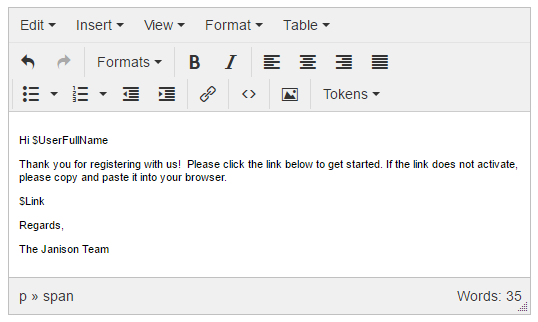
The template opens in edit mode with the original text restored.
-
Select Save Message Template.

Message tokens
Tokens are used to insert fields such as names into emails. In the message below, $UserFullName is a token that personalises the email by adding the user's name.
To add a token, open the local template in edit mode:
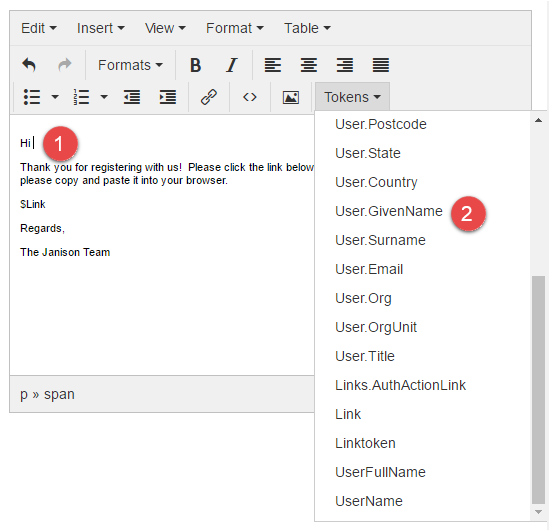
- Place your cursor at the point where you'd like the token inserted.
-
Select a token.
-
Select Save Message Template.

Note
Different message templates may have different sets of available tokens.
Export and import
Message templates can be exported and imported between tenants.
-
Open the message template and select Export Template.
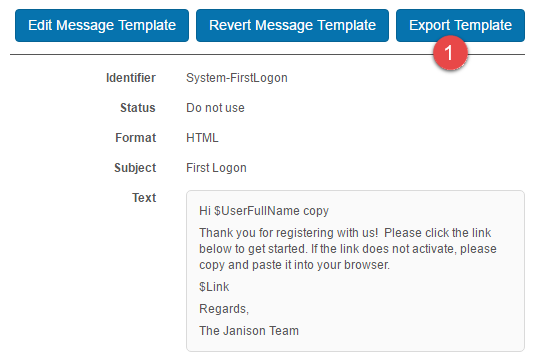
A file, messageTemplates.xml, downloads to your local PC.
On the tenant where you want to import the template, navigate to Settings > Message Templates.
-
Select Import Template from the Actions dropdown.
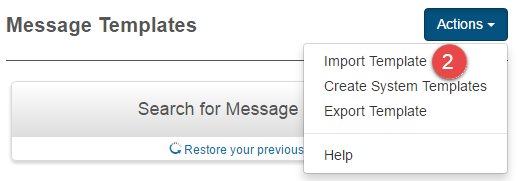
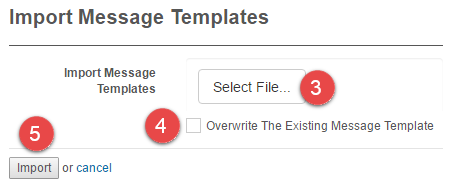
You're directed to the Import Message Templates screen.
- Select the XML file from your export.
- Optionally, select Overwrite The Existing Message Template.
-
Select Import.
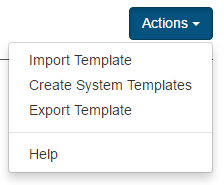
The steps above export a single template. To export a complete set, select Export Template from the Actions menu.
Settings
This page is itself the Settings documentation for message templates. All operations are at Settings > Message Templates.
Related settings:
Email Settings (Settings > Email Settings) — controls whether notifications go out and which templates are used in which scenarios. See Email Settings.