Discussion Forum
A Janison Discussion Forum is a learning asset that can be accessed through a catalogue item. Discussion forums can be configured to include or exclude features such as notifications and post types.
Discussion forums can be:
- A standalone learning asset within a catalogue item or program
- Available within a module or from a custom page module (linked document)
- Accessed from the Discussion Forum menu (if enabled)
Note
A user must be enrolled in the item to access it.
Discussion settings
There are two settings areas for discussion forums:
- Main settings — via Settings > Discussion Settings
- Configuration settings — for each forum, via Manage Learning > Manage Learning Assets > Forum Name
Main settings
These settings are accessed via Settings > Discussion Settings. They act as the default when creating a new discussion forum. Most settings are also available at the asset level — when set there, they override the site setting.
-
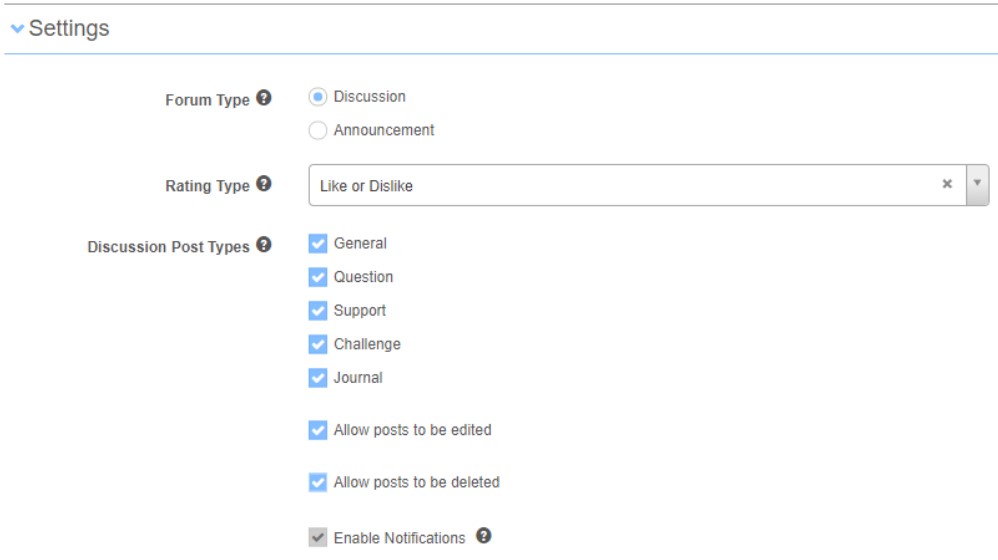
Rating Type — controls whether users can rate other posts.
- None removes the ability to set a rating.
- Like or Dislike adds an interactive rating feature to each post.

-
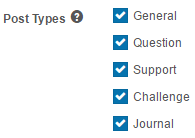
Post Types — controls which post-type categories appear:
- General
- Question
- Support
- Challenge
- Journal
-
Allow posts to be deleted — when checked, users or administrators can delete their posts. A white minus icon is displayed on the forum post.

-
Allow posts to be edited — when checked, users can edit their own posts.

-
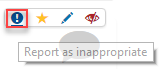
Report inappropriate behaviour email address — the supplied email address is notified if any user is reported for inappropriate behaviour.
-
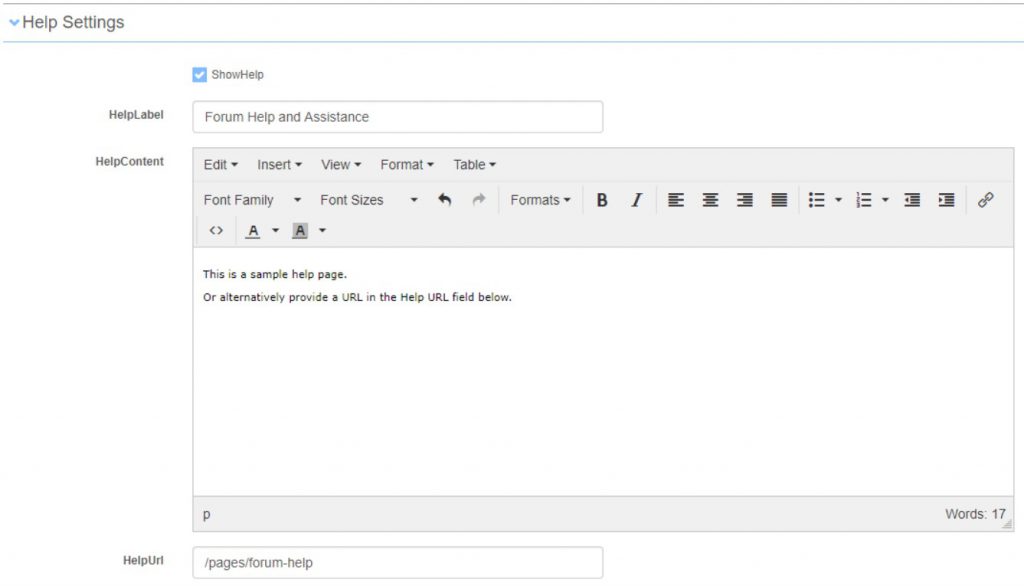
Help Settings — include help content in the text box, or create a custom page for help content.
Configuration settings
When you create a discussion forum, several configuration options are available.
Linked documents
A forum can be linked to a specific page(s) within a learning or custom page module.
- Go to Manage Learning > Manage Learning Assets.
- Search for the discussion forum.
- Select Edit Discussion Forum.
- Expand the Linked Documents section.
- Select the Name dropdown and select the required module page. Tip: copy the page ID and paste it into the dropdown.
- Select Add.
-
Select Save Discussion.
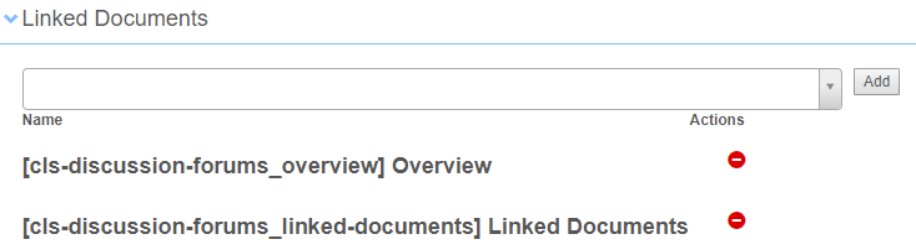
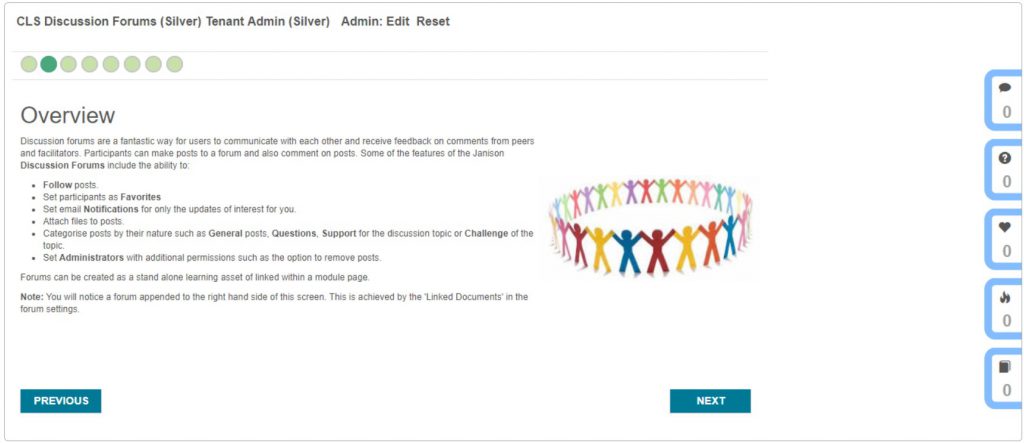
When linked, a forum widget appears on the right of the UI that the user can access.
Settings
This section lets you override options from Settings > Discussion Settings, plus specify whether this is a forum or an announcement.
Note
Announcements are now available under Manage People > Announcements (if enabled).
An additional Enable Notifications option is available here. Email notification is disabled unless Per User Notification is enabled in Settings > Email.
Completion settings
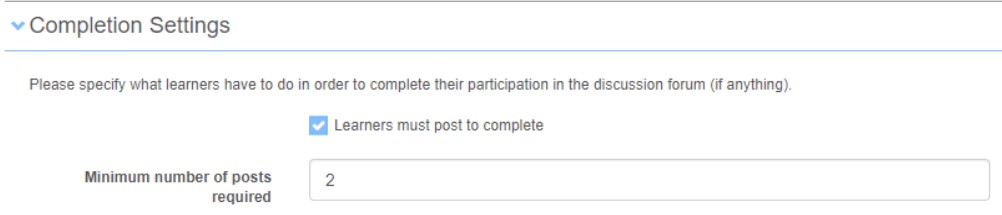
You can determine the completion rules for this learning asset.
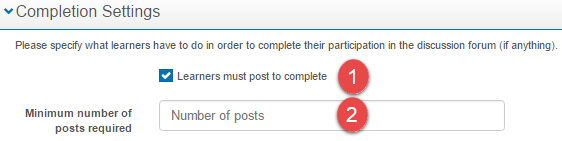
- Learner must post to complete — when selected, enter a Minimum number of posts (numerical value).
Discussion Forum Administrators
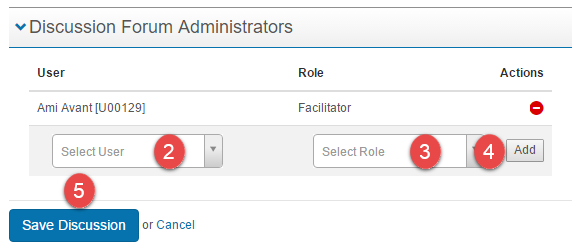
This section lets you configure one or more facilitators for the forum.
- Select a User from the dropdown.
- Select Role of Facilitator (if the role isn't available, contact Janison Support — it may need configuring).
- Select Add (repeat to add multiple facilitators).
-
Select Save Discussion Forum.

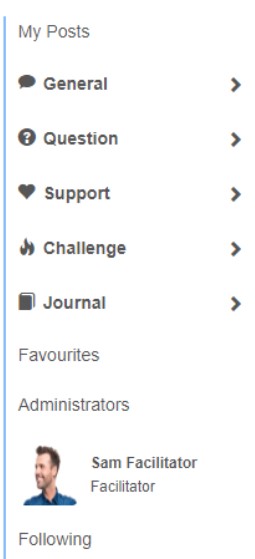
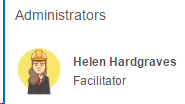
Administrators appear in the forum UI in the right-hand menu.
Add a discussion forum
When adding a discussion forum, two discussion types are available:
- Discussion
- Announcement — only administrators or nominated facilitators can add comments and posts to the forum
The steps to add a forum are the same for both:
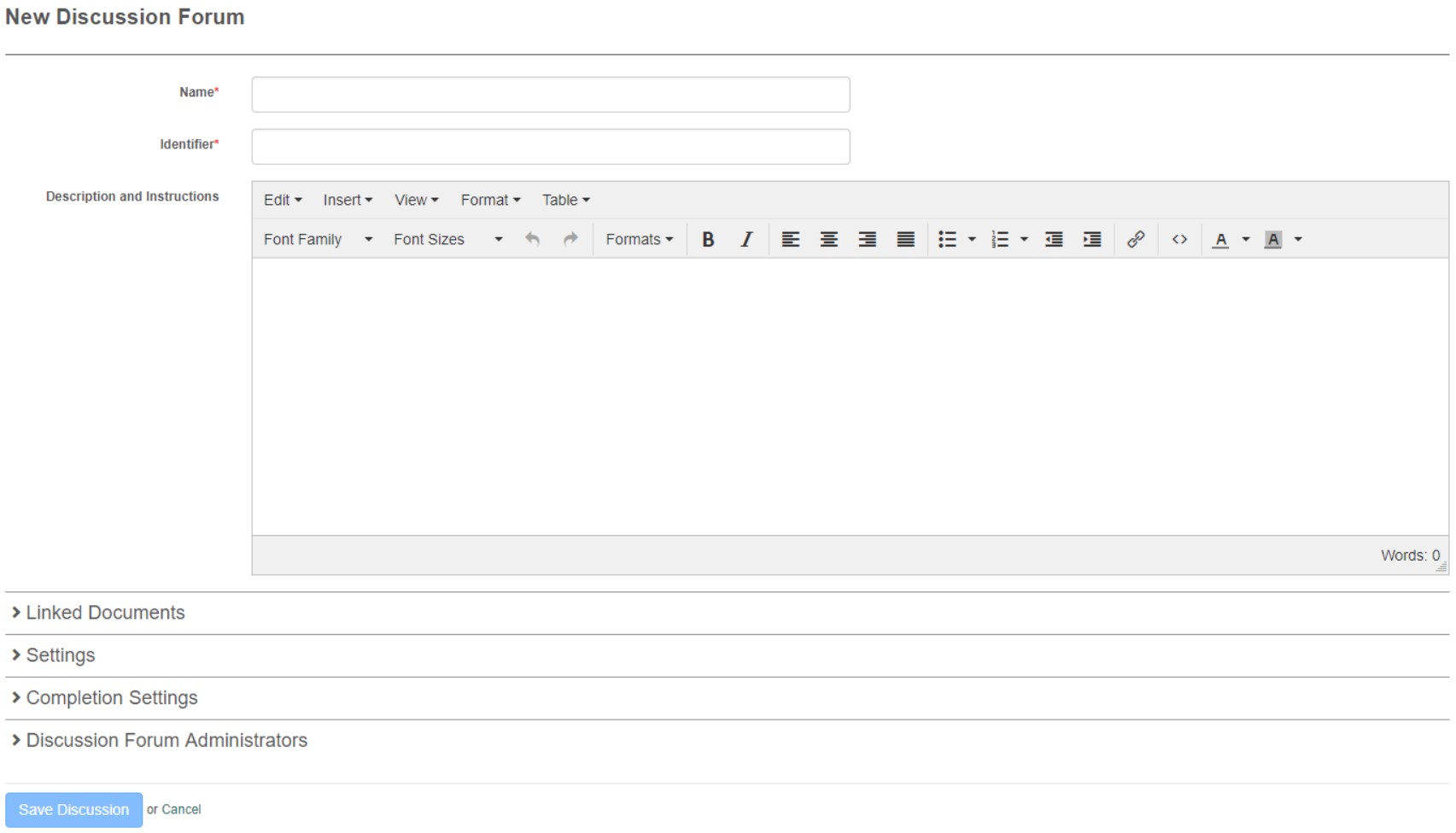
- Browse to Manage Learning > Manage Learning Assets.
- Select Add Learning Asset.
- Select New Discussion Forum.
- Enter a Name and Identifier.
- Enter a Description and Instructions (optional). This is displayed at the top of the discussion forum.
- Configure other options as required — linked documents, completions, administrators, etc.
-
Select Save Discussion.
Linked documents — in detail
Link to a page in a module
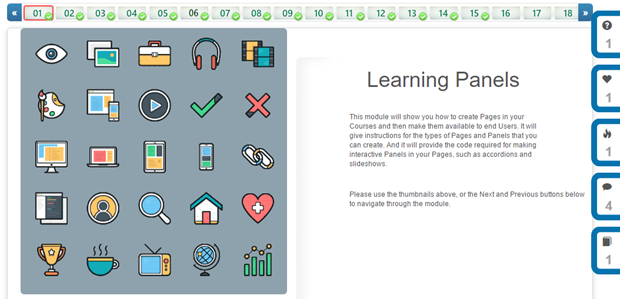
Adding a module page identifier to the forum's Linked Documents section adds a forum widget to the page in the course player.
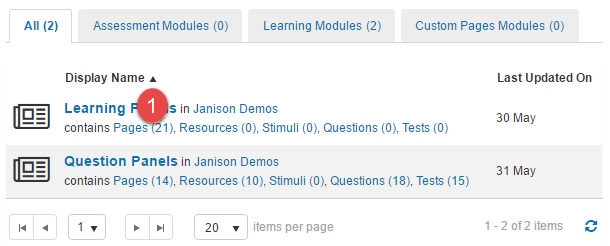
Browse to Design > Modules.
-
Select Pages from the required module.
-
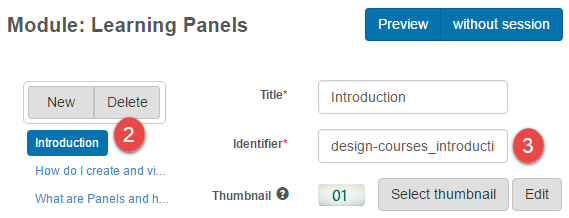
Select the required page.
-
Copy the Identifier.
-
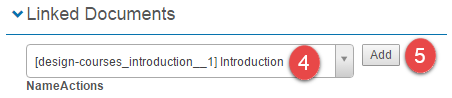
Open the discussion forum in edit mode and paste the page identifier into the Linked Document box.
-
Select Add.
-
Select Save Discussion.

The forum widget appears on the right of the course in the course player.
Note
The discussion forum needs to be added to the same catalogue item as the course. This enrols users into the forum along with the course.
Link to a custom page
A forum can be linked to a custom page using the same steps. Custom pages can be made available outside the course player, for example pinned to the Home page.
Notifications
Discussion forum notifications let users receive email notifications of all or specific posts and/or comments.
Two settings are required for notifications to work:
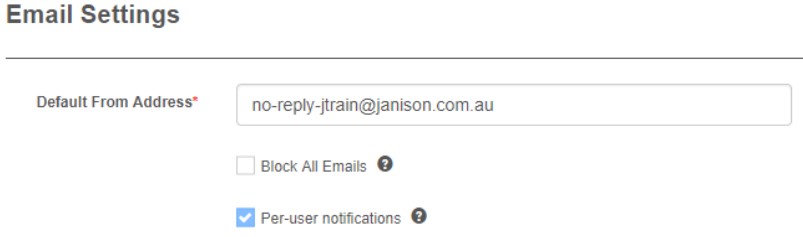
- Per-user notifications is enabled in Settings > Email Settings.
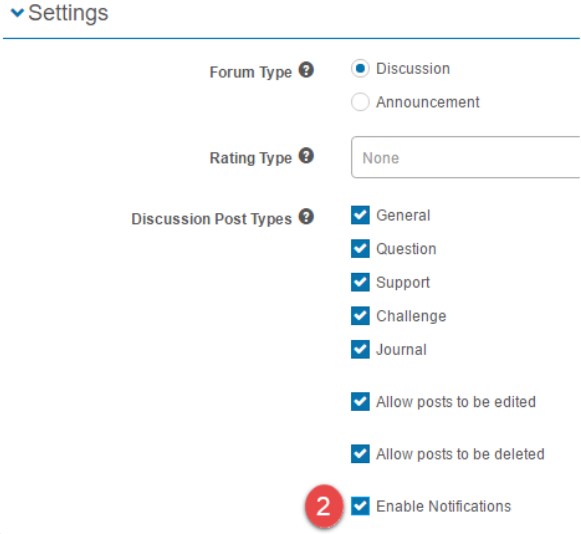
- Enable Notifications is enabled on the forum.
Per-user notifications
- Browse to Settings > Email Settings.
- Select Per-user notifications.
-
Select Save Settings.
Discussion Forum Notifications
- Go to Manage Learning > Manage Learning Assets.
- Search for and select the required forum.
- Select Edit Discussion Forum.
- Select Enable Notifications.
-
Select Save Discussion.
Note
Enable Notifications isn't available until Per-user notifications is enabled.
User notification options
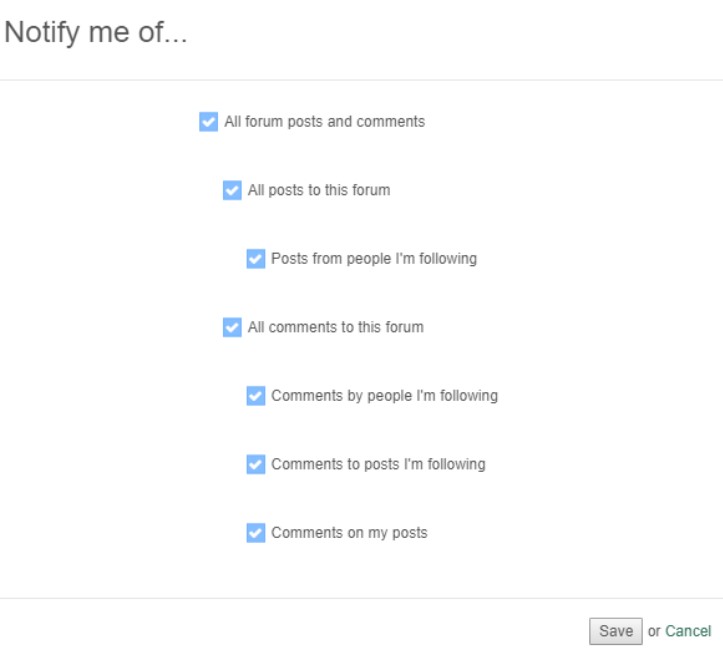
When notifications are enabled, the user has several options available by opening the forum.
- Select Notifications from the bottom right of the screen.
- Select the types of messages to receive notifications for.
-
Select Save.
| Notification option | Description |
|---|---|
| All forum posts and comments | Enables all available options. |
| All posts to this forum | Notified of all posts to this forum. |
| Posts from people I'm following | Notified of posts by people they're following. |
| All comments to this forum | Notified of all comments made to this forum. |
| Comments by people I'm following | Notified when people they're following make a comment. |
| Comments to posts I'm following | Notified when posts they're following have comments made. |
| Comments on my posts | Notified on comments to their posts. |
Completion settings
Users can be required to post a minimum number of forum messages to complete the asset.
- Select Learners must post to complete.
-
Enter the Minimum number of posts required.
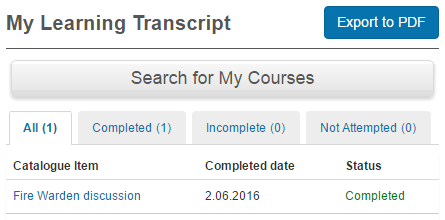
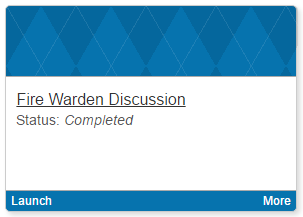
Progress status can be viewed in:
-
My Learning Transcript
-
My Learning catalogue tile
This information can also be viewed in custom reports.
Discussion forum facilitator
An additional role can be assigned to a user enhancing their permissions to edit, delete, and hide posts.
Note
A dedicated discussion forum facilitator role needs to be created for this purpose. Contact Janison Support for assistance.
Assign a user to the forum facilitator role
-
Select Edit Discussion Forum.

-
In the Discussion Forum Administrators section, select a User.
- Select Facilitator in Role.
- Select Add.
-
Select Save Discussion.
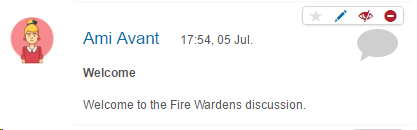
The user can now hide, edit, and delete other people's posts if the relevant settings are activated. All users can hide  , edit
  , and delete
  their own posts.
Administrators appear in the right column of the discussion forum.
Accessing the forum as a user
A forum can be accessed from:
- Within a linked document in a learning module
- The Discussion Forum menu (if enabled)
- From within a catalogue item
Forum UI explained
| Option | Description |
|---|---|
| Search function | Search for users, subject, or message in posts and comments. Filters of Created (after) or Created (before) can be included. |
| Instructions and Description text | Text entered into the Instructions and Description area when creating the forum. |
| Forum Posts and Comments | Lists all posts and comments. To follow a post, select the star to the right. |
| My Posts | Includes the post types enabled in settings. |
| Favourites | Lists a user's favourites. To add a user as a favourite, select the star next to their name. |
| Administrators | Lists the forum administrators (facilitators). |
| Following | Lists all posts the user is following. |
| Notifications | Lists relevant notifications the user has allowed. |
Posting a new thread
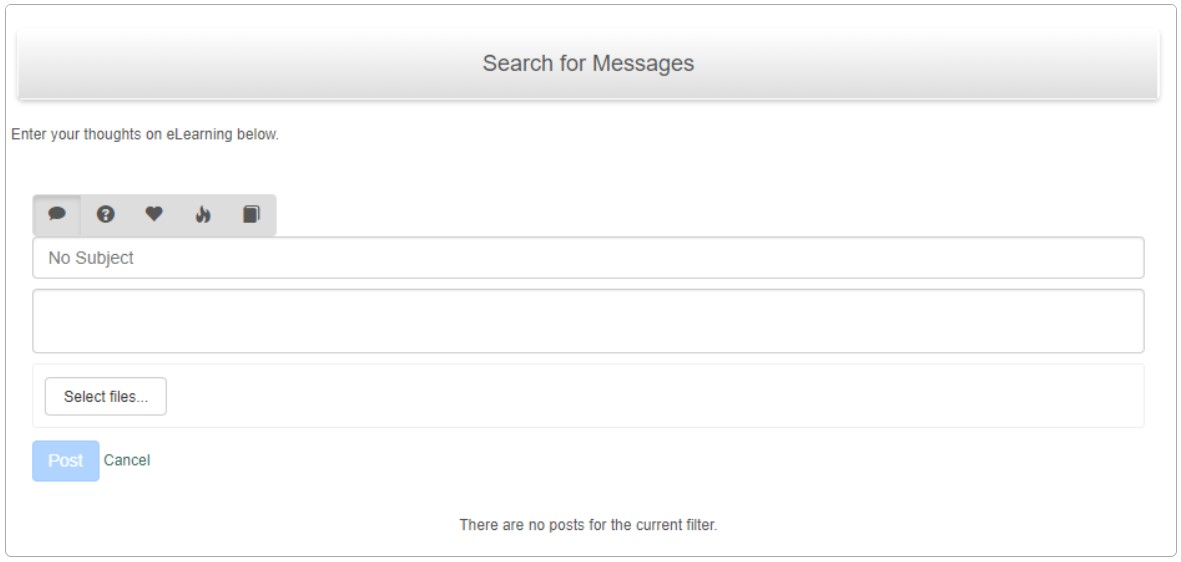
- Select the Add New Message link.
- Select the post type (varies depending on configured options).
- Enter a subject.
- Enter the thread content.
- Attach a file if required.
-
Select Post.
Editing a post
If enabled, the user can edit their own post. Administrators can also edit a user's post if required.
- Access the forum.
- Find the post.
- Select the edit pencil.
- Make required changes.
- Enter a comment in the provided text box.
- Select Submit.
Hiding a post
- Access the forum.
- Find the post.
- Select the eye icon.
- A warning message appears asking for confirmation.
- Select Yes to hide the post.
Reporting a user for inappropriate behaviour
If a user isn't respecting the forum guidelines, they can be reported.
- Access the forum.
- Find the post.
- Select the exclamation icon.
Setting favourite people and following posts
Set a favourite person by selecting the star next to their name.

Follow a post by selecting the star at the top of the post.

In the example below Brett has selected Amy as a favourite and is following her Introduction post.
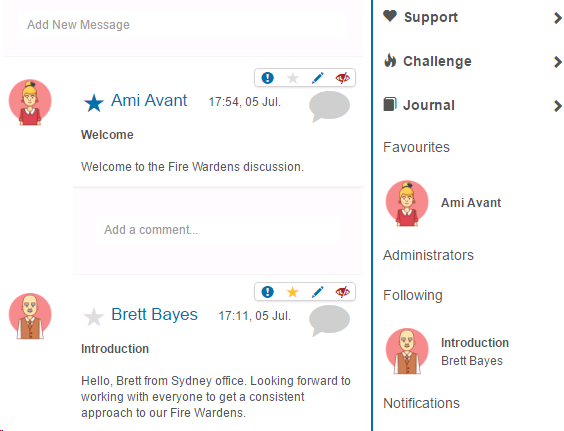
Filter by selecting the person on the right.
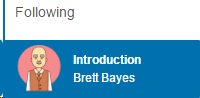
To turn off the filter, select the person again.
Announcements
Announcements behave similarly to discussion forums, except only administrators are allowed to make posts.
To set a discussion forum as an announcement:
-
Select Announcement from the Settings section.
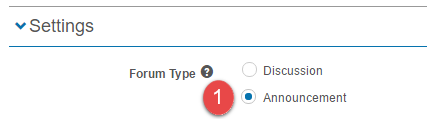
When the Announcement forum type is selected, the Enable Notifications option  is automatically selected. You can clear
  it if you don't want to send notifications, though doing so greatly reduces the visibility learners have to your announcements.
-
Select Save Discussion.

Only a discussion forum facilitator or a user with administrative privileges is allowed to make posts on announcements. If you don't already have a forum facilitator role set up, contact Janison Support.
For learners to receive notifications from announcements, they need to be enrolled in the catalogue item containing the announcement forum.
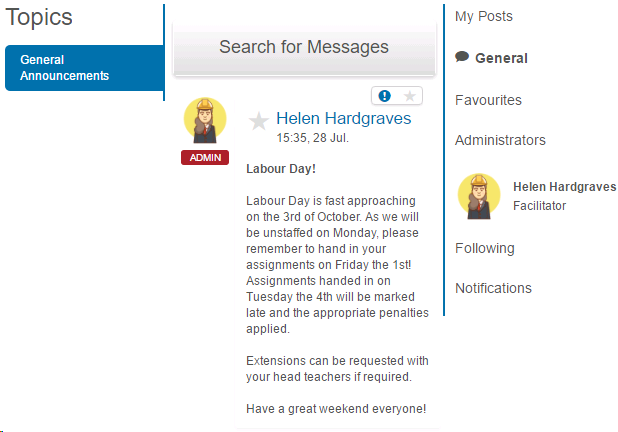
Learners can report posts ( ) they find inappropriate or follow posts (
 ) to receive extra notifications.
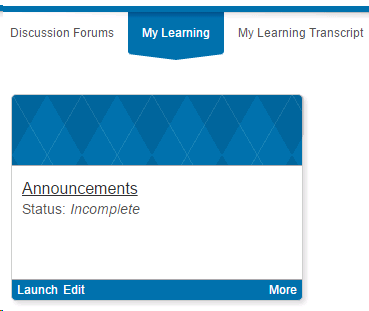
Learners can access announcements via the Discussion Forums link on their home page.
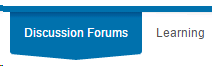
They can also access announcements from their catalogue item tiles under My Learning.
Settings
Several platform settings affect discussion forums.
Administrators can configure the following settings:
Discussion Settings (Settings > Discussion Settings) — set site-wide defaults for rating types, post types, edit/delete rules, the report-inappropriate-behaviour email address, and help content.
Email Settings (Settings > Email Settings) — enable Per-user notifications, required for forum notifications.
Roles (Settings > Roles) — a dedicated discussion forum facilitator role needs to be created by Janison Support before facilitators can be assigned.