Locations
A location is a physical place. At a location there may be one or more venues — one location can be linked to multiple venues.
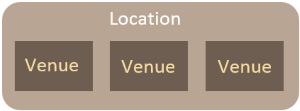
In the CLS, face-to-face training is provided through sessions. In most circumstances, sessions are assigned a venue, and the venue is linked to a location. To provide maps and location instructions to session attendees, the venue must be linked to a location with a physical address.
You can set up venues and locations in a few ways:
- Create a venue and create or edit its location on the same screen.
- Create a location, then create a venue and link it to the location.
- Use the QuickAdd Venue feature when creating a session — you can also create a location on the same screen.
Manage locations
Navigate to Settings > Locations.
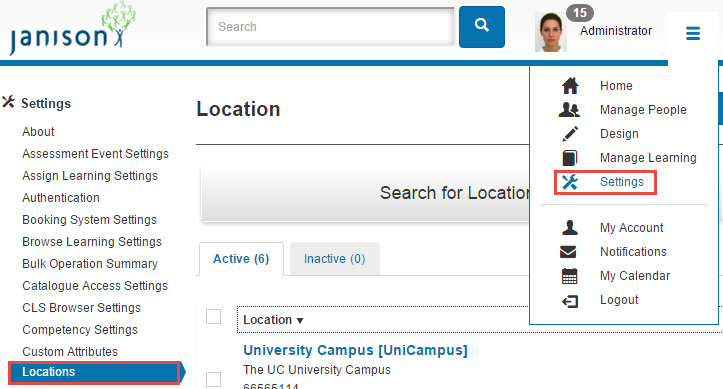
There are two tabs: Active and Inactive.
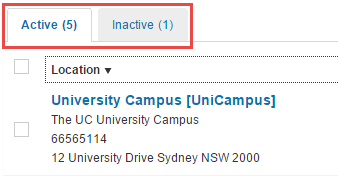
Archive a location
You can change a location from active to inactive and vice versa.
In the active list, select the checkbox next to the location and select Archive — it moves to the Inactive list.
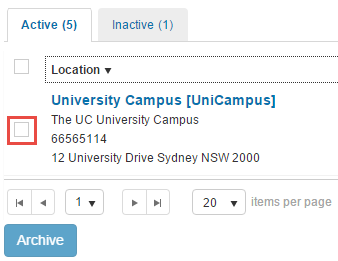
In the inactive list, select the checkbox and select Unarchive — it moves to the active list.
An inactive location can't be linked to a new venue. If you make a location inactive and it's already linked to a venue, it remains linked but is marked inactive on the venue's edit form. The venue stays in the system and remains available for allocation to a session.

Add a location
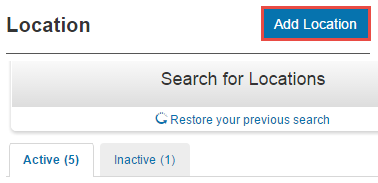
Navigate to Settings > Locations > Add Location.
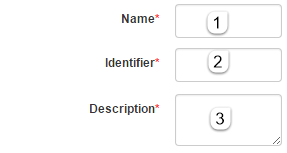
The first three fields are mandatory.
- Enter the Name.
- Enter the Identifier.
-
Enter the Description.
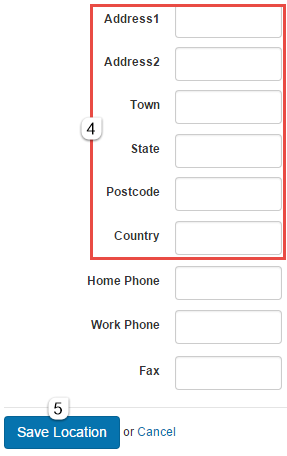
Address details are essential if you want maps and location details available for a session with a venue at this location.
- Enter the address details and other details as required.
-
Select Save Location.
Inspect details
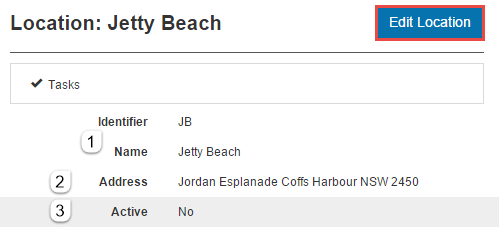
Navigate to Settings > Locations and select the name of the location. The screen shows:
- The location name and identifier.
- The address, if entered.
-
Whether the location is active.
-
The description.
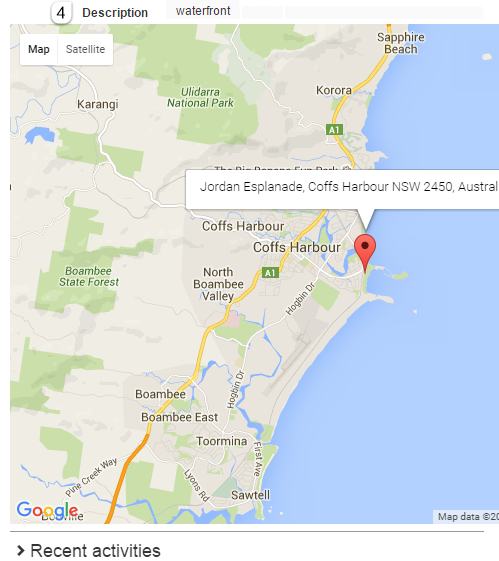
If Google Maps can use the address, a map is displayed.
Edit a location
Navigate to Settings > Locations and select the location name to open the details screen. Select Edit Location.

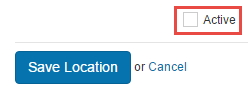
You can edit the same fields as when you add a location, plus the Active / Inactive toggle.
Settings
This page is itself the Settings documentation for locations. All operations are at Settings > Locations.
Locations are used in combination with Venues (Settings > Venues) — see Venues.