User enrolment rules
User enrolment rules automatically enrol specified users into catalogue items — either when they register on the site or when a daily check is run by the system. The rules are useful for managing mandatory training: they can monitor learning in enrolments and automatically create new enrolments before learning expires.
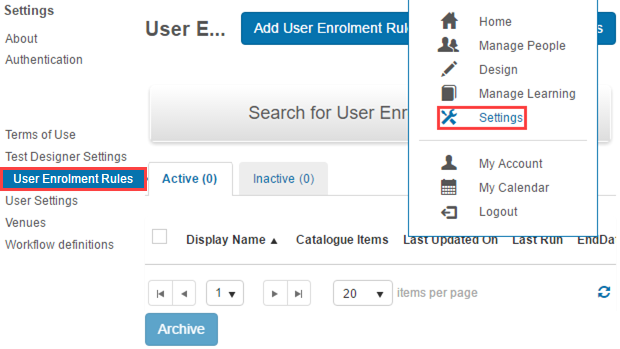
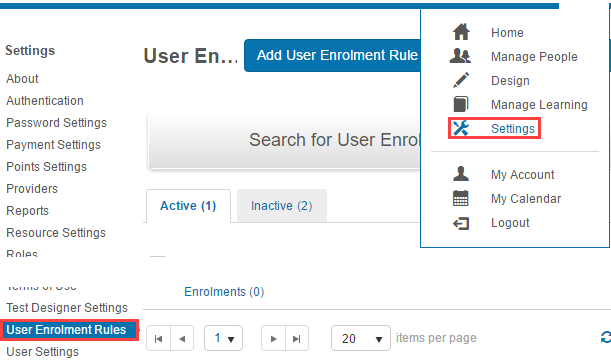
Navigate to Settings > User Enrolment Rules.
Add an enrolment rule
Navigate to Settings > User Enrolment Rules and select Add User Enrolment Rule.
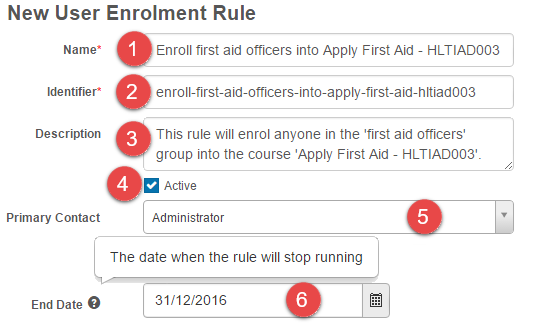
- Enter a Name.
- Enter an Identifier — pre-populated from the name. Changing it is optional.
- Enter an optional Description.
- Select or clear Active for the rule to operate or idle.
- Enter a Primary Contact — receives an email after the rule runs. The message template is
ActionRule-UserEnrolmnentRuleRun. -
Enter an optional End Date — the rule no longer runs after this date.
What does this rule enrol users for?
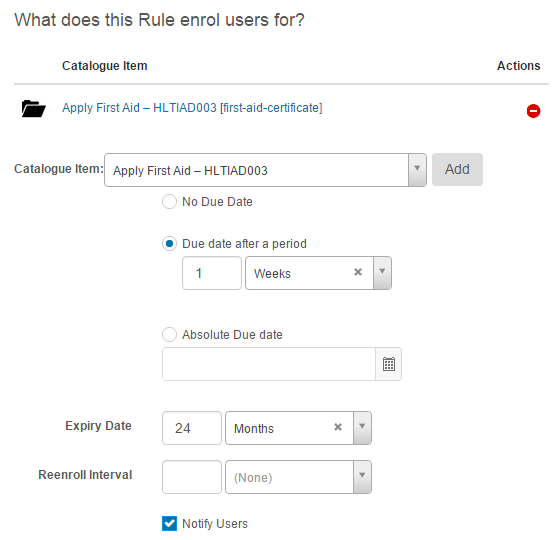
Select one or more catalogue items, and set the due / expiry dates and re-enrol interval.
Catalogue Item
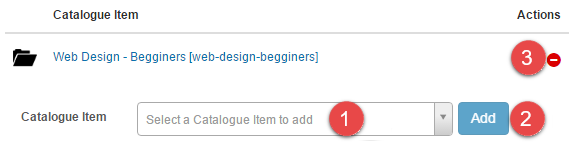
To add a catalogue item:
- Search for the catalogue item.
- Select Add.
To remove a catalogue item:
-
Select the remove icon.

Note
Multiple catalogue items can be added.
No due date
Doesn't specify a due date. The catalogue items can be completed at any time.

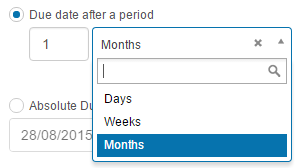
Due date after a period
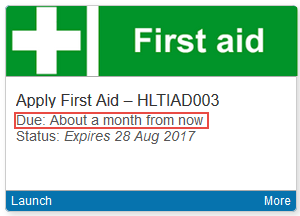
Specifies a due date based on a period. The learner sees the due date on the catalogue tile.
Absolute due date
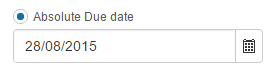
Same as Due date after a period but an absolute date is set.
Expiry date
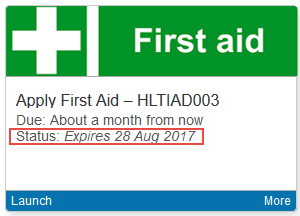
Use when learning expires after some time and users must re-do it. The learner sees the expiry date on the catalogue tile.

Re-enrol interval
Determines when the rule re-enrols the user in the catalogue item after the first enrolment. Combined with the expiry above, the learner can access and complete the catalogue item before it expires.

Notify users
If checked, learners receive a notification when they're enrolled. The template is Enrolment-LearnerConfirmation.
Note
Reminder notifications for due and expiry dates can be configured separately — see Email Settings.
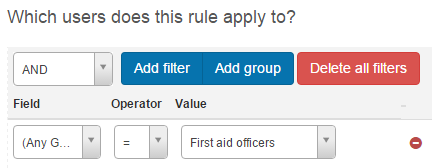
Which users does this rule apply to?
Use the filters to specify which users to target. In the example, all users in the First aid officers group are enrolled. See Building filters.
When should the rule apply?
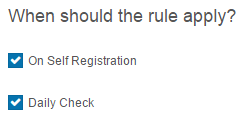
There are 2 ways the rule operates: when a learner registers in the system, and/or when the system runs a daily check.
On self registration
One or more fields on the registration form can act as the filter. As the user registers, the rule is triggered. For example, if a user selects the First Aid Officers group on the registration form, selecting Sign Up runs the rule and enrols them.
See User Settings for self-registration.
Daily check
A system schedule (set at the global tenant level) runs daily, usually at 2 am.
Testing a rule
To ensure the rule is set up correctly, use the Test feature.
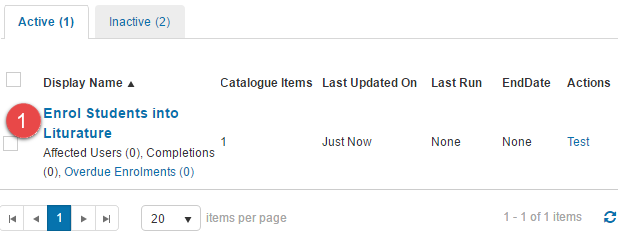
Navigate to Settings > User Enrolment Rules.
-
Select an enrolment rule.
-
Select Test Action Rule.

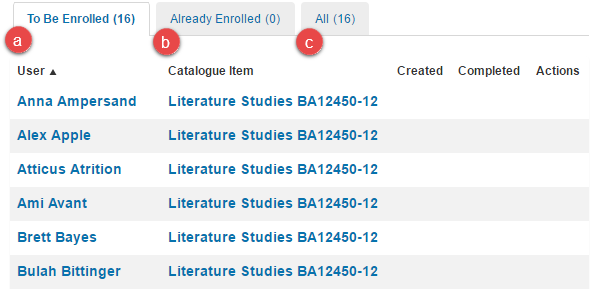
A page opens with 3 tabs:
- To Be Enrolled — users who will be enrolled when the rule runs.
- Already Enrolled — users already enrolled by this rule.
- All — both lists combined.
If the To Be Enrolled tab doesn't match the users you want, return to the rule and adjust the filter.
-
Select Run Now.
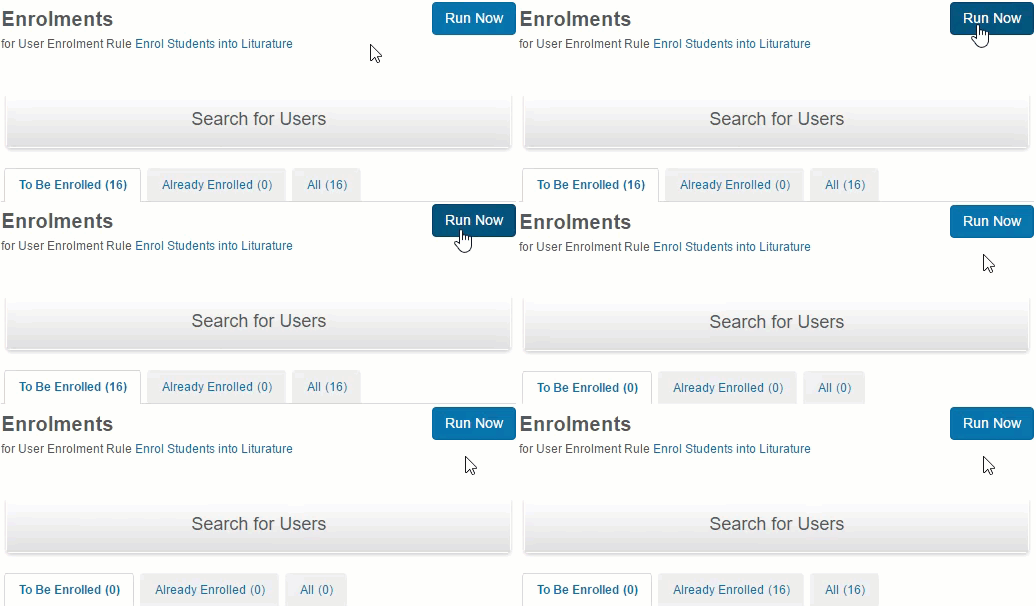
After selecting Run Now, the users in To Be Enrolled are enrolled and moved to Already Enrolled.
Recent activities
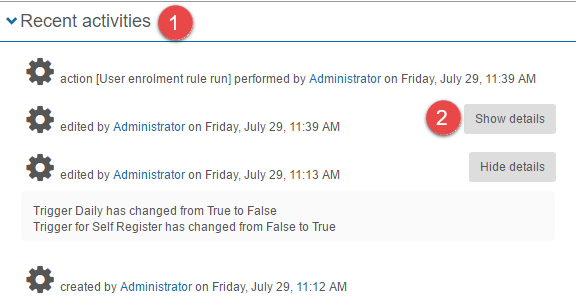
User enrolment rules contain an audit log of changes and successful runs.
- Select the Recent Activities section within a rule.
-
Select Show details for more info on a log entry where available.
Settings
This page is itself the Settings documentation for user enrolment rules. All operations are at Settings > User Enrolment Rules.
Related settings:
User Settings (Settings > User Settings) — the Self-Registration Form drives the On Self Registration trigger.
Scheduling (Settings > Scheduling) — controls the global tenant schedule that runs the daily user-enrolment check.