Disciplines
Disciplines are the top level of the Insights authoring structure. You use them to organise your modules into broad topics — for example science, maths or history. A discipline can also set default workflows, tag types and data sets that apply to the modules and items created within it.
Create a discipline
Select Author > Disciplines, then Add Discipline.
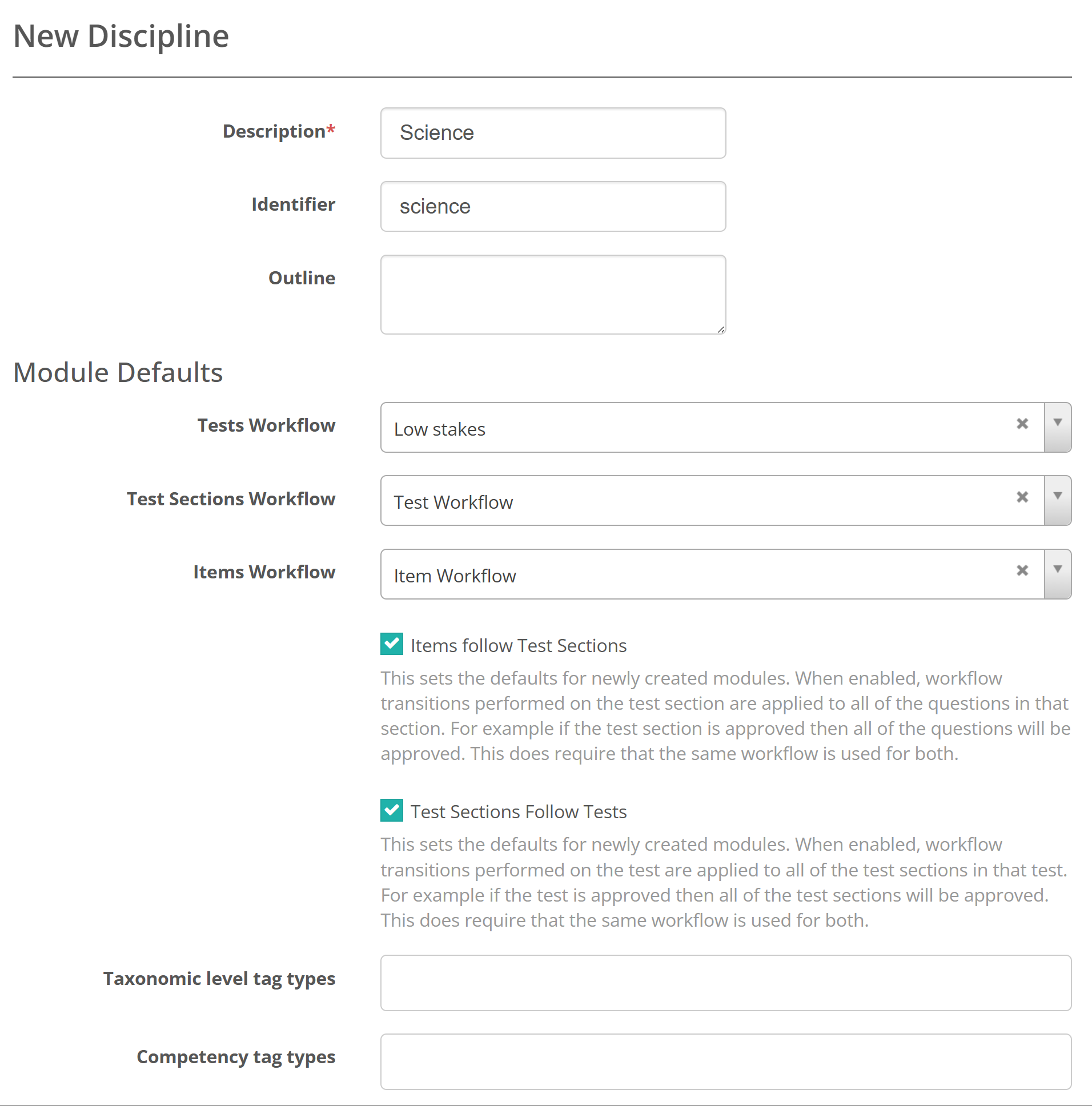
The New Discipline screen displays. Enter a Description (required) and an Identifier, and optionally an Outline. You can also set default workflows and tag types for the discipline — both optional and covered below.
Module defaults
Under Module Defaults a discipline can set default workflows for the modules created within it. Workflows let your authoring team send test entities through a set of approval stages before a test is published. You can read more in Item quality control and Review and approval.
Set a default Tests Workflow, Test Sections Workflow and Items Workflow for the discipline. These are optional — any workflow you set here becomes the default for new modules in the discipline, and authors can still change it at the module level.
Two checkboxes control how workflow transitions cascade:
Items follow Test Sections — when enabled, a workflow transition on a test section is applied to all the items in that section. For example, approving the test section approves all its items. The test section and its items must use the same workflow.
Test Sections Follow Tests — when enabled, a workflow transition on a test is applied to all the test sections in that test. For example, approving the test approves all its sections. The test and its sections must use the same workflow.
Taxonomic level and competency tag types
Tags in Insights are grouped into tag types — a tag type is a category and the individual tags belong to it. For example, a Year level tag type might hold the tags Year 7 and Year 8, and a Curriculum outcome tag type might hold a set of competency tags.
On a discipline you nominate which tag types apply to the items and tests authored within it:
Taxonomic level tag types — the tag types that represent an item's taxonomic level, such as its year level or difficulty band.
Competency tag types — the tag types that represent the competencies an item assesses, such as a curriculum outcome or skill.
You can select more than one tag type in each field. Your choices tell authors which tags to use when they classify items by taxonomy and by competency, and they drive how items are tagged and reported for those purposes within the discipline. You select from tag types that already exist — you set them up separately under Manage Tags.
When you've finished, select Save.
Custom attribute sets and psychometric data sets
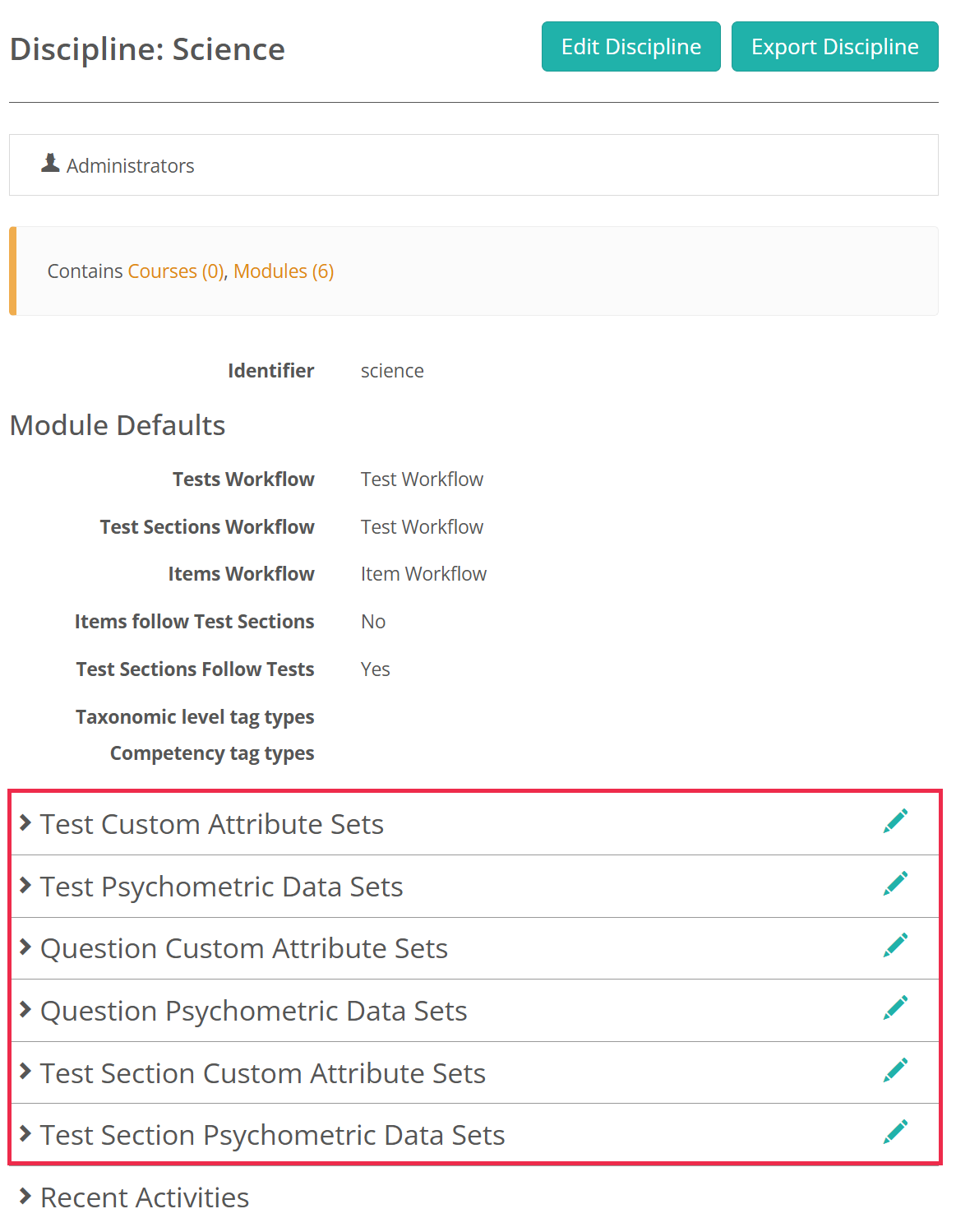
Once you've saved the discipline, open it to add Custom Attribute Sets and Psychometric Data Sets on the discipline's details page. These are available separately for tests, items and test sections — for example Test Custom Attribute Sets and Test Section Psychometric Data Sets. Read more in Custom attributes.
Settings
Administrators configure a discipline's defaults, and the definitions it draws on, from the areas below.
Test Designer Settings (Settings > Test Designer Settings) — sets the tenant-default Tests Workflow, Test Sections Workflow and Items Workflow, the default Items follow Test Sections and Test Sections Follow Tests behaviour, and the default Taxonomic level tag types and Competency tag types. These values pre-fill the Module Defaults and tag type fields on every new discipline.
Manage Tags — create and manage the tag types you select in a discipline's Taxonomic level tag types and Competency tag types fields.
Workflow definitions (Settings > Workflow definitions) — create and manage the workflow definitions selected in the workflow dropdowns.
Custom Attributes (Settings > Custom Attributes) — create the custom attribute set and psychometric data set definitions you attach to a discipline.
Psychometric Settings (Settings > Psychometric Settings) — configure psychometric data options.