Mark test-taker responses
This page covers the marking process from the marker's perspective. Test-taker responses are also referred to as "scripts".
Marking Projects screen
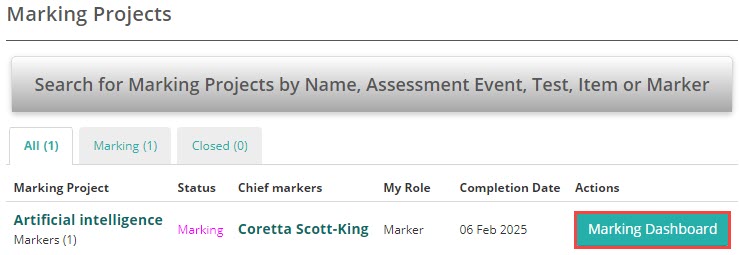
When a marker logs in, they land on the Marking Projects screen, which shows the projects they're assigned to. They can view a summary of their role and access their dashboard by selecting Marking Dashboard.
Marking dashboard
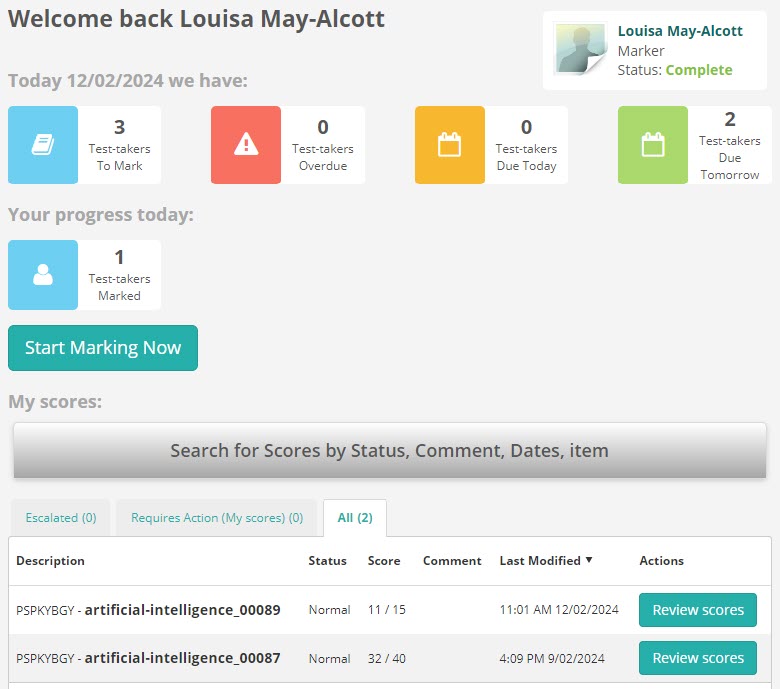
The dashboard tiles show the current day's progress:
- Test-takers to mark — scripts waiting to be marked.
- Test-takers overdue — scripts past their due date.
- Test-takers due today and tomorrow — upcoming work.
- Progress for the day — how many scripts the marker has completed today.
The tiles update as the marker works through their queue.
Select Start Marking Now to begin.
Marking screen
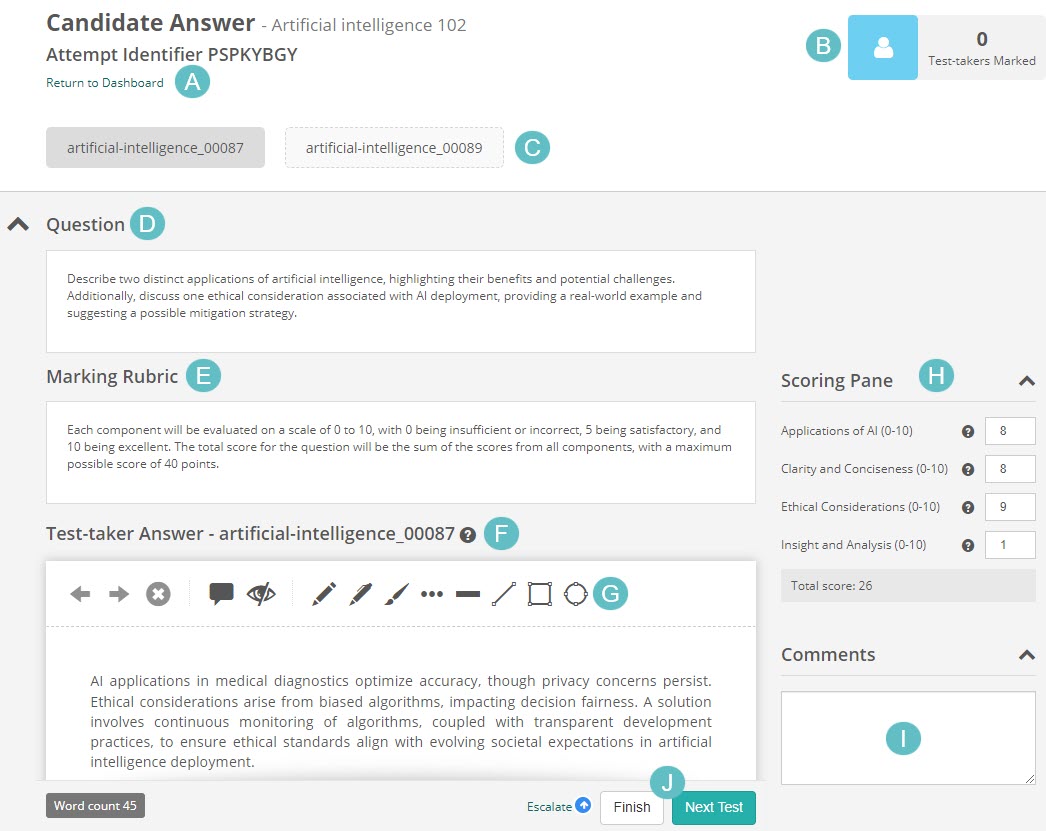
The marking screen has the following components:
- A link back to the dashboard.
- A progress tile that updates as you work.
- Item buttons — if there are multiple items to mark, switch between them using these buttons.
- The item stem (the question as the test-taker saw it).
- The Marking Rubric with marking instructions.
- The test-taker's response.
- Markup tools (if enabled by the chief marker).
- Marking scheme component fields — enter scores using numbers or the up/down arrows.
- An optional Comment field.
-
Action buttons: Escalate, Finish, or Next Test.
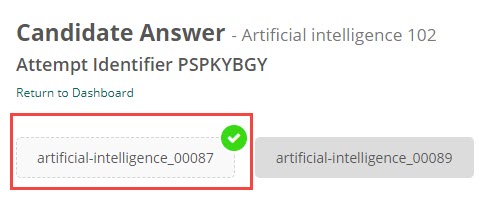
Once an item is scored, a green tick appears on its button.
Seed scripts
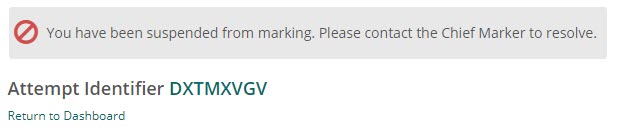
The chief marker may have pre-marked some responses as seed scripts. These appear in your queue as regular scripts — you won't know they're seed scripts. If your score falls outside the tolerance threshold set by the chief marker, your marking access will be suspended.
For more information, see Quality controls.
Escalate to a chief marker
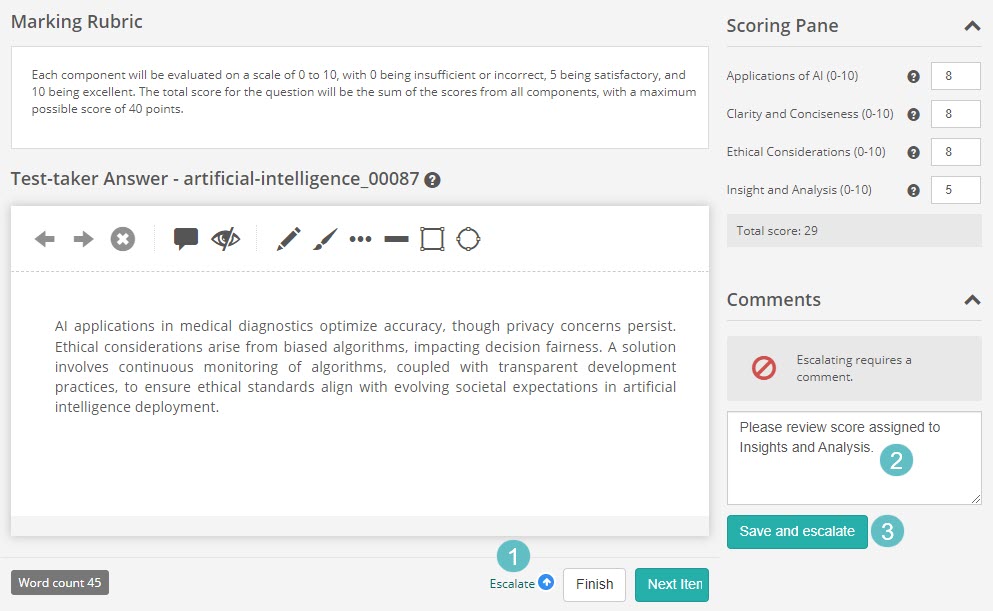
You can escalate a script to the chief marker if you need advice or if you're unable to mark it.
- Select Escalate.
- Enter a Comment — this is mandatory.
- Select Save and escalate.
The chief marker may return the script to you to complete, or they may mark it themselves.
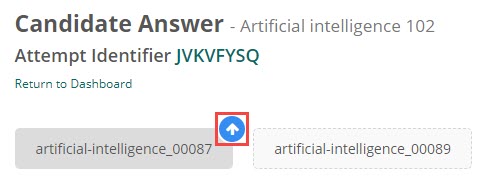
Once escalated, a blue arrow appears on the item button.
My scores
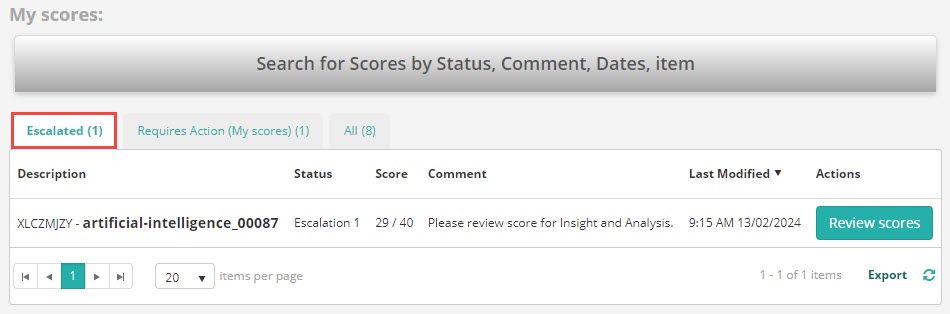
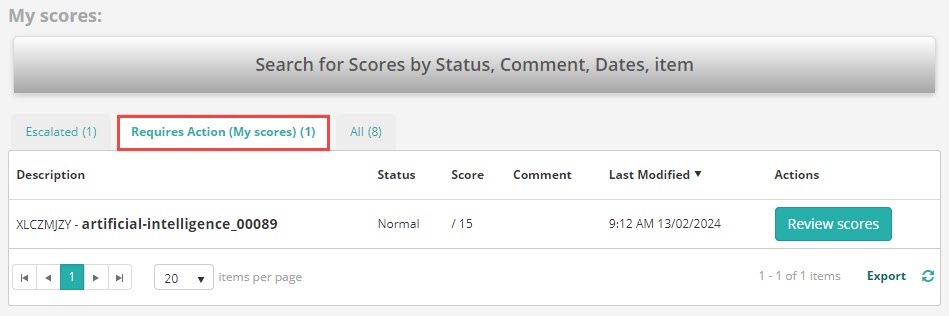
The My Scores section lets you view your progress and access scripts at different stages.
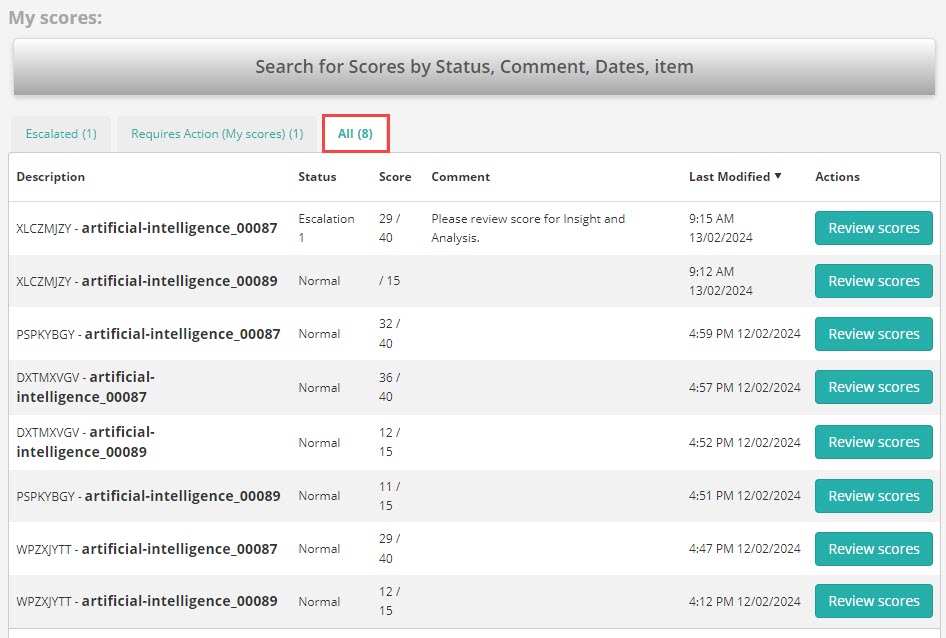
The Escalated tab lists scripts you've sent to the chief marker.
The Requires Action tab lists scripts you've opened but not yet marked.
The All tab shows a complete history of your marked, escalated, and action-required scripts.