Manage Attempts
From the Manage Attempts section of the Deliver menu, you can view and manage candidate attempts.
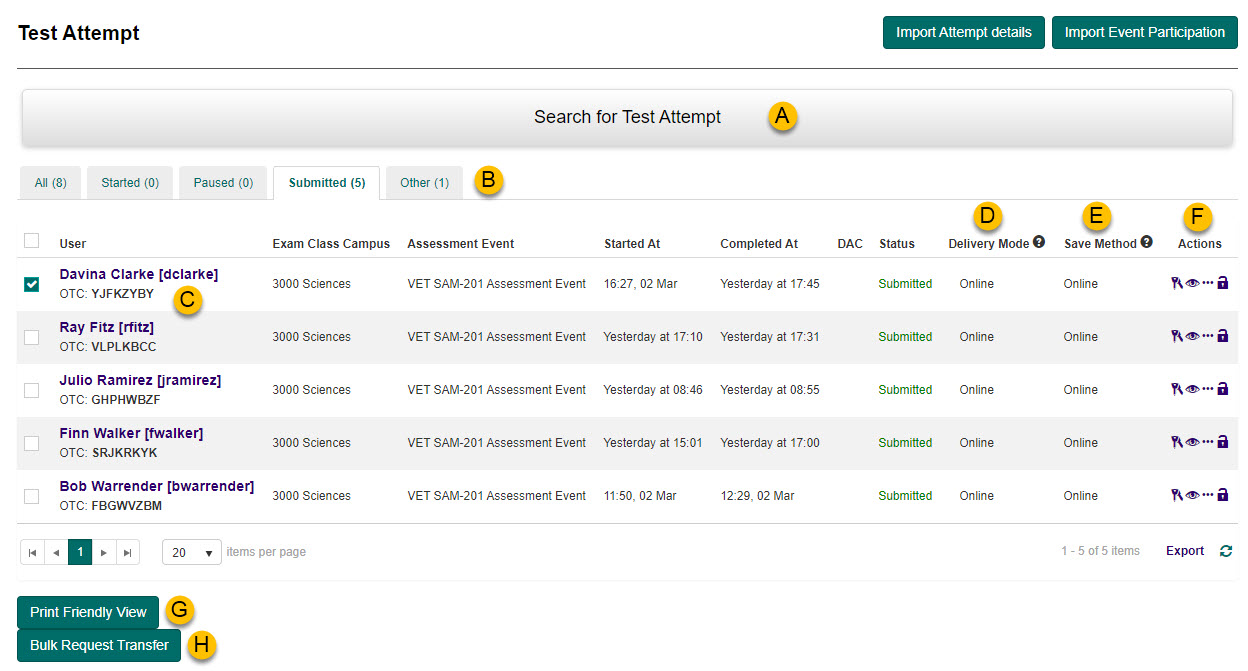
There are a number of things you can do from here:
| # | Feature | Description |
|---|---|---|
| A | Search | This provides the ability to search for specific test attempts. |
| B | Attempt filters | All, Started, Paused, Submitted, Other |
| C | Candidate and OTC | Displays the candidate's name and their one time code (OTC). |
| D | Delivery Mode | Displays how the test was delivered. Offline – Using Janison Replay without a network connection. Low-Bandwidth – Using Janison Replay with a network connection. Reliable – Using Janison Replay with a network connection. Online – Without using Janison Replay. |
| E | Save Method | Displays the mode that was used to save the test attempt on the test server. Online – Indicates that the system saved the test attempt throughout the test. Automatic – Indicates that the test attempt was saved automatically after the test was completed. Manual – Indicates that the Invigilator saved test attempt manually after the test was completed. |
| F | Actions | Your role will determine which of the following actions are available. Keys – Links you to the test session as the candidate. View – Links you to the test attempt screen. View more – Links to the test attempt screen. Lock – Locks or unlocks the test attempt. |
| G | Print Friendly View | Opens a printer friendly version of any selected test attempts with the option to print the attempt. If more than one User is selected, they will appear in the print out sequentially. |
| H | Bulk Request Transfer | Transfers the test attempt to another location. |
We'll look at some of the main functions in more detail next.
View one time codes
In a test session, a OTC is used by candidates to access their test.
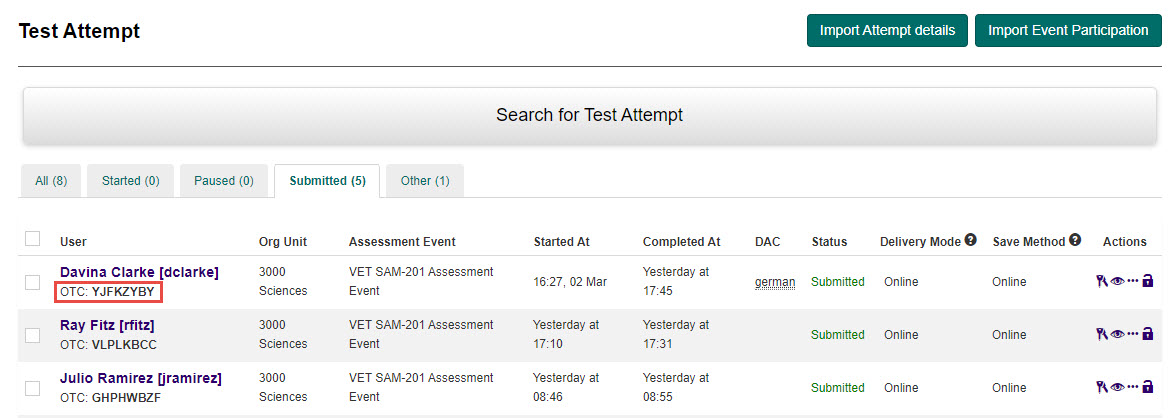
There are two locations to view the a candidate's OTC under Manage Attempts.
Via the Test Attempt list screen
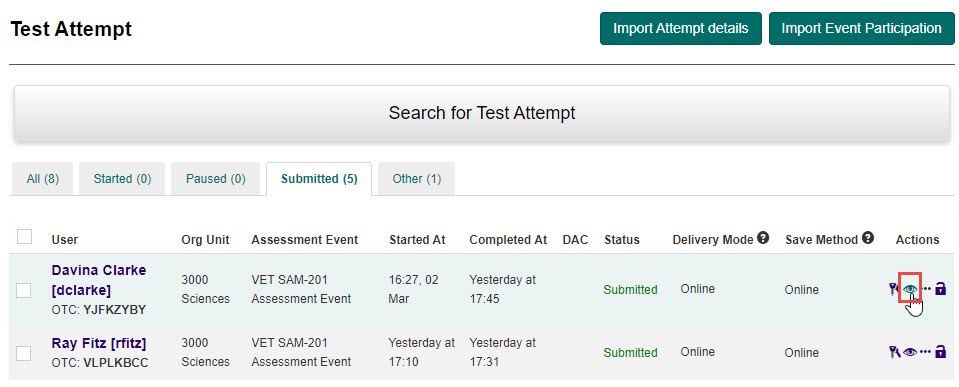
The OTC is listed under the candidate's name on the Test Attempt list screen.
Via the candidate Test Attempt screen
From the Test Attempt list screen, you can select the View more icon to display the candidates Test Attempt screen.

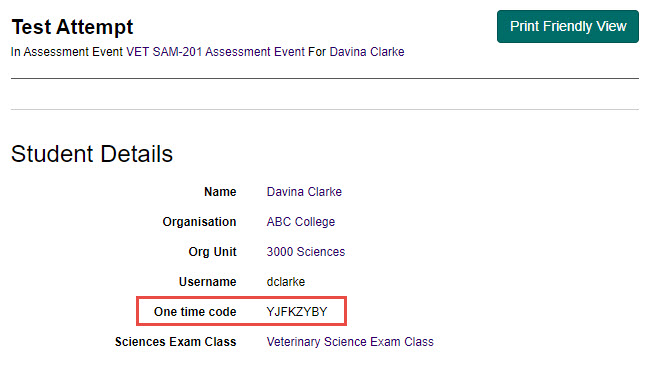
The OTC is listed in the Student details section.
Test Attempt popup
Selecting the View icon in the Actions column opens the Test Attempt popup for the relevant candidate.
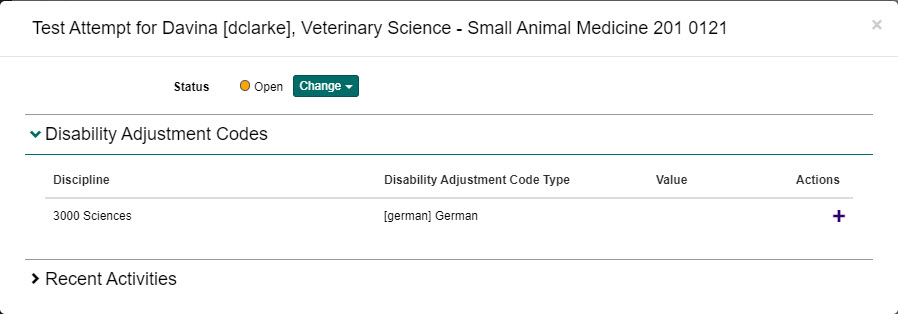
From here you can change the attempt status, manage personal need and preference codes for the candidate and view recent activities.
Change the attempt status
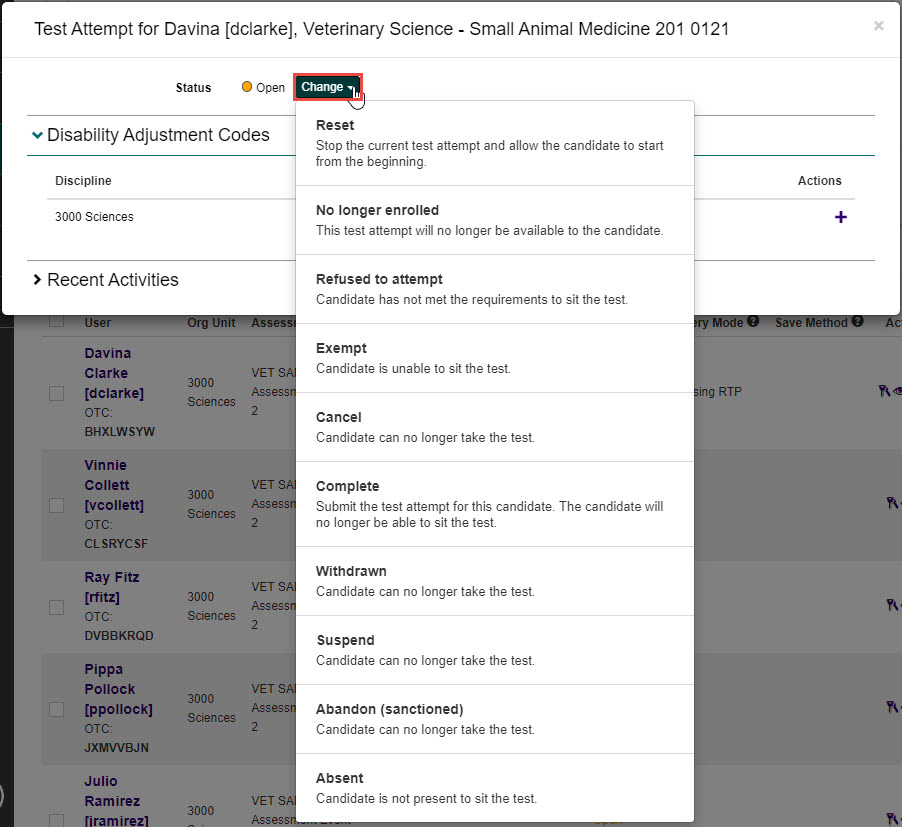
To change the attempt status for a candidate, select the Change drop-down button and choose the appropriate status.
Tip
The options available to you will depend on the current status of the candidate.
Manage disability adjustment codes
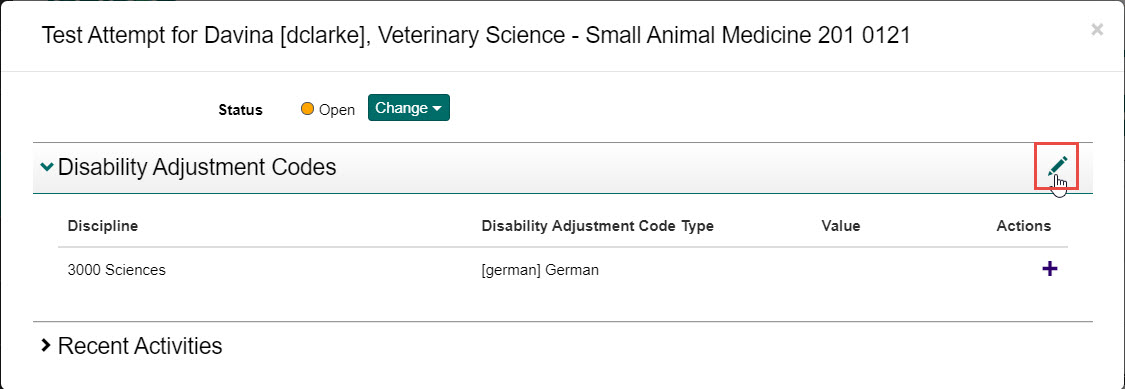
The Disability Adjustment Codes expandable section provides the opportunity to add a code to customise tests for candidates based on their individual needs. For example, there may be different versions of questions for someone who has a visual impairment or a specific language requirement.
In the following image we can see that the candidate has a specific language requirement of German. To manage these codes, select the Edit icon.
Add a disability adjustment code
-
Select the Search for disability adjustment code drop-down field, then select the Add button to add the code.
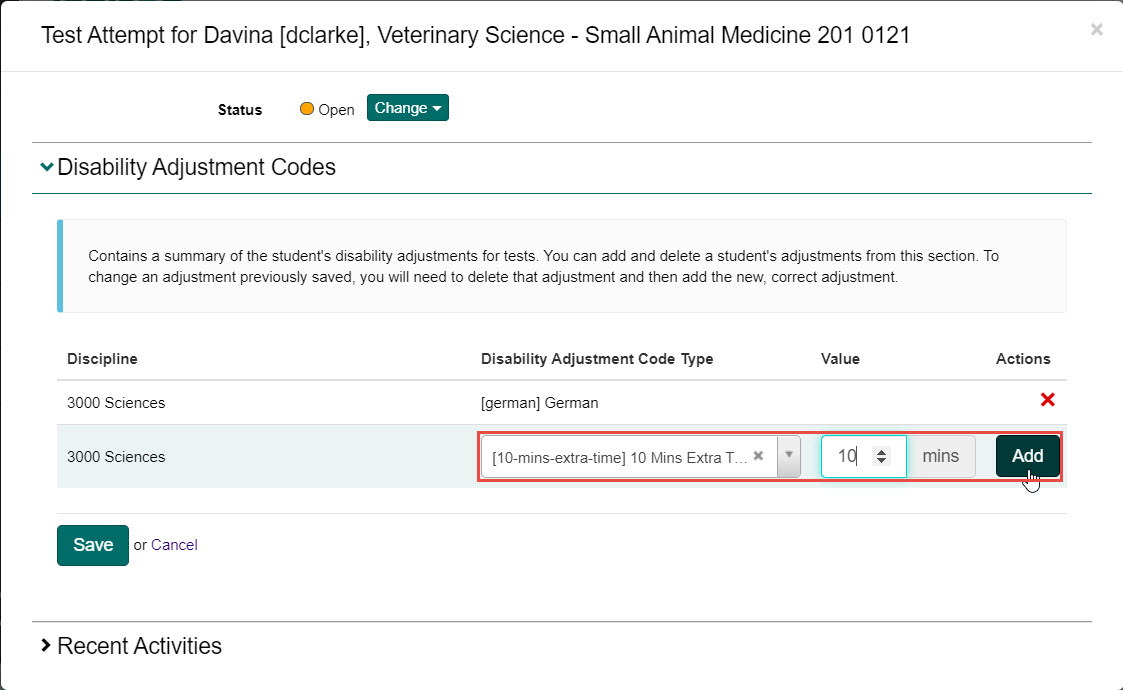
-
Select the Save button to save your changes.
Remove a disability adjustment code
-
Select the Remove icon in the Actions column to remove the disability adjustment code.
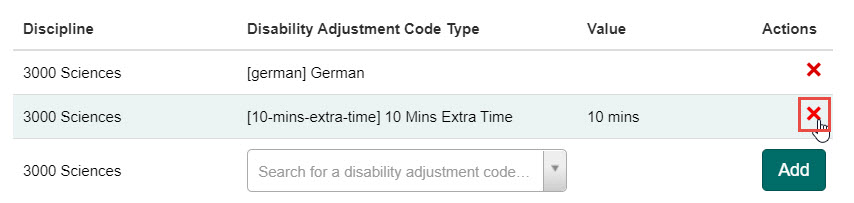
-
Select the Yes button to confirm the removal.
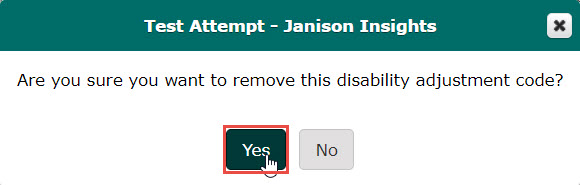
-
Select the Save button to save your changes.
View recent activity
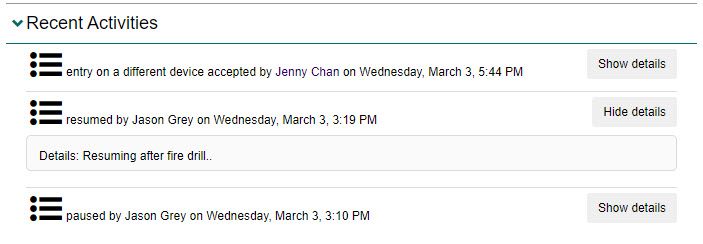
The Recent Activities expandable section provides an audit of activities involving the test attempt.
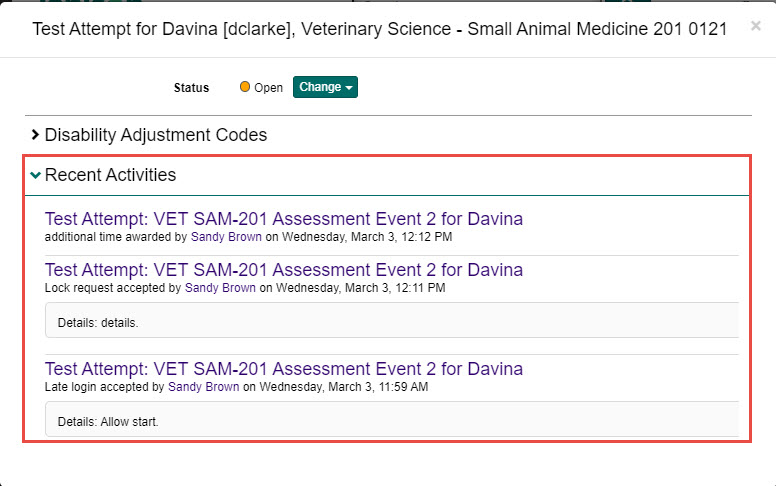
Selecting any of the Test Attempt links will take you to the Test Attempt screen for that candidate.
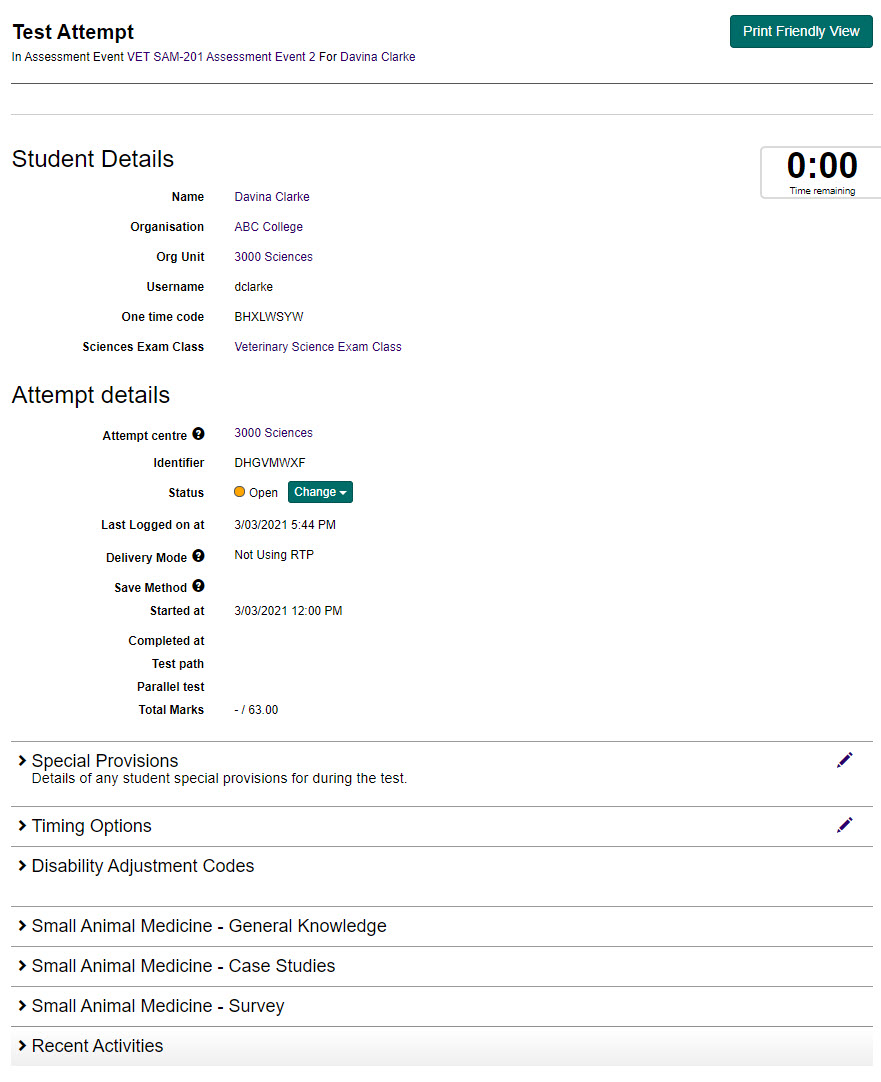
Test Attempt screen
Selecting the View More icon in the Actions column opens the candidate Test Attempt screen for the relevant candidate.

Important
The information you see and the edits you can make will depend on the settings configured for your organisation and the permissions set for your role.
There are a number of things you can do from here:
| # | Feature | Description |
|---|---|---|
| A | Mark | Provides a link to the marking function for this candidate's test attempt. |
| B | Allows you to print the test attempt. | |
| C | Student Details | Displays the candidate's details including name, Organisation and Organisation Unit. |
| D | Attempt Details | Displays the attempt test attempt details including the delivery mode, when the test was started and finished, and total marks. |
| E | Status | Provides the ability to change the candidate's attempt status. |
| F | Special Provisions | Provides the ability to view and manage special provisions for the candidate during the test. |
| G | Timing Options | Provides the ability to manage the timing options for the test attempt. |
| H | Disability Adjustment Codes | Provides the opportunity to add a code to customise tests for candidates based on their individual needs. See the Manage disability adjustment codes section for more information. |
| I | Test responses | Displays the various sections of the test, the questions within each section and the candidate's responses. |
| J | Recent Activities | Provides an audit of activities involving the test attempt. |
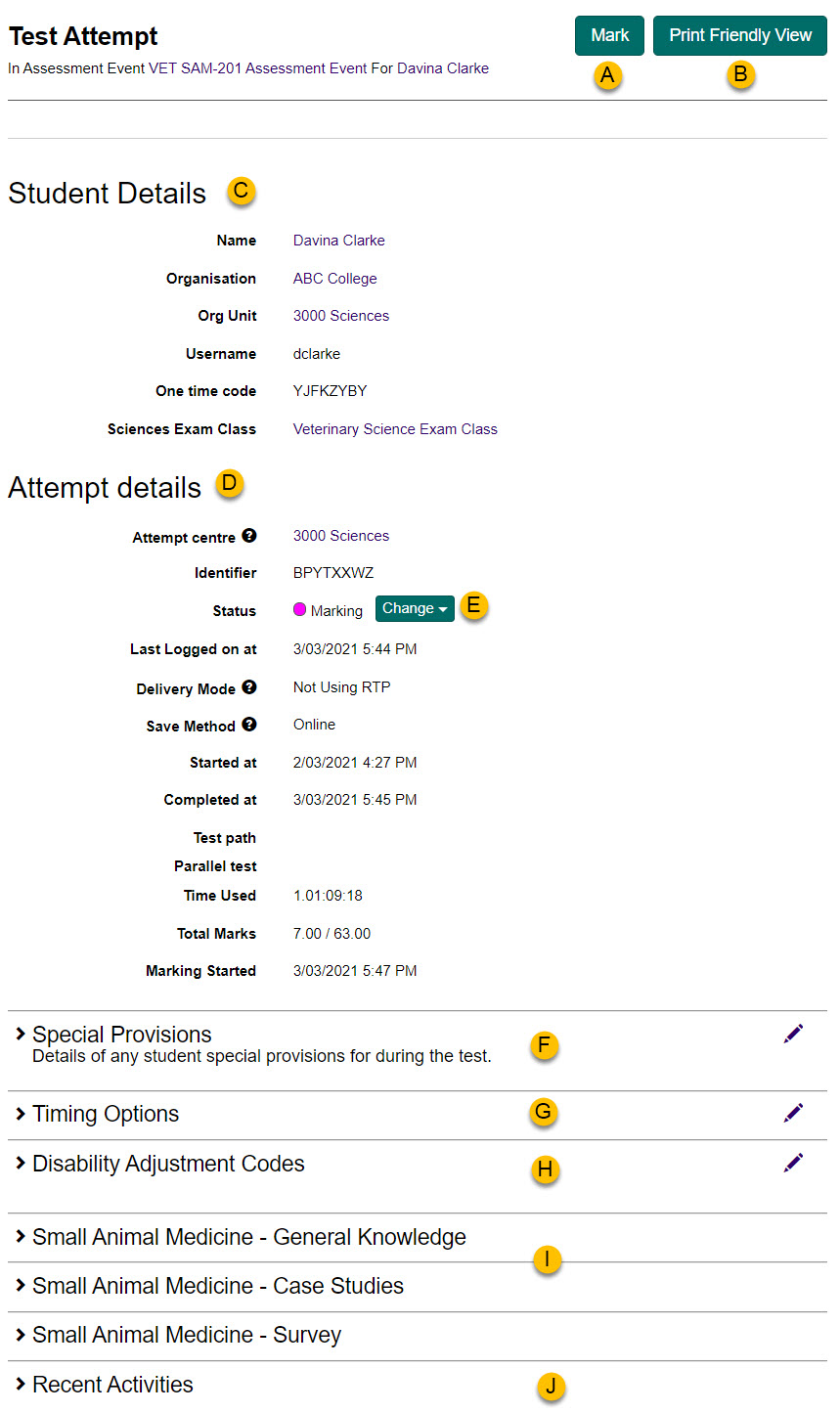
Let's look at some of these in more detail.
Print the test attempt
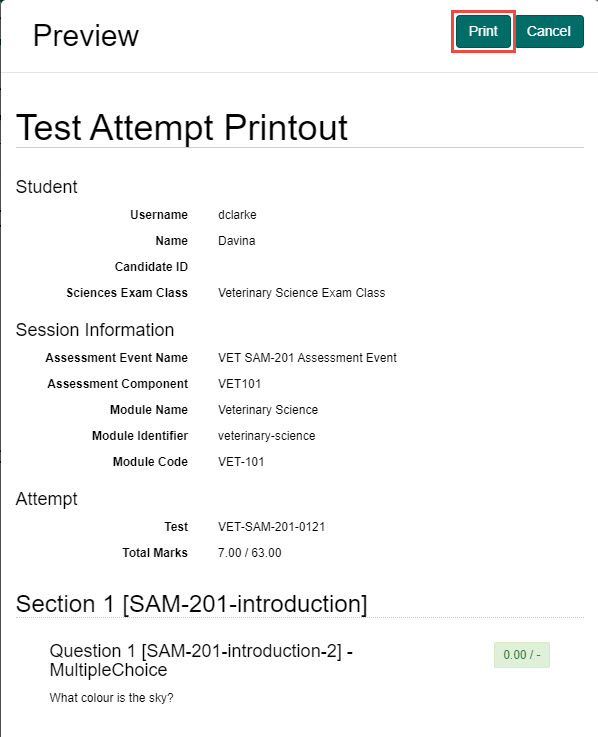
You can preview and print test attempts in a print friendly view.
To do this select the Print Friendly View button.
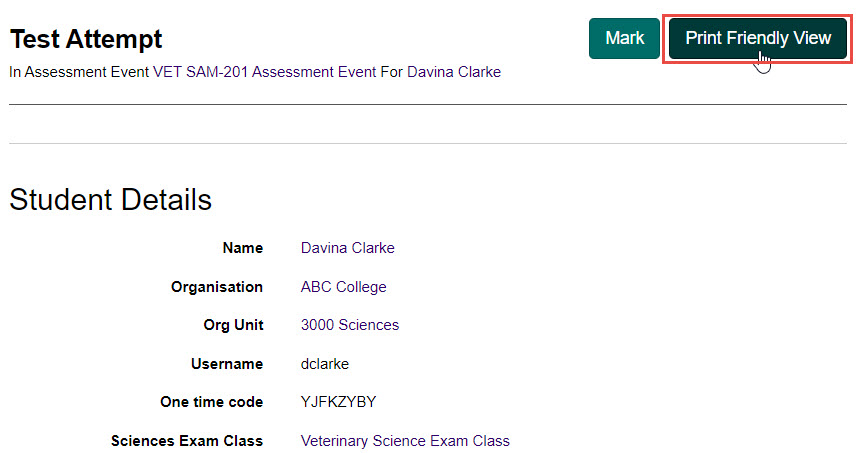
A popup displays, similar to the candidate Test Attempt screen. From here select the Print button to print the test attempt.
Change the attempt status
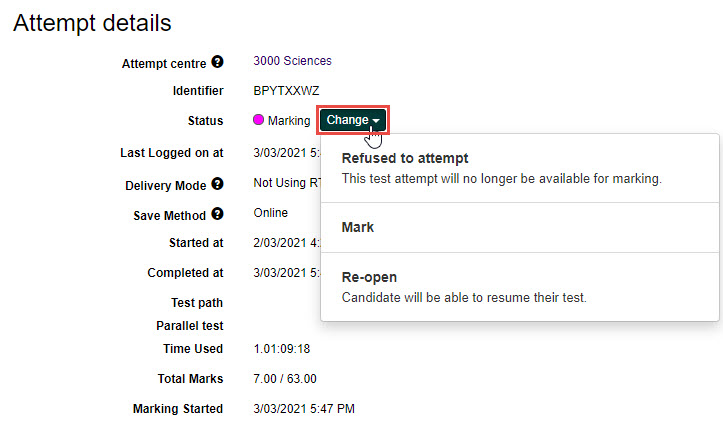
To change the attempt status, select the Change drop-down button and choose the appropriate status.
Tip
The options available to you will depend on the current status of the attempt.
Manage special provisions
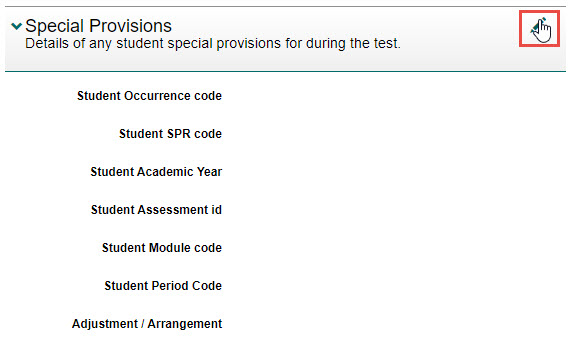
To view and edit any special provisions for the candidate during the test, select the Edit icon next to the Special Provisions expandable section.
Manage timing options
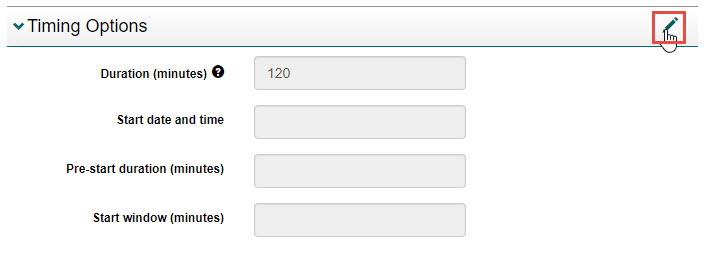
To view and edit the timing options of a test attempt, select the Edit icon next to the Timing Options expandable section.
View questions and candidate responses
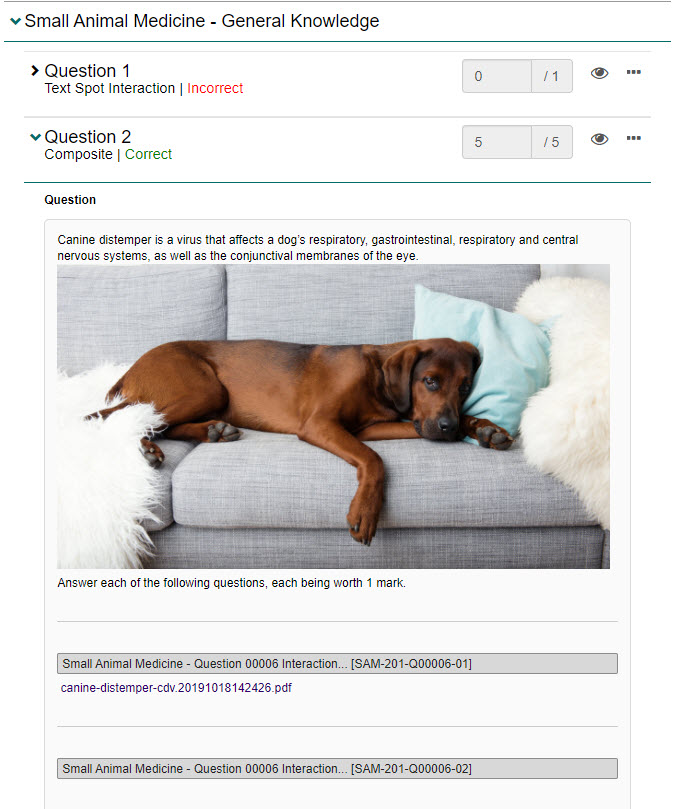
You can view each of the test questions and the candidate's responses which are grouped according to the test sections set up within the test.
In this example, we can see that the candidate got question 1 incorrect and question 2 correct. We can also see the marks received from each question.
Review the question as a candidate would see it
To review the question as a candidate would see it:
-
Select the Review icon.

The question displays in a popup.

-
Select the Close button to close the popup.
Review the question design
To review the question design, including any audio, stimuli, marking components etc., select the Details icon.

The question information is displayed.
View recent activity
The Recent Activities expandable section provides an audit of activities involving the test attempt. Selecting the Show details button shows any details added in by the Invigilator during the test attempt.