User roles and key features
A role is the collection of rights assigned to a user which determines what they can see and do in Janison Insights.
Users may also hold Extra Roles for additional activities.
How roles are configured
A role is a collection of rights that together determine what a user can see and do. Each right either allows or denies access to a specific part of the platform.
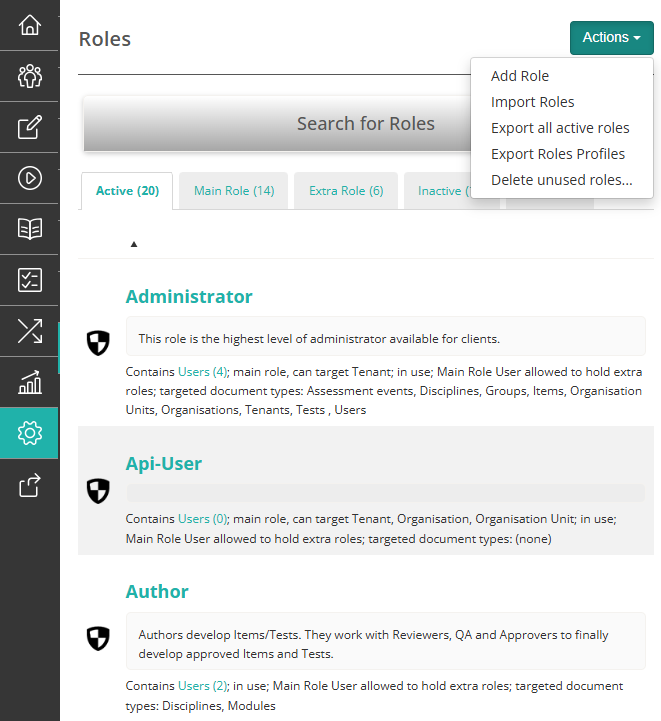
Administrators configure roles at Settings > Roles. Janison Insights ships with a set of standard roles (described below). These can be edited or reset to their defaults, but not deleted. Administrators can also create new custom roles to suit your organisation's needs.
Each role defines:
- The rights it grants — which features and actions the role can access.
- Its scope — whether the role applies across the whole tenant, a single organisation, or an org unit.
- Whether it can be held as an extra role — see below.
Every user is given one main role when their account is created. Users can also hold Extra Roles — additional roles that grant access for specific activities, scoped to a particular area such as an org unit or group. Some roles are permanent and can only be assigned when the user account is first created.
Role types
The roles below are the main roles users are typically assigned. Your organisation may have others — including service roles such as Api-User for API and integration access — which administrators can view at Settings > Roles.
| Role | Description |
|---|---|
| Administrator | Access to all system functionality |
| Author | Features/tools for creating tests |
| Authoring Manager | All Author features plus approval/rejection of tests, sections, items |
| Marker | Mark test-taker responses |
| Chief Marker | Create/configure marking projects and mark responses |
| Delivery Manager | Similar to Test Manager; manages delivery without authoring |
| Invigilator | Manage test sessions and test-takers undertaking tests |
| Test Manager | End-to-end access to deliver tests to test-takers |
Administrators manage all roles from the Settings > Roles screen, where each role shows its scope, how many users hold it, and the document types it applies to.
Tip
Additional roles can be created depending on the needs of your organisation.
Administrator
An Administrator is typically the person who controls the setup of Janison Insights for your organisation. Due to their comprehensive application and configuration access, this role is limited to trained employees.
Key functions:
- Create and edit organisations, groups, users
- Monitor Insights usage and statistics
- Access and run scheduled jobs
- Configure integration points
- Manage organisation settings
- Import and export data
Author
An Author creates items and tests for their faculty or subject.
Key functions:
- Create items, sections, tests
- Send items and tests for approval
- View test status through delivery and marking
- View item and test analysis
To learn more about authoring tests, see Tests.
Authoring Manager
Authoring Managers typically oversee all items and tests for their faculty or subject. They possess all Author functionality plus the ability to approve items and tests before use and distribute authoring work.
Key functions:
- Author items, sections, tests
- Approve items and tests
- View test status through delivery and marking
- View item and test analysis (reports)
To learn more about authoring tests, see Tests. To learn more about reviewing tests or items, see Review and approval.
Marker
Markers have access to mark test-taker responses. They review responses, add annotations and scores, and can escalate responses to a Chief Marker where needed.
Key functions:
- Mark test-taker responses
- Annotate and score responses
- Add test-taker comments
- Escalate responses to the Chief Marker
To learn more about marking, see Introduction to marking.
Chief Marker
This role is the Chief Marker for their assigned marking project. Chief Markers are responsible for assembling marking teams, configuring quality controls, allocating work to Markers, resolving escalations, sampling Markers' work, and closing projects to release results.
Key functions:
- Assign marking teams
- Configure marking projects and settings
- Manage escalations from Markers
- Undertake marking training to Standardisation 1
- Perform sampling of marking
- View items, test analysis, and settings reports
- Generate results reports
To learn more about marking, see Introduction to marking.
Delivery Manager
A Delivery Manager coordinates and manages the delivery of exams for a campus or discipline. They oversee test sessions and Invigilators during exam periods and ensure test-taker enrolment and completion.
Key functions:
- Create assessment events and test sessions
- Enrol test-takers into assessment events
- Monitor exam delivery across campus and faculty
- Invigilate test sessions
- Prepare and reconcile Replay devices
- View test delivery statistics
Delivery Managers do not author or mark, but can approve or reject tests, sections, and items as quality checks.
To learn more about delivering exams, see Deliver exams.
Invigilator
An Invigilator is responsible for conducting a test session for their assigned module or campus, which may be for a specified date and time. Invigilators ensure test-taker completion while maintaining a fair environment, provide disruption support, and record attendance and verify test-taker identity.
Key functions:
- Create and invigilate test sessions
- Print one-time codes
- View test attempt information
- Preview test-takers' tests
- Update last attempt status
- Search test-takers
- Prepare and reconcile Replay devices
To learn more about delivering exams, see Test session administration.
Test Manager
A Test Manager is typically an academic responsible for authoring, delivering, and marking an exam for their subject. Test Managers have end-to-end test delivery access.
Key functions:
- Author items, sections, tests
- Approve items and tests
- Create assessment events
- Enrol test-takers in assessment events
- Create test sessions
- Prepare and reconcile Replay devices
- Create marking projects
- Mark responses
- View test analysis
To learn more, see Tests, Deliver exams, and Introduction to marking.
Settings
Administrators manage roles at Settings > Roles, where they can create custom roles, edit the rights assigned to a role, and reset the standard roles to their defaults.
Where an organisation uses single sign-on, the following settings control how roles are assigned automatically when users sign in. Administrators configure them at Settings > Authentication.
Main Role Profiles — map an attribute from your identity provider (for example a SAML or Active Directory attribute) to a main role and its scope, so each user receives the correct main role on sign-in.
Extra Role Profiles — map an identity-provider attribute to one or more extra roles and the area each applies to, so users automatically gain the additional access they need.
If your organisation does not use single sign-on, there are no settings beyond Settings > Roles that affect this feature.