Associate interaction
An associate interaction is a matching item type. You provide a pool of items and test-takers form pairs between items in that pool. Items can be created as text, images, or a combination of both.
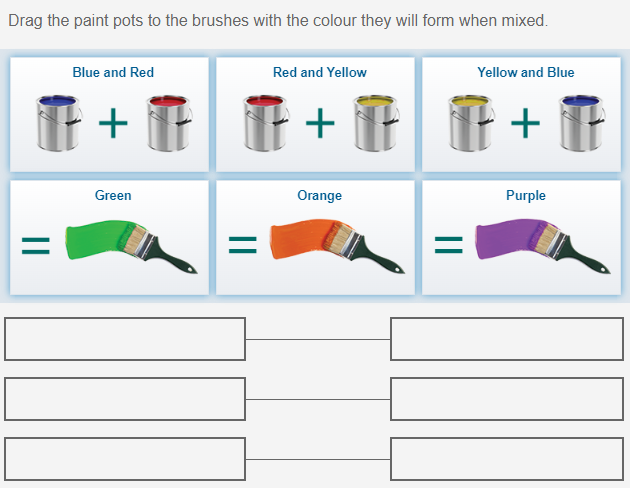
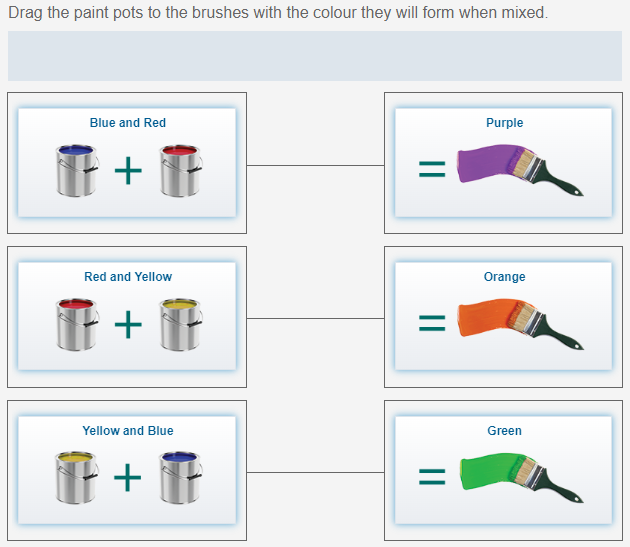
The practice test below covers different use-cases of this item type.
Practice test
Open this test in the Janison test player and complete three examples of associate interaction items.
Watch the video below or follow the steps in Create associate interaction item.
Create associate interaction item
Navigate to Author > Items.
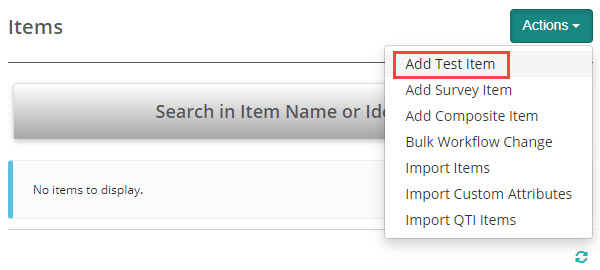
Select Add Test Item from the Actions drop-down.
The New Test Item screen displays. Complete the form and select Associate Interaction as the item type.
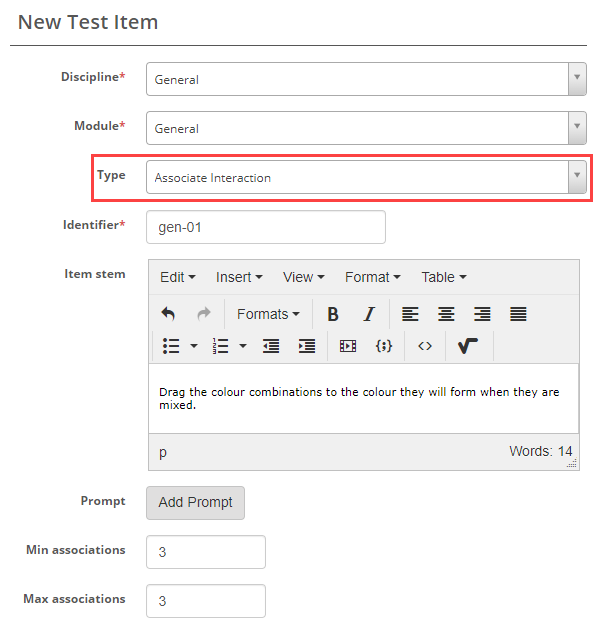
Min associations
The number you enter in Min Associations sets how many response rows display for test-takers. Entering 3, for example, displays 3 highlighted response rows.
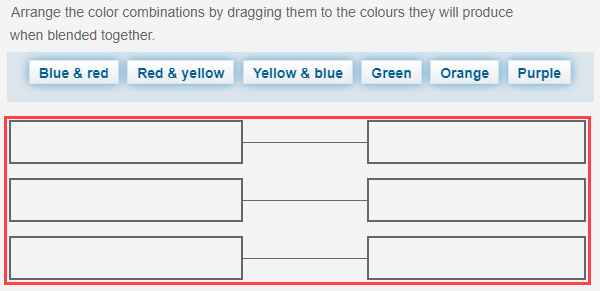
Max associations
The Max Associations value must be equal to or higher than the Min Associations value. When it is higher, an Add Pair button becomes available to test-takers so they can add more pairs up to the limit.
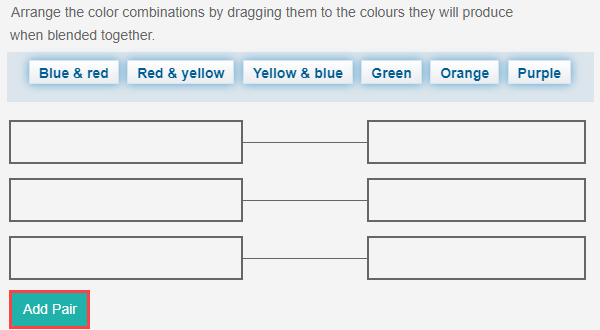
The Add Pair option is useful when you don't want to give test-takers any cues about the number of matches available. For example, setting Min Associations to 1 and Max Associations to 3 starts test-takers with one response row, with the option to add up to two more.
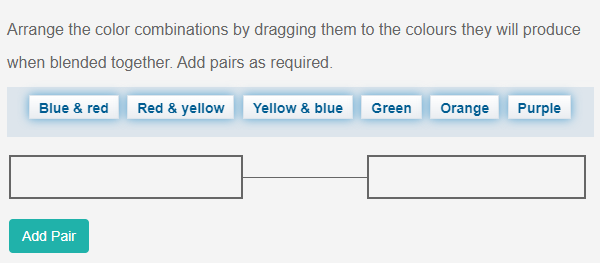
The Add Pair button disappears once test-takers reach the Max Associations limit, signalling they've used all available pairs.
To increase difficulty, set Max Associations higher than the number of available pairings. The button remains visible, removing that cue.
Source
In this section you'll enter the items and define which pairings are valid.
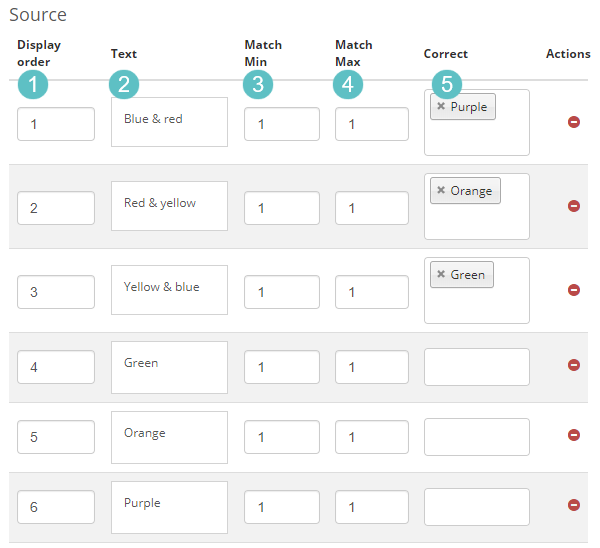
- Set the order items will display to test-takers in the Display order column.
- Enter text or upload images in the Text column — click a field to open the editor and use the resources icon to insert images.
- Enter the minimum number of times each item can be used in a pair in the Match Min column.
- Enter the maximum number of times each item can be used in a pair in the Match Max column.
- In the Correct column, use the multi-select to define which other items this item can be paired with. When using per-distractor scoring, this column is labelled Mapping — see Setting scores and marking.
-
Select Save Test Item. When using per-distractor scoring, complete the Scoring table in Setting scores and marking before saving.
Note
Match Min: The Match Min value must be less than or equal to the Match Max value.
Note
Match Max: Setting Match Max to 1 means test-takers can only use each item once. The item disappears from the selection pool once matched. Setting Match Max to 2 allows each item to be matched twice.
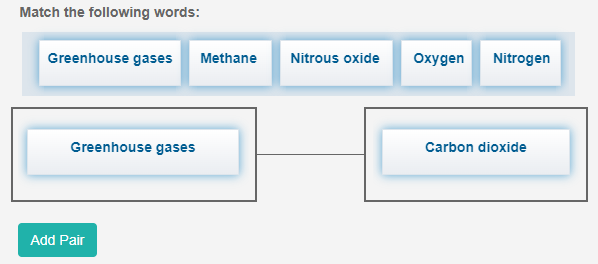
In the example below, Match Max for Greenhouse gases is set to 3 and each of the gases is set to 1. Greenhouse gases remains available for selection while Carbon dioxide is no longer available. This gives test-takers cues about how many times each option can be selected. Set Match Max higher to remove those cues.
Setting scores and marking
Associate interaction items are system marked.
Scoring type
There are two scoring types: Correct/Incorrect and Per Distractor.
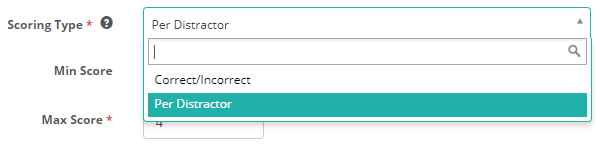
Correct/Incorrect
The test-taker must select all correct responses to receive a mark for the item.
Per distractor
Before the Scoring table appears, you must define pairings in the Mapping column of the Source section above.
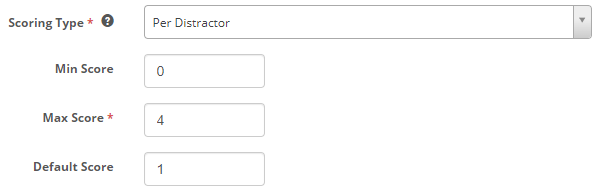
Additional scoring options become available to assign a score for each pair:
- Min Score: The minimum score the system can assign to the item.
- Max Score: The maximum score the system can assign to the item.
- Default Score: The score used for any pair without an individual score set.
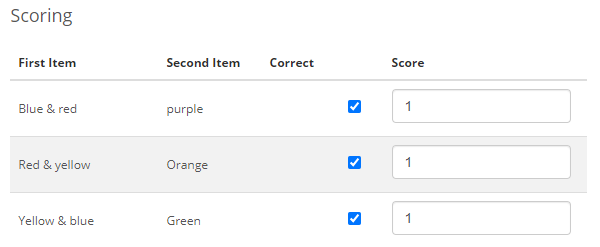
Enter a score for each pair in the Scoring table, then select Save Test Item.
Settings
There are no platform or tenant-level settings that affect the associate interaction item type. All configuration — minimum and maximum associations, source items, match limits, and scoring type — is set per item.