Password settings
Password policy settings in Janison Insights can be customised. This includes settings related to:
- When passwords expire and need to be reset
- Complexity requirements for passwords
- Whether passwords can be generated or must be set manually
- Whether passwords can be displayed in the system or not
Important
To ensure your Janison Insights site has a strong password policy, keep at a minimum the default password settings that were in place when your site was first set up. You may choose to make the password settings even stronger using the details below.
To change password policy settings for your site:
- Go to Settings > Password Settings.
-
The Password Settings screen displays.
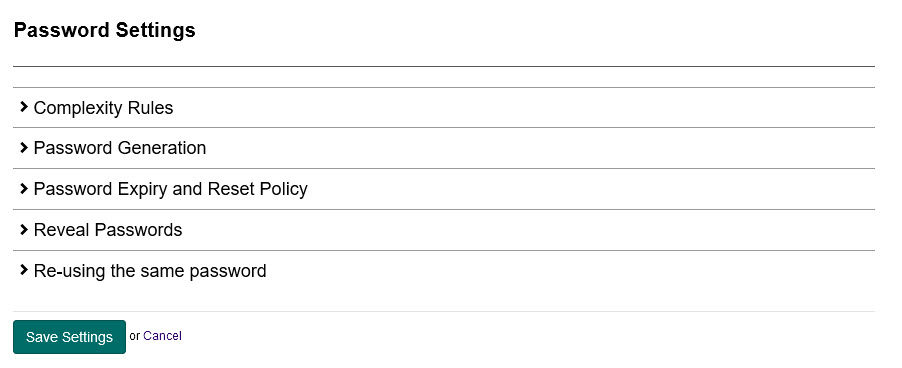
On this screen you can make the changes detailed in the sections below.
-
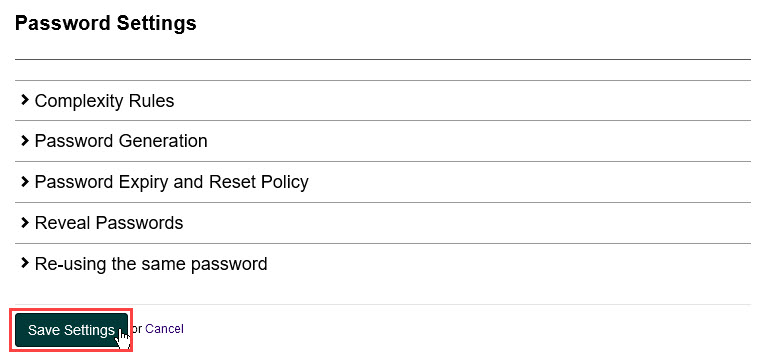
After making any changes, select Save Settings.
Complexity rules
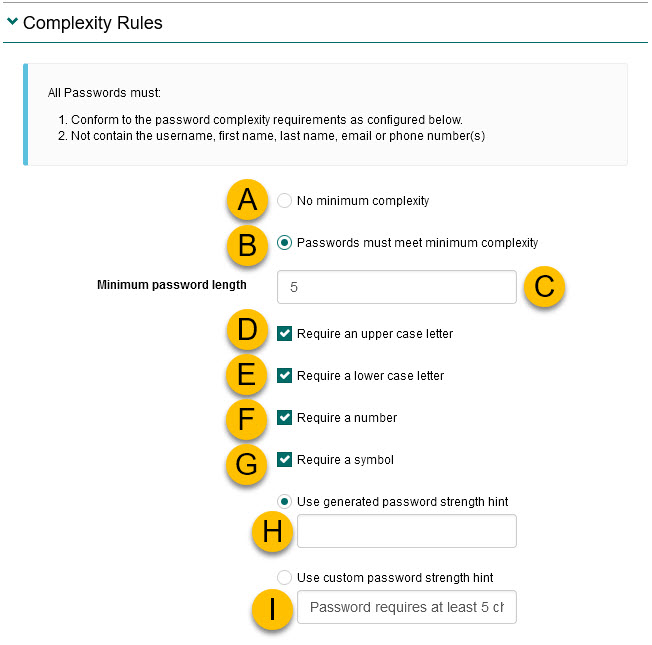
Use this section to adjust how complex passwords must be. The letters in the table refer to the annotated screenshot below.
| # | Setting | Description |
|---|---|---|
| A | Don't generate passwords – they must be set manually | If this option is selected, there are no requirements for passwords to meet any complexity rules. |
| B | Passwords must meet minimum complexity | Passwords must meet the minimum requirements specified in the rest of this section. The requirements are checked when passwords are created or changed. |
| C | Minimum password length | A numerical value enforcing the minimum length of a password. |
| D | Require an upper case letter | At least one upper case letter is required in the password (A, B, C and so on). |
| E | Require a lower case letter | At least one lower case letter is required in the password (a, b, c and so on). |
| F | Require a number | At least one number (0–9) is required in the password. |
| G | Require a symbol | At least one symbol is required in the password, such as: ~ ! @ # $ % ^ & * ( ) _ + : \ " ; ' < > ? , . / { } \| [ ] |
| H | Use generated password strength hint | The hint message shown to users changing their password contains the default text. Select this option if the complexity rules are left as the system default. The hint displays on the Change Password screen: 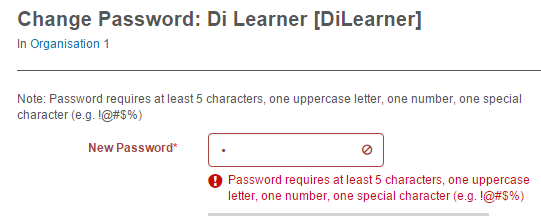 |
| I | Use custom password strength hint | Create a custom hint message by entering text in the associated field. Select this option if you have changed the complexity rules and the hint needs to match. For example, if the minimum password length was changed to 12 characters, the hint could be changed to: 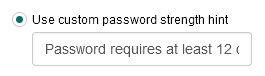 This hint then displays on the Change Password screen: 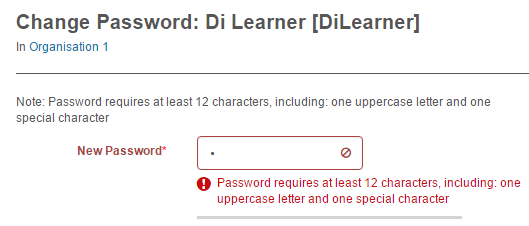 |
Password generation
Use this section to adjust whether the system generates passwords for users, or users must set their own.
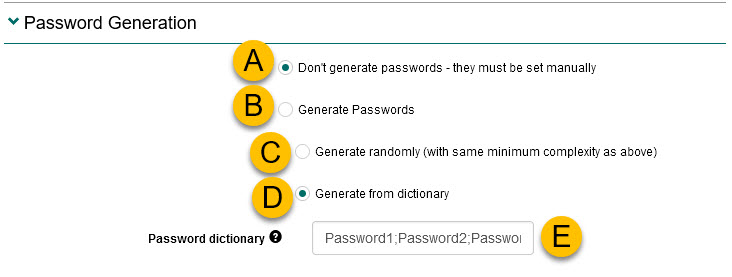
| # | Setting | Description |
|---|---|---|
| A | Don't generate passwords – they must be set manually | Users must set their own password manually when logging in. |
| B | Generate Passwords | The system generates passwords for users, based on the further selections below. Generally this option is used only for assessment events where candidates are never meant to log in to Janison Insights — they instead self-register for a test, take the test and submit their answers. Generated passwords can be used together with the Reveal passwords option to allow a user with an appropriate role (for example test manager, delivery manager or invigilator) to provide a candidate with the password they need to log in for their test. |
| C | Generate randomly (with same minimum complexity as above) | The system generates passwords based on the settings in the Complexity rules section. Available when Generate Passwords is selected. |
| D | Generate from dictionary | The system generates passwords based on the words entered in the Password dictionary field. |
| E | Password dictionary | Enter dictionary words separated by semicolons. The system uses these words to generate passwords. |
Password expiry and reset policy
Use this section to adjust if and when users' passwords expire. A user needs to set a new password when their password expires. Different expiry periods can be set per role.
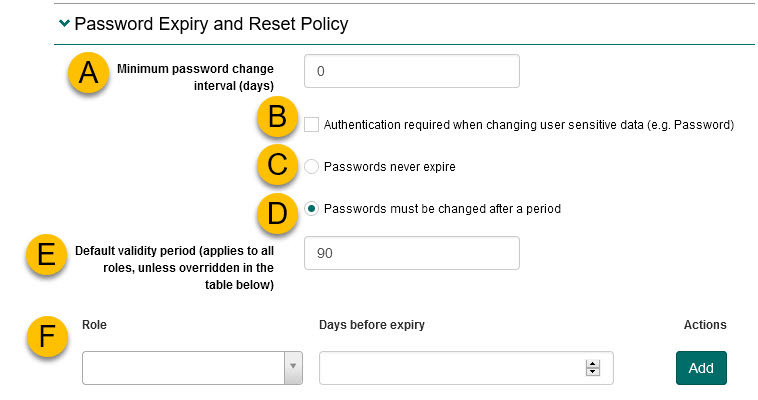
| # | Setting | Description |
|---|---|---|
| A | Minimum password change interval (days) | The length of time that must pass after a user changes their password before they can change it again. For example, a value of 30 means users see the following message if they attempt to change their password less than 30 days after last changing it: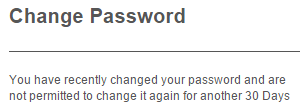 The text of this message can be customised using string resources. |
| B | Authentication required when changing user sensitive data (e.g. Password) | Requires a user with relevant role permissions to enter their own password in order to change the password of another user. For example, when changing a candidate's password, an administrator needs to enter their password to confirm their identity and save the change: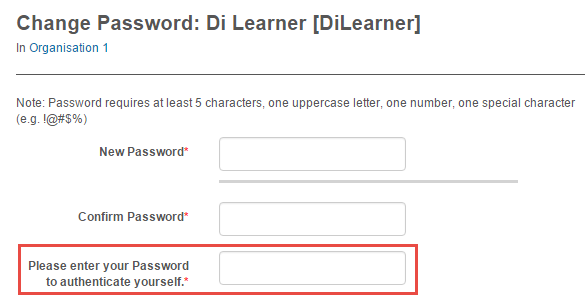 |
| C | Passwords never expire | Users are never forced to change their passwords. They can still change passwords voluntarily. |
| D | Passwords must be changed after a period | Together with the Default validity period field, specifies how often the system forces users to reset their password. Users see a message like the following when their password expires: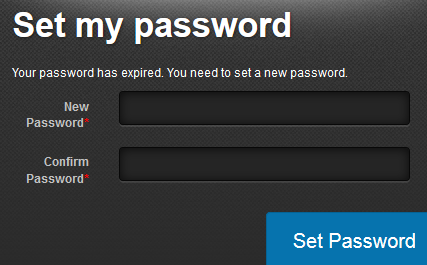 The text of this message can be customised using string resources. |
| E | Default validity period (applies to all roles, unless overridden in the table below) | The default number of days that applies across all roles, except roles given a specific period using the option below. |
| F | Password validity period set for specific role | Sets how often users with a specific role must change their passwords. Select a role from the Role dropdown, enter the number of days in the Days before expiry field, then select Add. The selected role and number of days display in the list: 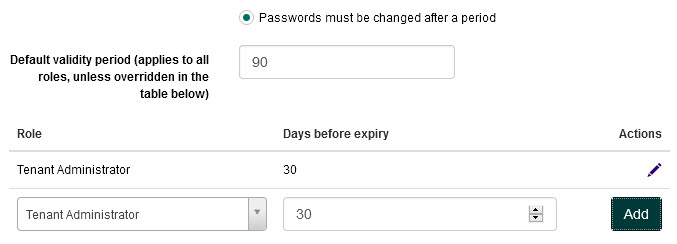 In this example, users with the Tenant Administrator role must change their password every 30 days; all other users every 90 days. |
Reveal passwords
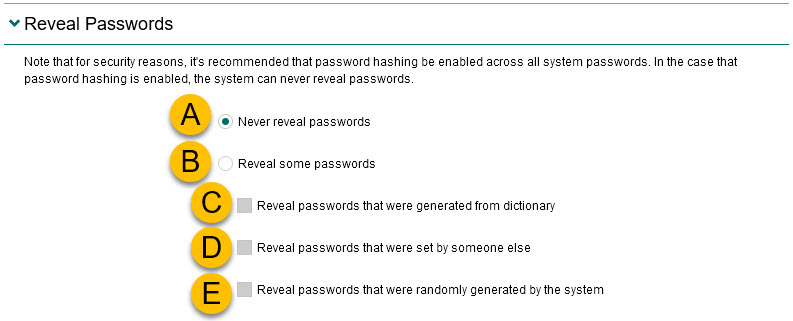
Use this section to allow some or all user passwords to be visible in the list of users under Manage People > Users.
Tip
For security reasons, it is recommended that password hashing (the transformation of passwords into scrambled versions) is enabled across all passwords. The system cannot reveal any passwords for which hashing is enabled.
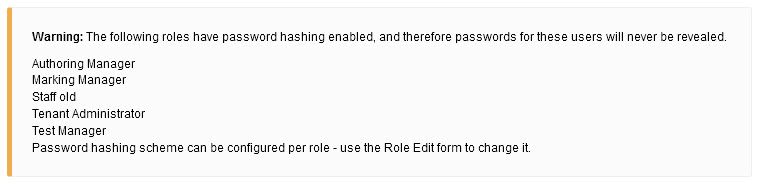
If password hashing is enabled, a message displays in the Reveal Passwords section listing the roles for which the system will not reveal passwords. For example:
| # | Setting | Description |
|---|---|---|
| A | Never reveal passwords | No passwords are shown in the list of users. |
| B | Reveal some passwords | Used with one or more of the checkboxes below to specify which passwords can be revealed in the list of users. Two further configurations are needed for passwords to show: 1. Password hashing turned off for the required role — go to Settings > Roles, select the relevant role and set Hashing Scheme to None. 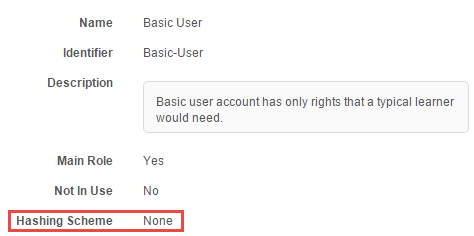 2. Passwords set as visible in the list of users — go to Settings > User Settings, expand the List View section and check Visible next to Password. 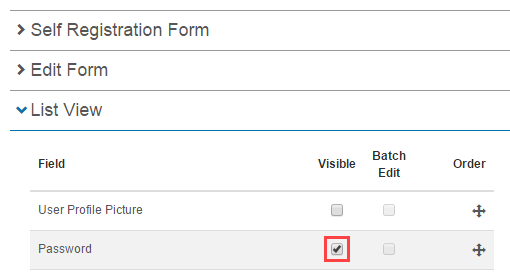 A revealed password displays like this:  |
| C | Reveal passwords that were generated from dictionary | Passwords generated from a dictionary display in the list of users. Available when Reveal some passwords is selected. Relates to the Password generation section. |
| D | Reveal passwords that were set by someone else | Passwords created by someone other than the user display in the list of users. Available when Reveal some passwords is selected. |
| E | Reveal passwords that were randomly generated by the system | Randomly generated passwords display in the list of users. Available when Reveal some passwords is selected. Relates to the Password generation section. |
Re-using the same password
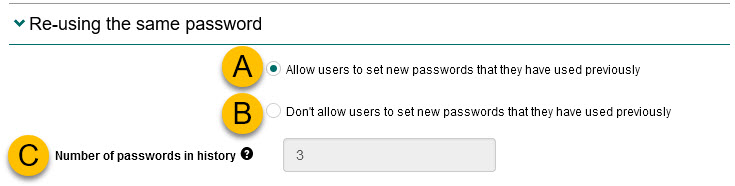
Use this section to control whether a user can reuse previous passwords when changing or resetting their password.
| # | Setting | Description |
|---|---|---|
| A | Allow users to set new passwords that they have used previously | Users may reuse any password they have used before. |
| B | Don't allow users to set new passwords that they have used previously | Users must choose a password they have not used before. Works together with the Number of passwords in history field. If a user attempts to reuse a previous password, a message like the following displays: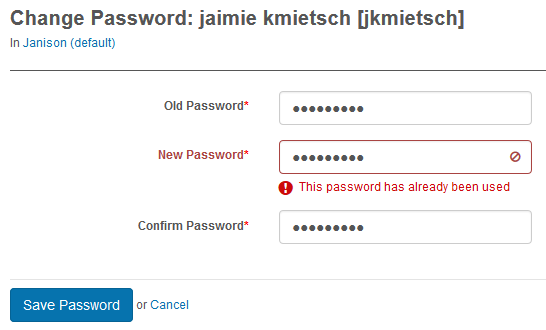 |
| C | Number of passwords in history | The number of previous passwords the system stores per user to check new passwords against. Available when option B is selected. For example, with a value of 3, the user must create a unique password the first three times they change or reset it; on the fourth change they can reuse their original password. |