Preview items
You can preview an item to see how it will appear to test-takers before the test is delivered. Previewing opens the item in the test player so you can interact with it as a test-taker would.
Note
Preview is not a live test attempt. The system does not record any results during a preview.
Preview from the items list
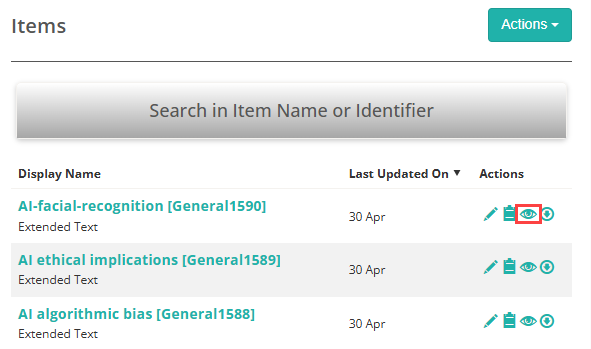
- Go to Author > Items.
- Select the eye icon in the Actions column next to the item you want to preview.
The item opens in the test player in a new tab.
Preview from within an item
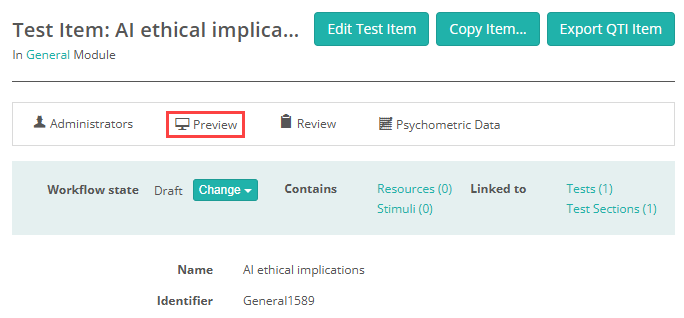
- Go to Author > Items and open the item you want to preview.
- Select the Preview tab.
The item opens in the test player in a new tab.
Preview tools
When the item opens in the test player, a panel of preview tools is available on the right-hand side. These tools let you check scoring, personal needs and preferences substitutions, item and distractor order, and more.
See Test player preview tools for a full description of each tool.
Settings
The following tenant-level settings affect item preview. Contact your Janison administrator to change them.
| Setting | Description |
|---|---|
| Enable Score Preview | When enabled, the Scoring tool is available in the preview panel, letting you verify correct responses and scores as you interact with the item. |