Automatically marked questions
A test may contain questions that the system can mark automatically — for example, multiple choice — and questions that require manual marking — for example, extended text.
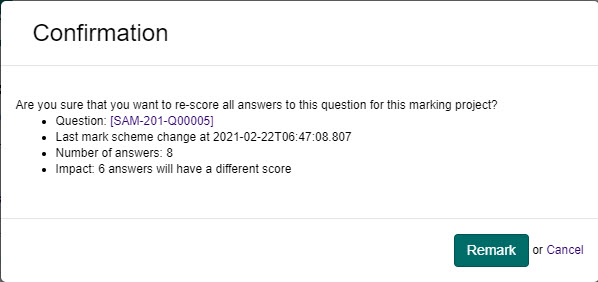
Marking projects are designed to manage the manual marking aspect, but they also contain functionality for Administrators to trigger and view the automatic marking of questions. For example, if a change is made to the question marking scheme, a question can be remarked.
Important
You must score automatically marked questions prior to the marking project finalisation. Once finalised, auto-marking can no longer occur.
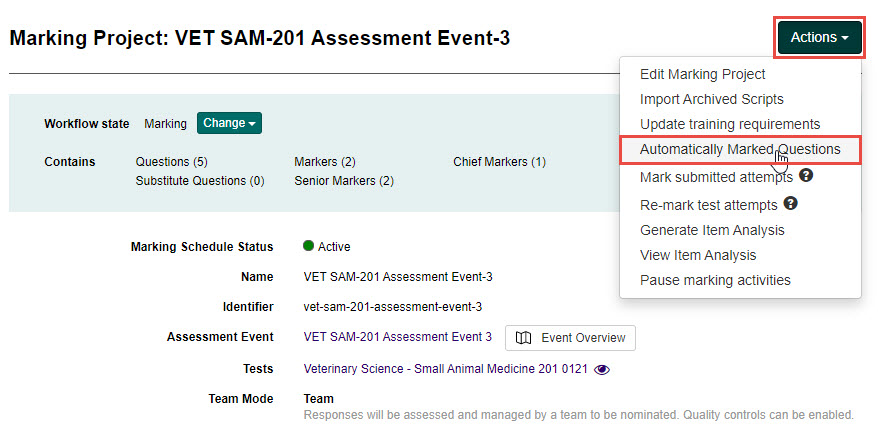
To access the auto marking functionality, open the relevant marking project, then select Automatically Marked Questions from the Actions drop-down button.
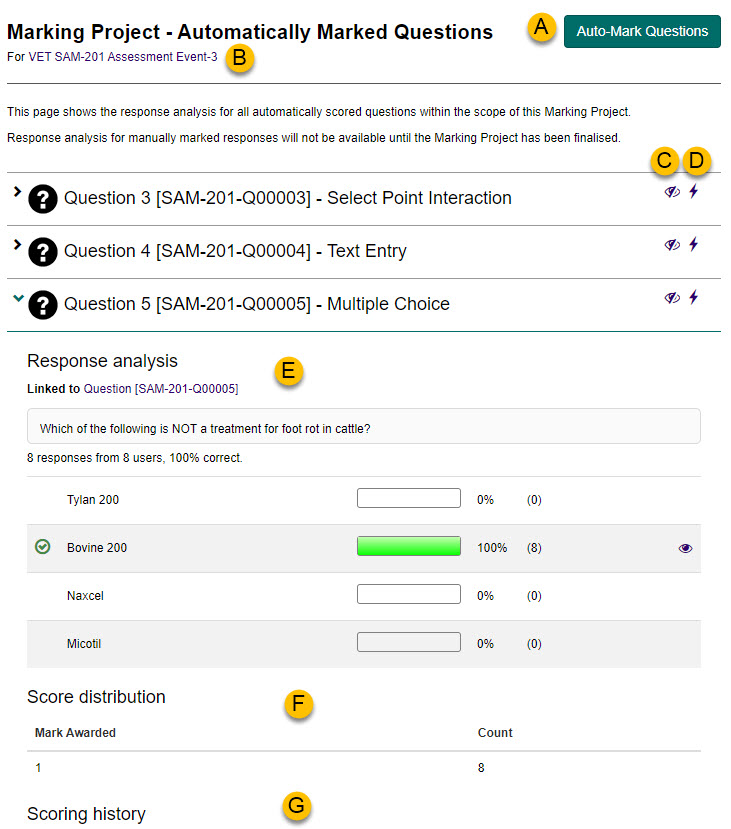
The Automatically Marked Questions screen provides the following features:
| # | Feature | Description |
|---|---|---|
| A | Auto-Mark Questions | This button will auto-mark all questions. |
| B | Marking project | This link will take you back to the Marking Project screen. |
| C | Exclude Question | This icon will exclude the question from the marking project. |
| D | Re-Score | This icon will auto mark a specific question. When selected, a popup displays with information such as the date of a change to the marking scheme. |
| E | Response analysis | This section displays a response analysis for the question, showing how many candidates have selected each answer option. |
| F | Score distribution | This section displays the score distribution for the question. |
| G | Scoring history | This section displays an audit log of any remarking that has occurred. |