Set scores on an item
A score or mark on a test item represents the numerical or qualitative evaluation assigned to a test-taker's response. The scoring options available depend on whether an item is system marked or human marked.
System-marked items
System-marked items have a Scoring Type field in the item's Settings section. The scoring type controls how the system assigns marks to a test-taker's response.
Scoring type
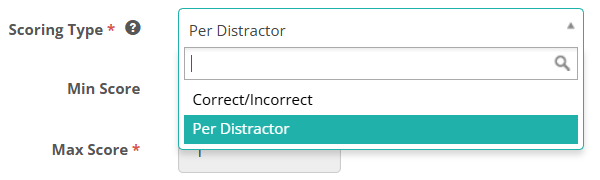
Select one of the following:
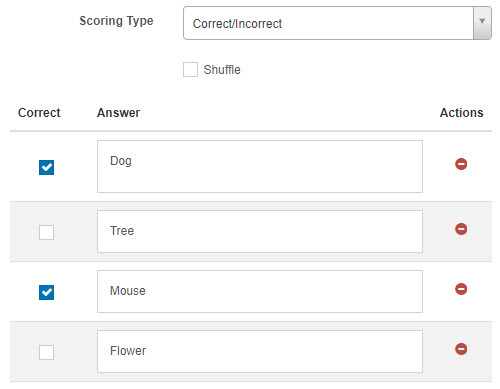
- Correct/Incorrect — The test-taker must select all correct responses and no incorrect responses to receive any marks. Any other combination receives zero.
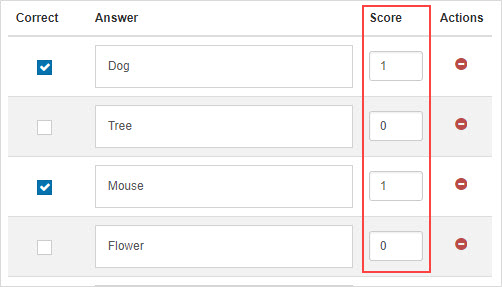
- Per distractor — An additional Score column appears for each response option, letting you assign an individual score to each choice. This enables partial credit scenarios.
Note
The way these options appear may differ depending on the item type. For example, the position object interaction has its own scoring section, but the concept is the same.
Min score, max score and default score
These fields only appear when you select Per distractor scoring.
| Field | Description |
|---|---|
| Min Score | The minimum score the system can assign. Set this to prevent negative scores — for example, enter 0 to ensure a test-taker cannot score below zero. |
| Max Score | The maximum score the system can assign. |
| Default Score | The score applied to any response option that does not have an individual score value set. The default value is the item's maximum mark. |
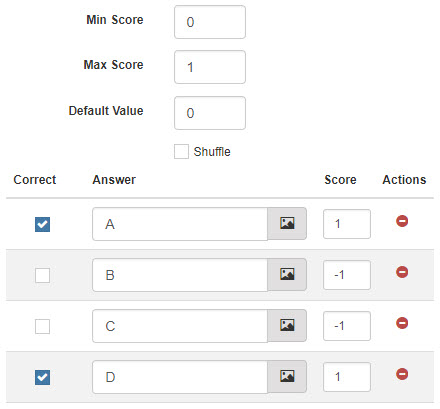
In the following example, option B and C each have a score of -1, giving a combined total of -2 if both are selected. Setting Min Score to 0 means the system assigns 0 instead. Options A and D each have a score of 1, giving a total of 2 if both are selected. Setting Max Score to 1 means the system assigns 1 instead.
Human-marked items
Some item types — such as extended text, file upload, and drawing interaction — require a human marker. Once you create and save one of these items, a Marking expandable section becomes available.
Marking rubric
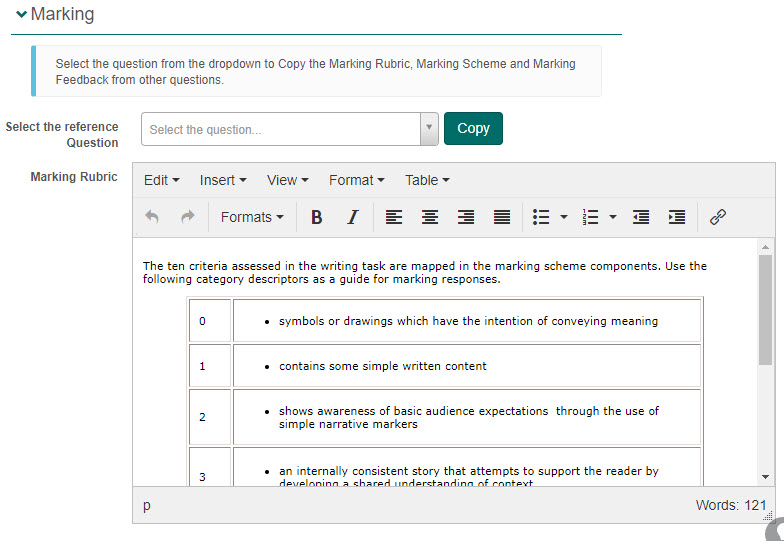
The marking rubric is a scoring guide for markers. Use it to describe the criteria and standards markers should apply when evaluating a test-taker's response.
Tip
If you have already set up a marking rubric or marking scheme components for another item, you can copy them. Select the source item from the Select the reference Question dropdown, then select Copy.
Marking scheme components
Marking scheme components let markers assign individual marks to specific criteria within a response.
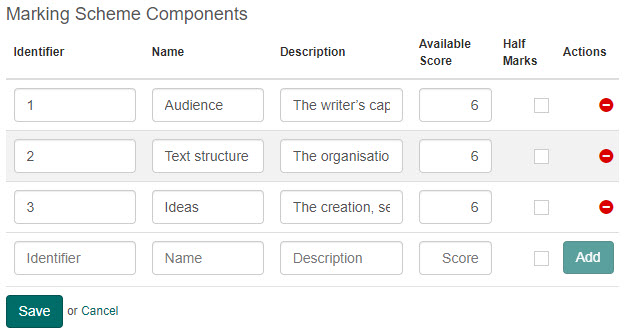
For each component, set the following:
| Field | Description |
|---|---|
| Identifier | A unique alphanumeric reference for the component. |
| Name | A descriptive label for the component. |
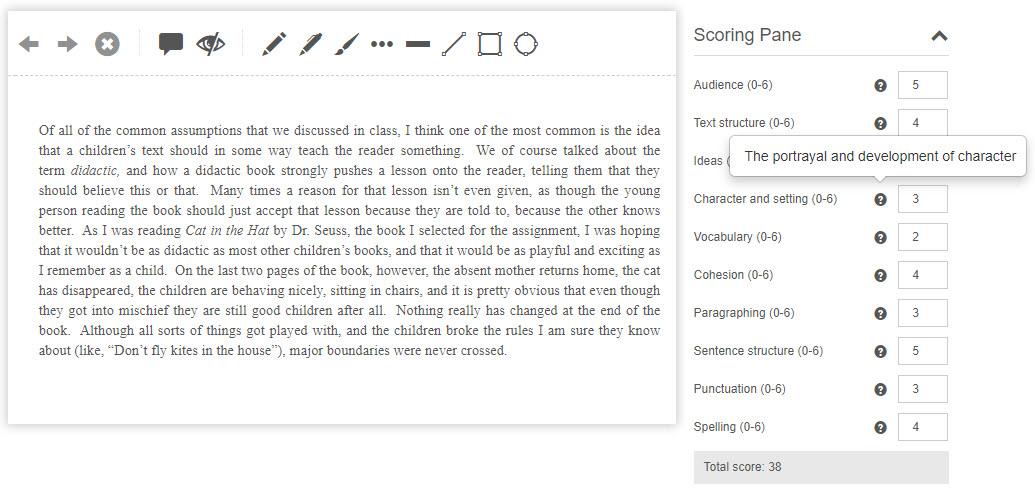
| Description | Optional guidance for markers. Markers can view this by hovering over the ? icon in the marking interface. |
| Available Score | The maximum marks available for this component. Whole numbers only. |
| Half Marks | Enable to allow markers to award scores in 0.5 increments (for example, 1, 1.5, 2). Cannot be enabled once marking is in progress. |
When a marker reviews a response, these components appear as a scoring pane where they assign marks to each one.
Weighting on a test section
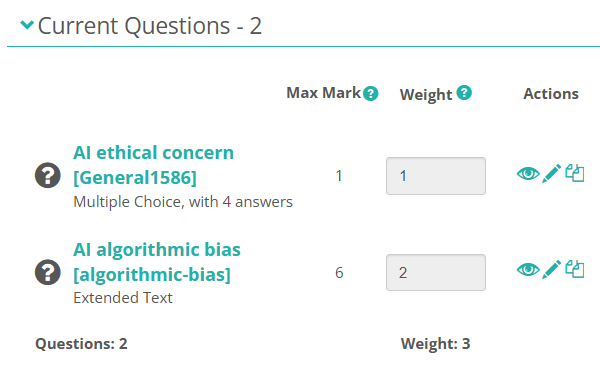
Weighting adjusts how much an item contributes to a test-taker's overall score. It is applied at the test section level, not on the individual item.
Tip
Weighting is particularly useful for items shared across multiple tests. Because weights are test-specific, adjusting a weight only affects that test — unlike editing the item's marks directly, which would affect every test using that item.
The formula is: Score achieved ÷ Max Mark × Weight
For example: an item has a max mark of 6 and a weight of 2. If a test-taker scores 3, their weighted score is 3 ÷ 6 × 2 = 1.
Tip
If a test-taker's achieved score exceeds the max mark, the system caps it at the max mark value.
Settings
There are no platform-level settings that affect item scoring. The scoring type and mark allocation are configured per item. Note that Half Marks on marking scheme components can only be enabled before marking of that item has begun.