Composite items
A composite item groups multiple interactions into a single item. Each interaction is a separate question part that the test-taker responds to independently, and the item can share a common stem (body text, images, or media) across all parts.
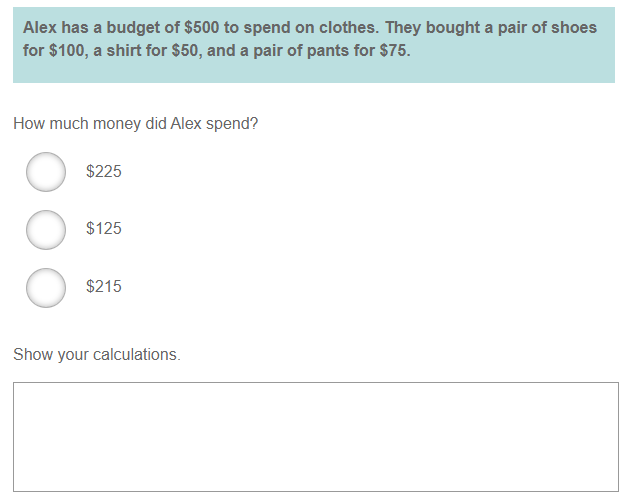
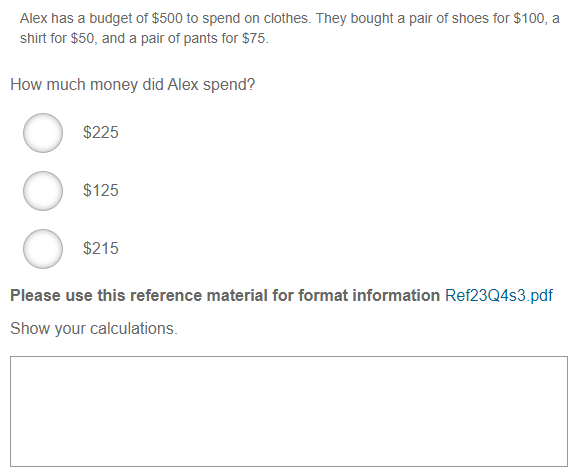
In the example below, the blue panel is the shared item stem. Below it are two interactions: a multiple choice item and an extended text item.
Create a composite item
Navigate to Design > Questions.
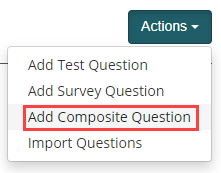
Select Actions > Add Composite Question.
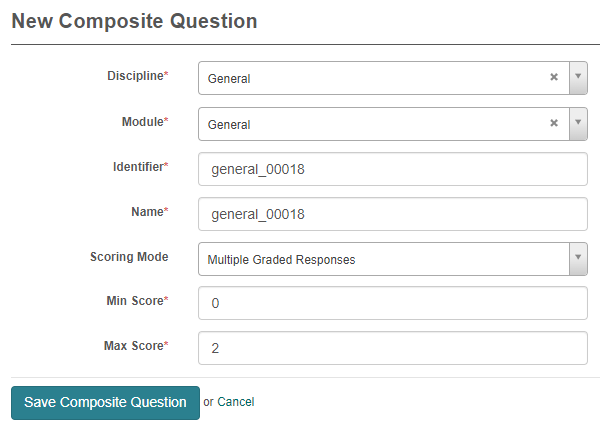
Complete the Discipline, Module, Identifier, Name, and Scoring Mode fields, then select Save Composite Question.
Scoring modes
Single Correct Response — The test-taker must answer all interactions correctly to receive any marks. Partial credit is not available.
Multiple Graded Responses — Each interaction scores independently. Assign a weight to each interaction, then set Min Score and Max Score to define the overall score bounds.
Manual on Whole Item — A marker scores the composite item as a single unit, rather than per interaction. This mode is only available when enabled for your platform — see Settings below.
Add item body (stem)
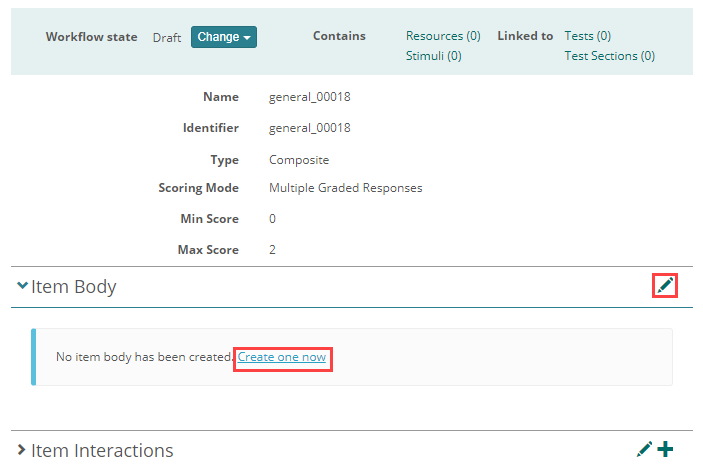
In the Item Body expandable, select the pencil icon or Create one now.
Enter your content into the Item Body and select Save.
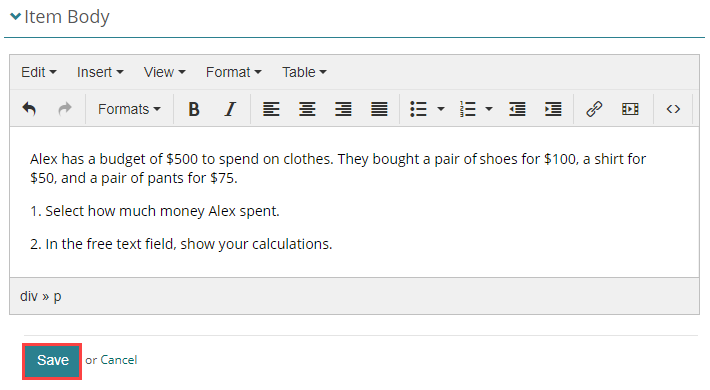
Create interactions
The interactions are the individual question parts within the composite item. There are two ways to add them:
- Via the Item Interactions expandable — interactions are listed separately and appear below the item body in sequence. This is the simpler approach.
- Via the Item Body — interactions are embedded directly into the body content, letting you place text, tables, or other media around them. Use this for more control over layout.
Via the Item Interactions expandable
In the Item Interactions expandable, select the pencil icon or Create one now.
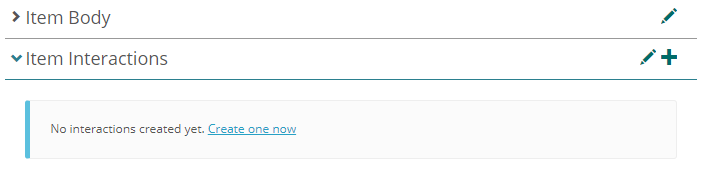
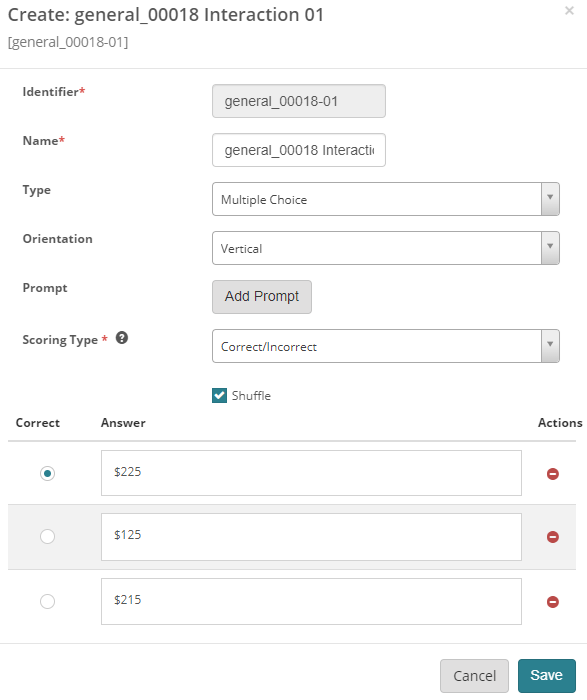
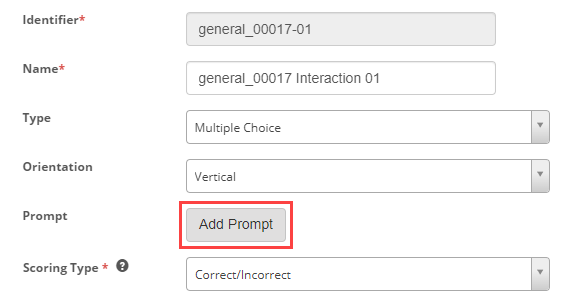
Complete the form for the interaction. In the example below, the interaction uses the multiple choice item type. See Item types for a full list of available types.
Note the Add Prompt button — this is covered in Composite item prompts below.
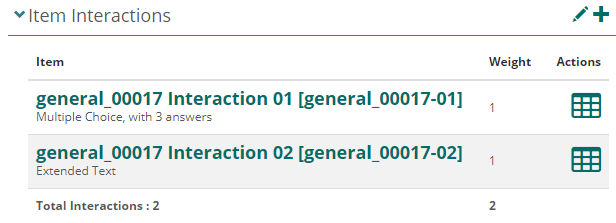
To add another interaction, select + at the top right of the Item Interactions expandable. To reorder interactions, drag them by the handle in the interaction list.
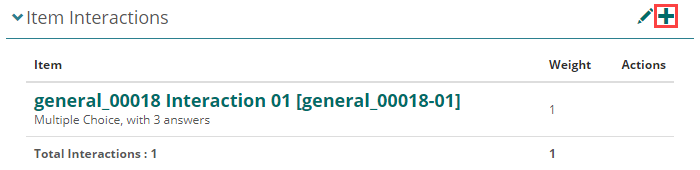
The second interaction is now listed in the expandable.
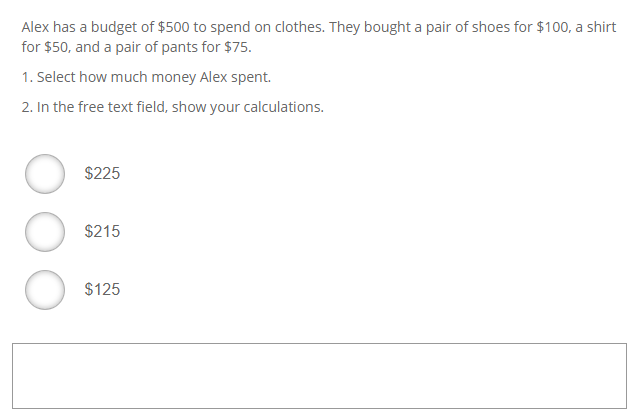
This is how the composite item displays to test-takers.
Composite item prompts
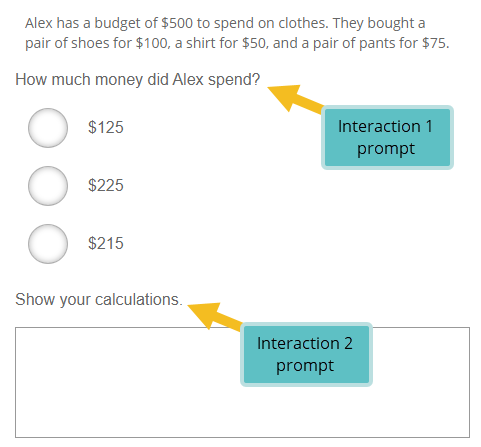
You can add a prompt to each interaction. The prompt displays above the interaction and gives test-takers context for that specific part.
Select the interaction you want to edit, then select Add Prompt.
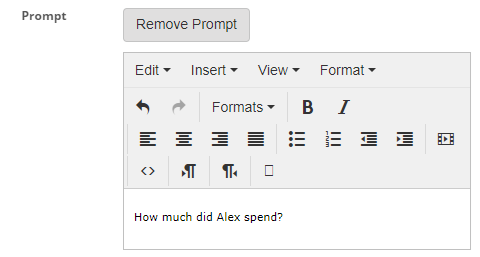
Enter a stem and select Save. Repeat for each interaction.
With prompts added, each interaction displays its prompt directly above it.
Via the Item Body
Open the Item Body in edit mode.
Select Insert > Insert Interaction.
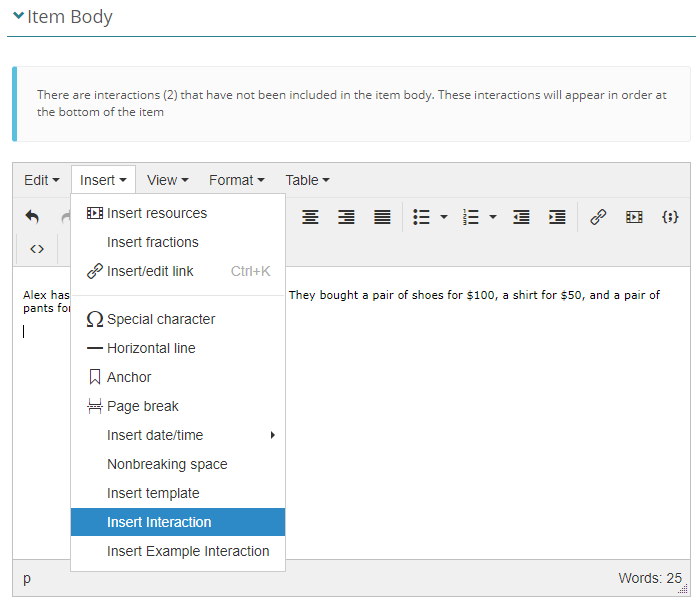
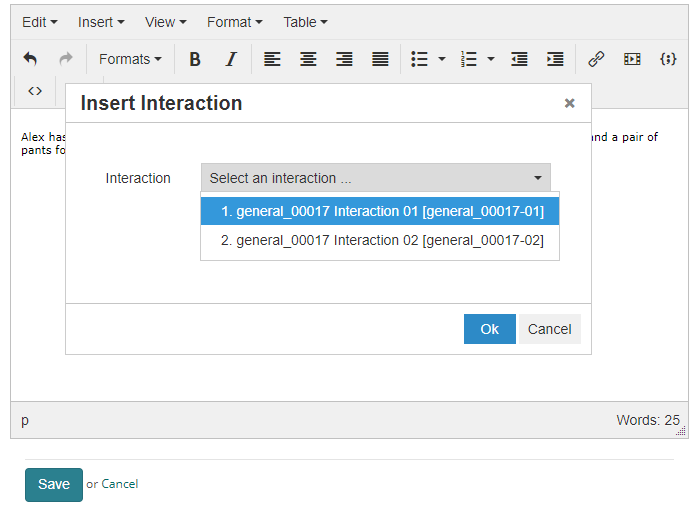
Select the interaction and select OK. Repeat for any other interactions.
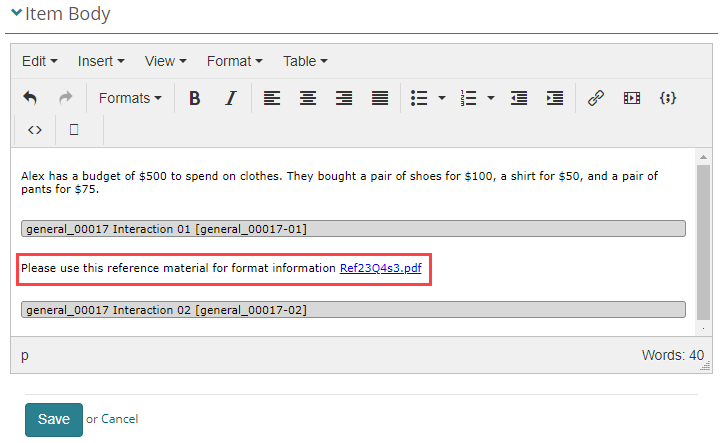
You can now add content above and below each embedded interaction.
This is how the composite item displays to test-takers.
Settings
Administrators can configure the following setting at Design > Settings > Question Options.
Enable Marking Composite Questions As Whole Item — makes the Manual on Whole Item scoring mode available when creating composite items.