Standardisation 1 (S1)
Standardisation 1 (S1) is the process where the most senior members of a marking team, usually the Chief Marker, select, mark and categorise a number of candidate responses. These will yield model scores used in subsequent phases of the marking project for the purposes of training and quality monitoring, both of which help to ensure consistency through the marking process.
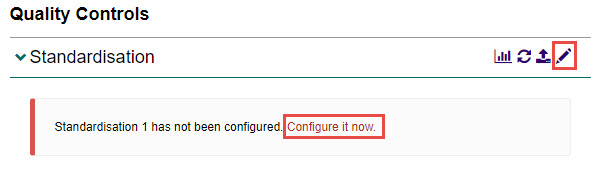
To configure S1, select the Configure it now link or the Edit icon next to the Standardisation expandable section.
Configuration options
| Option | Description |
|---|---|
| Do not use Standardisation | This option disables S1 in the marking project. |
| Import Standardisation scripts from a spreadsheet | This option allows you to import archived scripts. |
| Develop standardisation scripts from live scripts | This option allows you to develop the standardisation scripts from live scripts. |
Import standardisation scripts from a spreadsheet
-
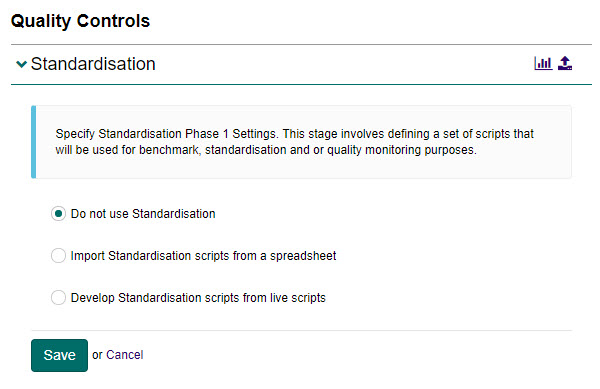
Select the Import Standardisation scripts from a spreadsheet option, then select the Import Archived Scripts icon.
-
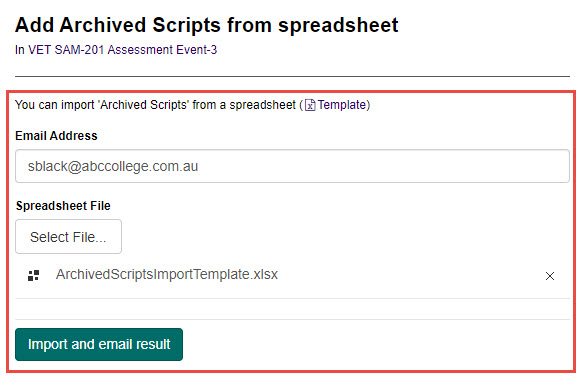
Complete the following:
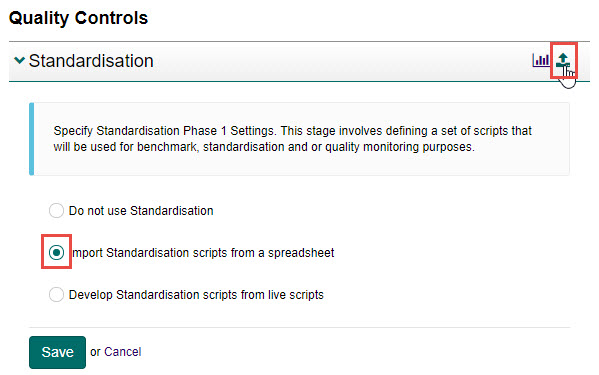
- Select the Template link to download a sample Excel template. The Supported Attributes tab has information on requirements for different fields.
- Open the downloaded Excel template, enter all required data and save the template to your local machine.
- Check the email address entered is correct.
- Select the Select File button to locate and select the saved file on your local machine.
- The uploaded file will display. Select the Import and email result button to complete the import process.
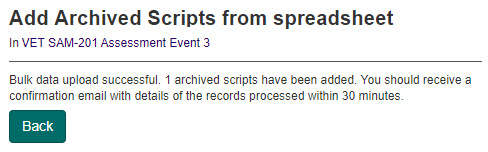
Feedback will display regarding the import.
Develop standardisation scripts from live scripts
-
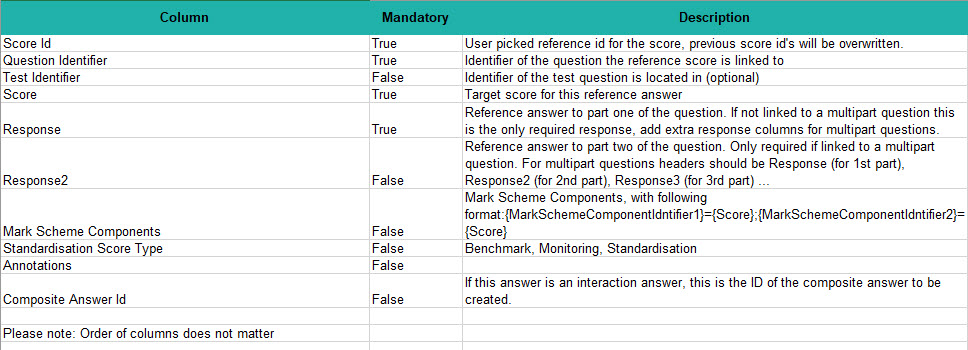
Select the Develop Standardisation scripts from live scripts option.
-
Additional settings are now displayed; make the relevant selections as required (these are optional).
Tip
If you enable the Use Manual Standardisation 1 Selection to select candidate scripts to include in Standardisation 1 option, additional columns Selection Quota and Selection Bands will display for each question. If this is disabled, the columns will not be displayed.
-
Enter the number of Markers expected to mark each standardisation script in the Standardisation 1 Double Marking Factor field.
-
For each question, complete the following:
a. Enter the number of scripts a Senior Marker must mark as part of S1 in the required Selection Quota field.
Tip
This number needs to be higher than the sum of benchmark, standardisation and monitoring.
b. Enter the required number of bands in the Selection Bands field. These are used to group scripts into similar score ranges (e.g. with a question score out of 20, you may want to sort the scripts into three bands: high (15–20), average (8–14), and low (0–7)).
Tip
When a Marker is completing standardisation 2 or 3 (S2 or S3), they can be given scripts from all three bands to ensure they are accurate in each of the bands.
c. Enter the required number of model answer scripts available to all Markers to reference in the Benchmark field.
d. Enter the required number of standardisation scripts in the Standardisation field. These are used as part of the S2 and S3 phases.
e. Enter the number of monitoring scripts for blind quality marking (BQM) in the Monitoring field. These are included as part of the marking phase for ongoing quality monitoring.
Tip
To learn more about BQM, see the Blind quality monitoring section.
-
Select the Save button to save the changes.
A set of progress graphs will display. They will change to green as standardisation progresses.
Transition marking project to S1
You will need to transition the marking project to S1. This will enable the Chief Markers to create the set of standardisation and monitoring scripts.
To do this, select the Change button and select Commence Standardisation 1.
Tip
You may encounter some warnings depending on the configuration of your marking project.
When you change the status of the project, the status of the Chief Markers will change to Marking.