Introduction to items
There is a wide range of item types available to bring your test to life. You can view a summary of the types available below, or you can head to the item types pages for a more in-depth look.
Note
Depending on the configuration of your site, items may have been renamed to questions using string resources.
Note
Janison tests and many item types are QTI 2.1 compliant.
Item types
Below is a summary of the item types available in Insights. For more detailed information about an item, select the Read more link.
While most item types are automatically marked by the system, others need to be human marked.
| Item type | QTI | Description | Marking | |
|---|---|---|---|---|
| Associate interaction | QTI 2.1 | Assesses the test-taker's ability to match images, words or phrases that are associated with each other. | System marked | Read more |
| Composite | An item composed of multiple items. For example, the items could cover several questions about a common topic. | Human or system marked | Read more | |
| Drawing interaction | QTI 2.1 | Test-takers have writing and drawing tools which can be used to mark up an image. | Human marked | Read more |
| Extended text | QTI 2.1 | Test-takers need to enter a free text response into an open text field. | Human marked | Read more |
| File upload | QTI 2.1 | Test-takers need to upload one or more files in response to a question. | Human marked | Read more |
| Gap match interaction | QTI 2.1 | Test-takers need to drag text or images from a source list into gaps within the text. | System marked | Read more |
| Graphic associate interaction | QTI 2.1 | On an image, test-takers need to drag lines between hotspots to associate the hotspots with each other. | System marked | Read more |
| Graphic gap match interaction | QTI 2.1 | Test-takers need to drag a set of source images or text onto the hotspots on an image. | System marked | Read more |
| Graphic order interaction | QTI 2.1 | Test-takers need to drag numbers onto visible hotspots on an image. | System marked | Read more |
| Hotspot interaction | QTI 2.1 | Test-takers need to select one or more hotspots on an image. | System marked | Read more |
| Instruction | QTI 2.1 | Used to provide information or instructions to test-takers. | Not marked | Read more |
| Match interaction | QTI 2.1 | Test-takers need to match images or text into lists. | System marked | Read more |
| Multiple choice | QTI 2.1 | Test-takers need to select a correct answer from the choices offered as a list. | System marked | Read more |
| Multiple choices | QTI 2.1 | Test-takers need to select more than one correct answer from the choices offered as a list. | System marked | Read more |
| Order interaction | QTI 2.1 | Test-takers need to correctly order a set of text or images. | System marked | Read more |
| Position object interaction | QTI 2.1 | Test-takers need to drag one image to position it on another larger image. | System marked | Read more |
| Select point interaction | QTI 2.1 | Test-takers need to select on an image to select points. Unlike a hotspot interaction, a select point interaction doesn't display specific points for the test-taker to choose from. | System marked | Read more |
| Slider interaction | QTI 2.1 | Test-takers need to select a value by dragging a slider. | System marked | Read more |
| Speaking | Test-takers need to talk about one or more topics and their verbal response is recorded and later marked. | Human marked | Read more | |
| Survey | A survey item is designed to gather information or opinions from test-takers in order to collect data for analysis or research purposes. | System marked | Read more | |
| Text entry | QTI 2.1 | Test-takers need to enter a free text response. This differs from an extended text question as the input field accepts limited text and the correct response is set by the test author. | Human or system marked | Read more |
| Text spot interaction | QTI 2.1 | Test-takers need to select correct responses from several options. Selected responses display in a darker shade. | System marked | Read more |
Image size and format
Where you use images in your items, compatible file types are PNG, JPG, and SVG. SVGs don't work well within item interactions like graphic gap match and match interactions.
PNG is our recommended format as it supports transparent backgrounds and allows for lossless compression.
When considering performance, keep images to 700kb or smaller, although larger files can be used if required. You should give special consideration to the image size if the test-takers are in lower bandwidth locations.
Setting scores on an item
A score or mark on a test item represents the numerical or qualitative evaluation assigned to a test-taker's response, indicating their performance and comprehension of the subject matter.
The options available for system marked items differ to the options available on human marked items. You can read more in our topic on setting scores.
Item editor sections
Once created, editor sections become available where the item can be managed and enhanced. Which sections appear depends on the item type:
- Audio — this section provides the ability to upload audio files for the item. Read more
- Feedback — this section lets you configure feedback shown to test-takers during or after the test. Read more
- Stimuli — item authors can use a stimulus to add material or information to a test item, to provide relevant information or context for the test-taker. It can be any form of content, such as a passage of text, a graph, a diagram, an image, an audio clip, or a video segment. Read more
- Response analysis — in this section, you can see an analysis of any test-taker responses for the item once completed. Read more
- Comments — this section provides the ability for people involved in the development and approval of the item to hold a discussion. Read more
- Personal needs and preferences (PNP) — this section provides you with the ability to specify substitute questions. For example, there may be a different version of the question for a test-taker with a visual impairment or with language options. You may see PNP referred to as disability adjustment codes (DAC) or substitute items. Read more
- Marking — this section is where the marking rubric and marking scheme components are created for human marked items. Read more
- Recent activities — this section provides a list of actions for the item.
Create an item
There are two ways to create an item in Insights. Which one you use depends on whether you already know where the item will live.
Via the Questions menu
Select Author from the main navigation, then select Questions from the left menu. From the items list, select Actions, then select Add Test Item.
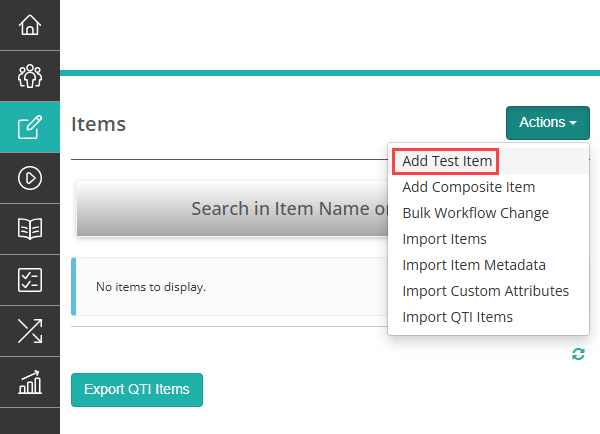
Use this pathway when:
- You are building items ahead of test assembly and don't yet know which test they'll belong to
- The item will be reused across multiple tests or test sections
- You want to manage items through a review workflow before adding them to a test
Items created this way are stored in the item bank and can be added to any test section later.
Via a test section
Open a test in the test designer and navigate to the relevant test section. Select the Add Questions expandable section, then select Create a new Question under Option 1 - Create new question.
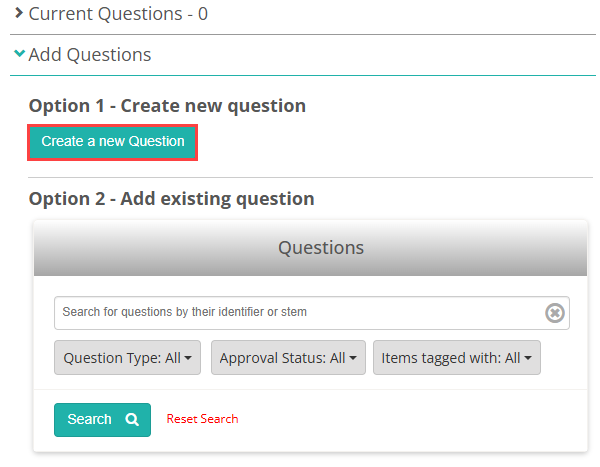
Use this pathway when:
- You are building a test and creating items specifically for it
- You want to create and link the item to the test section in a single step without leaving the test designer
Items created this way are linked to the test section immediately.
Tip
The steps to complete an item vary depending on the item type. See the guides related to item types for detailed instructions for each type.
Settings
Items can be renamed across your site using string resources. If your organisation has customised this, items may appear as "questions" or another term throughout Insights.
Item type availability may also vary by tenant configuration. Janison staff can configure which item types are available under Author > Settings > Available Question Types. Contact your Janison administrator if an item type listed on this page is not available in your site.