Workflows
Janison Insights uses workflows for many features, such as authoring, marking, assessment events and enrolments.
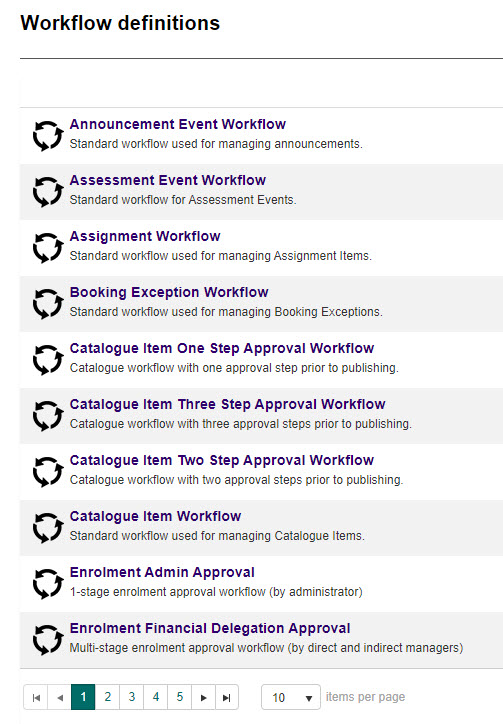
A workflow is a series of activities or tasks (a process) that needs to be completed sequentially or in parallel to achieve an outcome. For example, the test workflow is used in authoring so tests, test sections, questions, stimuli and resources can follow an approval process.
Important
Workflows are enabled on the global tenant by the Janison implementation team. This includes the workflow state transitions (what states different entities progress through) and the documents that workflows apply to. Speak to your Janison account manager for more information.
Enable workflows for test entities
Common test workflows are enabled under Settings > Test Designer Settings.
Important
Enabling these workflows enables them for all test entities created on your tenant.
Tests
To enable workflows for tests, select the Test Options expandable section, then select the Enable Workflows for Tests checkbox.
Test sections
To enable workflows for test sections, select the Test Section Options expandable section, then select the Enable Workflows for Test Sections checkbox.
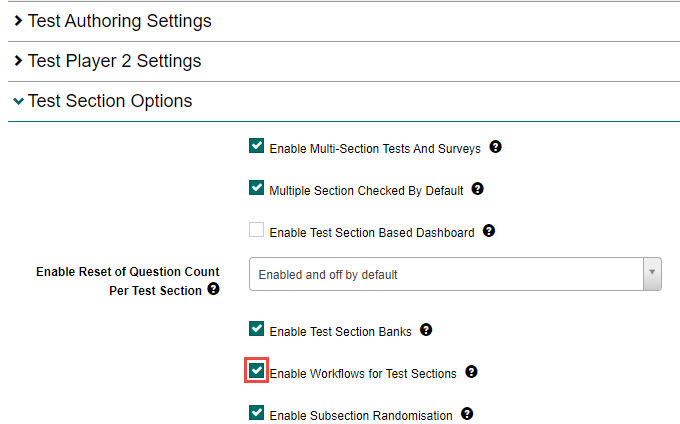
This enables test sections to go through a set of workflow approval stages, and makes the following visible:
- Workflow definition selection for a module
- Workflow states in the Test Sections list and the Test Section details form
- The workflow widget on the Test Section details form
Security checks are performed on the workflow state (for example draft, pending, approved) in addition to the usual security checks — users can only see and edit test sections depending on their workflow state.
Questions
To enable workflows for questions, select the Question Options expandable section, then select the Enable Workflows for Questions checkbox.
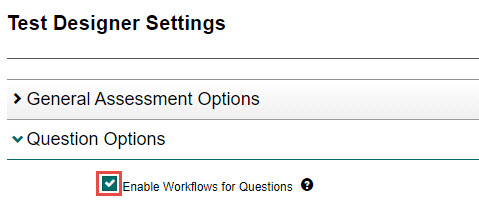
This enables questions to go through a set of workflow approval stages, and makes the following visible:
- Workflow definition selection for a module
- Workflow states in the Questions list and the Question detail form
- The workflow widget on the Question detail form
Security checks are performed on the workflow state (for example draft, pending, approved) in addition to the usual security checks — users can only see and edit questions depending on their workflow state.
Enable workflows for resources and stimuli
Workflows for resources and stimuli are enabled under Settings > Resource Designer Settings.
Important
Enabling these workflows enables them for all resources and stimuli created on your tenant.
Resources
Select the Resource Options expandable section, then select the Enable Workflows for Resources checkbox.
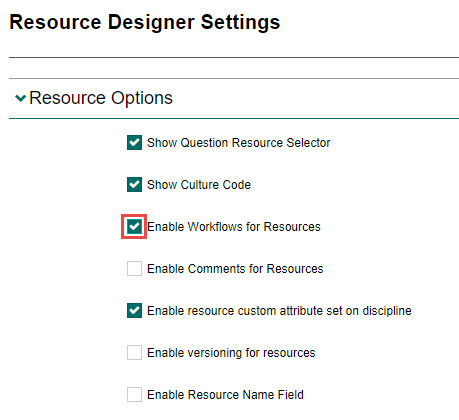
Select Save Resource Designer Settings to save your changes.
Stimuli
Select the Stimulus Options expandable section, then select the Enable Workflows for Stimuli checkbox.
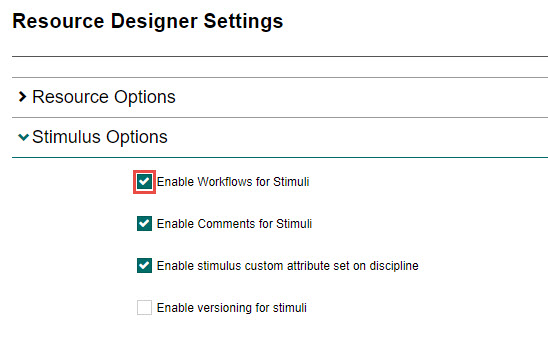
Select Save Resource Designer Settings to save your changes.
Enable workflows at a module level
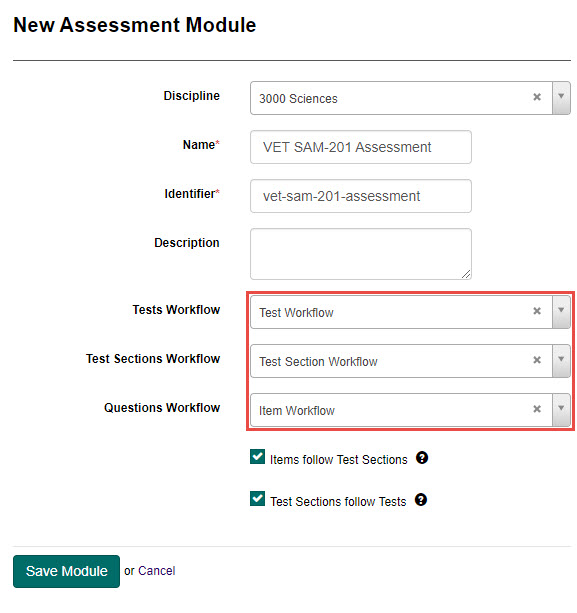
You can set the workflows you require for tests, test sections and questions at a module level, giving you the flexibility to customise workflows per module.
Important
You can only change workflows on a module if there are no progress records in the linked tests.
Go to Author > Modules and open an existing module or create a new one. Select the required workflows, then select Save Module.
Rename workflow states
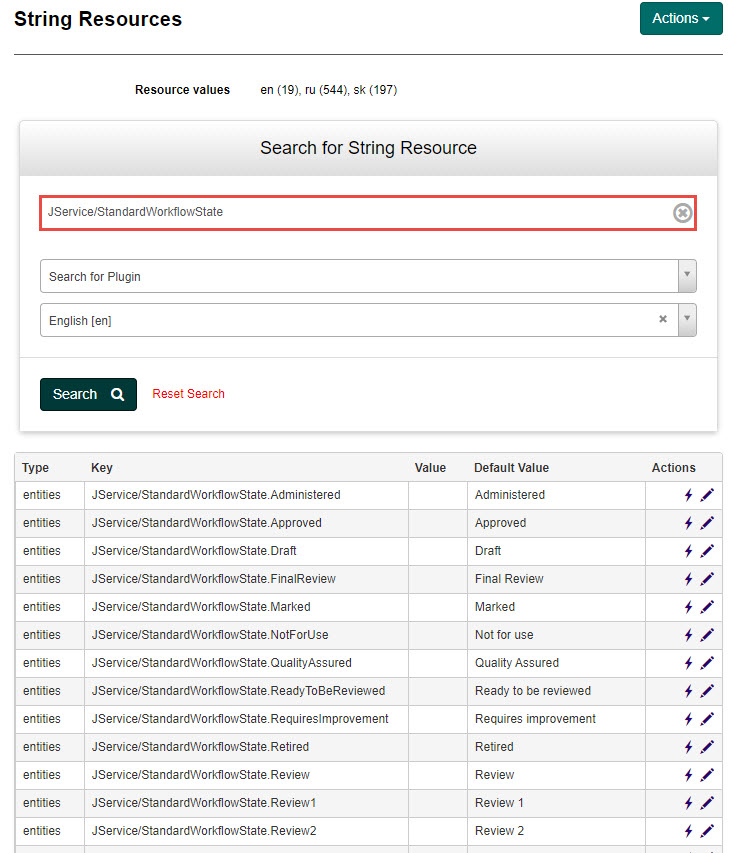
Workflow states can be renamed through string resources. Search for the key JService/StandardWorkflowState to find the appropriate string resources.
Configure workflow permissions for roles
Role permissions can be configured on your local tenant, provided this ability was configured during the Janison implementation.
-
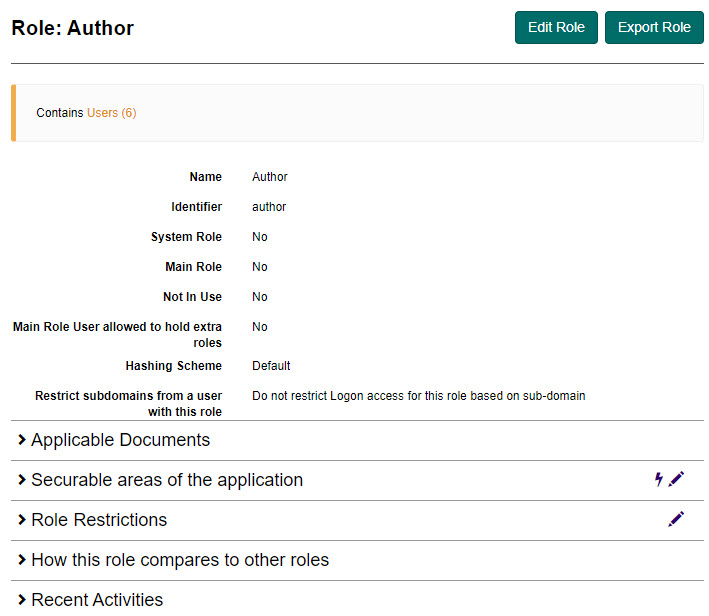
Go to Settings > Roles and open the required role.
-
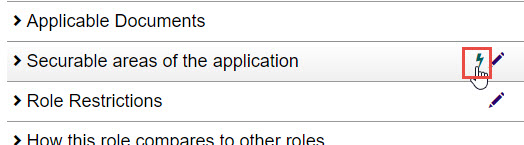
Select the Rapid Edit icon next to the Securable area of the application expandable section.
-
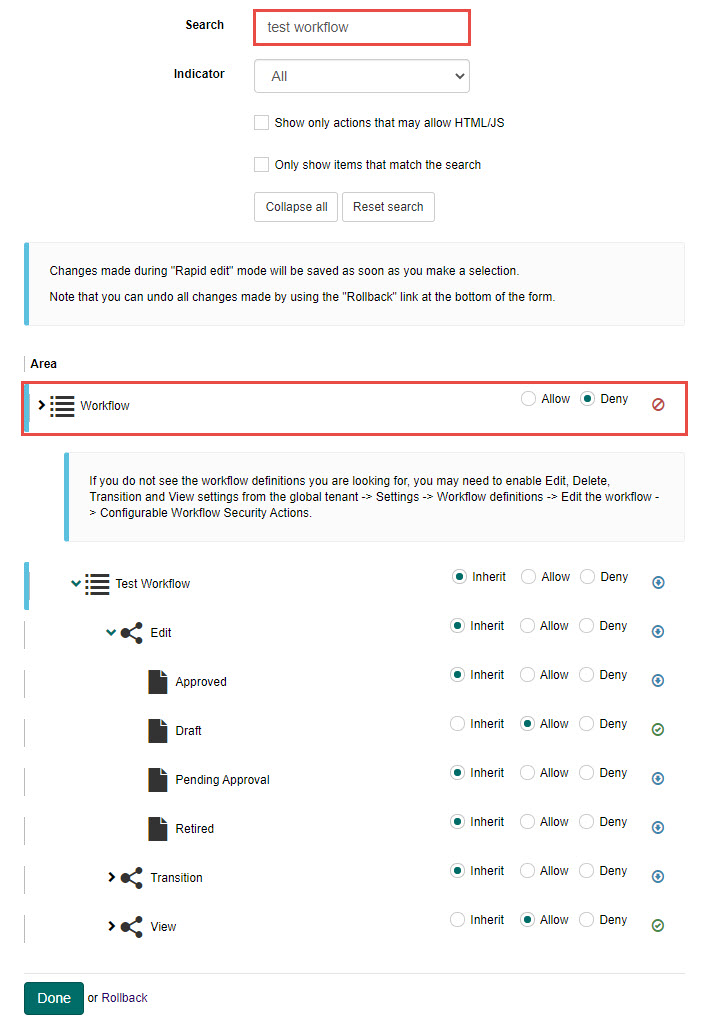
Scroll down to Workflow at the bottom, or use the search to narrow the options — for example 'workflow', 'item workflow' or 'test workflow'.
-
Expand each workflow section and change the permissions for edit, transition and view as required.