Tags and Tag Types
Tags are labels or identifiers used to categorise, organise, and manage items within Janison Insights. They serve as metadata, providing additional context or information about the entity they are attached to. Tag types are used to categorise tags.
In Janison Insights, tags serve the following purposes:
Test blueprints - Tags are used to categorise items into knowledge areas.
Test feedback screens – For results to display in the test feedback screens, the test author must select tags in the "Results Summary Configuration" section of the test.
Reporting - Tags can be included in customisable reports where the entity selected is "items".
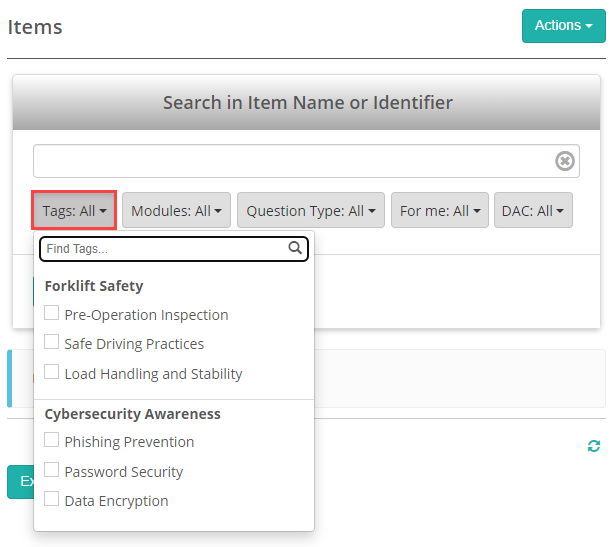
Search - Tags are helpful for searching items.
Activate test blueprints
Test blueprints must be active on your site for the tags system to be available. This makes tags available in regular tests as well as in test blueprints.
Navigate to Settings > Test Designer Settings and expand Available Test Types.
Tick Available on the Blueprint row.
Important
With blueprints inactive, items and modules lose their tag type controls: the Tags expandable disappears from an item, and Blueprint Settings disappears from a module. Items still show a Tags tab, but that's a different control and doesn't set tag types.
Create tag types
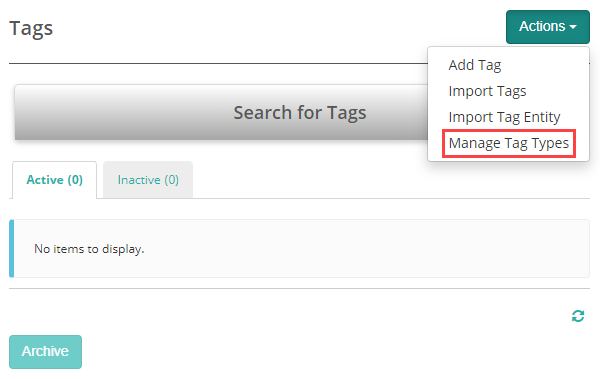
Navigate to Author > Manage Tags.
The Tags screen displays.
Select Manage Tag Types.
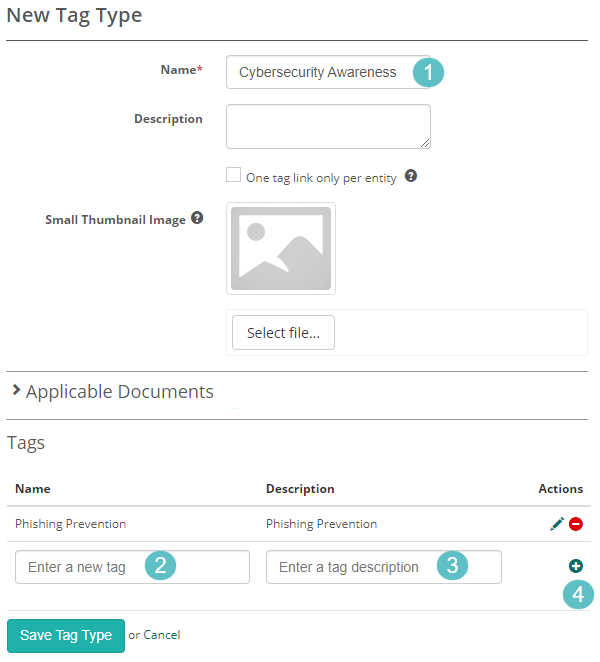
The New Tag Type screen displays.
- Enter a Name. You can create the related tags from here or from the main menu. To create tags from here:
- Enter a Name for the tag.
- Enter a Description.
- Select the
 icon.
icon.
Repeat these steps for each new tag.
The next step is to select the applicable documents.
Applicable documents
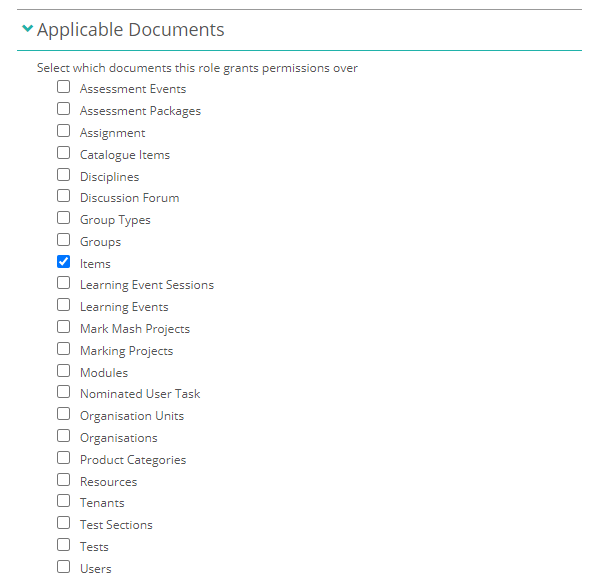
Use the Applicable Documents expandable section to link the tag type to items.
In edit mode, select Items and then save.
Create tags
When creating a tag type, you can add tags immediately, which we have covered above, or create them later from the tags screen.
Navigate to Author > Manage Tags.
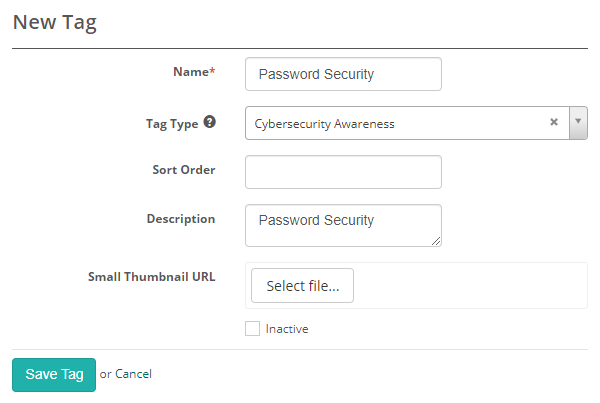
The New Tag screen displays.
Complete the form as required. Below is an example of a completed form.
Tip
If you're planning on using feedback for tests, be sure to enter a Description.
Activate tags on the module
Note
While this setting references blueprints, it enables the tag type field on items in both regular and blueprint tests.
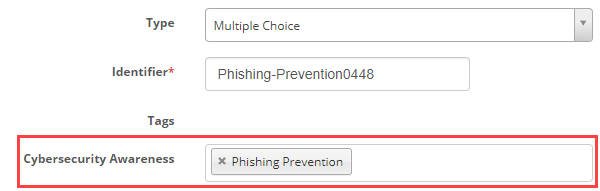
Open the module and select the pencil on the Blueprint Settings section.
Select the Tag Types followed by the + button. The tag or tags you selected display below.
Save your settings.
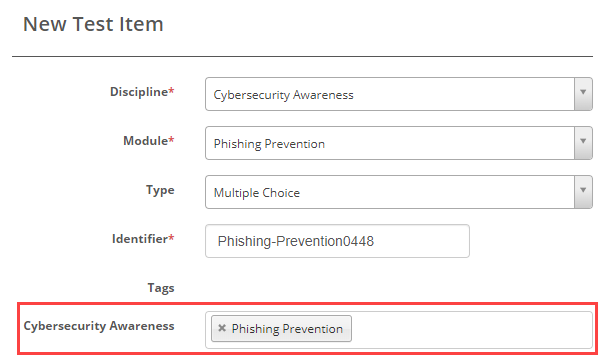
Tag items
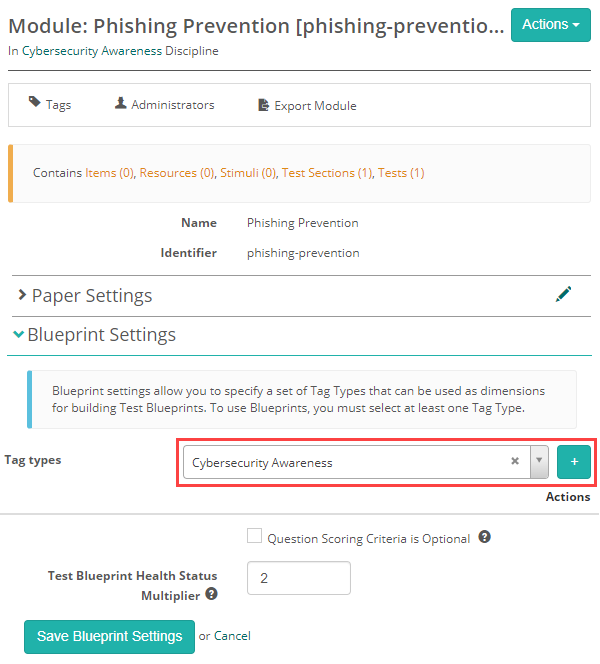
When you create or edit an item, the tag type you selected at the module level displays with a field where you can select the relevant tags.