Test Attempt Workflows
This guide outlines the different ways you can access and manage test attempts in Janison Insights. It covers the different ways to view attempts, update their status, and understand what each status means.
Note
Depending on your role, you might not see all the options mentioned in this document. If you require an adjustment to your role, please contact your Janison account manager for assistance.
Change a Test Attempt Status
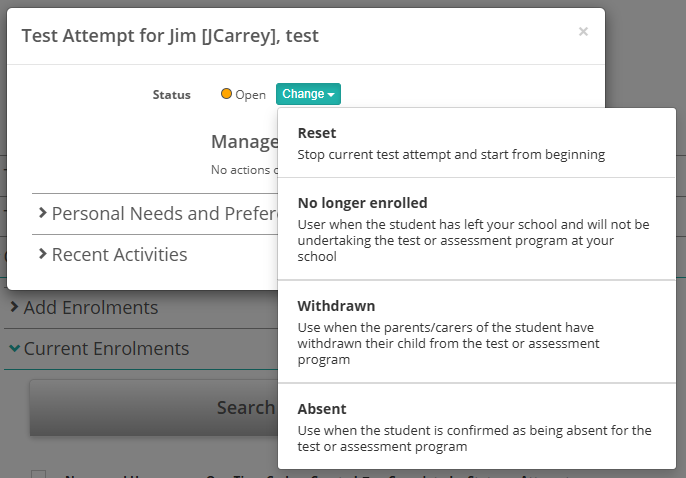
You may need to change a test attempt status for one of the following reasons:
- Reporting: To differentiate reasons for not completing the test. For instance, test-takers may be marked as Absent or Withdrawn to reflect specific circumstances.
- Functional Adjustments: To implement changes like cancelling or postponing an attempt.
The system automatically transitions a test-taker's attempt from Open to Marking, and then to Marked, if the test is set up for automatic marking. If the test includes a human marked question such as a short answer, the attempt will remain in the Marking status until it's manually marked. If the test has pass/fail criteria, the status will change to Passed or Failed instead of Marked.
There are three icons available to open test attempts

The eye icon

The eye icon opens a Test Attempt modal. Options exist to change the attempt status as mentioned above and to manage Personal Needs and Preferences.
The View More icons

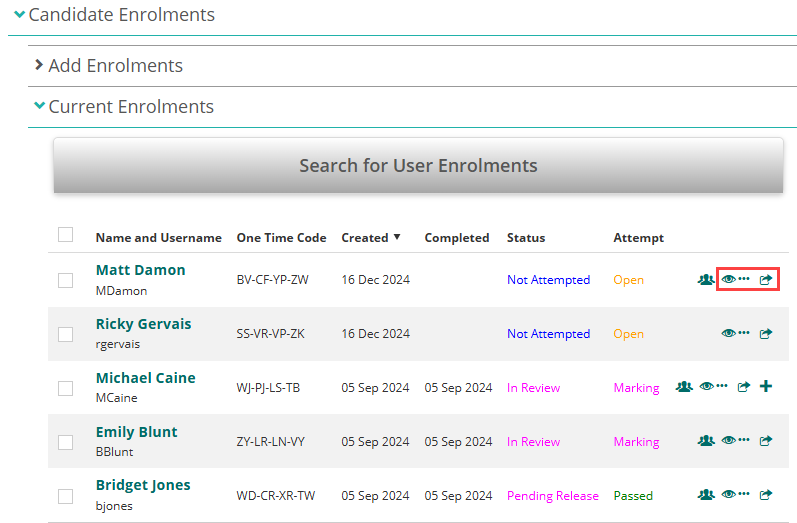
The View More icons lead to the enrolments page for a test-taker. The first icon (the three dots

) overwrites the current page, while the second icon

opens the page in a new tab.
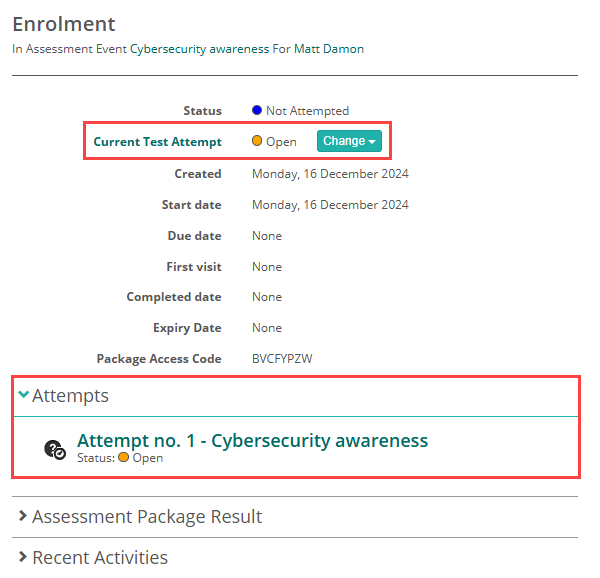
In the Enrolment screen, you can access the Current Test Attempt at the top and if there is more than one attempt, you can access each attempt by expanding the Attempts section.
Access Test Attempts
There are four main avenues to access test attempts:
- The Test attempts screen
- The Test Attempts section of a user's profile screen
- The Enrolments section of an assessment event
- The Invigilator Dashboard
Test attempts screen
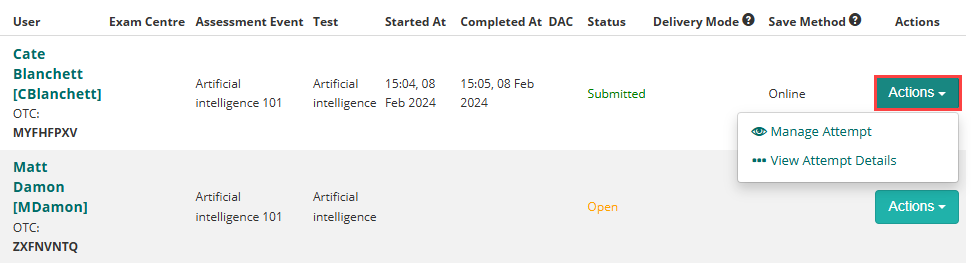
Navigate to Deliver > Manage Attempts.
The Test Attempts screen displays.
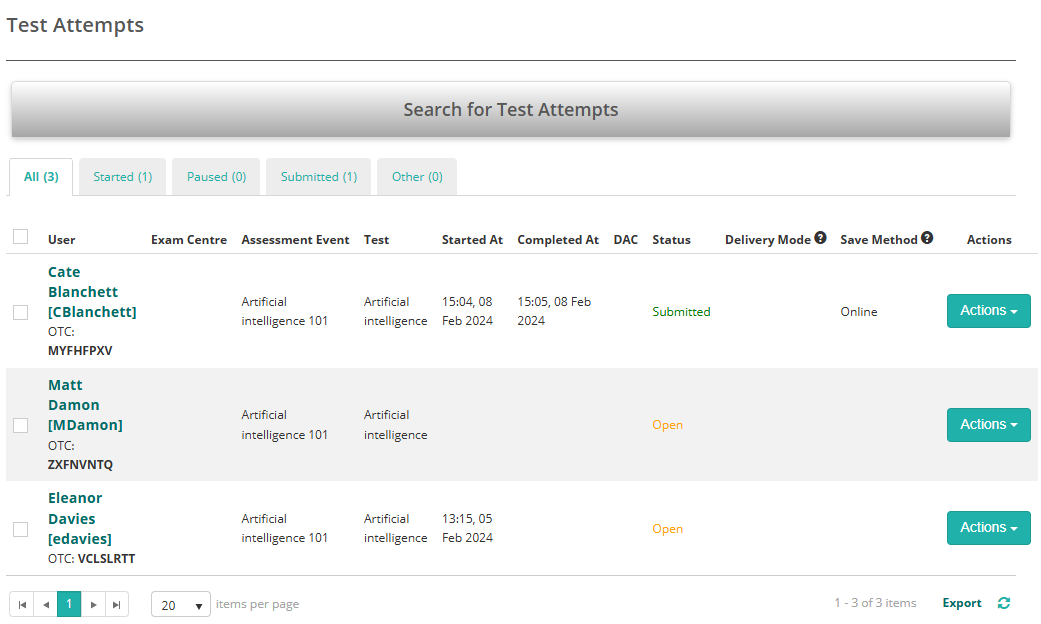
You can also search for the attempt if needed.
Select the Actions button for the relevant attempt. Two options are available:
- Manage Attempt opens the test attempt in a pop-up window.
- View Attempt Details opens the test attempt on a new page.
Test Attempts section of a user's profile
- Navigate to Manage People > Students or Users.
-
Expand the Test Attempts section.
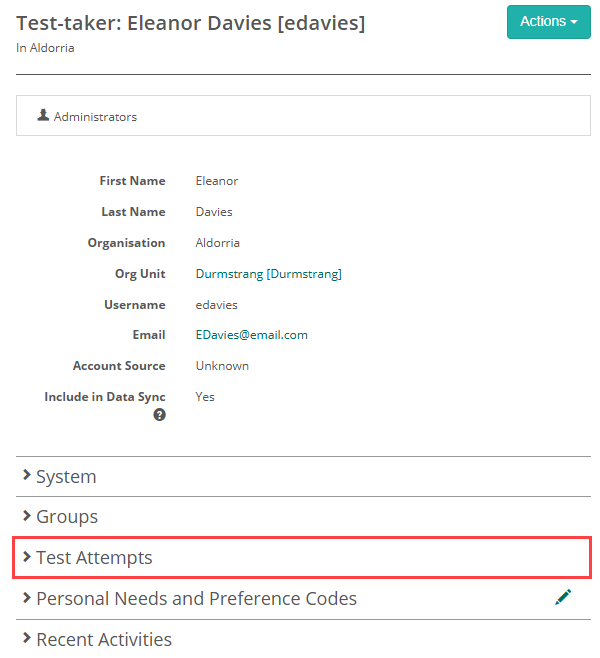
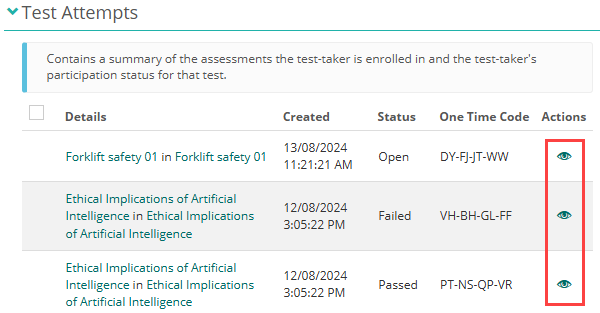
The attempts for the test-taker display. Select the eye icon for the relevant attempt.
The Enrolments section of assessment event
Navigate to Delivery > Assessment Events.
The Assessment event screen displays.
Expand Candidate Enrolments > Current Enrolments. There are three options to access the attempt.
Invigilator dashboard
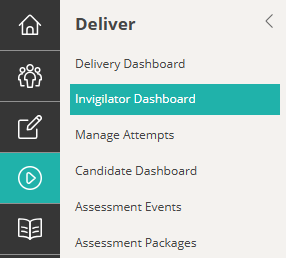
Navigate to Deliver > Invigilator Dashboard.
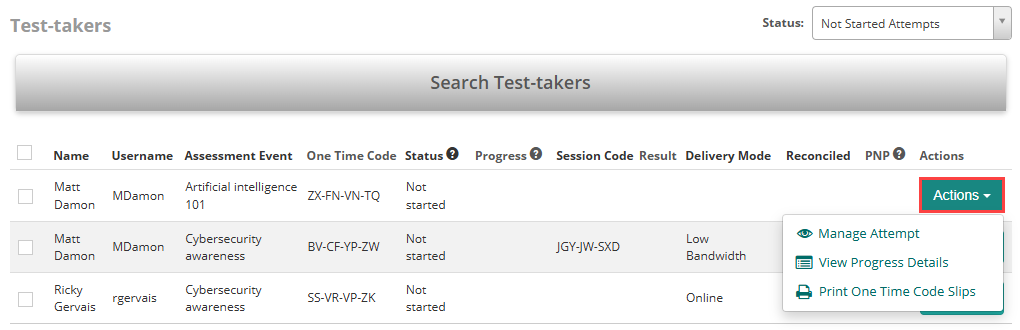
Scroll to the Test-takers section and select the Actions button for the relevant test-taker. Select Manage Attempt.
Status Types
| Status | Definition |
|---|---|
| Abandoned | Test-taker did not begin the test and is no longer expected to participate. This final status is used solely to explain the reason for non-participation for reporting purposes. |
| Absent | Test-taker did not begin the test and was unavailable to participate. This final status is used solely to explain the reason for non-participation for reporting purposes. |
| Cancelled | The test attempt was withdrawn before the test-taker began. This final status is used solely to explain the reason for non-participation for reporting purposes. |
| Completed | Test taken and answers stored, but test session not yet complete by invigilator. No marking attempted yet. |
| Exempt | The test-taker was not required to complete the test due to an exemption. This final status is used solely to explain the reason for non-participation for reporting purposes. |
| Failed | The test attempt was completed, answers were stored, and marks recorded. A pass mark was set for the test, and the test-taker did not meet this threshold. This is a special type of final status used to indicate an unsuccessful outcome. |
| Marked | Test attempt finished, answers stored and marks recorded. No pass or fail criteria set for the test. |
| Marking | The test-taker has completed the test and their answers have been saved to the database. The attempt is waiting to be marked. If marking is automatic, this status may pass quickly—often without being noticed. If manual marking is required (e.g. short answer questions), the attempt may remain in this status until marking is complete. |
| NoLongerEnrolled | The test-taker is no longer enrolled in the test. This final status is used solely to explain the reason for non-participation for reporting purposes. |
| Open | The initial state of the test enrolment. This status includes test attempts that are in progress or yet to be started. |
| Passed | The test attempt was completed, answers were stored, and marks recorded. A pass mark was set for the test, and the test-taker met or exceeded this threshold. This is a special type of final status used to indicate a successful outcome. |
| Paused | The test attempt has been paused, which removes the test-taker's access to the test. The attempt can't be resumed until an administrator reactivates it. |
| Postponed | The test-taker's attempt was stopped after partial completion, and the attempt was removed from the session. This status is used when the test is intended to be resumed at a later time. |
| Refused to attempt | Test-taker did not begin the test and has indicated they will not participate. This is a final status used solely to record the reason for non-participation for reporting purposes. |
| Resitting | Creates a new test attempt when the current one is in an Open, Failed, or Cancelled status. If the current attempt is still Open, the system first changes it to Cancelled before creating the new attempt. This is a legacy feature maintained for compatibility purposes. |
| Suspended | The test has not been started and will not be taken. This final status is used solely to explain the reason for non-participation for reporting purposes. |
| Withdrawn | The test-taker did not begin the test due to withdrawing from the test. This final status is used solely to explain the reason for non-participation for reporting purposes. |
Note
The options you see in the Change dropdown will depend on your role configuration and the current status of the test attempt.
View test attempt workflows
Navigate to Settings > Workflow definitions.
Open the Test Attempt Workflow. Alternatively browse to yoursiteurl/admin/workflow/details/b14587e5-5755-44c7-a7ab-e235906fd95d.
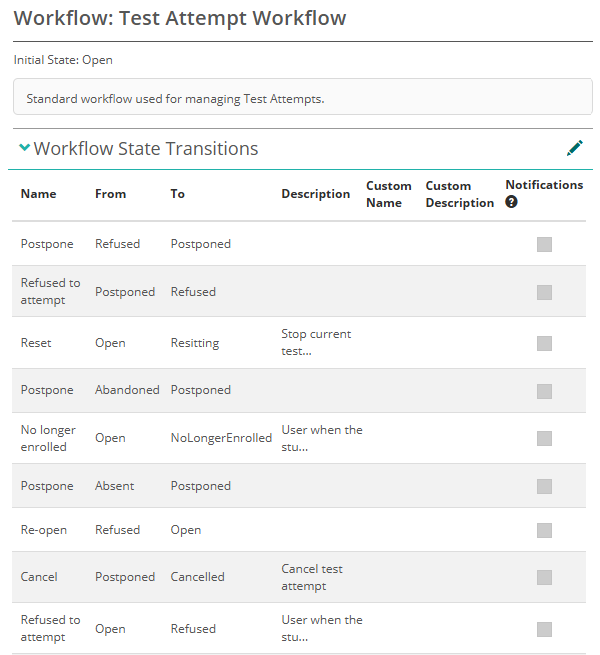
Workflow State Transitions
The status options that are available depend on the current attempt status as well as the configuration of your site. Here is a list of available options.
From Open
| From | To | Description |
|---|---|---|
| Open | Abandoned | |
| Open | Absent | Use when the student is confirmed as being absent for the test or assessment program |
| Open | Cancelled | Cancel test attempt |
| Open | Completed | |
| Open | Exempt | Use when you have received approval from your local TAA that this student can be exempted from the test or assessment program |
| Open | NoLongerEnrolled | Use when the student has left your school and will not be undertaking the test or assessment program at your school |
| Open | Refused | Use when the student is confirmed as refusing to undertake the test either by not logging into the test or by logging in and not responding to the questions. |
| Open | Resitting | Stop current test attempt and start from beginning |
| Open | Suspended | |
| Open | Withdrawn | Use when the parents/carers of the student have withdrawn their child from the test or assessment program |
From Abandoned
| From | To | Description |
|---|---|---|
| Abandoned | Open | |
| Abandoned | Postponed |
From Absent
| From | To | Description |
|---|---|---|
| Absent | Open | |
| Absent | Postponed |
From Completed
| From | To | Description |
|---|---|---|
| Completed | Abandoned | |
| Completed | Postponed | |
| Completed | Open | |
| Completed | Marking |
From Exempt
| From | To | Description |
|---|---|---|
| Exempt | Open | |
| Exempt | Postponed |
From Failed
| From | To | Description |
|---|---|---|
| Failed | Failed | |
| Failed | Marking |
From Marking
| From | To | Description |
|---|---|---|
| Marking | Marked | Evaluate answered questions. |
| Marking | Refused | |
| Marking | Open | Undo submission |
| Marking | Completed | Use when a candidate's answer submission needs to be reviewed, managed and/or updated. |
From NoLongerEnrolled
| From | To | Description |
|---|---|---|
| NoLongerEnrolled | Open | |
| NoLongerEnrolled | Postponed |
From Paused
| From | To | Description |
|---|---|---|
| Paused | Passed | |
| Paused | Abandoned | |
| Paused | Open | Resume paused current attempt. |
From Postponed
| From | To | Description |
|---|---|---|
| Postponed | Abandoned | |
| Postponed | Absent | |
| Postponed | Cancelled | Cancel test attempt |
| Postponed | Completed | |
| Postponed | Exempt | |
| Postponed | NoLongerEnrolled | |
| Postponed | Refused | |
| Postponed | Open | |
| Postponed | Resitting | Stop current test attempt and start from beginning |
| Postponed | Suspended | |
| Postponed | Withdrawn |
From Refused
| From | To | Description |
|---|---|---|
| Refused | Absent | |
| Refused | Postponed | |
| Refused | Open | |
| Refused | Marking |
From Resitting
| From | To | Description |
|---|---|---|
| Resitting | Abandoned | |
| Resitting | Cancelled | Cancel test attempt |
| Resitting | Completed |
From Suspended
| From | To | Description |
|---|---|---|
| Suspended | Abandoned | |
| Suspended | Open |
From Withdrawn
| From | To | Description |
|---|---|---|
| Withdrawn | Open |
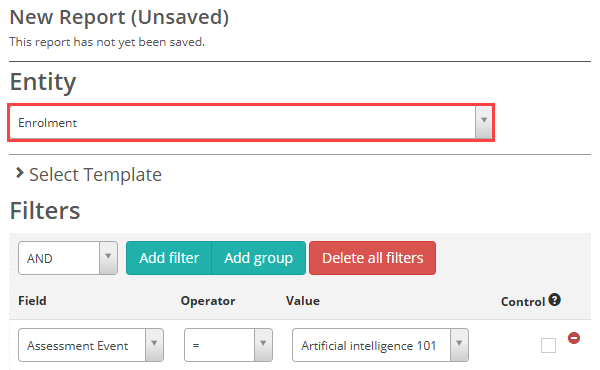
Reporting on attempt status
Administrators can view test-taker statuses by running a report on the Enrolment entity. For more details on how to run reports, see our Customisable Reports guide.