Standardisation 2 (S2)
Standardisation 2 (S2) is training for Senior Markers not involved in S1, and takes place prior to Markers commencing their training (S3). This process is optional.
S2 uses standardisation scores created during S1. The system will randomly allocate a number of candidate responses to the Senior Marker who will be required to score them within the tolerance settings set in the S2 section of the marking project.
Tip
To learn more about the Senior Marker experience of S2, see the Senior Marker role section.
The S2 functions are designed to mimic the main marking phase tools and processes.
Configure S2
-
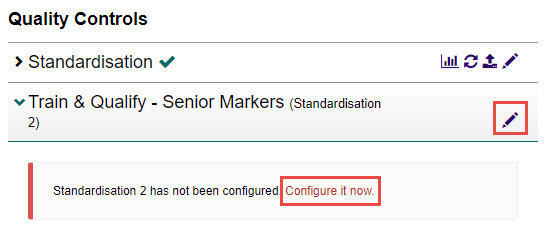
Select the Configure it now link, or select the Edit icon next to the Train & Qualify – Senior Markers (Standardisation 2) expandable section.
-
Complete the following:
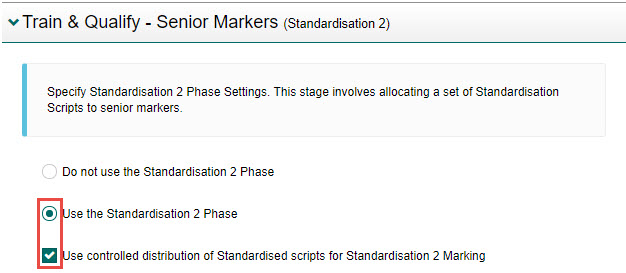
- Select the Use the Standardisation 2 Phase option.
- Select the Use controlled distribution of Standardised scripts for Standardisation 2 Marking (optional). This setting allows the Chief Markers to control which scripts will be available for S2 marking. If this is not checked, then all the scripts categorised as 'Standardisation' during S1 categorisation will be available for S2 marking.
-
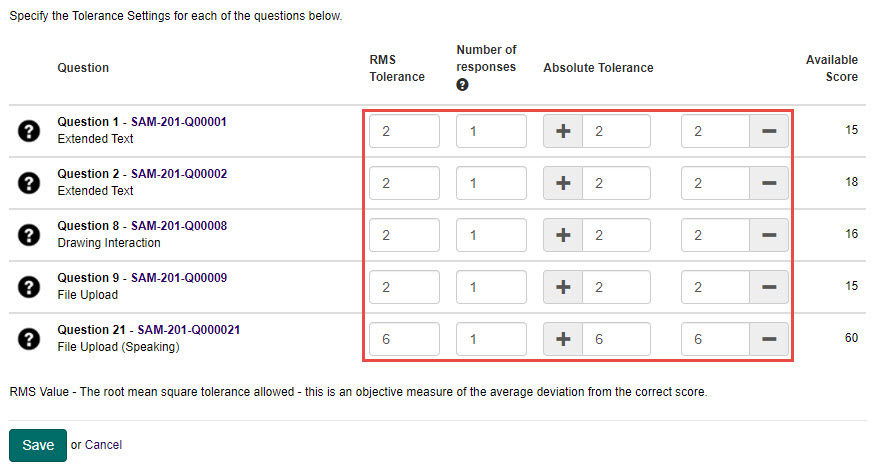
For each question, complete the following:
- Enter a number in the RMS Tolerance field. RMS value is the root mean square tolerance allowed — this is an objective measure of the average deviation from the correct score.
- Enter the number of candidate responses the Senior Marker is required to score during the S2 phase in the Number of responses field. This should be equal to or lower than the total number of standardisation script scores defined in S1.
- Enter a number in the Absolute Tolerance fields for both above (+) and below (-) the correct score.
Tip
The values entered here will automatically populate across the grid, but you can change them if required.
-
Select the Save button to save the changes.
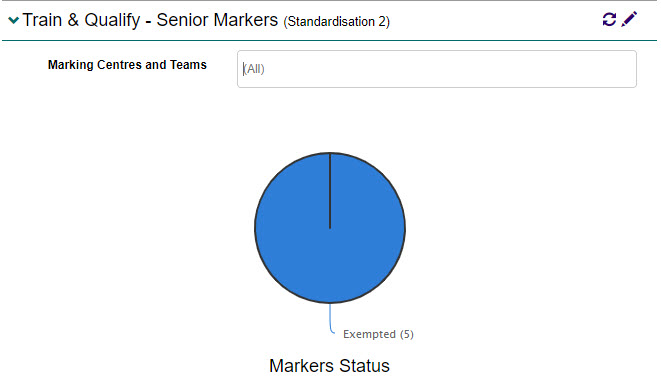
A graph displays enabling you to monitor the progress of S2 by marking centre or marking team.
Transition marking project to S2
Once S1 has been completed, you will need to transition the marking project to S2. This will enable the Senior Markers to commence their training.
-
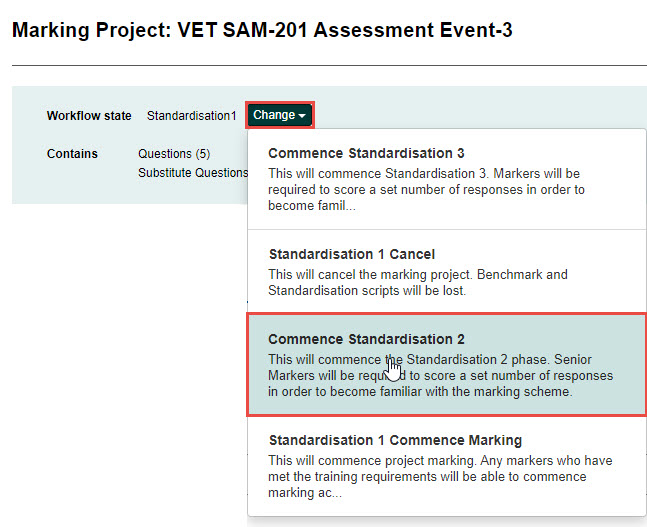
Select the Change button and select Commence Standardisation 2.
-
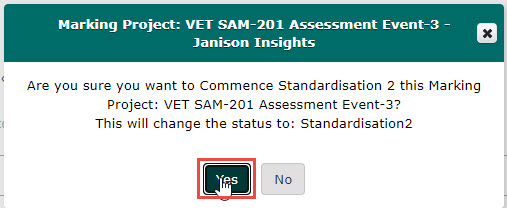
Select the Yes button.
View benchmark scores
Benchmark scores give you an understanding of what responses of a particular score look like. For example, what a response with a score of 2/10 or 7/10 looks like. A score is similar when it is within 10% of the question's available score (above or below) the selected score.
-
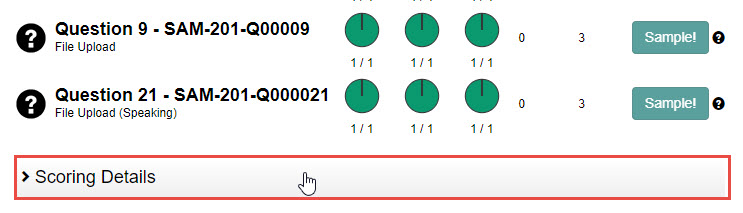
Scroll to the bottom of the My Marking Taskboard screen and select the Scoring Details expandable section.
-
Select the All tab.

-
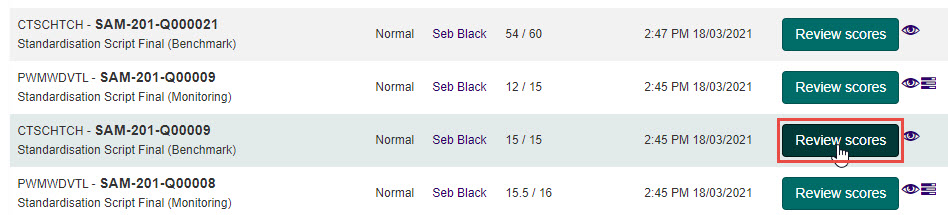
Select the Review scores button next to the relevant script.
-
Scroll down and select the Benchmark Scores expandable section.

-
Enter a score in the Find benchmark scripts with scores similar to field, then select the Search button.
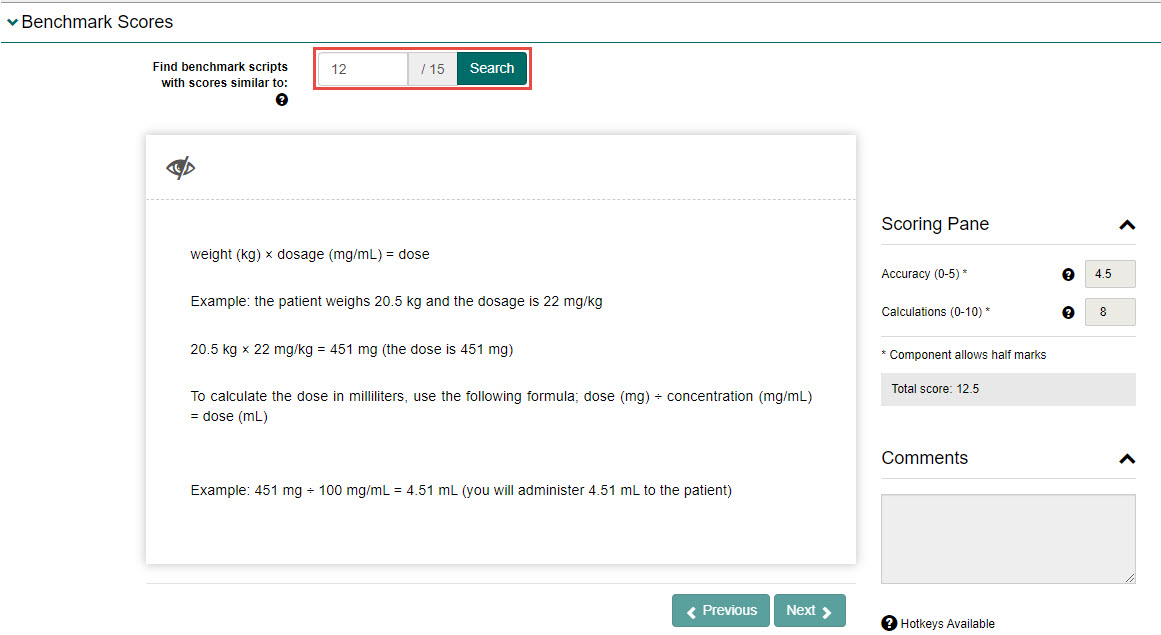
Review the response and scores. You can select the Previous or Next buttons to view other scripts with similar scores (if applicable).