Scoring details
The Scoring Details section is accessed from the bottom of the My Marking Taskboard, and is available to all marking roles. This shows responses and scores in the context of a Marker's role.
Important
The configuration and the current phase of the marking project can impact the visible tabs. For example, data will only appear in tabs such as Monitoring and Escalated once the marking progresses.
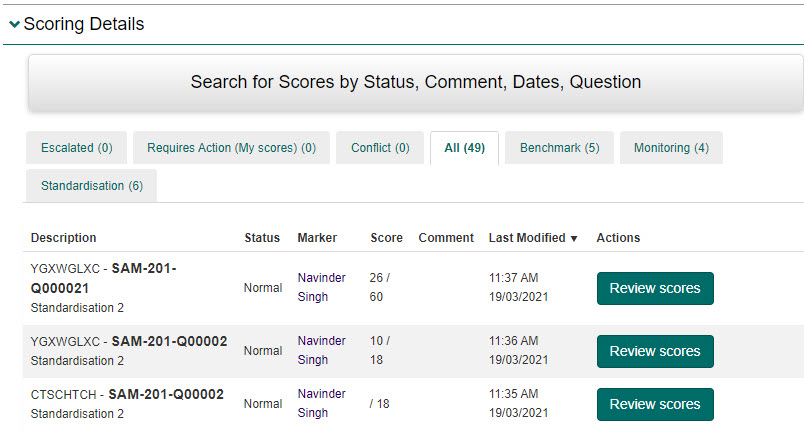
The Scoring Details section contains a number of tabs, each displaying different content. The higher the marking role, the more tabs will be visible to the Marker.
Escalated
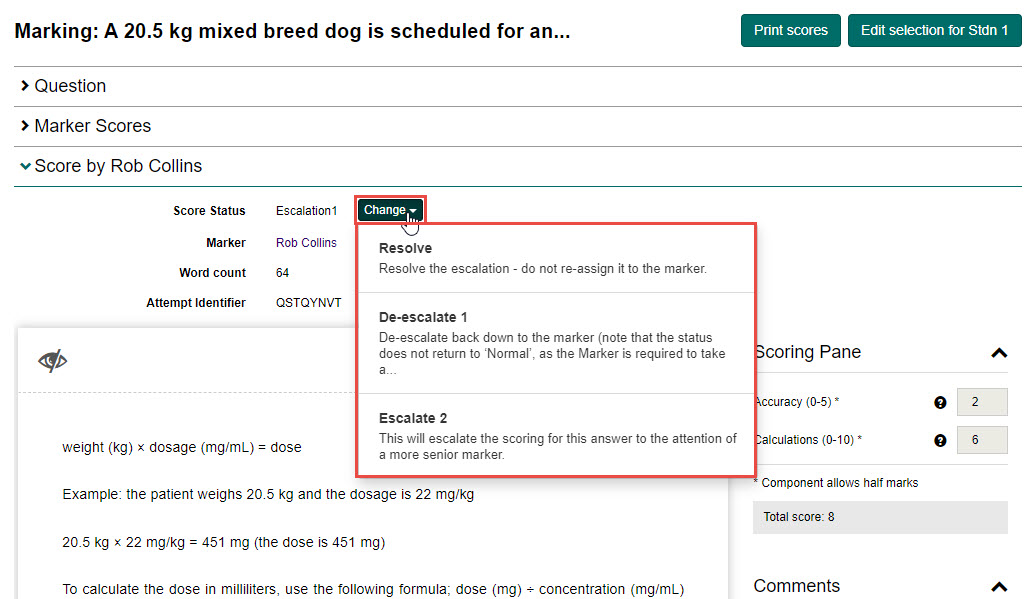
This tab lists scripts that Markers have escalated for you to review. To review these scripts, select the Review scores button.

Senior Markers can take the following actions on escalated scripts:
| Action | Description |
|---|---|
| Resolve | Resolves the escalation and does not re-assign it to the Marker. |
| De-escalate 1 | De-escalates the script back down to the Marker who is then required to take action. The Senior Marker may add instructions or feedback before de-escalating. |
| Escalate 2 | Escalates the scoring for this answer to the attention of a Marker at a higher level, e.g. the Chief Marker. |
Requires action
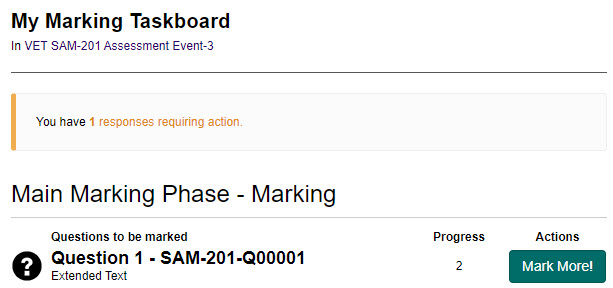
This tab lists scripts that require action — for example, if a Marker has viewed a script but not completed the marking, or a script that a Senior Marker has de-escalated back to you. To review these scripts, select the Review scores button.

Tip
If you have scripts requiring your attention, you will also be alerted by a notification at the top of the My Marking Taskboard.
Complete the required action to move the script out of this tab.
Conflict
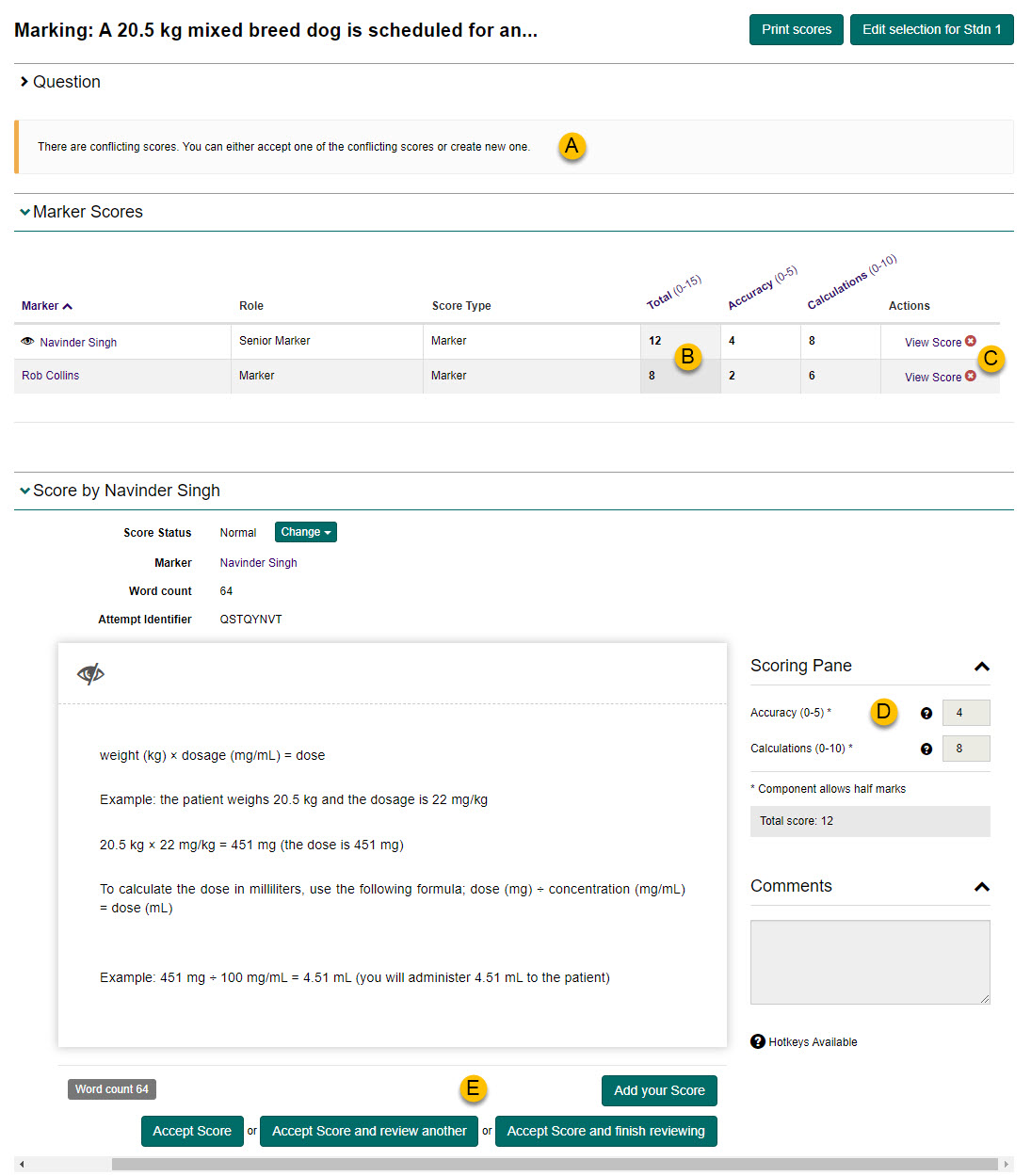
This tab lists scripts that are in conflict due to double marking. This tab will only display if this quality control measure is enabled. To review these scripts, select the Review scores button.

| # | Feature | Description |
|---|---|---|
| A | Conflict notification | View a notification detailing the conflict present. |
| B | Total scores | View an overview of the different scores provided by the marking team. |
| C | View Score | Select one of the View Score buttons to see the score information in detail. |
| D | Scoring Pane | View the scoring pane and any comments provided during marking for the selected Marker. |
| E | Actions | Take the appropriate action: Add your Score — create your own score if you don't want to accept any existing ones. Accept Score — accept the score you are reviewing. Accept Score and review another — accept and move to the next conflict. Accept Score and finish reviewing — accept and finish the review process. |
All
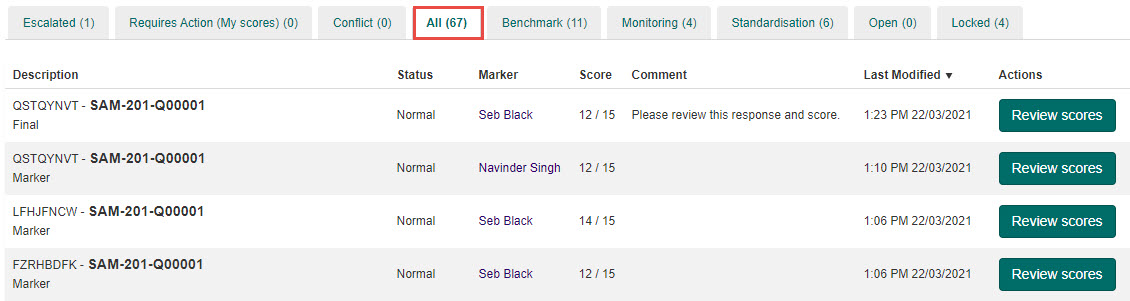
This tab lists all scripts. To review these scripts, select the Review scores button.
Benchmark
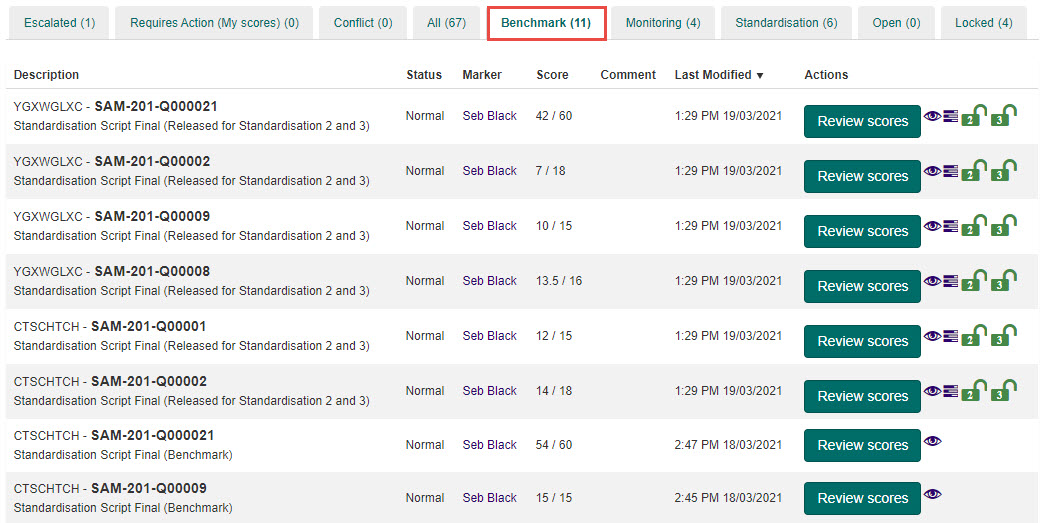
This tab provides access to all benchmark scripts. To review these scripts, select the Review scores button.
Monitoring
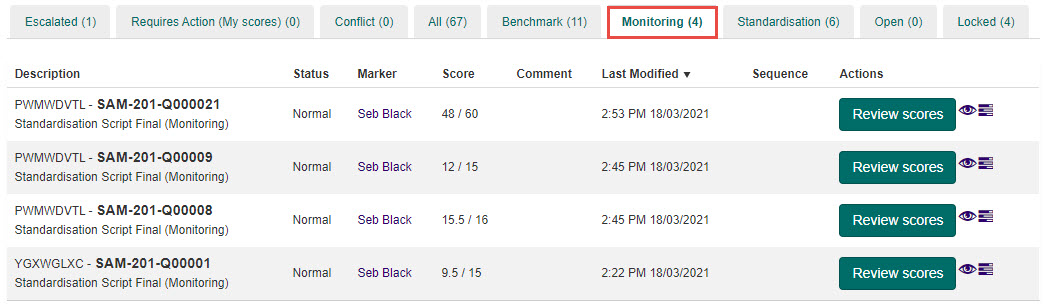
This tab lists the monitoring standardisation scripts. To review these scripts, select the Review scores button.
Standardisation
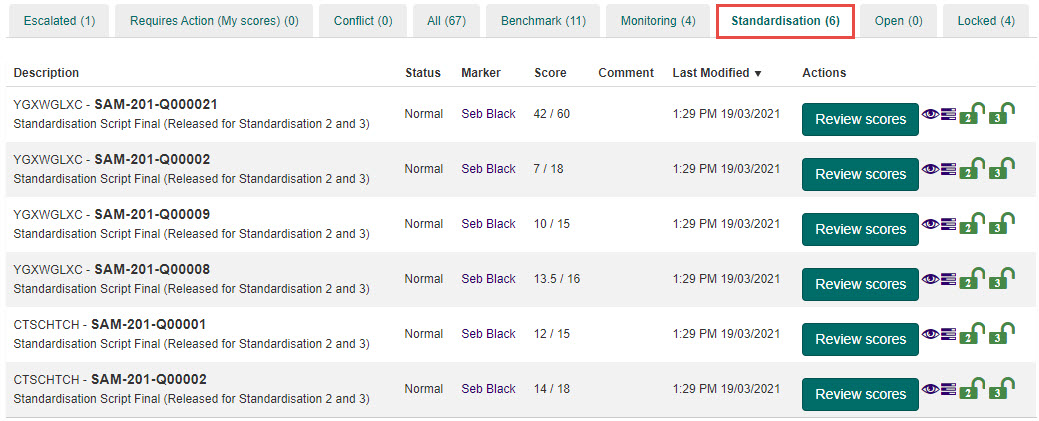
This tab lists the standardisation scripts. To review these scripts, select the Review scores button.
Open and locked
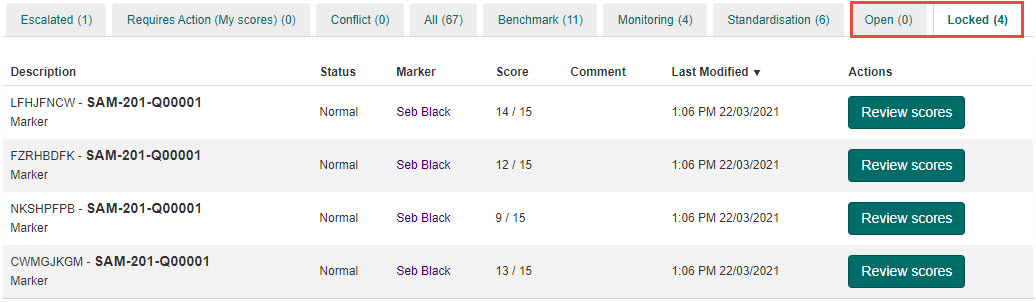
The Open tab lists scripts within their grace period — Markers are able to change their scores until the grace period expires. The Closed tab lists scripts which have exceeded the grace period and can no longer be edited.
Tip
These tabs will only display if grace periods have been configured for the marking project.