Schedule a job
The scheduling feature in Janison Insights allows you to schedule different jobs to run at set times or at regular intervals. For example, you could email a custom report to someone every day, or update users on a weekly basis.
To create and manage scheduled jobs, go to Settings > Scheduling.
Important
Janison Insights is highly customisable, so the entities in your system may have been renamed and the menu may have been customised. You can only see the entities in the menu that you have access to create. Scheduled jobs are normally created by the Janison implementation team — contact your account manager for more information.
Job types
The types of jobs you can schedule depend on the way your site is set up. Some common job types are detailed below.
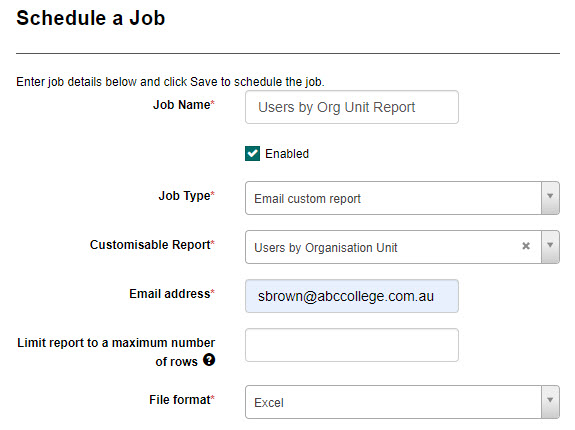
Email custom report
Sends a custom report to a specific email address.
Tip
The custom report must already exist before you can schedule it. See customisable reports.
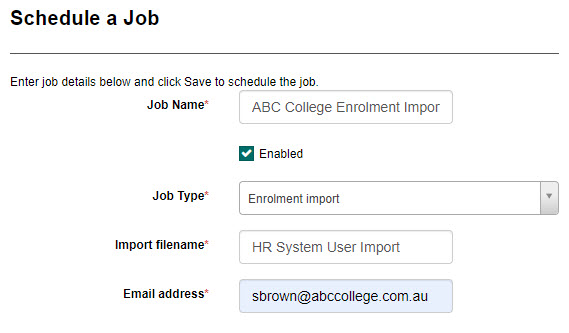
Enrolment import
Schedules an enrolment import from a file placed in a directory on the system by a third-party HR system. This automatically enrols users into one or more items.
Important
Before scheduling can commence, contact the Janison support team, who will arrange an account to access the HR directory.
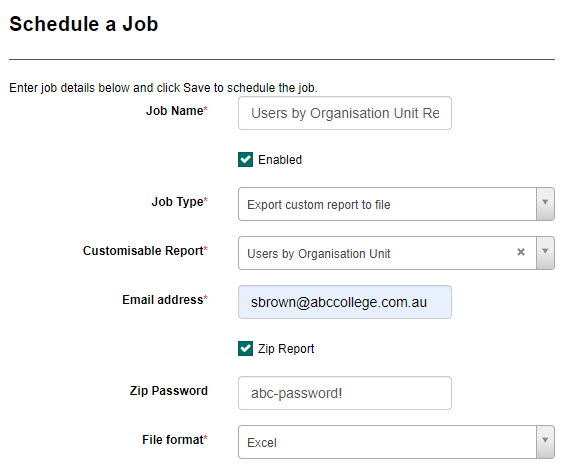
Export custom report to file
Schedules a custom report to be placed in a specific location in the system.
Tip
The custom report must already exist before you can schedule it. See customisable reports.
Important
Before scheduling can commence, contact the Janison support team, who will arrange an account to access the directory where the file will be placed.
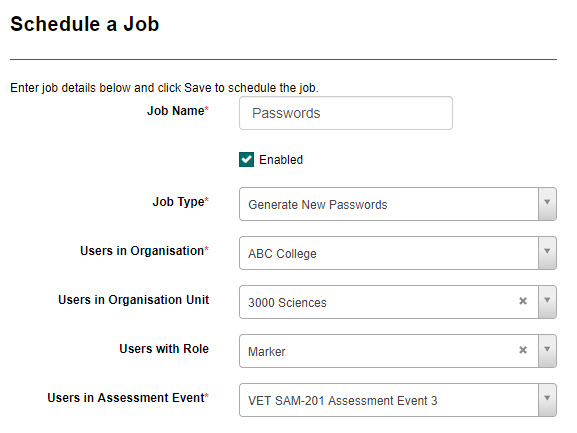
Generate new passwords
Automatically generates new passwords for all people, based on your selections for organisation, organisation unit, role and assessment event.
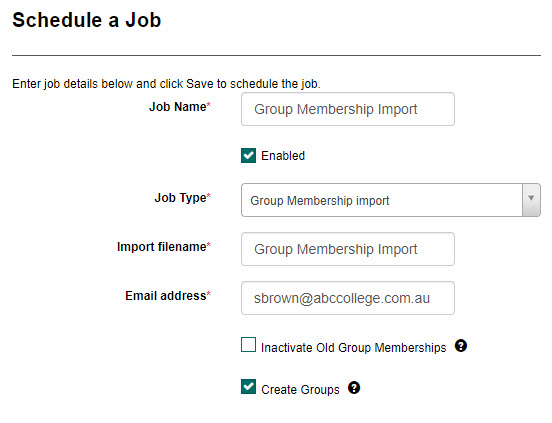
Group membership import
Schedules a group membership import from a file placed in a directory on the system by a third-party HR system.
Tip
A group membership import template is available from the Groups screen. See groups and group types.
Important
Before scheduling can commence, contact the Janison support team, who will arrange an account to access the HR directory.
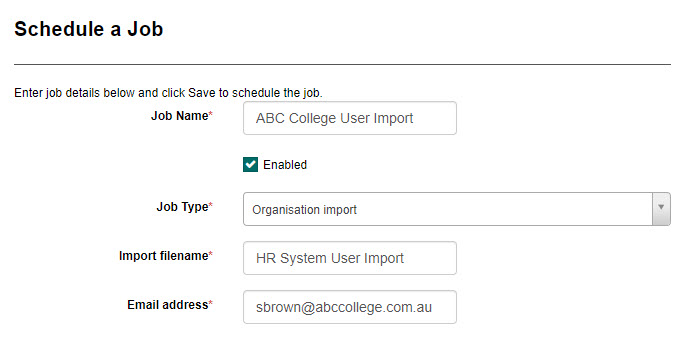
Organisation import
Schedules a user import from a file placed in a directory on the system by a third-party HR system. This job can automatically add or update users in the system.
Tip
A user import template is available from the Users screen. See manage users.
Important
Before scheduling can commence, contact the Janison support team, who will arrange an account to access the HR directory.
Create a scheduled job
-
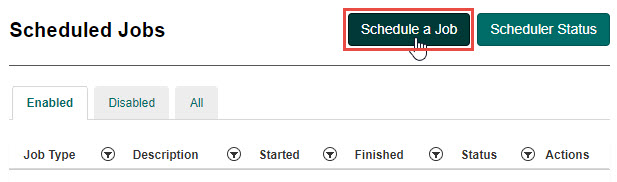
Select the Schedule a Job button.
-
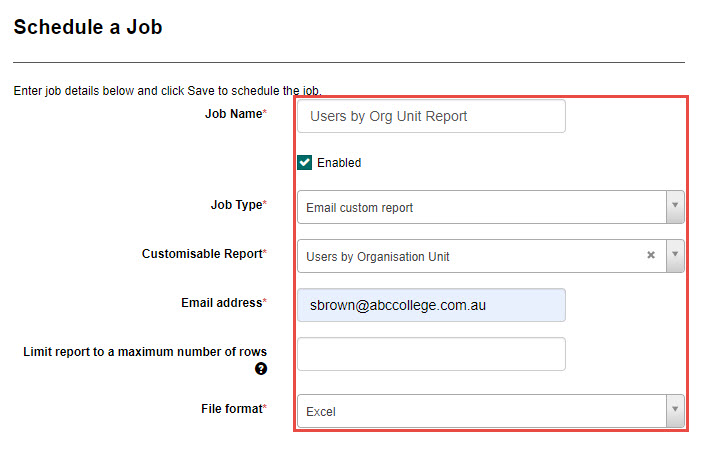
Enter a name for the new job in the Job Name field.
Tip
Once created, this name can't be changed.
-
Ensure the Enabled checkbox is selected if you want the job to be active.
-
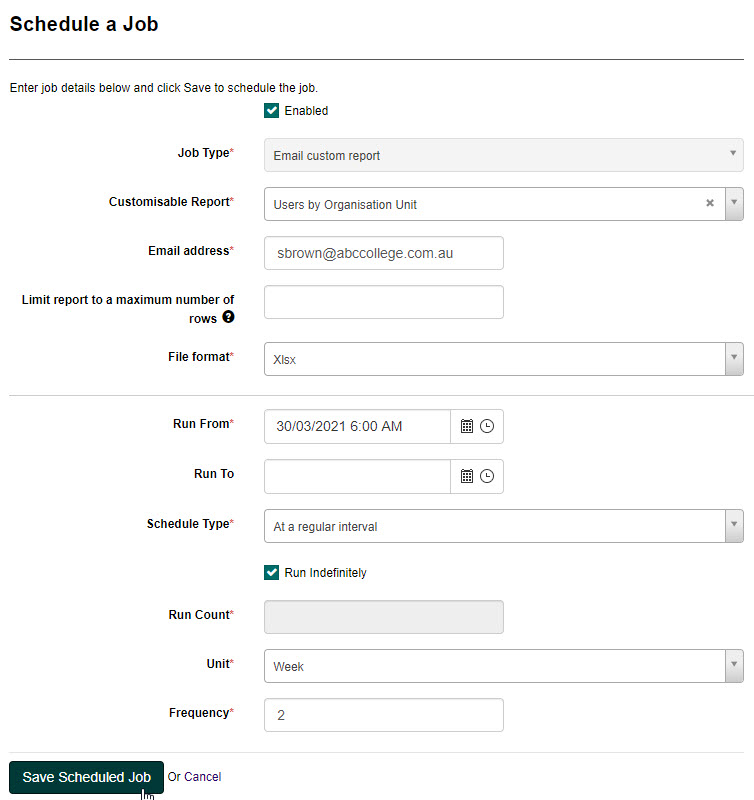
Select a job type from the Job Type dropdown. Depending on the job type, additional options appear. In this example we've selected Email custom report, so we also select which report, enter an email address to send it to, and choose how the report is sent.
-
Select a date and time in the Run From field. This determines when the schedule begins.
- Select a date and time in the Run To field (optional). This determines when the schedule ends.
-
Select an option from the Schedule Type dropdown:
Option Description At a regular interval Runs the job at a regular interval, such as hourly or every 2 days. Additional options display:
Run Indefinitely – schedule the job with no end date
Run Count – the number of times the schedule runs
Unit – the unit of time (minute, hour, day or week)
Frequency – how often the job runs
This example runs the job twice, every 2 weeks: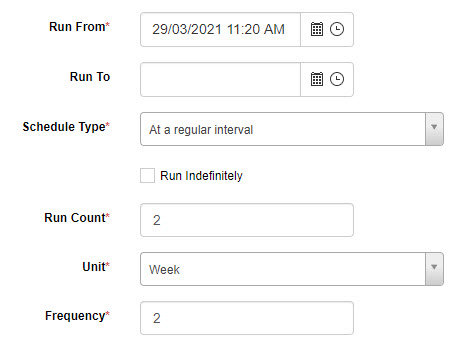
At scheduled times Runs the job at a scheduled time. Additional options display:
Time Zone – your time zone
Time of Day – the time of day the job runs
Frequency – how often the job runs (every day, Monday to Friday, Monday to Saturday, or a specific day)
This example runs the job at 6.00am Monday to Friday, UTC+10:00: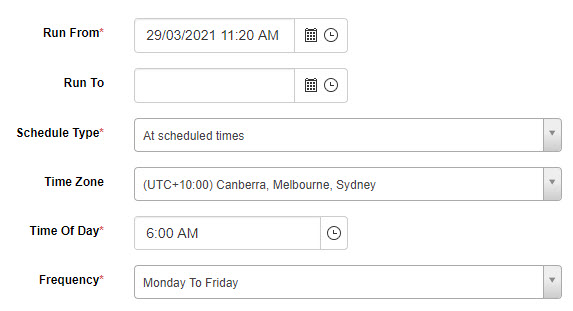
-
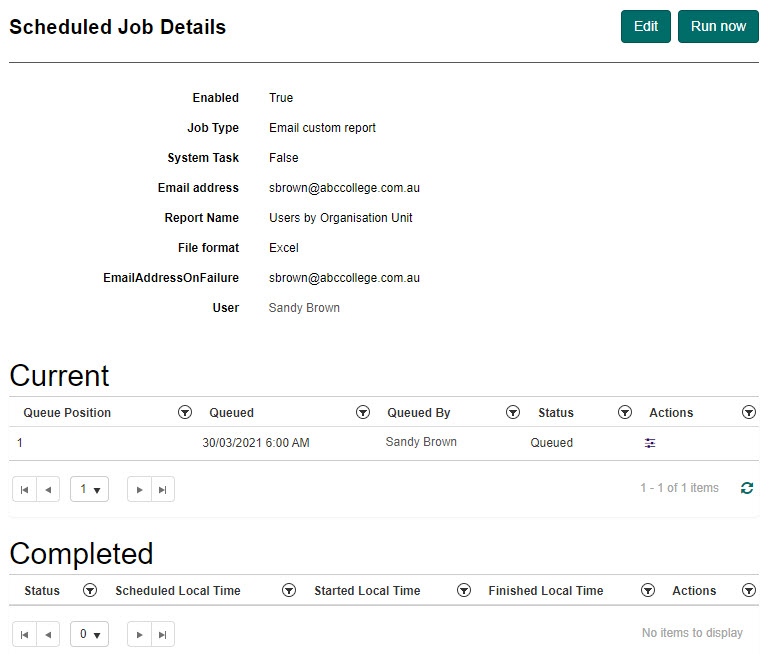
Select Save Scheduled Job. The Scheduled Job Details screen displays your saved job.
Edit a scheduled job
-
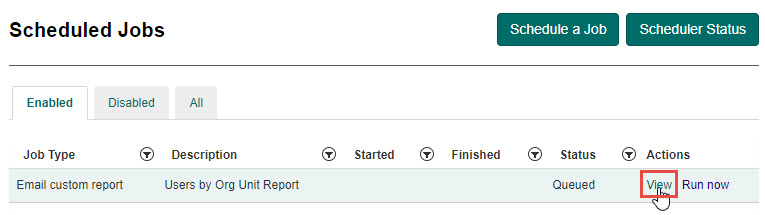
From the Scheduled Jobs screen, select the View link next to the job you wish to edit.
-
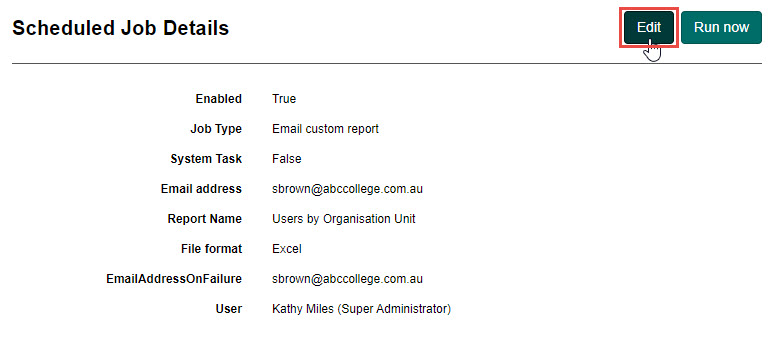
Select the Edit button.
-
Make the necessary changes, then select Save Scheduled Job.
Run a job now
To run a scheduled job immediately:
-
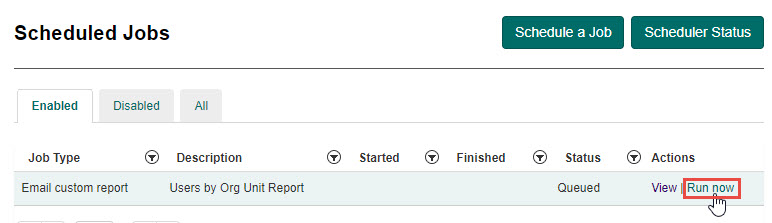
From the Scheduled Jobs screen, select the Run now link next to the job you wish to run.
-
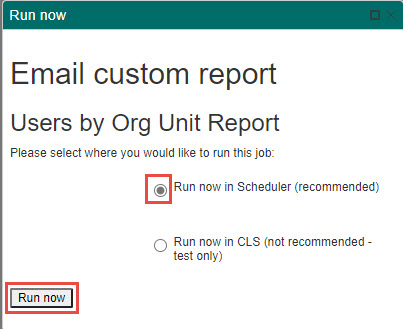
Ensure Run now in Scheduler is selected, then select the Run now button.
Stop a scheduled job
-
From the Scheduled Jobs screen, select the View link next to the job you wish to stop.
-
Select the Edit button.
-
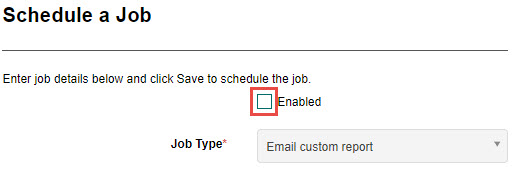
Uncheck the Enabled checkbox.
-
Select Save Scheduled Job to save your changes.