Style and images
Use Style and Images to make your Insights site reflect your organisation's brand. You can upload your own logos and images, choose colour themes, and even add custom CSS for fine-tuned control.
Go to Settings > Style and Images. From here you can manage all branding options: Style, Images & Logos, Custom CSS and Custom Test Player CSS.
Style (colours)
Set your site's colour palette to match your brand. A style defines the colours for text, links, accents, headers and footers.
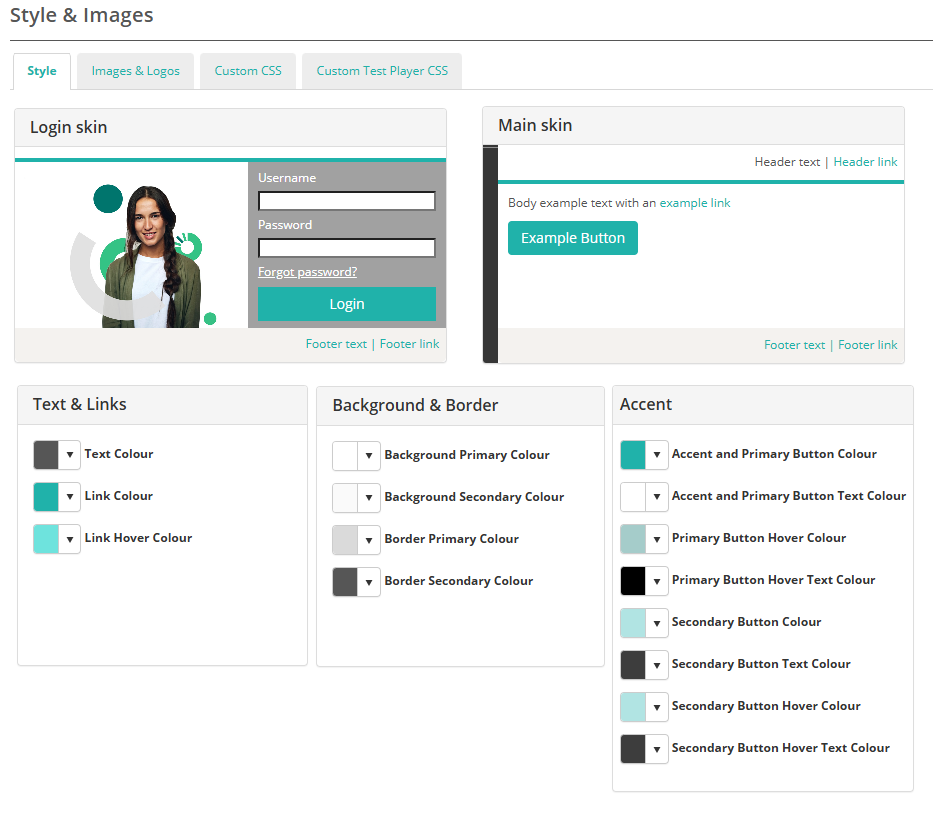
Select colours in the Skin editor
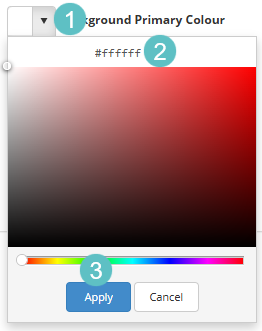
- Expand a colour option.
- Paste a hex value (for example
#0074D9) or use the colour picker. -
Select Apply to preview changes.
-
Scroll down and select Save Skin to keep your custom palette.
Style preview
When you click an element in the Login Skin or Main Skin preview (for example the header, a button or a link), the corresponding colour section below — such as Accent, Background & Border or Text & Links — is automatically highlighted. This makes it easy to see which set of colour controls applies to the part of the interface you selected.
The video below shows how the preview helps you identify which colour settings control different elements of your site.
Images and logos
Add your logos and images to personalise your site. You can upload your organisation's logo, welcome (login) image and footer logo, plus set icons for browsers and mobile devices.
- Go to Settings > Style and Images > Images and Logos.
- Select the chevron to expand each section.
- Select Select a file… for each item you want to upload.
- Select Save when finished.
General options
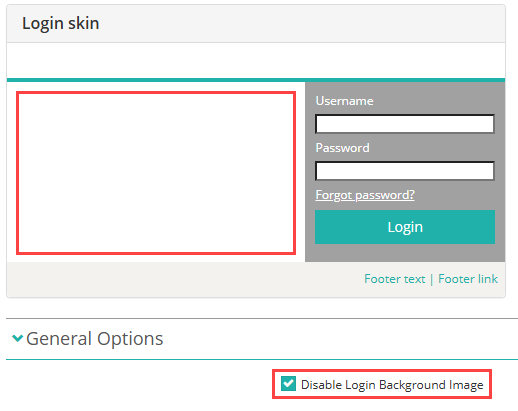
Check Disable Login Background Image if you would like to disable the background image on the login page.
Footer options
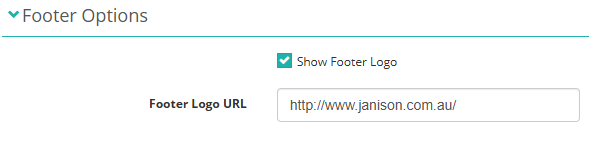
Choose whether to show the footer logo and, if displayed, optionally set a URL for it to link to. The logo itself is uploaded in the Custom logos and images section below.
Custom logos and images
Upload the following logos and images:
- Header logo – displays at the top of the screen
- Footer logo – optional logo at the bottom of pages
- Replay Header Logo – displays in the Janison Replay header. The image file must be transparent and light-coloured, as it is displayed against a grey background
- Test Player Header Logo – displays in the header on test player pages
- Print logo – higher-resolution logo used in reports or exports
- Login image – the welcome image users see when signing in
- Favicon – appears on the browser tab and in bookmarks
- Smart Phone icon – used when users add the site to their phone's home screen
Custom CSS
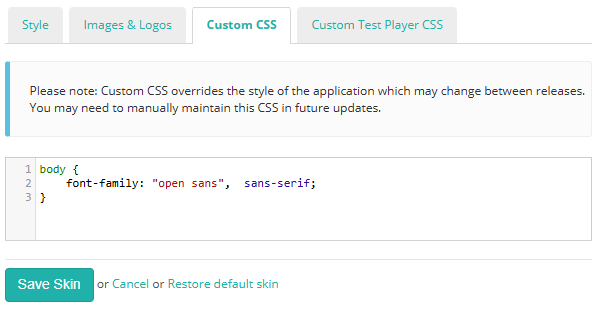
If you want more control, you can add your own CSS to adjust specific elements.
Note
Custom CSS overrides the default application styles, which may change between releases. You may need to review and update your CSS after future updates to keep it compatible.
- Go to Settings > Style and Images > Custom CSS.
- Enter your CSS code.
-
Select Save Skin.
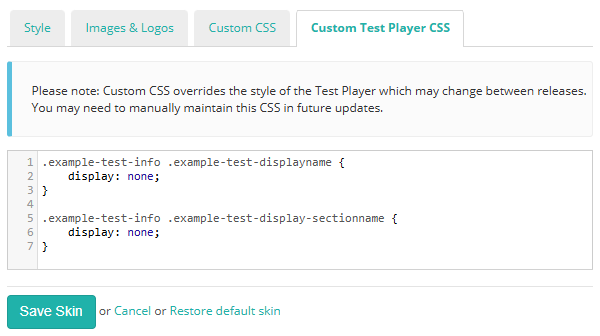
Custom Test Player CSS
This works the same way as custom CSS, but any changes you make here apply only to the test player interface. Use it to fine-tune the appearance of specific elements during tests.
Note
Custom CSS overrides the default application styles, which may change between releases. You may need to review and update your CSS after future updates to keep it compatible.
- Go to Settings > Style and Images > Custom Test Player CSS.
- Enter your CSS code.
-
Select Save Skin.