Review and approval
After you create an item, test section, or test, it starts in a Draft state. From there it moves through a review workflow — an author submits it, and a reviewer or approver either approves it or sends it back for changes.
The workflow is a quality-governance aid, not a delivery gate. Insights doesn't stop an unapproved item, test section, or test from being added to an assessment event or delivered to test-takers — the states let you track and manage review, but approval isn't technically required before delivery. Follow your organisation's own process for approving content before it goes live.
Note
The states and transitions available depend on the workflow configured for the discipline or module (see Settings). This page describes the standard workflow — your site may use different state names, button names, or review stages.
You change the workflow state of an item, test section, or test — a component — from its details page: select Change next to the workflow state, choose a transition, and confirm when prompted. The transitions on offer depend on the component's current state and your role.
Change item workflow status
Navigate to Author > Items and select the item.
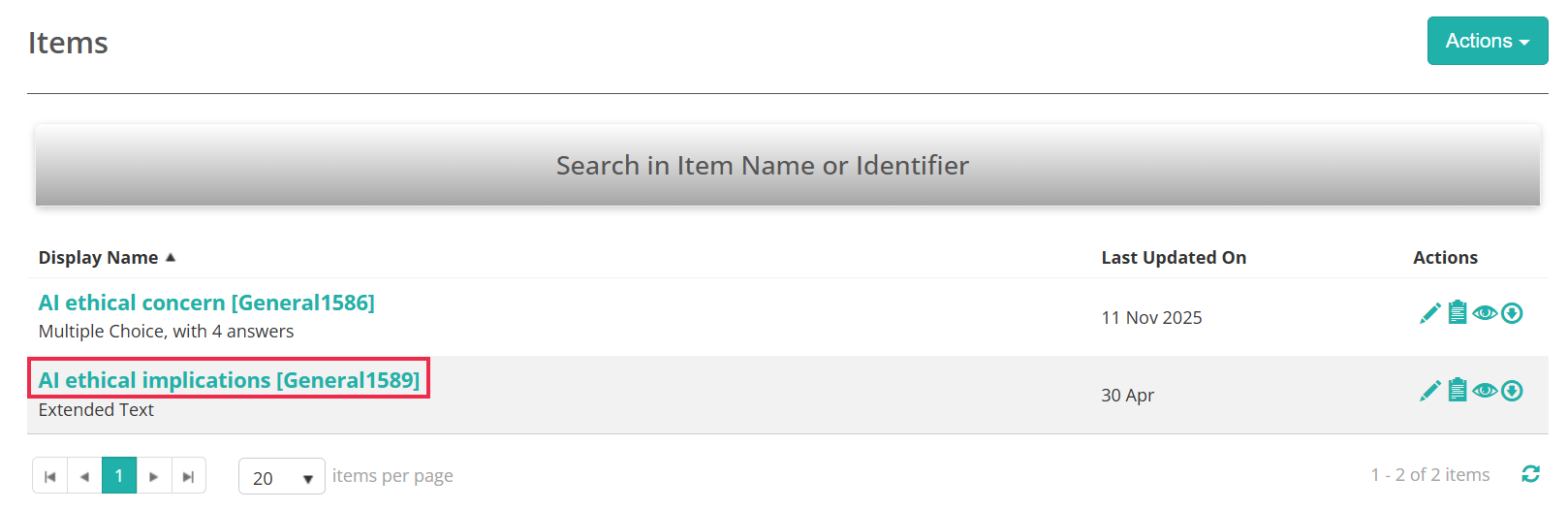
The item opens in Draft. The standard item workflow has two review stages — moderation, then approval.
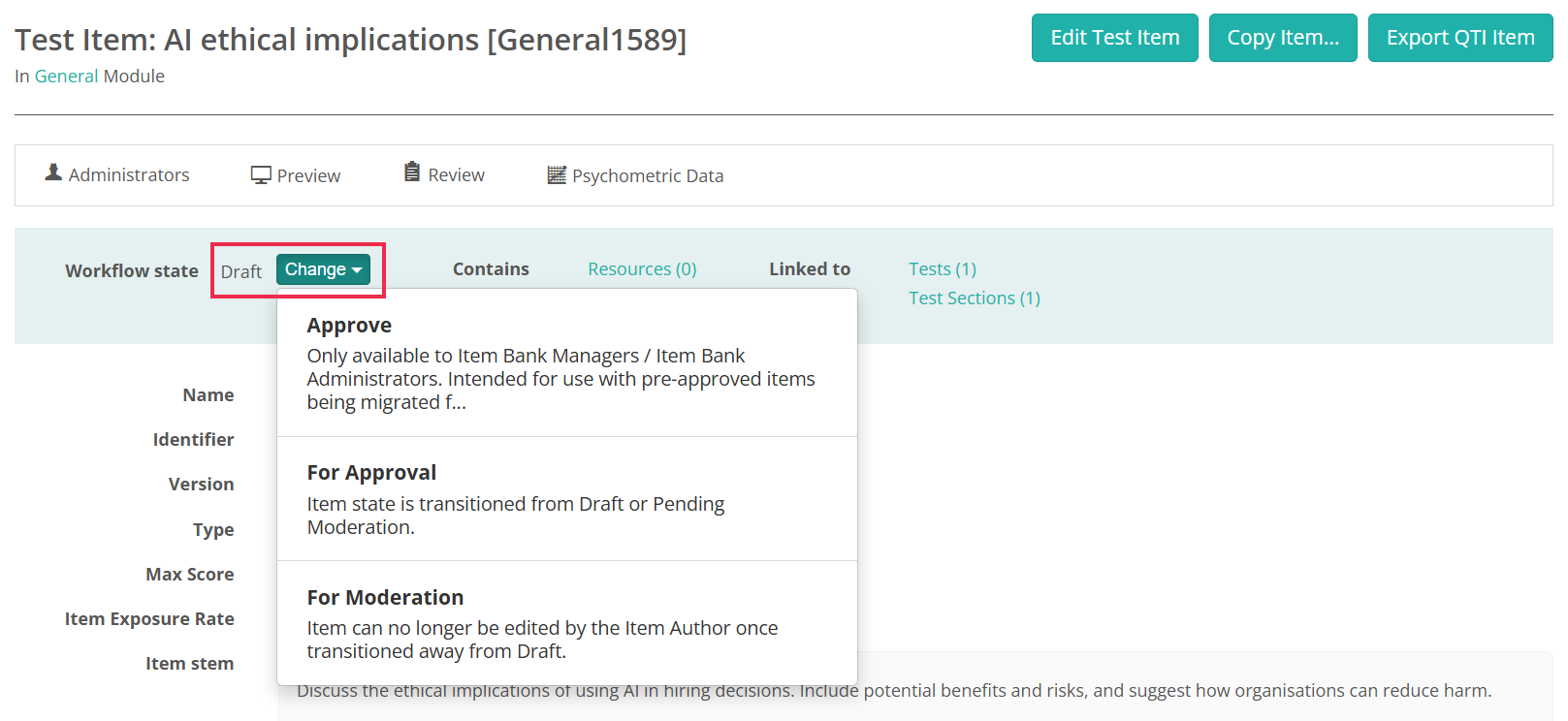
Select Change > For Moderation to send the item for moderation; it moves to Pending Moderation. To skip moderation, select Change > For Approval instead, which sends it straight to Pending Approval.
A reviewer returns an item for changes with Change > Needs Modification, which sends it back to Draft for editing.
Change test section workflow status
Navigate to Author > Test Sections and select the test section. A test section has a single approval stage — there's no separate moderation step.
Select Change > For Approval to move it to Pending Approval.
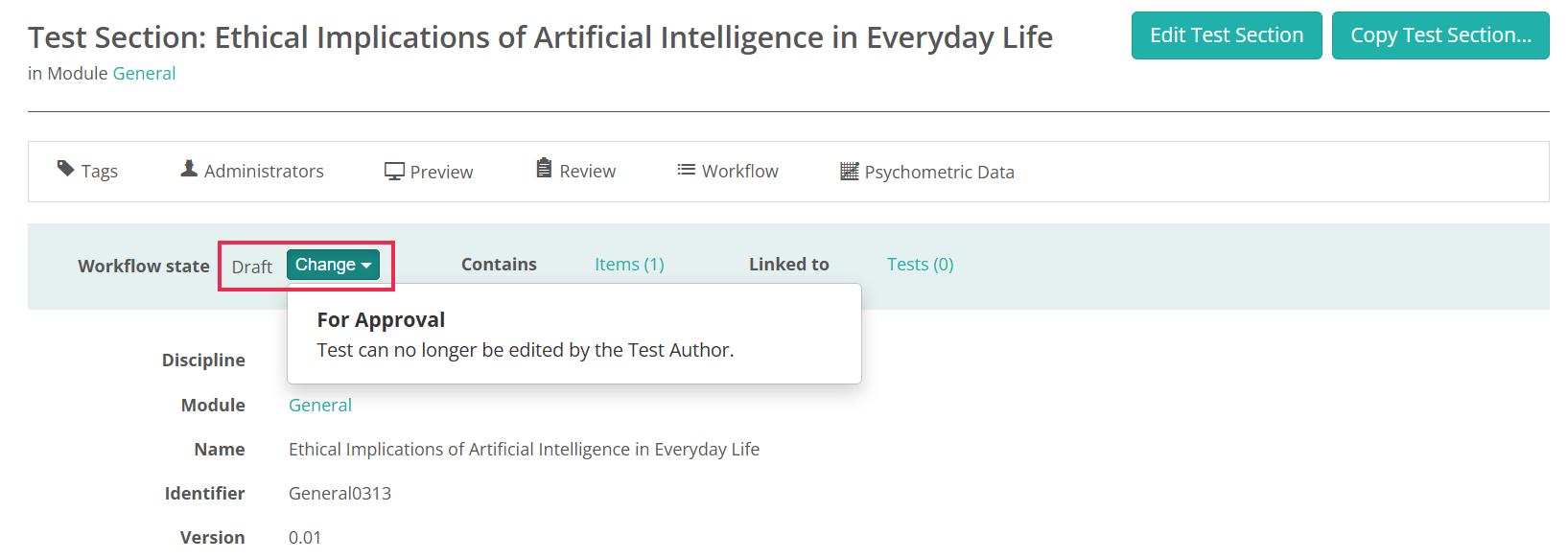
A reviewer returns a section for changes with Change > Needs Modification, which sends it back to Draft.
Change test workflow status
Navigate to Author > Tests and Surveys and select the test. Like a test section, a test has a single approval stage — there's no separate moderation step.
Select Change > For Approval to move it to Pending Approval.
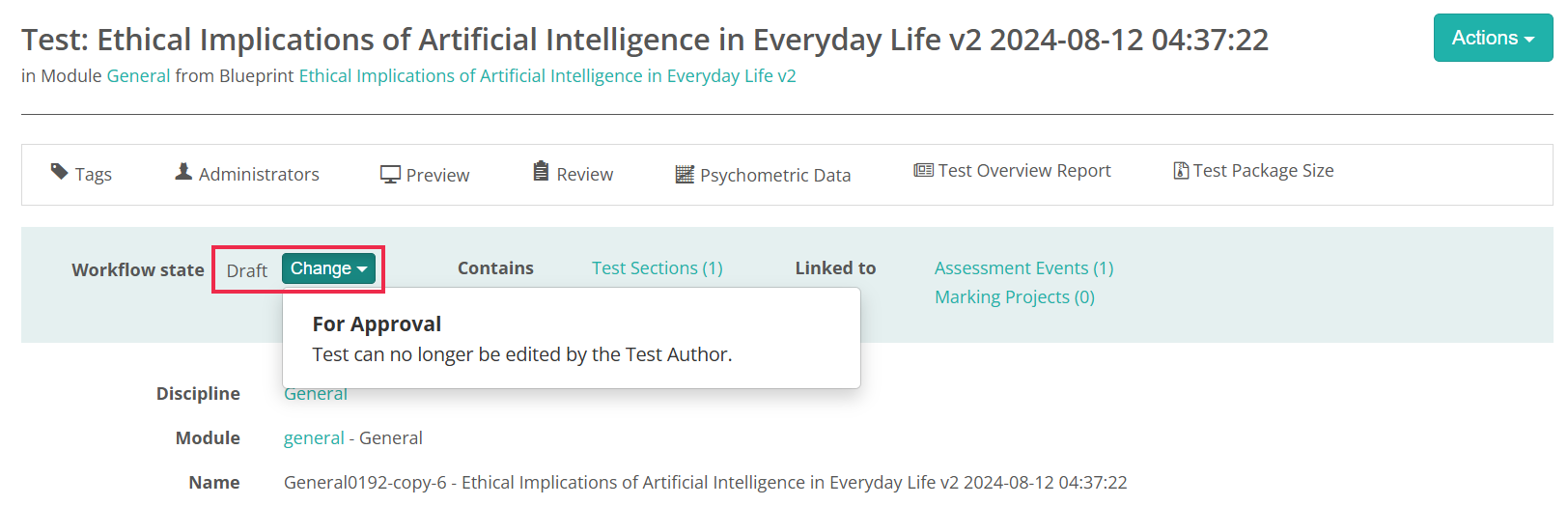
A reviewer returns a test for changes with Change > Needs Modification, which sends it back to Draft.
Complete a review
To review, filter a list — items, test sections, or tests — by State, open a component, and expand its detail areas to check its content.
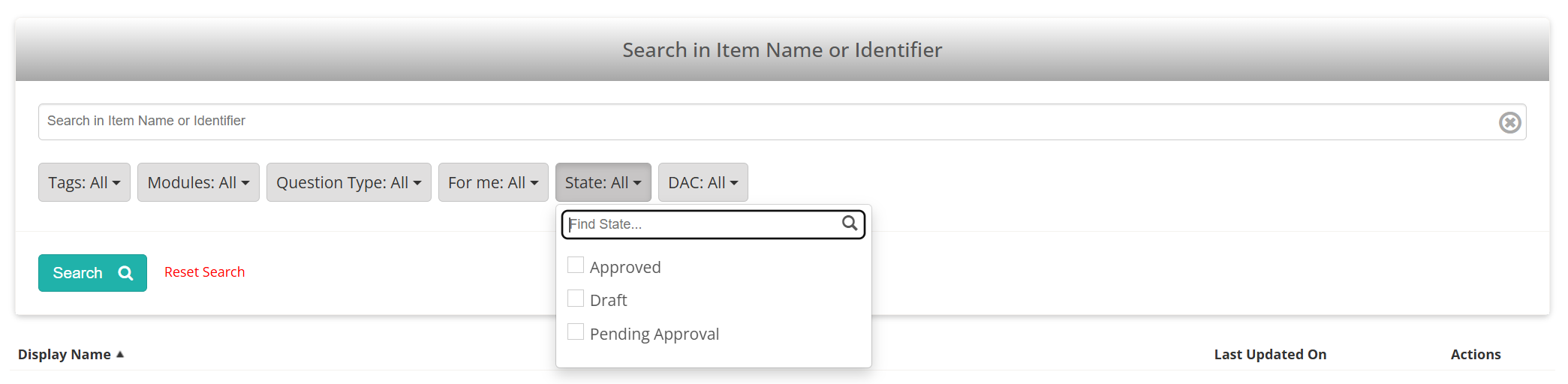
Items have two review stages:
- Pending Moderation — select Change > For Approval to send the item on for approval, or Needs Modification to return it to the author.
- Pending Approval — select Change > Approve to approve the item, or Needs Modification to return it.
Test sections and tests have a single stage: at Pending Approval, select Change > Approve to approve, or Needs Modification to return.
Settings
Whether components go through a review workflow, and which states and transitions are available, is configurable.
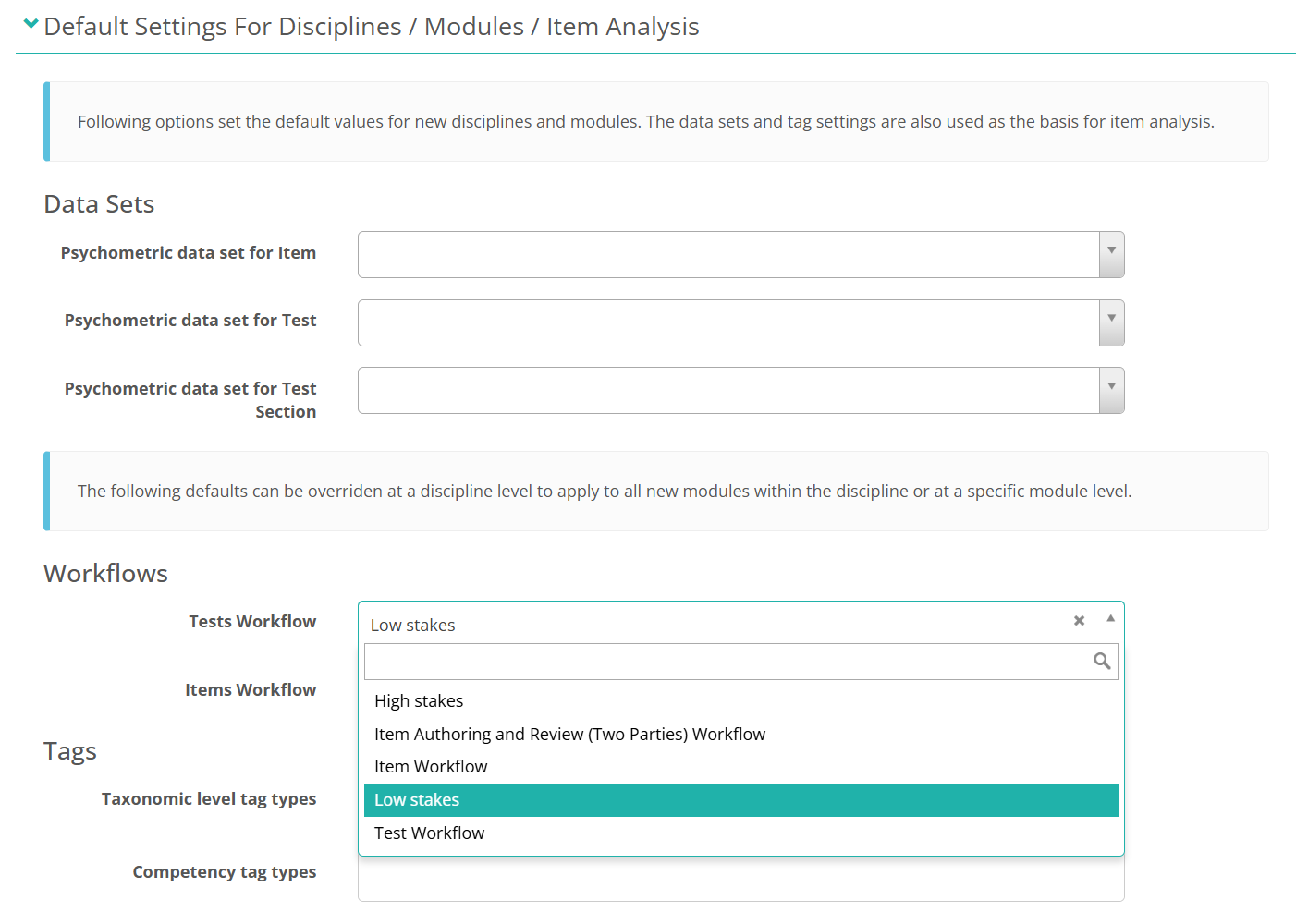
A type has a review workflow only when a workflow definition is assigned to it. Set the tenant defaults under Settings > Test Designer Settings, in Default Settings For Disciplines / Modules / Item Analysis; authors and administrators can override them per discipline or module on its details page.
Tests Workflow, Test Sections Workflow, Items Workflow — the workflow definition applied to each type, in the Workflows section. This determines the states and transitions available, including whether items have a moderation stage. Leave a type unset and it has no review workflow.
Items follow Test Sections — when enabled, a transition on a test section is also applied to all its items. The section and its items must use the same workflow.
Test Sections Follow Tests — when enabled, a transition on a test is also applied to all its test sections. The test and its sections must use the same workflow.
With both settings on, transitions cascade through the whole hierarchy — approving a test flows down to its test sections and then to their items.
For the full list of item workflow states and transitions, see Item quality control.