People directory
The people directory lets users browse and search each other's public profiles. Each profile shows a controlled subset of a user's account details — administrators decide which fields are public, and whether extra capabilities such as favouriting and filtering by organisation structure or catalogue item completion are switched on.
In the menu the directory is simply labelled People. This page uses "people directory" as a descriptive name to distinguish it from the People area as a whole.
Open the people directory
Go to the Manage People menu and select People. The directory opens with a Search for People panel at the top, a row of category tiles, and a grid of profile cards. Select More People at the bottom to page through additional results.
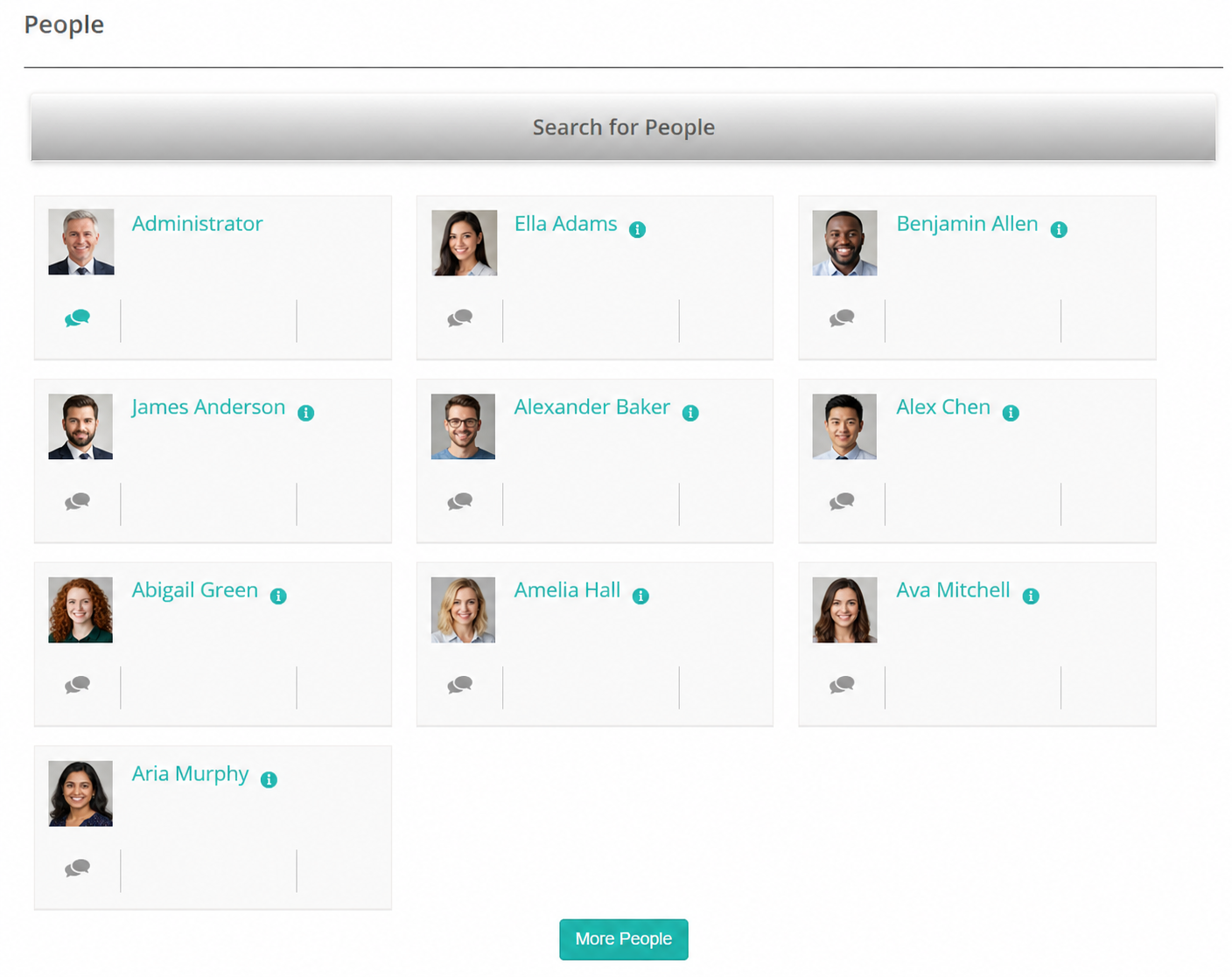
Who a user can see depends on the Only display users within learners groups setting. When it's off, users can see everyone in the tenant; when it's on, they can only see other members of their own groups. See Settings below.
Search and filter
The search panel always offers:
- Name — matches against users' names.
- Location — matches against a user's address, suburb, state, or country.
- Favourites — an Only show Favourites option that limits results to the users you've favourited.
Administrators can switch on three further filters. Each appears only when its setting is enabled:
- Organisation, Organisation Unit, and Group — filter by where a user sits in the organisational structure. Enabled by Allows learners to filter users by org structure.
- Catalogue item — find users who have completed a particular catalogue item. Enabled by Enable searching by catalogue item completion.
- Advanced search — filter by custom attributes recorded against users. Enabled by Enable Advanced Search.
Browse by category
Above the results grid, a row of tiles lets users switch between categories at a glance. Each tile shows a running count:
- People — everyone visible to the user.
- Favourites — the users you've favourited (see below).
- Experts — users who hold an additional role beyond their base role, such as markers or discussion-forum moderators.
- Contributors — users who have authored at least one published discussion post.
- Awaiting Peer Credit — users who have competency endorsements recorded.
Experts, Contributors, and Awaiting Peer Credit rely on other platform features — additional roles, discussions, and competencies/endorsements respectively. On a tenant that doesn't use those features, the tile shows a count of zero.
What appears on a profile
Each profile card shows the user's photo and name. Beyond that, administrators control exactly which fields are public. By default only a small set is shown — given name, preferred name, roles, and the profile photo — and everything else is hidden until an administrator makes it visible.
Fields that can be made public include organisation and organisation unit, location and contact details, roles, memberships, language, and any custom attributes configured for your tenant. Hidden fields are never sent to the directory, so a user only ever sees what an administrator has chosen to expose.
Where the competency feature is in use, a profile can also show the user's competencies and a link to the discussions they've taken part in.
Favourite a user
When Enable Favourites is switched on, each profile has a favourite toggle. Select it to add that user to your favourites; select it again to remove them. Use the Favourites tile or the Only show Favourites search option to see just your favourited users. Favourites are personal — each user keeps their own list.
Report a profile
Every profile has a Report for inappropriate behaviour option, so users can flag a profile they believe is inappropriate. This is always available in the directory.
Settings
Administrators configure the directory at Settings > User Settings, in the Public Profile section. All of these settings apply per tenant.
Enable Favourites — lets users favourite each other and filter the directory by their favourites.
Enable searching by catalogue item completion — adds the Catalogue item filter, so users can find others who have completed a particular catalogue item.
Enable Advanced Search — adds an advanced filter that lets users filter the directory by custom attributes.
Allows learners to filter users by org structure — adds the Organisation, Organisation Unit, and Group filters to the search panel.
Only display users within learners groups — restricts what each user can see. When enabled, users only see others who belong to the same group(s); when disabled, users can see everyone in the tenant.
In the same Public Profile section, administrators also set the field visibility — choosing, field by field, which account details appear on public profiles. Only fields marked visible are shown.