Chief marker tasks
After setting up the marking project, chief markers have ongoing responsibilities relating to their team and the release of results.
Chief marker tasks include:
- Releasing marker results.
- Promoting scripts to seed scripts.
- Reviewing and resolving escalated scripts.
- Monitoring seed scripts.
- Managing suspended markers.
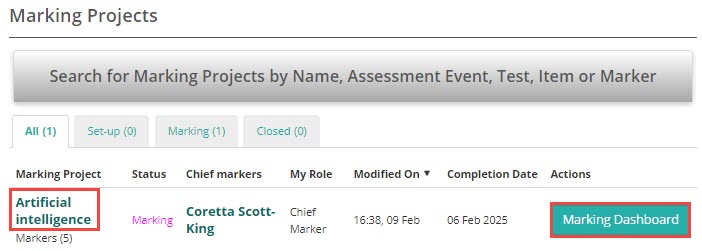
You can access these tasks from two places when you log in: the Marking Project link or the Marking Dashboard button.
Release marker results
There are two ways to release results: through the marking screen or through the marking project.
Release from the marking screen
-
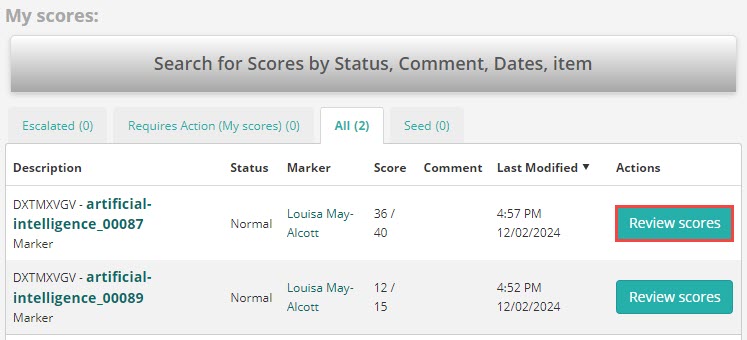
Open your marking dashboard and select Review scores for the script you want to release.
-
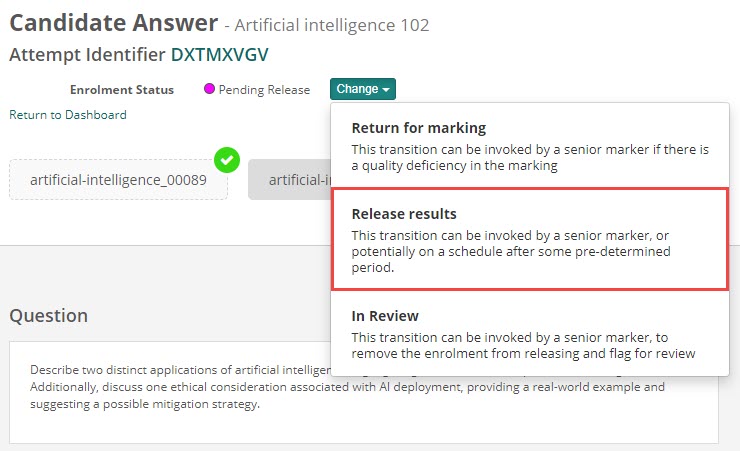
The marking screen opens with the enrolment in Pending Release status.
-
Select Change > Release results.
-
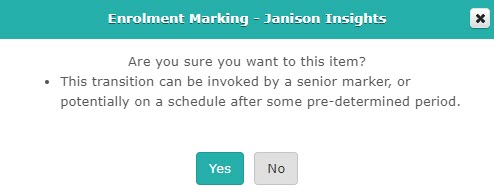
Select Yes to confirm.
-
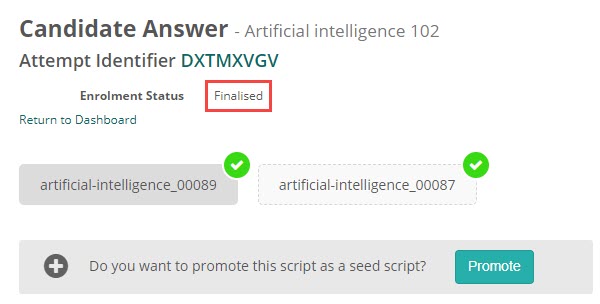
The enrolment status changes to Finalised. An option to promote the script to a seed script also appears.
Release from the marking project
- Open the marking project and expand the Enrolments section.
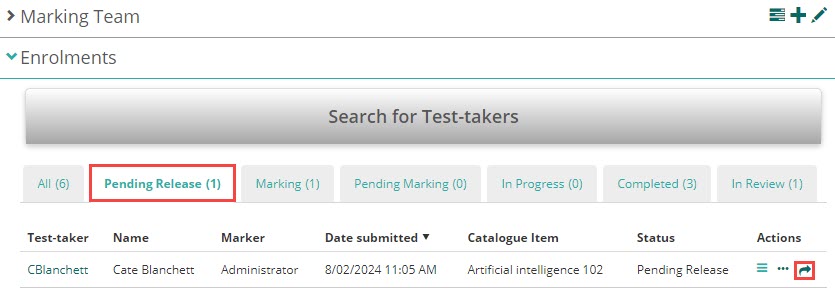
- Select the Pending Release tab and select the arrow icon next to the enrolment.
- The status updates to Finalised.
Promote a script to a seed script
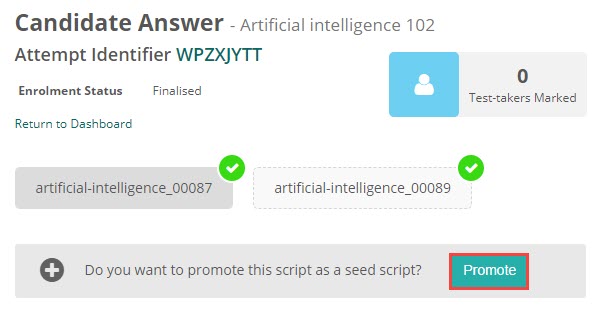
You can only promote scripts with a Finalised enrolment status.
- Follow the release steps above until the Promote button appears.
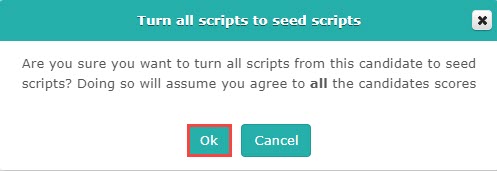
- Select Promote.
- Select Ok to confirm.
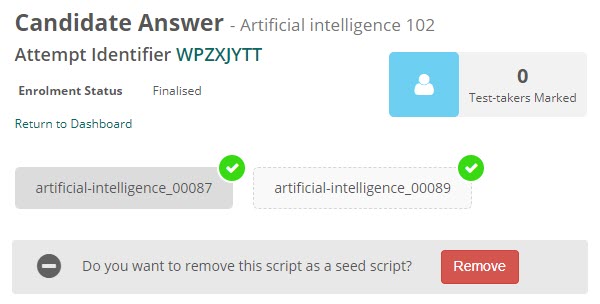
An option to Remove the seed script status appears afterward if you need to reverse this.
Review escalated scripts
When a marker escalates a script, it enters an In Review status. You are responsible for resolving the escalation.
Open an escalated script via the marking dashboard
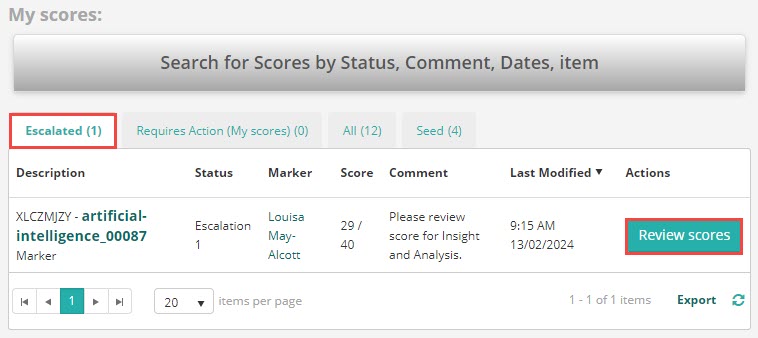
- Open the marking dashboard and go to the My scores section.
-
Select the Escalated tab, then select Review scores for the relevant script.
Open an escalated script via the marking project
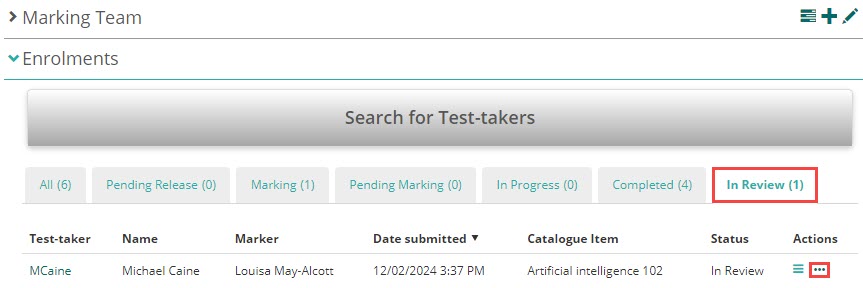
- Open the marking project and expand the Enrolments section.
-
Select the In Review tab, then select the three dots next to the enrolment.

Resolve the escalation
Once the marking screen opens, you have three options:
- No, add my score — add your own score and resolve the escalation yourself.
- Remove the marker — remove the marker from the script.
- Resolve or De-escalate — resolve the escalation yourself, or return it to the marker to complete.
After resolving, change the enrolment status as required (for example, release the result).
Monitor seed scripts
You can view suspended markers from the marking dashboard in the My marking team section.
-
Select the Suspended tab, then select the three dots in the Actions column.
-
The marker's profile opens.
Return a marker to marking
Select Change > Return to Marking to reinstate the marker.
Review a marker's script history
Expand the Marking Progress section and select an item to see detail.
- Scripts with a white background are scripts the marker marked.
- Scripts with a green background are seed scripts the marker passed.
- Scripts with a red background are seed scripts the marker failed.
Select a failed script to open a modal showing the marker's score alongside the chief marker's score, and how far out of tolerance the marker was.