Item quality control
Item workflows provide quality assurance for items during authoring. Each item moves through a series of workflow states — from draft, through review, to approved — so authoring teams can track and manage quality. The states and transitions available depend on the workflow configured for your organisation.
Workflow states
The standard item workflow uses the following states:
| State | What it means |
|---|---|
| Draft | The item is being authored. Authors can edit freely. |
| Pending Moderation | The item has been submitted for the first review stage, moderation. |
| Pending Approval | The item is awaiting approval. |
| Approved | The item has passed review and is approved for use. |
| Flagged For Review | The item has been flagged as needing attention. It remains available and can still be added to a test. |
| Retired | The item is no longer in use. Retired items are excluded from item searches in the test designer and cannot be added to a test. Only Item Bank Administrators can access retired items. |
By default, moving an item into review doesn't lock editing — only Approved and Retired items can't be edited, and which states lock editing is set per role.
Important
Items in any workflow state — including Draft, Pending Approval, and Flagged For Review — can be added to a test. The exception is Retired items, which are excluded from item searches in the test designer. However, a test cannot be transitioned to Pending Approval or Approved if it contains items that are not in an approved state.
Transition an item
Each item displays its current workflow state in the workflow widget on the item screen. To change the state, select Change next to the workflow state, then select the transition you want. Available transitions depend on the item's current state and your role.
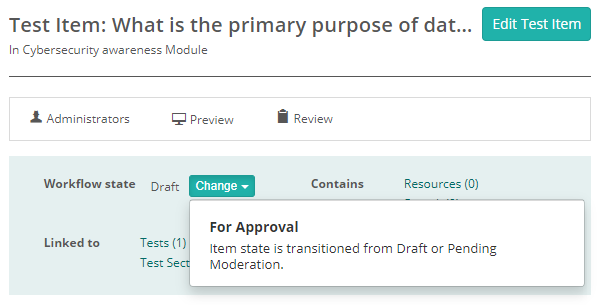
| Current state | Transition | New state |
|---|---|---|
| Draft | For Moderation | Pending Moderation |
| Draft | For Approval | Pending Approval |
| Pending Moderation | For Approval | Pending Approval |
| Pending Moderation | Needs Modification | Draft |
| Pending Approval | Approve | Approved |
| Pending Approval | Needs Modification | Draft |
| Approved | Un-approve | Pending Approval |
| Approved | Flag For Review | Flagged For Review |
| Approved | Retire | Retired |
| Flagged For Review | Return To Approved | Approved |
When a transition is selected, a confirmation dialog appears. Some transitions require you to enter a reason before proceeding.
Cascade transitions
Workflow transitions can cascade automatically, so that transitioning a test or test section also transitions the components within it. This saves progressing large groups of items through review one at a time.
Two cascade options are available:
- Items follow Test Sections — when you transition a test section, all its items follow. The section and its items must use the same workflow.
- Test Sections Follow Tests — when you transition a test, all its test sections follow. The test and its sections must use the same workflow.
With both enabled, a transition cascades the full hierarchy — approving a test flows down to its test sections and then to their items.
Settings
An item has a review workflow only when a workflow definition is assigned to it. Set this under Settings > Test Designer Settings > Default Settings For Disciplines / Modules / Item Analysis, in the Workflows section; it can be overridden per discipline or module on its details page.
| Setting | Description |
|---|---|
| Items Workflow | The workflow definition applied to items — determines which states and transitions are available. Leave it unset and items have no review workflow. |
| Test Sections Workflow | The workflow definition applied to test sections. |
| Tests Workflow | The workflow definition applied to tests. |
| Items follow Test Sections | When enabled, transitioning a test section also transitions all its items. Both must use the same workflow. |
| Test Sections Follow Tests | When enabled, transitioning a test also transitions all its test sections. Both must use the same workflow. |