Mark candidate responses
The Marking screen is where Markers mark questions. This could be for standardisation, the main marking phase, or sampling. It may also be used to monitor marking.
The Marking screen can be accessed:
- From My Marking Taskboard using the Mark More!, Select!, or Sample! buttons
- From the Scoring Details or Responses screens via the Review Scores button
- From the Marker Progress section within the Marker Profile
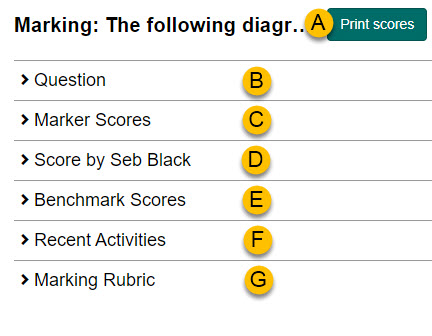
The Marking screen includes the following features:
| Feature | Description |
|---|---|
| Print scores | Link to print a score breakdown summary. |
| Question | The question stem to assist with marking. |
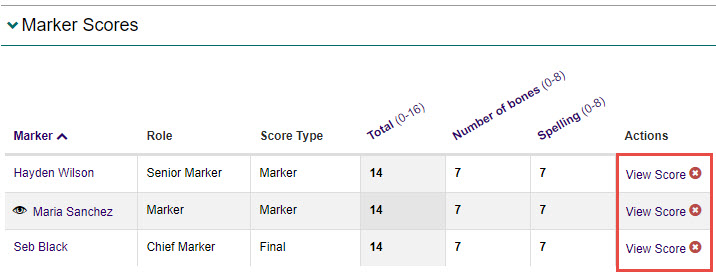
| Marker Scores | Displays scores including standardisation failures. Higher permission Markers can invalidate scores. |
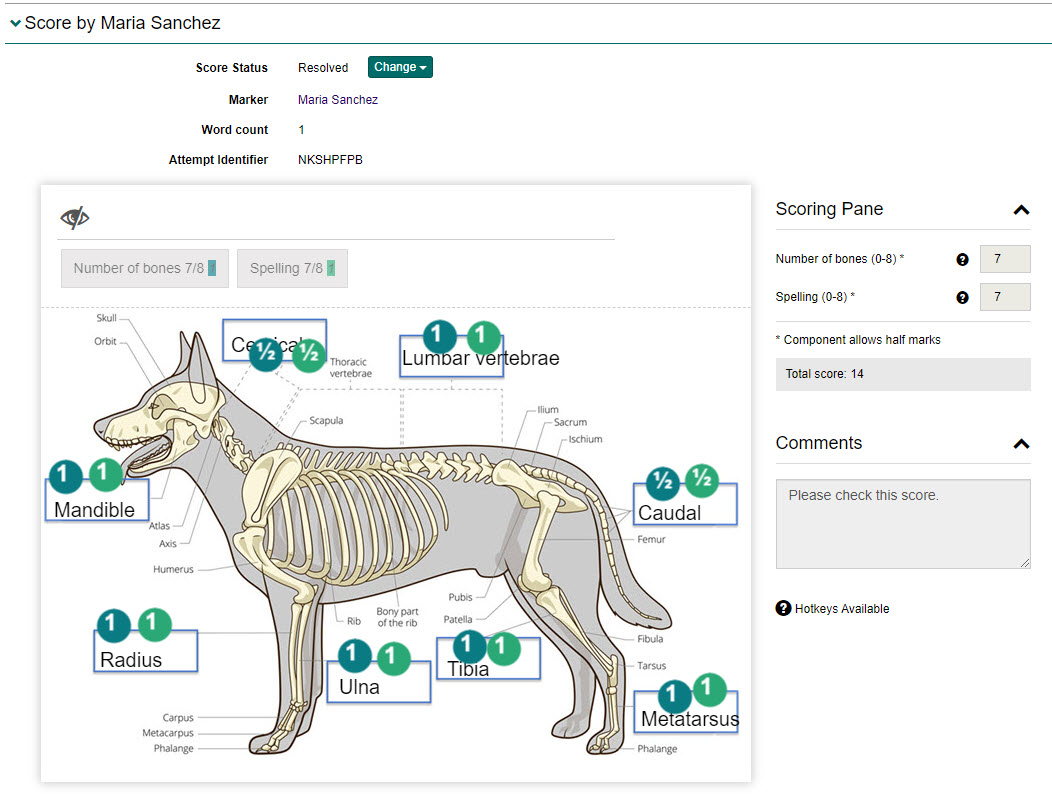
| Score of a specific Marker | Shows a selected Marker's scores. |
| Benchmark Scores | Displays benchmark scores for questions; searchable. |
| Recent activities | Shows recent activities and changes. |
| Marking Rubric | Displays marking instructions if applicable. |
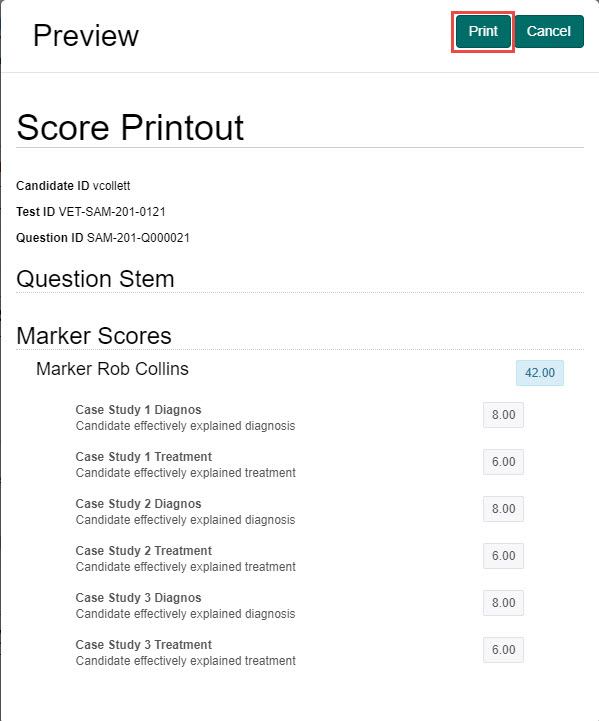
Print scores
The Print scores button displays a popup with a score breakdown summary.
Marker Scores
This section will differ depending on the type of response selected and the role and permissions of the Marker viewing it.
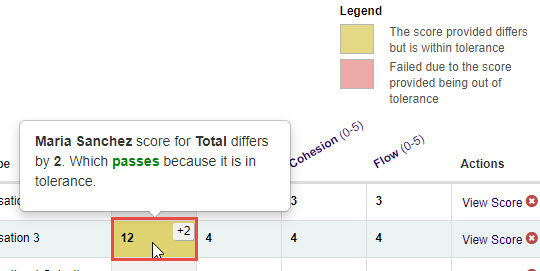
Markers can view assigned scores and tolerance status. Higher permission users can invalidate scores.
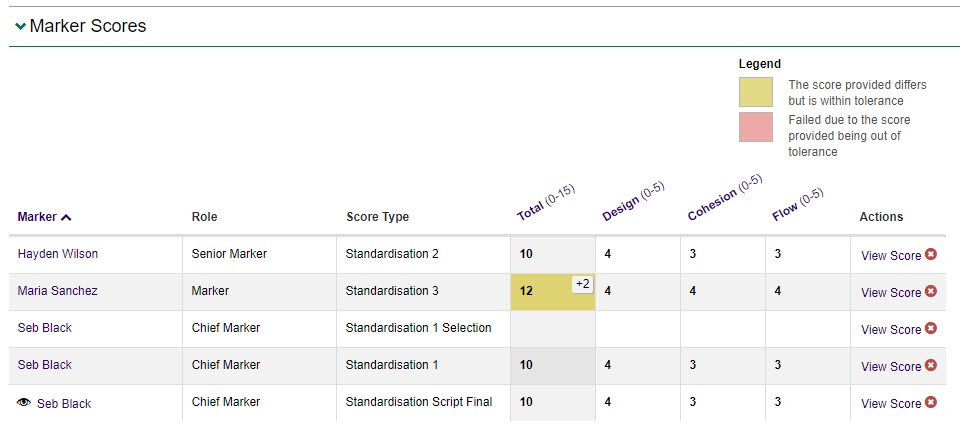
You can hover over a score to view a score summary.
Invalidate a score
-
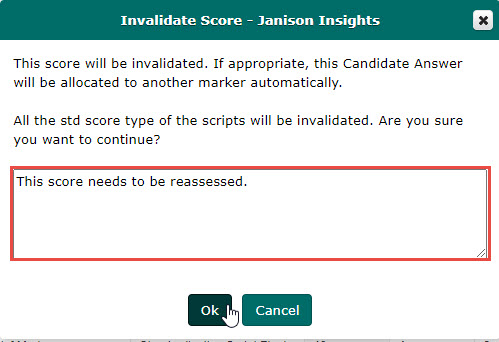
Select the Invalidate Score icon in the Actions column.

-
Enter a reason for the invalidation.
-
Select the Ok button to confirm.
Score of a specific Marker
The name of this section changes to reflect the specific Marker being reviewed.
-
In the Marker Scores section, select the View Score link next to the relevant Marker.
-
View the Marker's scores in the Score by [Marker name] section.
Benchmark Scores
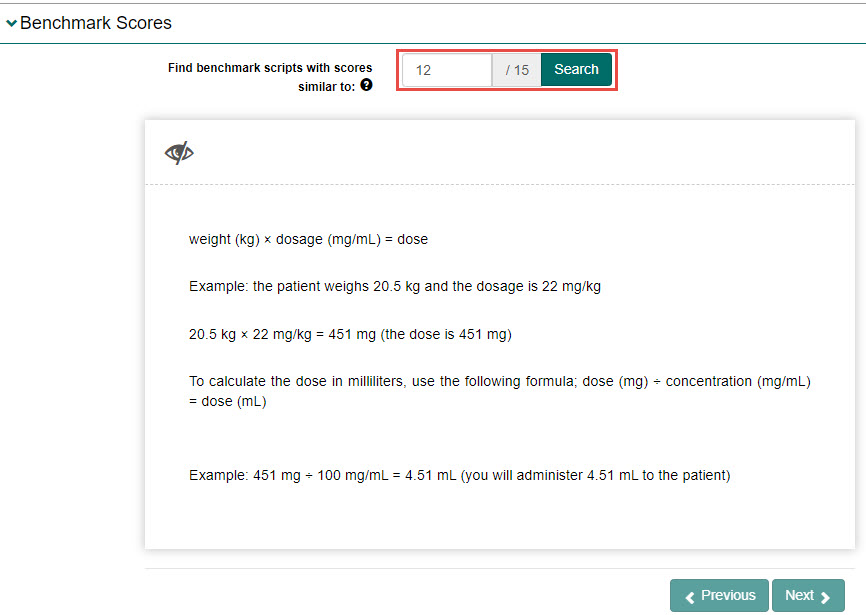
Benchmark scores give you an understanding of what responses of a particular score look like. A score is considered similar when it is within 10% of the question's available score (above or below) of the selected score.
Benchmarking can be enabled or disabled in a marking project. If disabled, the Benchmark Scores section will not display.
- Scroll down and select the Benchmark Scores section.
- Enter a score in the Find benchmark scripts field and select Search.
-
Use the Previous and Next buttons to navigate through similar scores.
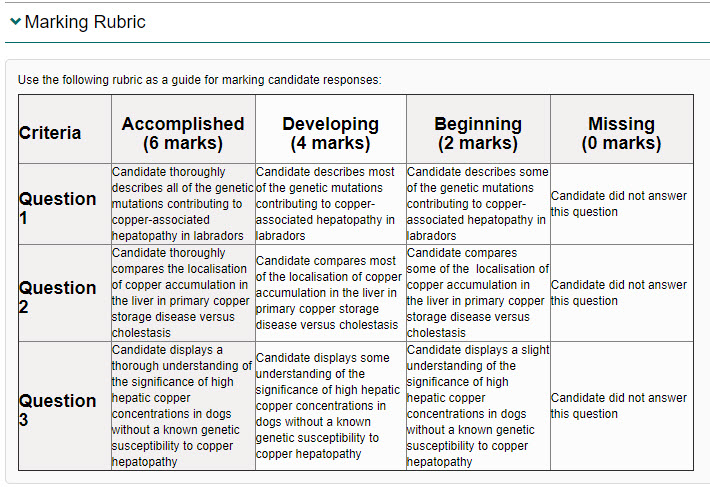
Marking Rubric
This section displays any marking instructions or rubrics the Author created when designing the question.