Multiple choices
A multiple-choices item presents a question followed by several possible answers. The test-taker selects one or more correct responses from the options provided. It differs from a multiple choice item which has just one correct answer.
The practice test below covers different use-cases of this item type.
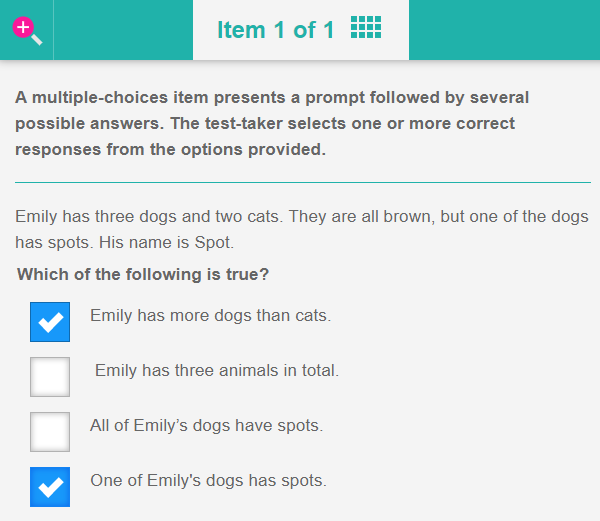
In the screen captures below you can view an example of a simple multiple-choices item type, we've used text for the content of the item but you could include images.
Practice test
Open this test in the Janison test player to view examples of multiple-choices items.
Example
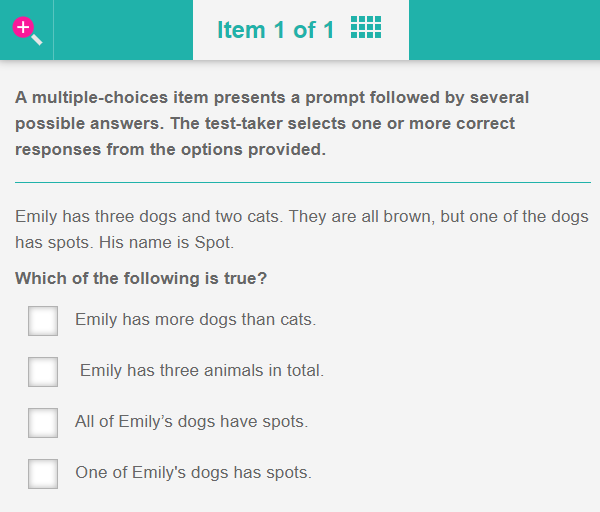
Move to the next slide to see the completed item.
Create a multiple-choices item
-
Navigate to Author > Items.
-
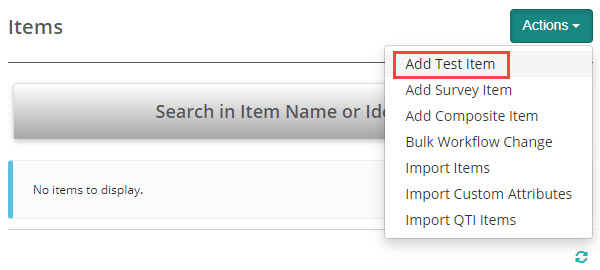
Select Add Test Item from the Actions drop-down.
The New Test Item screen displays.
-
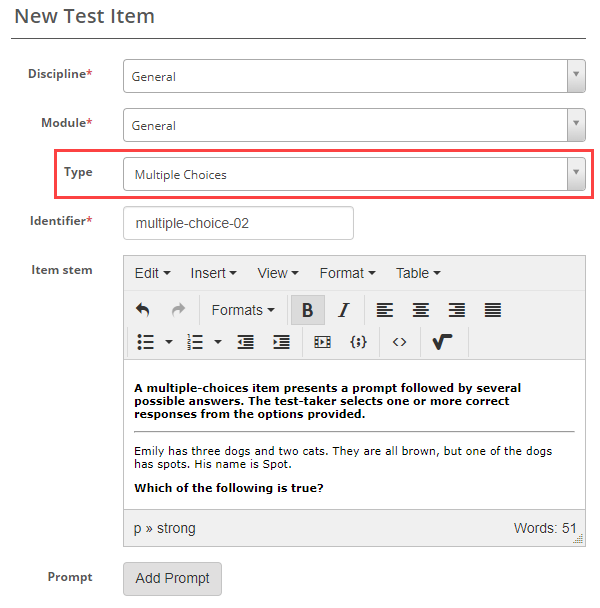
Complete the form as required. Below is an example of a new item we created.
Select Multiple Choices as the item type and enter the Item stem.
-
In the next section we can set the orientation and scoring type.
Orientation – The options are Horizontal and Vertical. This will determine if the distractors display to the test-taker horizontally or vertically. We have added examples of both these options in the sample test.
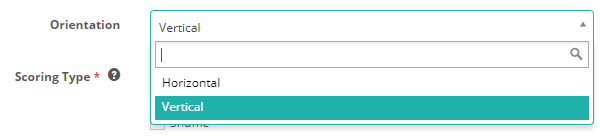
If you select the horizontal orientation, an additional field displays where you can select the Options Per Line. This determines how many columns display to the test-taker. We've provided an example of options per line in the example test at the top of the page.

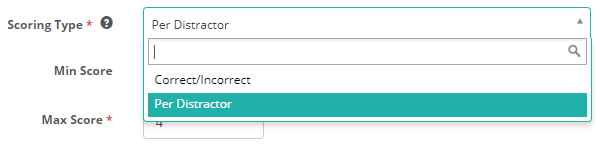
Scoring Type – The options are Correct/Incorrect and Per distractor. See the Setting scores and marking below to learn more about this.
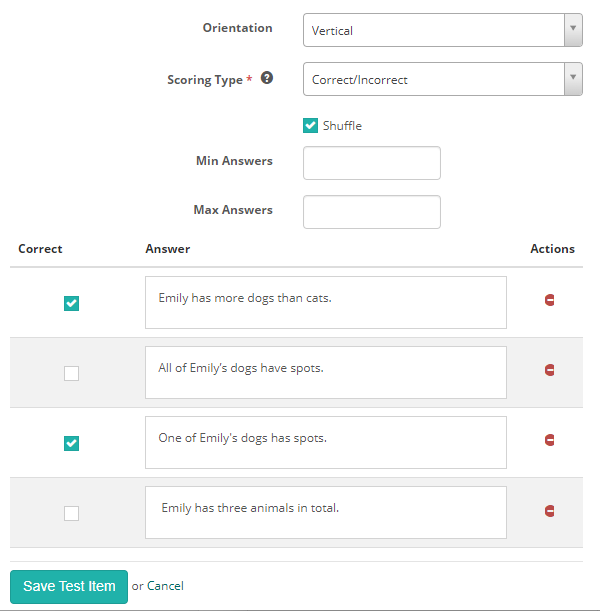
Check Shuffle if you want the options displayed to test-takers in different orders.
Max Answers – By default this field is empty which means that there is no restriction on the number of responses a test-taker can select. Entering a number into this field makes the options inactive once that value is reached. For example, if the maximum number of answers is set to 2, and the test-taker selects two responses, the remaining options become inactive, preventing further selections.
-
Enter the Answers and select the Correct options.
-
The final step is to Save Test Item.
Setting scores and marking
Multiple choices item types are system marked.
Scoring type
There are two scoring types available, Correct/Incorrect and Per distractor.
Correct/Incorrect
With this scoring type, the test-taker must select all correct responses to get the item correct.
Per distractor
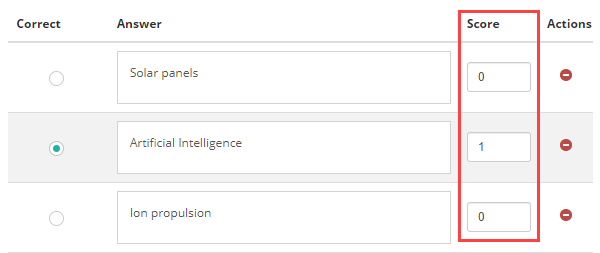
With this scoring type, additional scoring options will become available to the item author, allowing them to add a score for each response.
Min Score – Setting a value in this field will determine the minimum score that the system can assign to the item.
Max Score – Setting a value in this field will determine the maximum score that the system can assign to the item.
Default Value – The system will use this value if a row doesn't have a value in the Score column.
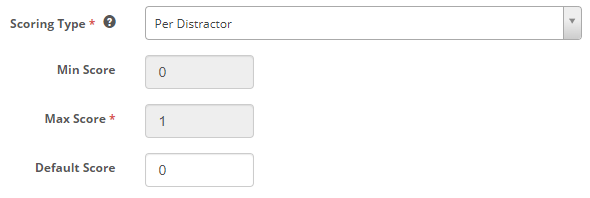
A scoring section becomes available below where item authors can set a score per distractor.
Related documents
- Add audio to an item. Read more
- Add a stimulus or stimuli to an item. Read more
- View the item response analysis. Read more
- View other topics related to items. Read more