AI co-marking
Insights can send a quick marked event's extended-text responses to an external AI marking service. The service returns a score for each component of the item's marking scheme. That score is a suggestion: a marker reviews every response and finalises it.
This page covers what AI co-marking can and can't do, and what Janison sets up for your tenant. It also covers how an author allocates an AI marker to an item, and what happens when the AI can't score a response. For the marker's side, see Mark responses.
What AI co-marking covers
AI co-marking works on extended text items only. Both providers accept extended-text responses and nothing else. Multiple choice, numeric entry and every other item type are scored by the platform as usual, and never reach an AI marker.
It works on quick marked events only. Standard marking projects and enrolment based marking projects don't support it, and there's no way to bring an AI marker into one. Nothing on this page applies to the way those projects allocate and check work.
So AI co-marking belongs to the simplest marking mode, not to the marking projects. If you need standardisation, double marking or sampling, you're in a marking mode that marks by hand.
What you need to set up
Before any of this is yours to do, Janison configures an AI marking provider and its models for your tenant. Until that's done, nothing about AI co-marking appears anywhere in Insights: no AI marker field on items, and no Enable AI Co-Marking checkbox on events. So there's nothing you can set up early, and nothing you can get wrong.
Once a provider is active with at least one model, 2 things are yours. Either can be done first:
- An author allocates an AI marker to each item you want marked, on the item in Author > Items.
- An administrator selects Enable AI Co-Marking on the assessment event, while the event is still in Draft.
Miss the allocation and Insights warns you when you move the event to delivery, naming the items that won't get AI suggestions. Their responses arrive unscored for a person to mark. Miss the checkbox and nothing warns you — the event behaves as though AI co-marking had never been set up.
What Janison sets up
Janison configures the AI marking provider for your tenant, at Marking > AI Marking Provider Settings. There's nothing you need to do there before you start.
Two of the model settings Janison chooses show up later for you. The model's Description is what an author picks from in the AI marker dropdown. Its Minimum Word Count decides which responses are sent at all.
The providers
Insights supports 2 AI marking providers. Both mark extended-text responses, but they differ in what a model means for your items.
Vantage Labs — essay scoring by a model trained on large numbers of marked responses. The training fixes the model's marking scheme components, and that happens outside Janison. An item therefore has to use the model's components rather than its own, so selecting a Vantage Labs model replaces the item's marking scheme with the model's.
Vision Marker — extended-response marking by a generative AI. It works from the item's question text and your own marking scheme components, so it can mark an item without having been trained on it. Each item is synchronised to Vision Marker before it can be marked, and results come back later rather than immediately. Vision Marker also returns a human review flag with a reason, so responses it isn't confident about are marked for a person's attention.
Both can be set up at once. Each item is allocated a single AI marker, so different items in the same test can use different providers.
Allocate an AI marker to an item
An AI marker is allocated per item, by an author, in the item's marking section.
Go to Author > Items, open an extended text item, and open its Marking section — headed Marking & Feedback where feedback snippets are enabled. Select a model in Allocate AI Marker for this item, then save.
The field only appears on extended text items, and only when a provider is active with at least one model. If an author can't see it, that's the reason.
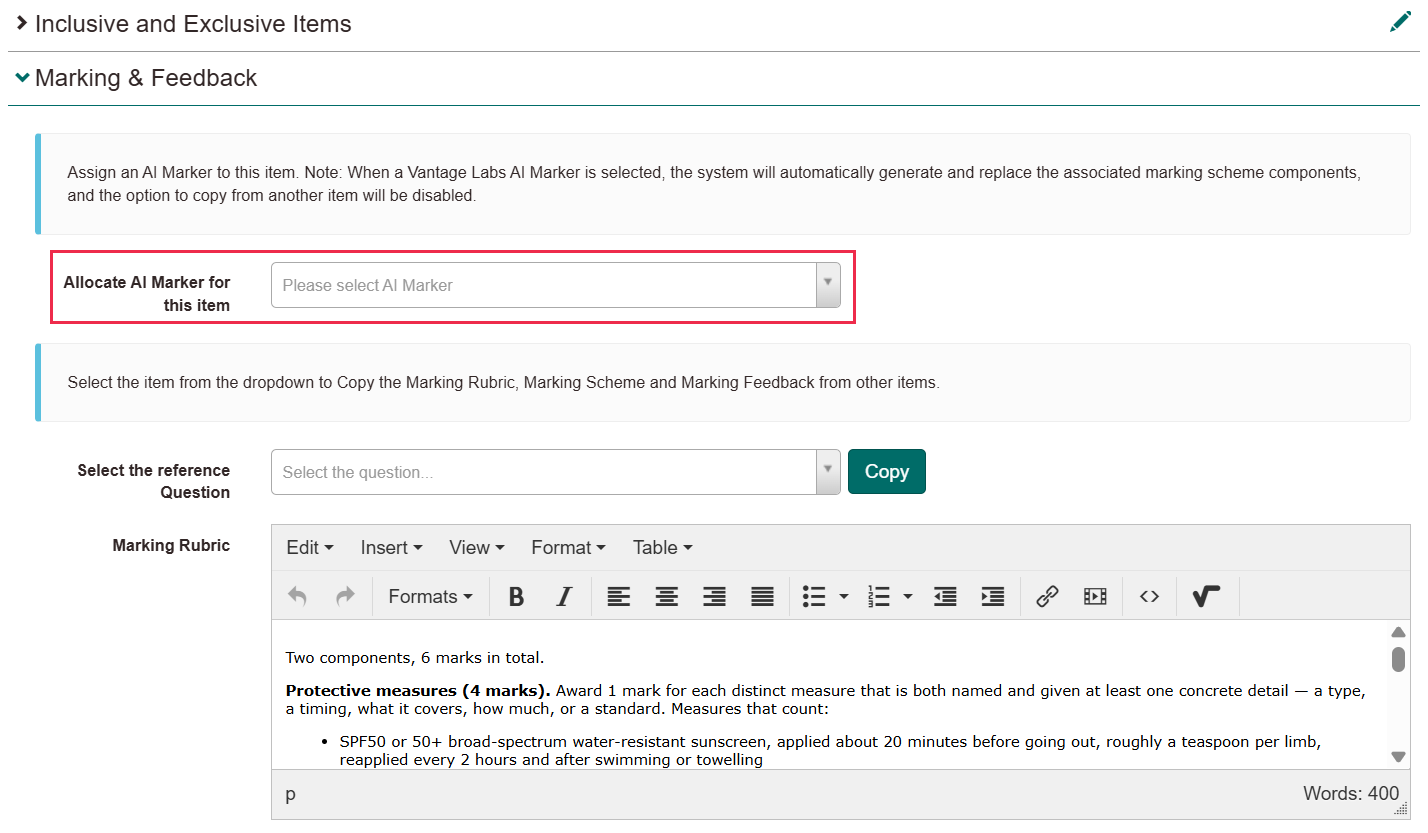
The dropdown lists each available model as the provider name followed by the model's Description — Vision Marker - for use with TMOA language questions, for example.
For a Vantage Labs model, selecting it generates the item's marking scheme components from the model and replaces whatever was there. The option to copy a marking scheme from another item is disabled while a Vantage Labs model is selected, and the component fields become read-only.
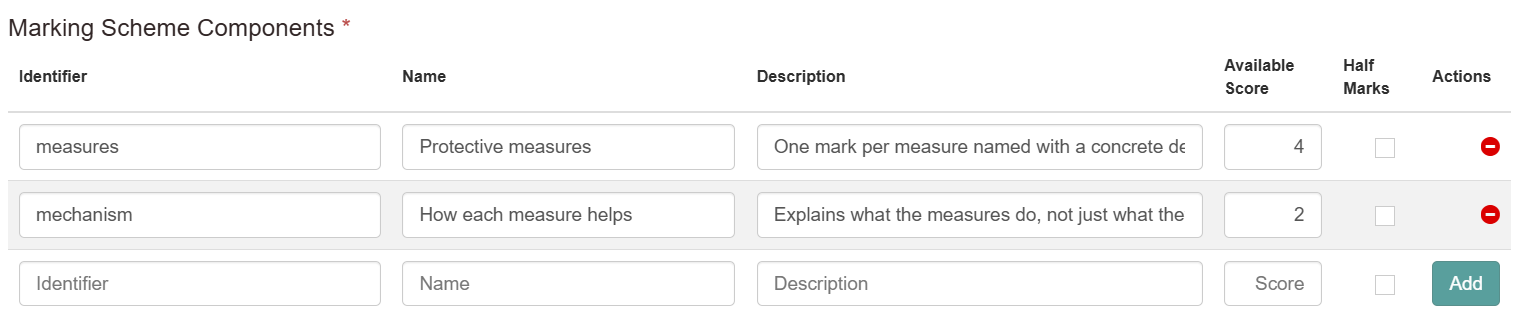
For a Vision Marker model, add at least one marking scheme component before saving. Vision Marker marks against your components, so an item without any can't be synchronised.
Three fields on each marking scheme component reach Vision Marker. The Name becomes the criterion the AI scores against, and the Available Score is its maximum. The component's own Description — not the model Description in the dropdown above — is the only guidance the AI gets for that criterion.
The Marking Rubric is never sent, so that component Description has to carry anything you need the AI to apply. A marker also sees it when they hover the component's help icon, so lead with the part they need.
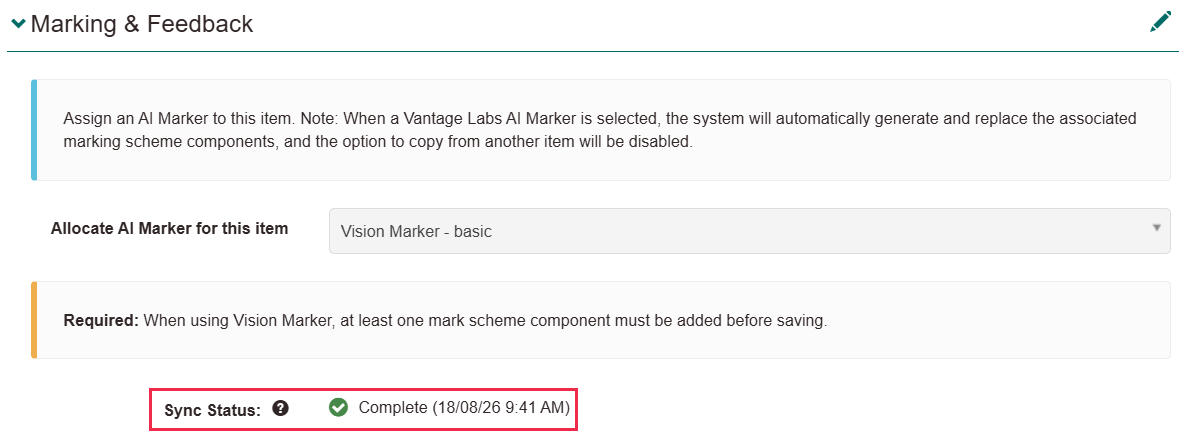
The item is sent to Vision Marker when you save, and a sync indicator shows the state:
- Complete — the item is synchronised and can be marked.
- Sync Required — the item has changed, or no model was linked. The hint reads "Save to synchronize with Vision Marker".
- Pending — synchronisation is under way.
A response for an item that hasn't synchronised is flagged for a marker rather than marked.
Important
You can't change an item's AI marker while the item is in an assessment event that's in delivery. The field is disabled, with "This item is linked to an Assessment Event currently in delivery. You cannot change the AI Marker until all linked Assessment Events are closed." Plan model changes for between events.
Turn it on for an event
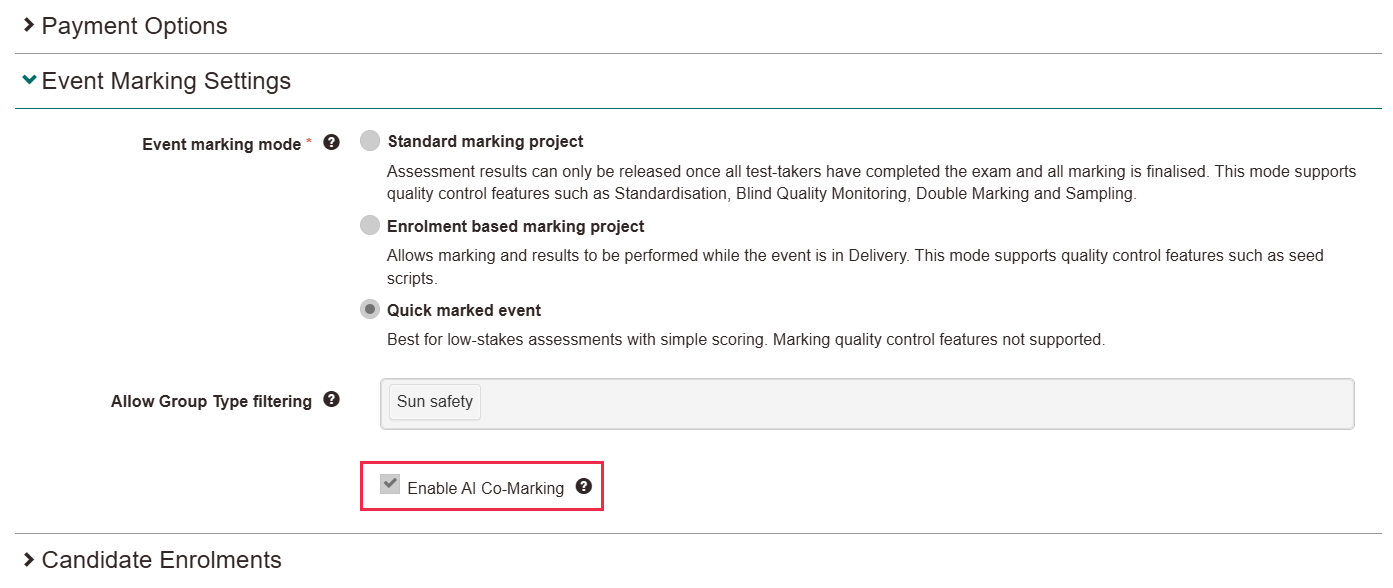
An administrator turns it on with Enable AI Co-Marking in the event's Event Marking Settings panel, while the event is still in Draft. The checkbox only appears when an AI marking provider is active and has at least one model. For the full setup, see Set up a quick marked event.
When the event is in delivery and a test-taker's attempt reaches marking, Insights sends each eligible response to the provider in the background. What a marker then sees on the Assessment Responses screen (Marking > Quick Mark Assessments):
- Responses arrive on Pending Review with a suggested score already filled in, which the marker can accept, change or replace.
- A response only appears once the AI has returned a result for it, so the queue fills progressively rather than all at once.
- Responses the AI couldn't score arrive flagged, with the reason shown.
- Nothing is released on an AI score alone. A marker has to submit every response.
When an attempt reaches marking is a tenant-wide setting, and AI co-marking doesn't change it. See When responses reach markers on the set-up page.
For the marker's side in full, see Mark responses.
When the AI can't score a response
A response the AI can't score isn't lost. It's flagged with a plain-language reason and passed to a person to mark.
| Message the marker sees | What it means | What to do |
|---|---|---|
| "Answer could not be marked because no response was provided." | The test-taker left the item blank, and Insights doesn't send empty responses. | Score it as you would any blank response. |
| "Answer could not be marked because it does not meet the minimum word count requirements." | The response is shorter than the model's Minimum Word Count, so it was never sent. | Mark it by hand. If it's happening across a whole cohort, ask Janison to review the word count on that model. |
| "The question has not been synced to Vision Marker and therefore it cannot be marked by Vision Marker." | The item was never synchronised to Vision Marker, or it changed after it was. | Mark it by hand. Ask an author to open the item and save it — that fixes later attempts, not this response. |
| "Vantage Labs mark scheme component mismatch: … - please contact support." | The components Vantage Labs returned don't match the item's, usually because the item's have been edited since the model was selected. | Mark it by hand and contact support. The message lists the components the model returned, so an author can compare them with the Name of each component on the item. The names and the number of them have to match, capitalisation included. |
| "This response could not be AI Co-Marked, please review." | No result arrived from Vision Marker within an hour, so Insights released the response rather than leaving it stuck. | Mark it by hand. If it's happening across an event, contact support. |
| "This response could not be Co-Marked, please review." | The request to the provider failed. | Mark it by hand. If it's happening across an event, contact support. |
The 2 providers differ in a way that shows up here, and it's worth knowing which one your items use.
Vision Marker returns a score and a separate request for human review. One of its responses can therefore be flagged and scored at the same time, so a marker may see full marks against a flag. It can also score a response it got badly wrong without flagging it, because the score and the review decision are made independently.
Most of its flags arrive with the same general reason, "This response requires a review." Insights maps several different Vision Marker signals onto that one sentence, so expect to see it often. It doesn't mean nothing specific was found. See Mark responses for what a marker does with it.
The more specific reasons are:
- "Student did not provide a response. Please review."
- "Content policy concern detected. Please review."
- "Zero marks awarded across all criteria. Please review."
- "Marking calculation discrepancy detected. Please review."
Vantage Labs makes no review decision. Either it scores the response, in which case Insights doesn't flag it, or it declares the response unscorable. In that case Insights flags it with a matching reason and no score at all. Its flags therefore always mean "this wasn't marked", which is not true of Vision Marker's.
Its unscorable reasons include:
- "The response is too brief to evaluate meaningfully, please review."
- "The response does not address the assigned topic, please review."
- "The response contains excessive repetition and lacks variety, please review."
An event where most responses carry the general Vision Marker reason is normal. That reflects how readily the model asks for review, not how the cohort wrote. The mismatch message is different. If many responses carry that one, the problem is the item rather than the responses.
Settings
Janison configures the provider and its models at Marking > AI Marking Provider Settings. Two of those settings change what you see.
Description, on each model — the text an author picks from when allocating an AI marker to an item.
Minimum Word Count, on each model — responses shorter than this are flagged for a marker instead of being sent to the provider.
An author sets which model marks an item, on the item in Author > Items.
Allocate AI Marker for this item — sets which model marks the item's responses. Extended text items only, and locked while the item is in an event in delivery.
An administrator turns the feature on for the assessment event, in the Event Marking Settings panel, editable only while the event is in Draft.
Enable AI Co-Marking — lets an AI marker suggest a score for each extended-text response, for a marker to review and finalise. Only shown when an active provider has at least one model. The tenant-wide default for new events is Enable AI Co-Marking by Default, at Settings > Assessment Event Settings.
One setting elsewhere in the platform also affects AI co-marking.
Automatic Marking of Tests In Session, at Settings > Assessment Event Settings in the Event Settings section — decides when a submitted attempt moves into marking, and so when its responses reach markers. Tenant-wide. See Set up a quick marked event.