Resources
Resources are media files and content — audio, documents, images, videos, and HTML snippets — that you can embed in items and stimuli. They are stored centrally in the Resources library and can be reused across multiple items and stimuli within the same module.
Resource types
| Type | Description |
|---|---|
| Audio | Audio files for listening exercises, spoken instructions, or audio context |
| Document | Passages, instructions, data tables, or reference materials |
| Image | Photographs, diagrams, charts, or illustrations |
| Video | Video for instructions, scenarios, or visual demonstrations |
| HTML Snippet | Inline HTML for interactive widgets or formatted text blocks |
Legacy resource types may appear in the dropdown but are not documented here — they are kept for compatibility with older content.
Practice test
Try an HTML Snippet resource in action — an interactive electrical circuit diagram that responds to test-taker input.
Create a resource
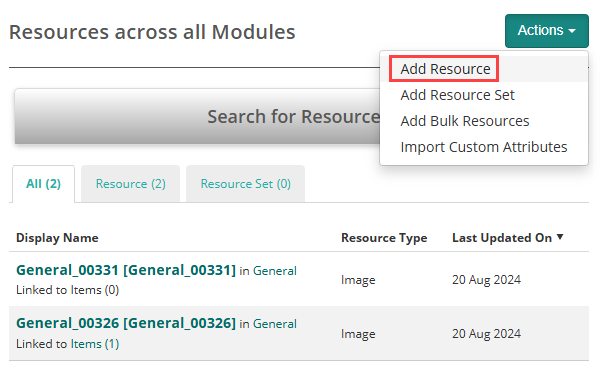
Select Author > Resources, then select Actions > Add Resource.
Complete the New Resource form:
- Select a Discipline and Module.
- Enter an Identifier.
- Optionally, enter a Description (visible to authors only — not shown to test-takers) and a Culture Code.
- Select a Resource Type.
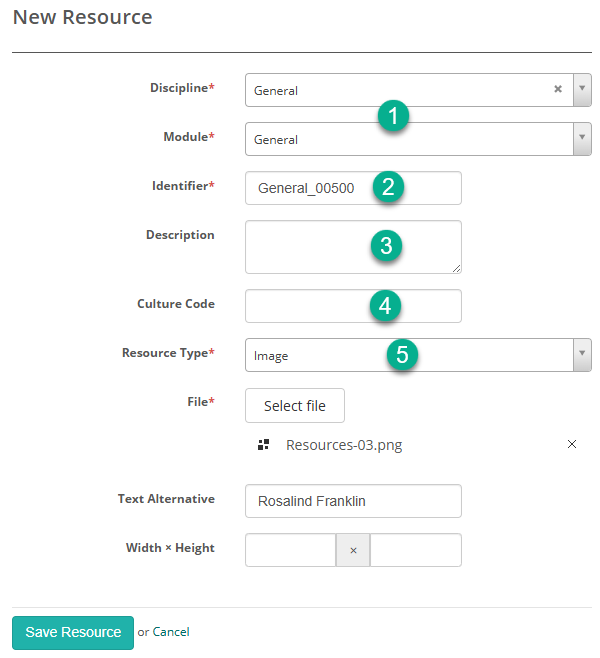
Select Save.
Add a resource to an item
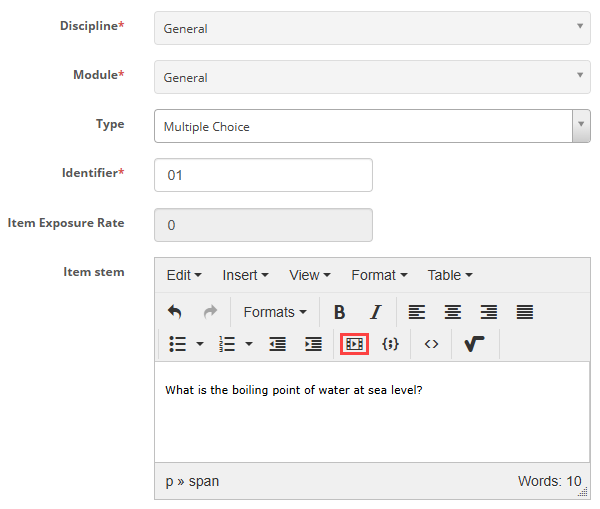
You can insert a resource directly into an item's content using the Insert/Edit Resource icon in the item editor toolbar.
Open an item and place the cursor where you want to insert the resource.
Select the Insert/Edit Resource  icon from the editor toolbar.
Select an existing resource from the library, or upload a new one.
Select Save.
Tip
Preview the item after adding a resource to confirm it displays and functions as expected for test-takers. See Preview items.
Settings
Administrators can configure the following settings at Settings > Resource Designer Settings.
Available Resource Types — controls which resource types are available across your organisation. Types disabled here are hidden from all local tenants.
Enable workflows for resources — requires resources to pass through an approval workflow before they can be used in items.
Identifier Auto Generation — defines a pattern for automatically generating identifiers when creating new resources.