Paper-based tests
You can print your tests and modules in several formats — for example, a question paper for test-takers, a marking guide for scorers, or a printout of all the items in a module. The output format depends on the print template selected for the test or module.
Before you print
Print options only appear once an administrator has enabled paper-based testing for your tenant (see Settings).
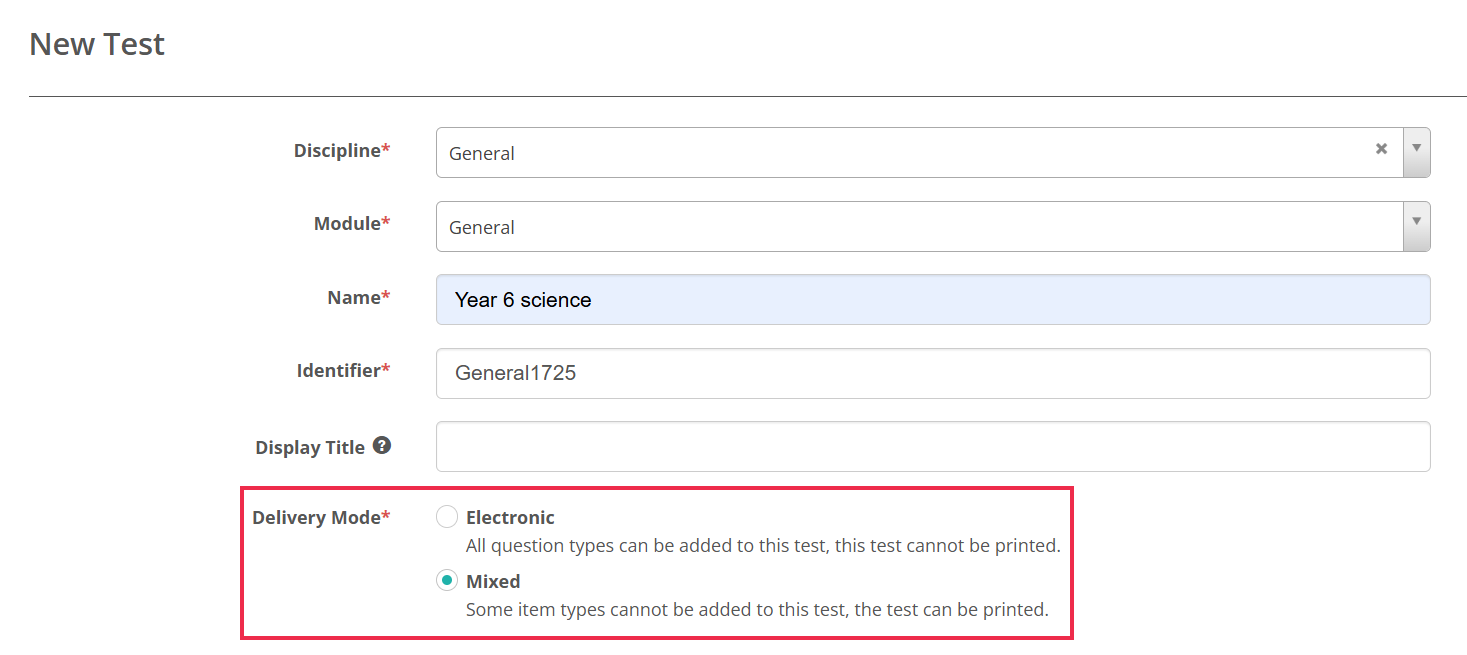
To print a test, set its Delivery Mode to Mixed when you create or edit the test. The marking mode has no effect on printing.
Blueprint tests
Print options aren't available for Blueprint tests.
Access points
Print options are available at two levels.
At module level, you can print:
- Print View — every item in the module
- Print View With Metadata — every item, plus its metadata.

At test level, you can print:
- Print View — a printable version of the test showing every item, but not the correct answers
- Print Mark Scheme — a marking guide, in a simplified or extended view.

Sample printouts
View a sample PDF printout of each option in the sections below.
Module prints
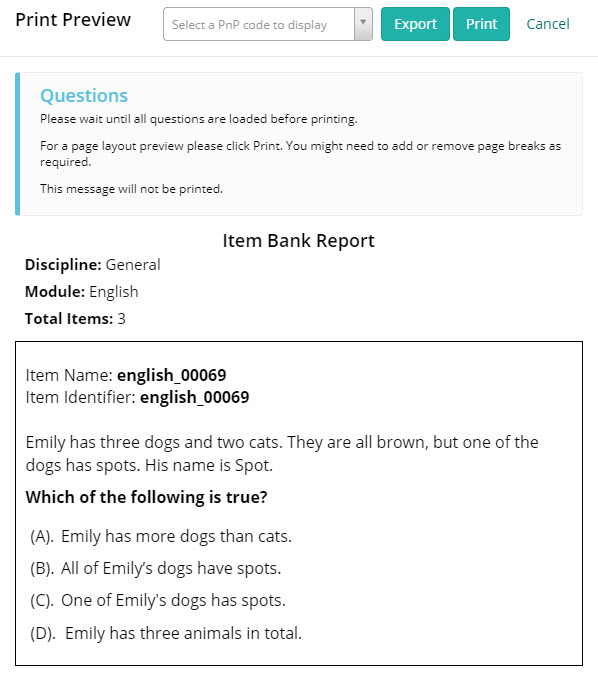
Print View
Open the module and select the Print View icon. This generates a print view of all items in the module.
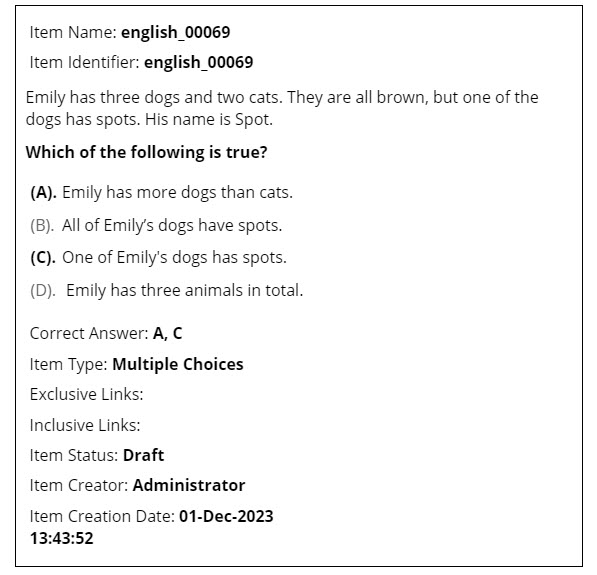
Print View With Metadata
Select Print View With Metadata to print every item in the module along with its metadata — item type, correct answer, tags, status, creator and creation date, and taxonomies.
You can view PDF examples of the module prints.
Test prints
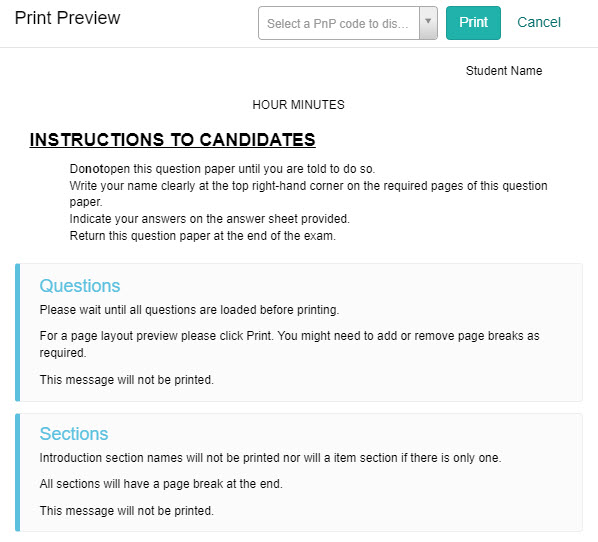
Print View
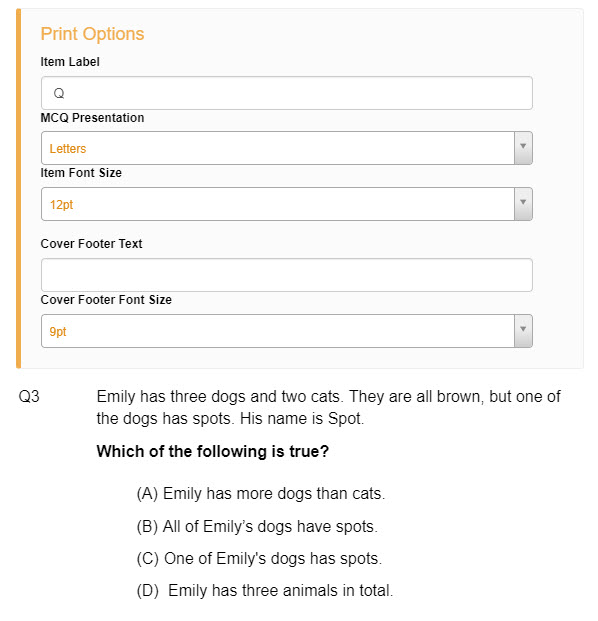
Open the test and select the Print View icon. This produces a printable version of the test — every item laid out as test-takers see it, without the correct answers. It's the question paper test-takers work from, not a marking guide.
Print Mark Scheme
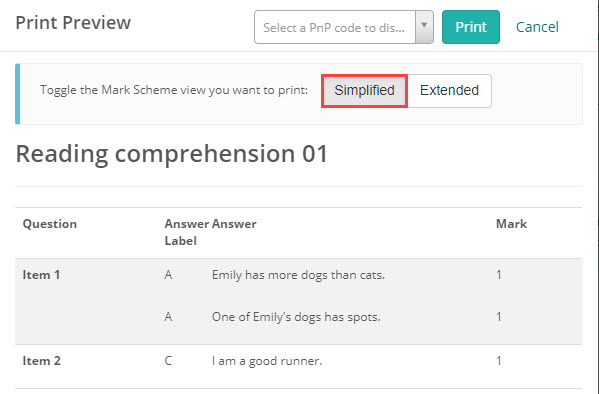
Select Print Mark Scheme to open a print preview, then use the toggle at the top to choose which view to print.
The Simplified view lists each item with its answer label, answer and mark.
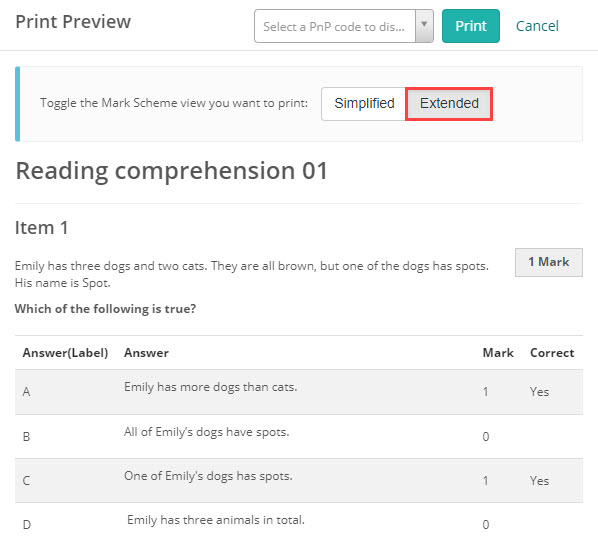
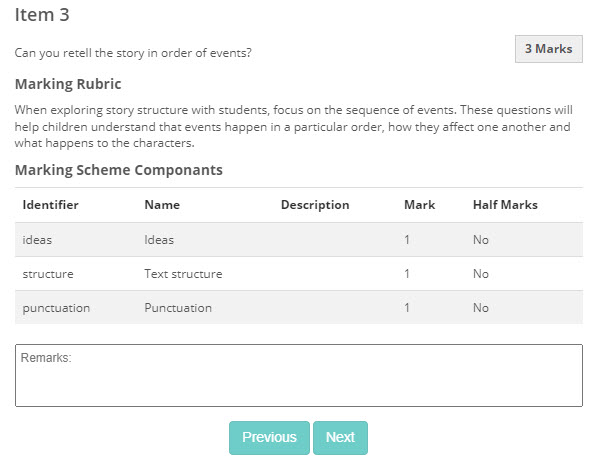
The Extended view adds the full question text and a correct-answer column. For extended-response items, it also shows the marking rubric and mark scheme components.
You can view PDF examples of the test prints.
Settings
An administrator enables paper-based testing at Settings > Test Designer Settings.
Enable paper based tests (under Test Authoring Settings) — makes the Paper Settings section and the print options available.
Administrators set the default print templates in the Paper Settings section of the same page.
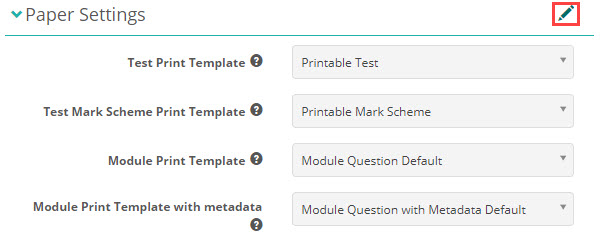
Test Print Template — the template used for a test's Print View.
Test Mark Scheme Print Template — the template used for Print Mark Scheme.
Module Print Template — the template used for a module's Print View.
Module Print Template with metadata — the template used for a module's Print View With Metadata.
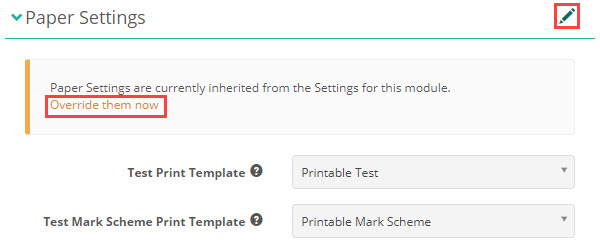
You can override these defaults at module and test level. A module can override all four templates; a test can override its two test templates and otherwise inherits the module's settings.
Contact your account manager for assistance with template selection and paper test setup.