Prompts
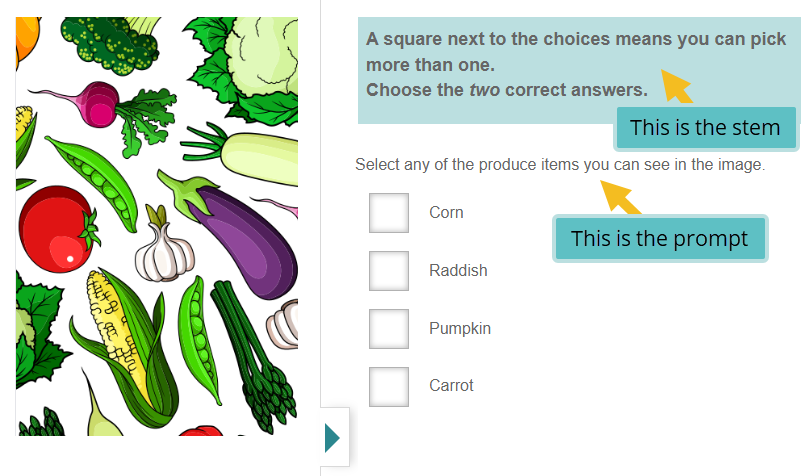
Prompts are an optional field for separating the task description from the answering instructions within an item. In some industries, the prompt carries the main directive (what the test-taker must do), while the stem provides specific answering instructions.
Add a prompt
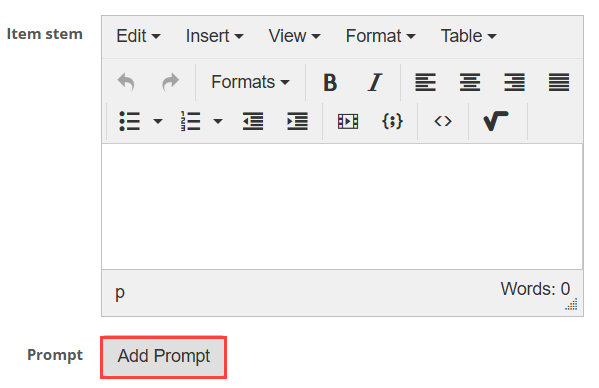
To add a prompt to an item:
- Open the item in the item editor.
- Select Add Prompt below the item stem.
-
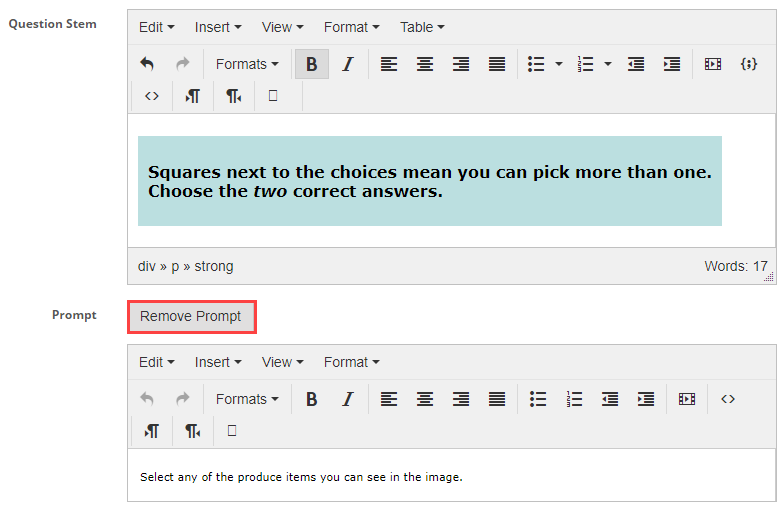
Enter the prompt text in the field provided.
To remove a prompt, select Remove Prompt.
Prompts are not available for all item types. The following types do not support prompts: Cloze, Inline Choice, Two-Stage Multiple Choice, Keyword, and Comment.
Advantages of using prompts
- In edit mode, item authors can quickly distinguish the components of an item at a glance — useful when reviewing large volumes of items.
- The prompt field is reportable, allowing authors to include prompts as selected entities in a customisable report.
Prompts and composite items
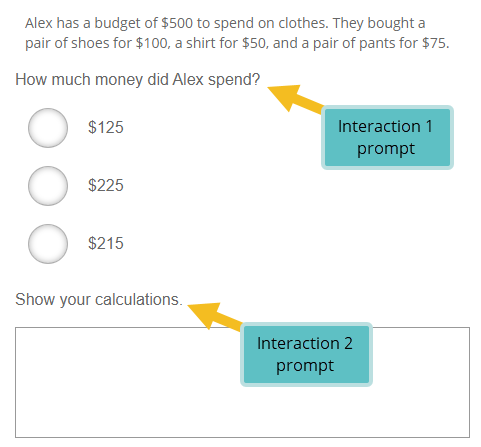
In composite items, prompts can be used as the stems for individual interactions within the composite.
Settings
Administrators can configure the following setting at Settings > Test Designer Settings > Question Options.
Enable Prompt For Questions — makes the prompt field available when authoring items. When this setting is off, the prompt field is hidden unless an item already has a prompt saved. Prompts are always available if the QTI plugin is enabled on your tenant.