Enrolment and results integration
Candidate creation, enrolment and results integration features are used to:
- Bring candidates across from external systems into Janison Insights
- Enrol the candidates into an assessment event so they can undertake one or more tests in the Janison Replay Test Player
- Submit candidate test results back to the external system once the test is completed
High-level process flow
The process for enrolment and results integration includes the following steps:
- Enrolment integration – Candidate details and enrolments pushed from the external system into Janison Insights.
- Tests are send to external candidates, who undertake the online tests in Janison Replay.
- Candidates' test responses are sent to Janison Insights for marking.
- Results integration – Candidate scores are pushed from Janison Insights to the external system.
Enrolment integration
Settings in Janison Insights
External system settings need to be updated in Janison Insights to allow candidate creation and enrolment.
- In Janison Insights, select the Integration icon in the Menu and then select Exams Integration – External System Settings.
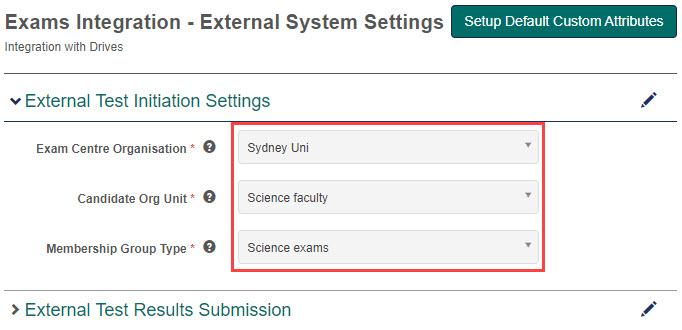
- On the Exams Integration – External System Settings screen, update the settings in the External Test Initiation Settings expandable section. The values for these fields can be created as required, such as to match the values in the external system.
- Exam Centre Organisation – This is the Organisation in which a new Organisation Unit will be created.
- Candidate Org Unit – This is the Organisation Unit for a created candidate.
- Membership Group – This is the Group Type to enrol candidates into, for a particular Organisation Unit.
Method
The request type is POST and pushes information to Janison Insights.
Endpoint
The endpoint used to initiate a new test attempt is:
InitiateCandidateTest (~/examsapi/InitiateCandidateTest)
And following is an example payload:
{
  "ExternalTestAuthority": "Sydney-Uni-Exams",
  "ExternalRSOUserId": "H45664",
  "OrgUnitId": "science-faculty",
  "OrgUnitName": "Science Faculty",
  "ExternalExamId": "B57841",
  "ExternalCustomerId": "41340",
  "GivenName": "William",
  "MiddleName": "",
  "FamilyName": "Shatner",
  "ExternalTestCategory": "S",
  "ExternalApplicantType": "D",
  "ExternalTestVariant": "",
  "ExternalTestStartDateTime": "2020-11-28T22:38:55Z",
  "Language": "ENGLISH",
  "ExternalInterpreterId": "56744A23",
  "ExternalInterpreterName": "Glenn Eagle",
  "ExternalInterpreterLanguage": "ESTONIAN"
}
Output
The following is example output, which would contain the information required for a candidate to access their relevant exam.
Completed successfully.
{"TestAttemptId":"35b0297c-4719-4dab-bb96-af13c0130ab1","OneTimeCode":"PWJYWMGT"}
Results integration
Settings in Janison Insights
The following settings are used to set up and test the connection between Janison Insights and the external system.
- In Janison Insights, select Integration in the menu and then select Integration Settings.
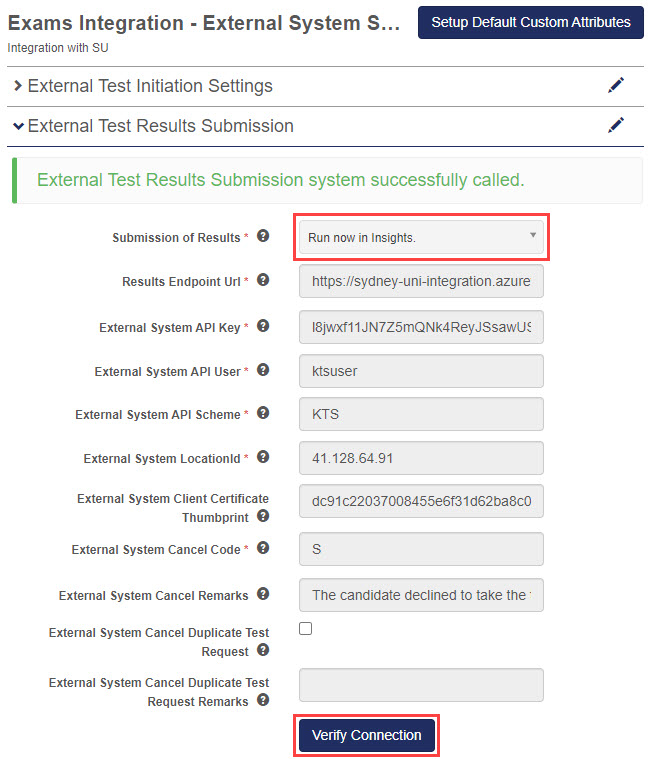
- On the Exams Integration – External System Settings screen, update the settings in the External Test Results Submission expandable section.
- The Submission of Results field controls how the system will submit the results.
- Disabled – This will not submit any results.
- Run now as a Background task (preferred configuration) – This will queue the submission and execute it as a background task.
- Run now in Insights – This will run the submission as part of the page request if the scheduler is not configured. The submission request is performed in a non-blocking thread for the UI.
- Select Verify Connection to test the connection to the external system.
- The Submission of Results field controls how the system will submit the results.
Method
The request type is POST and pushes exam results information to the external system.
Endpoint
For Test Results Submissions, the endpoint is the URL of the external system.
Example content
This is an example of content sent to the external system in the request:
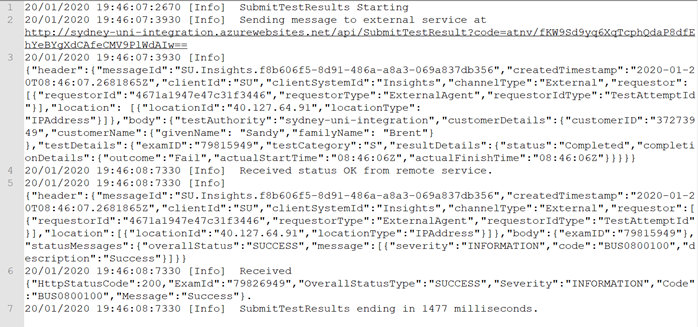
This is an example of content received back from the request: