Positions
A position is a named role, or seat, within an organisation unit — for example Head of Faculty, Team Leader, or Marker. Positions report to one another, and each user is assigned to a position, so the chain of positions defines who reports to whom across your organisation.
Positions are one of three ways the platform can model reporting relationships between users. They're only available when an administrator has set the Relationship Management Type to Positions (see Settings). When they are, a Positions item appears in the menu and a Position field appears on the user form.
Important
Only people with an Administrator role can add, edit, and delete positions.
How positions work
Each position belongs to an organisation unit, and through it to an organisation. A position can report to another position in the same organisation, and the platform builds the reporting chain from those links.
For example, at Riverside Uni the Faculty of Science organisation unit might hold a Dean of Science position. Reporting to it are Head of Chemistry and Head of Physics, and reporting to each of those are several Lecturer positions. Assign a user to the Head of Chemistry position and they inherit its place in the chain — their reports are whoever fills the lecturer positions beneath it.
The platform won't let you create a loop: a position can't report to one that already reports back to it, directly or indirectly. When you choose a position's Reports to, only the positions that wouldn't create a loop are offered.
View positions
Go to Manage People > Positions. The list separates Active and Inactive positions into tabs, and shows each position's name, the organisation unit and organisation it belongs to, how many users are assigned to it, and when it was last modified. You can search the list by name or identifier.
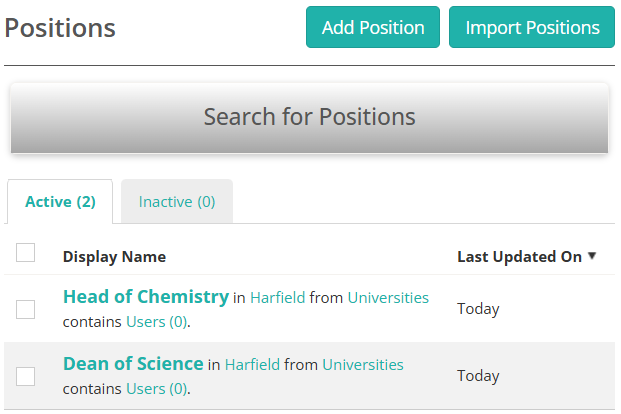
Select a position to open its details. Alongside its name, identifier, and description, the details show:
- Reports to — the position (and the user filling it) that this position reports to.
- Direct and Indirect reports — the users and positions that report to this one, anywhere down the chain.
Create a position
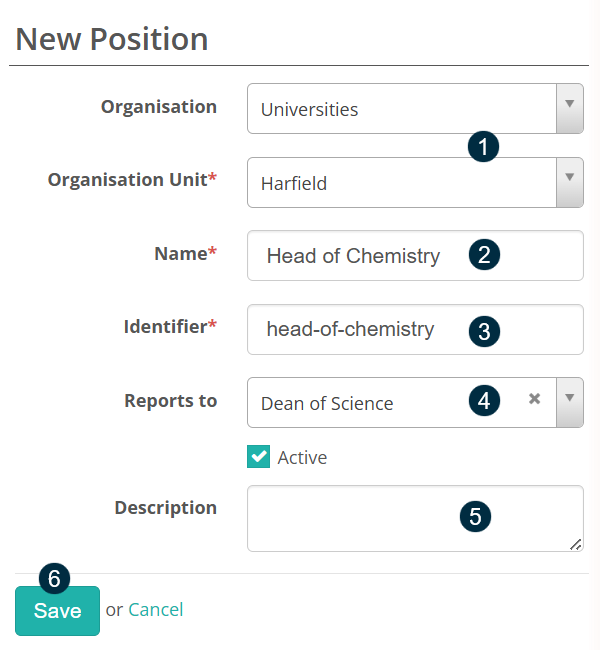
On the Positions page, select Add Position. Complete the New Position form:
- Select an Organisation and Organisation Unit — the unit the position belongs to. (If you started from within an organisation unit, these are already set.)
- Enter a Name, such as Head of Chemistry.
- Check the Identifier. It's generated from the name, but you can edit it. It must be unique and can contain only letters, numbers, hyphens, and underscores — no spaces.
- Select a Reports to position (optional). Only positions in the same organisation that wouldn't create a reporting loop are listed. Leave it blank for a position at the top of the chain. Leave Active selected, or clear it to create the position as inactive.
- Enter a Description (optional).
-
Select Save.
Edit a position
Open the position from the Positions page, select Edit Position, change any of its details, then select Save. This is the same form you use to create one.
To delete a position, open it and select Delete.
Assign a user to a position
When the relationship management type is Positions, the user create and edit forms show a Position field. Open a user for editing, select their organisation unit, then choose a Position from that unit. Select Save. The user's position appears on their details, and they take their place in the reporting chain beneath whoever the position reports to.
Note
When the relationship management type is set to ReportToUser instead, this field is replaced by a Reports To field where you pick a manager directly, rather than a position.
Archive positions
To take a position out of use without deleting it, archive it. On the Positions page, select the checkbox next to one or more positions, then select Archive. Archived positions move to the Inactive tab. To bring them back, select them there and choose Unarchive.
Import positions
To create and update positions in bulk rather than one at a time, select Import Positions on the Positions page. Positions aren't imported from their own file — they're created and updated as part of the user import, which the Import Positions screen points you to. That import can also tidy up as it runs: choose the option to inactivate unused positions, and any position left with no users assigned is made inactive.
Settings
An administrator chooses how reporting relationships are managed with a single tenant-wide setting. Go to Settings > Tenant Settings, then expand the Organisation section.
Relationship Management Type — controls how the platform models reporting relationships between users. It has three options:
- Positions — reporting relationships run through positions. Users are assigned to positions, and positions report to one another. This is the mode that enables everything on this page.
- ReportToUser — each user points directly at a manager. The user form shows a Reports To field instead of a Position field, and the Positions menu item is hidden.
- None — no relationship management. Neither the Positions menu item nor the position or reports-to fields appear.
Changing this setting shows or hides the Positions feature across the platform, so set it before you start building your position structure.