Match interaction
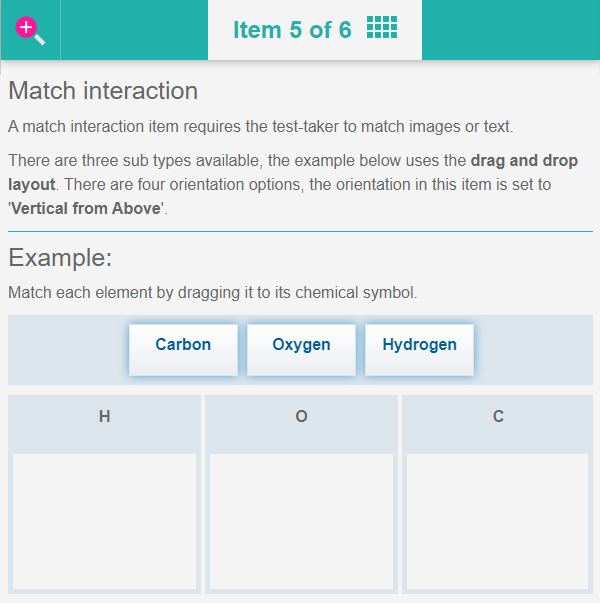
A match interaction item requires the test-taker to match related images or text. There are three sub-types of this item, each sub-typed displays the item to the test-taker differently. The sub-types are 'drag and drop', 'checkbox' and 'draw lines'.
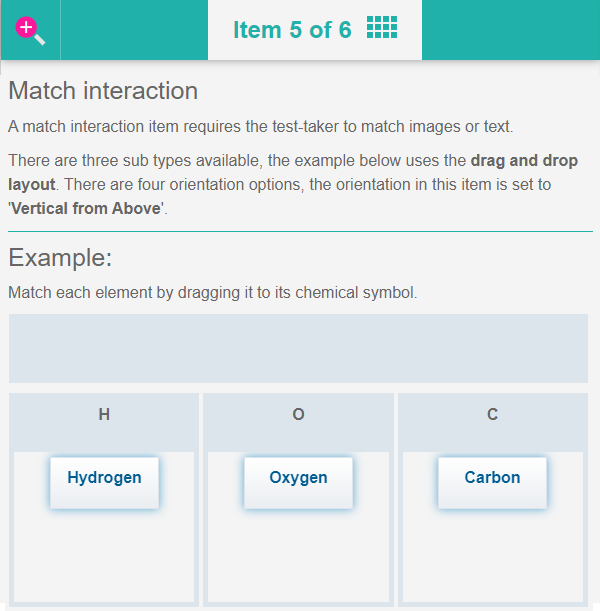
Try this item type and its sub-types in the practice test below. The slideshow further down shows an example of the item type.
Practice test
Open this test in the Janison test player to try the match interaction item type and its sub-types.
Create a match interaction item
- Navigate to Author > Items.
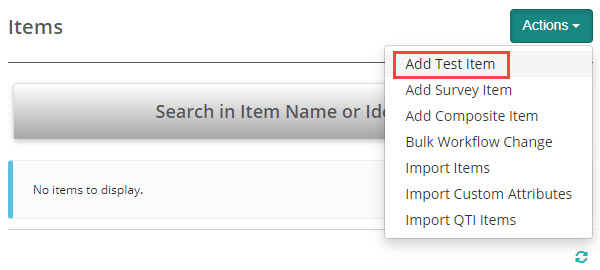
- Select Add Test Item from the Actions drop-down.
- The New Test Item screen displays.
-
Complete the form as required. Below is an example of a new item we created.
-
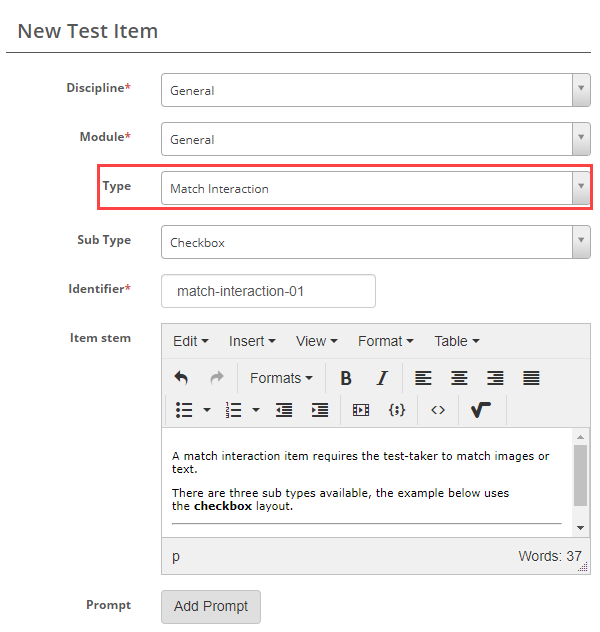
Select Match Interaction as the item type.
-
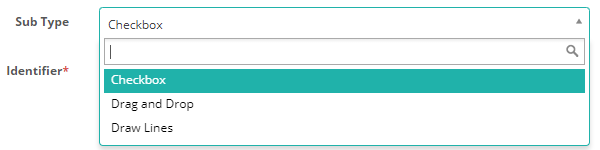
Three Sub Types are available; Checkbox, Drag and Drop, and Draw Lines. Each sub-type changes the layout of the item.
-
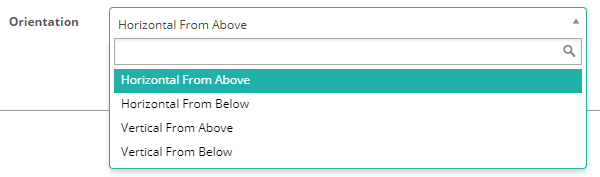
If you select the Drag and Drop sub-type, four orientation options become available; Horizontal From Above, Horizontal From Below, Vertical From Above, and Vertical From Below.
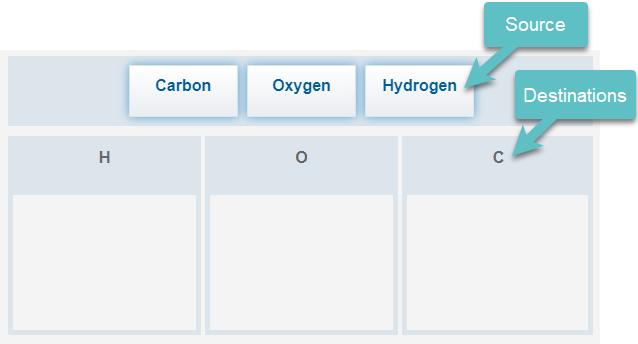
Source and destinations
Sources
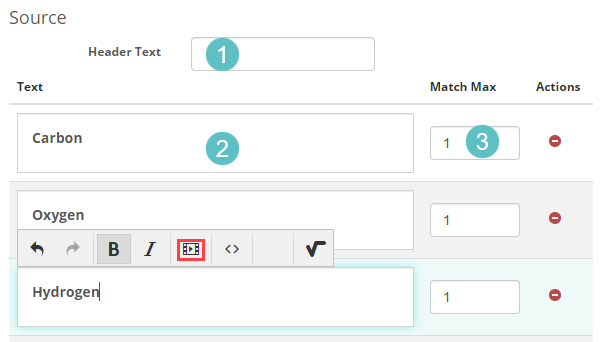
- Header Text is optional and will place a heading above the source text.
- Enter words or upload images to the fields in the Text column.
-
Match Max – if you set match max to '1', the test-taker can only match the text or images to one option. This will behave differently depending on the sub-item you are using. If set to 2, the text or images can be matched twice.
Destinations
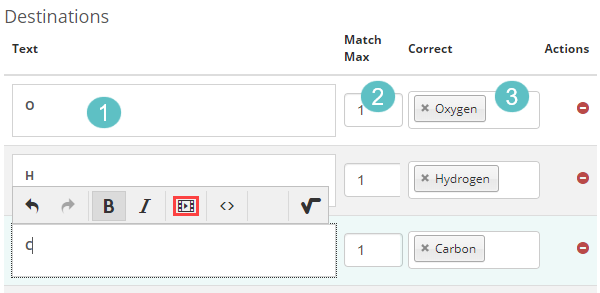
- Enter words or upload images to the fields in the Text column of the Destinations section.
- Match Max – if you set match max to '1', the test-taker can only match the text or images to one option. This will behave differently depending on the sub-item you are using. If set to 2, the text or images can be matched twice.
-
Select the Correct response for each option.
The final step is to save the item.
Setting scores and marking
Note
Match interaction item types are system marked.
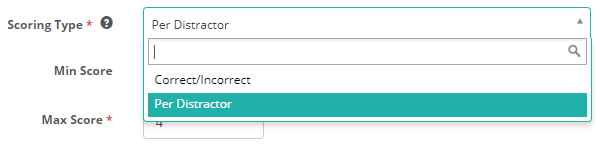
Scoring type
Correct/Incorrect
With this scoring type, the test-taker must select all correct responses to get the item correct.
Per distractor
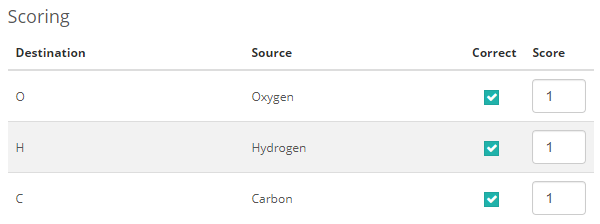
With this scoring type, additional scoring options will become available to the item author, allowing them to add a score for each response.
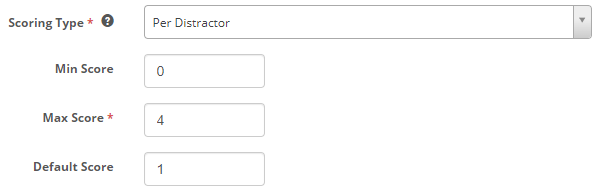
- Min Score – Setting a value in this field will determine the minimum score that the system can assign to the item.
- Max Score – Setting a value in this field will determine the maximum score that the system can assign to the item.
- Default Value – The system will use this value if a row doesn't have a value in the Score column.
A scoring section becomes available below where item authors can set a score per distractor.