Base Marker role
Markers with any marking related system role can score candidate responses. In marking teams, Markers with basic marking permissions are usually the ones responsible for scoring responses.
If standardisation 3 (S3) is active in the marking project, Markers will go through a training phase before they commence marking.
Marking may also be monitored for quality but this happens in the background — there will be no indication in the system interface that your marking is being monitored.
Quality control monitoring features include blind quality monitoring, sampling and double marking.
Tip
To learn more about each of these quality controls, see the Marker training and quality control section.
Undertake Marker training (S3)
The responses assigned to you for marking have already been scored by a Chief Marker who has expertise in the particular field of testing. They have set a tolerance and if your scores fall within that tolerance, you will pass training.
If your scores fall outside of the tolerance, the system will flag this to the Chief Marker. They may contact you to discuss the discrepancy or pause your marking account. This ensures consistency across Markers so that candidates are not advantaged or disadvantaged regardless of which examiner marks their work.
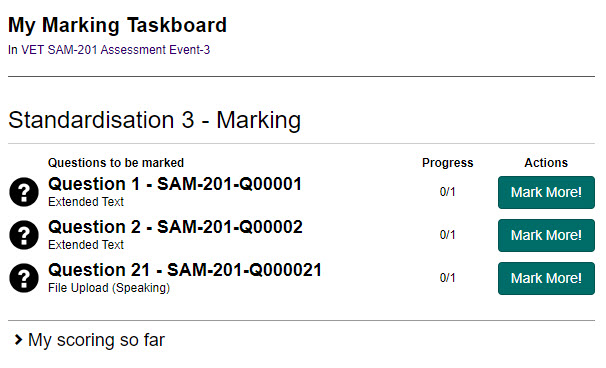
S3 is completed from the My Marking Taskboard.
-
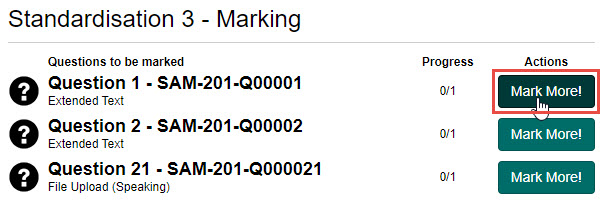
From the Standardisation 3 – Marking section, select the Mark More! button next to the question you'd like to mark.
-
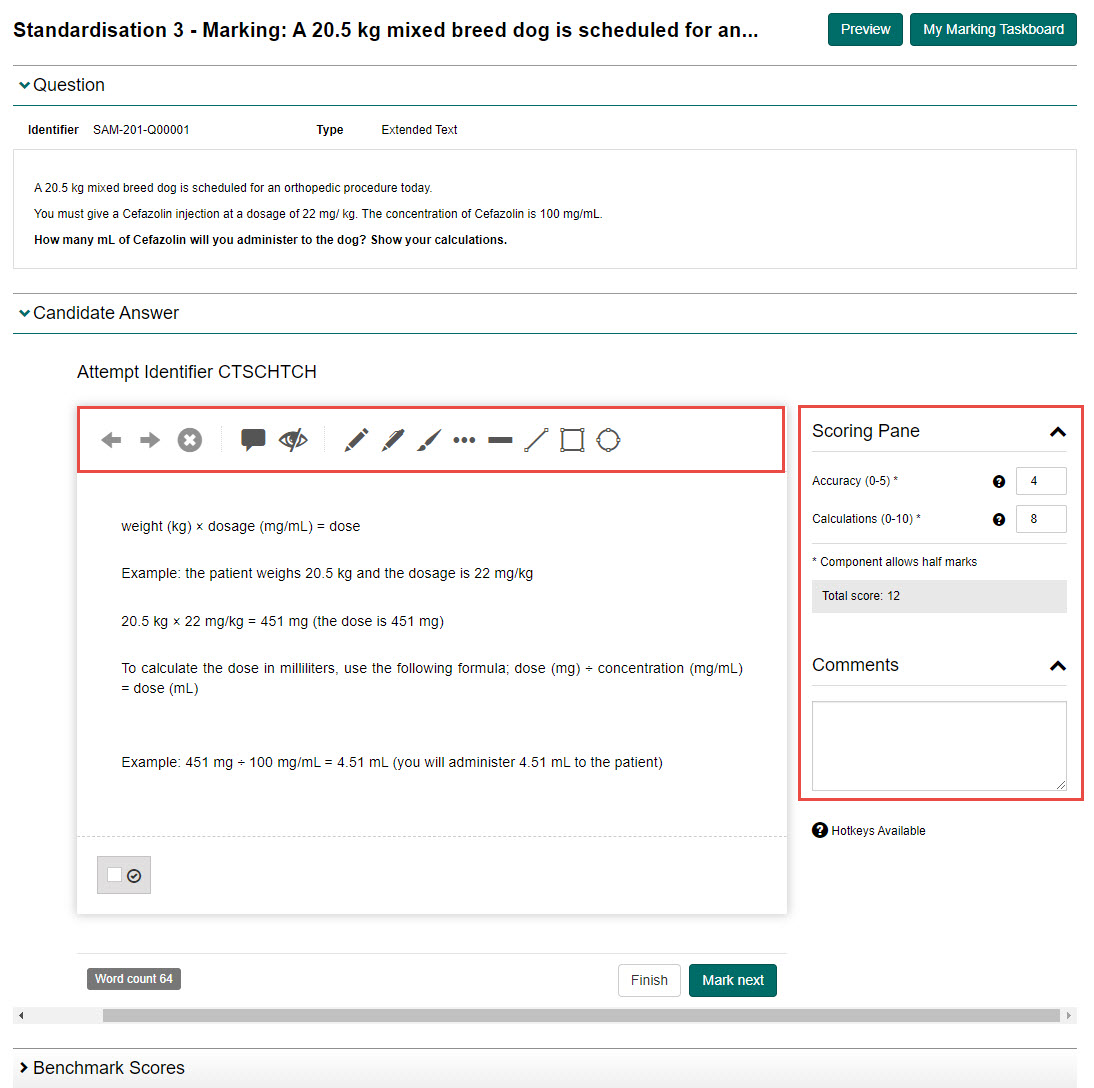
Complete the following:
- Review the candidate's response and add annotations if required.
- Review the benchmark scores under the Benchmark Scores expandable section (optional).
- Enter the necessary scoring in the Scoring Pane.
- Enter any comments (optional) in the Comments field.
-
Select the Finish button to finish the training, or select Mark next to move to the next script (if applicable).
-
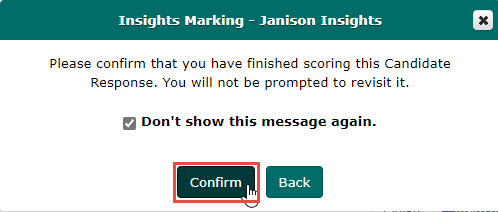
Select the Confirm button to confirm you have finished scoring the response. Selecting the Don't show this message again checkbox will ensure you don't see the message for the rest of the responses you are scoring.
-
Repeat this process until you have met your quota. When you have done this, the system will notify you.
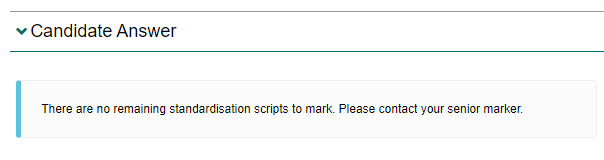
Tip
If you have failed standardisation, the system will notify you.
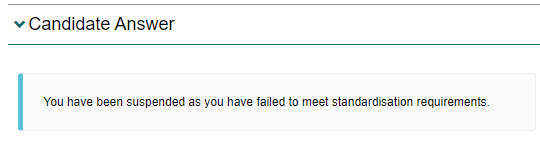
-
Select the My Marking Taskboard button to return to the taskboard where you can complete this standardisation process for other questions.

Once you have completed S3, you will receive notification that you can begin marking.
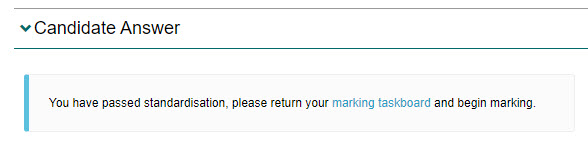
View benchmark scores
Benchmark scores give you an understanding of what responses of a particular score look like. For example, what a response with a score of 2/10 or 7/10 look like. A score is similar when it is within 10% of the question's available score (above or below) the selected score.
Tip
To learn how to search for and view benchmark scores, see the Benchmark scores section.
Mark candidate responses
Once you have completed S3 training and the marking project has been moved to a status of 'Marking', you will see the Main Marking Phase – Marking section on the My Marking Taskboard.
-
Select the Mark More! button next to the question you'd like to mark.
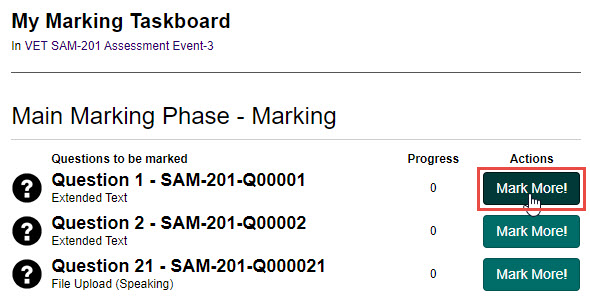
-
Complete the following:
- Review the candidate's response and add annotations if required.
- Review the benchmark scores under the Benchmark Scores expandable section (optional).
- Enter the necessary scoring in the Scoring Pane.
- Enter any comments (optional) in the Comments field.
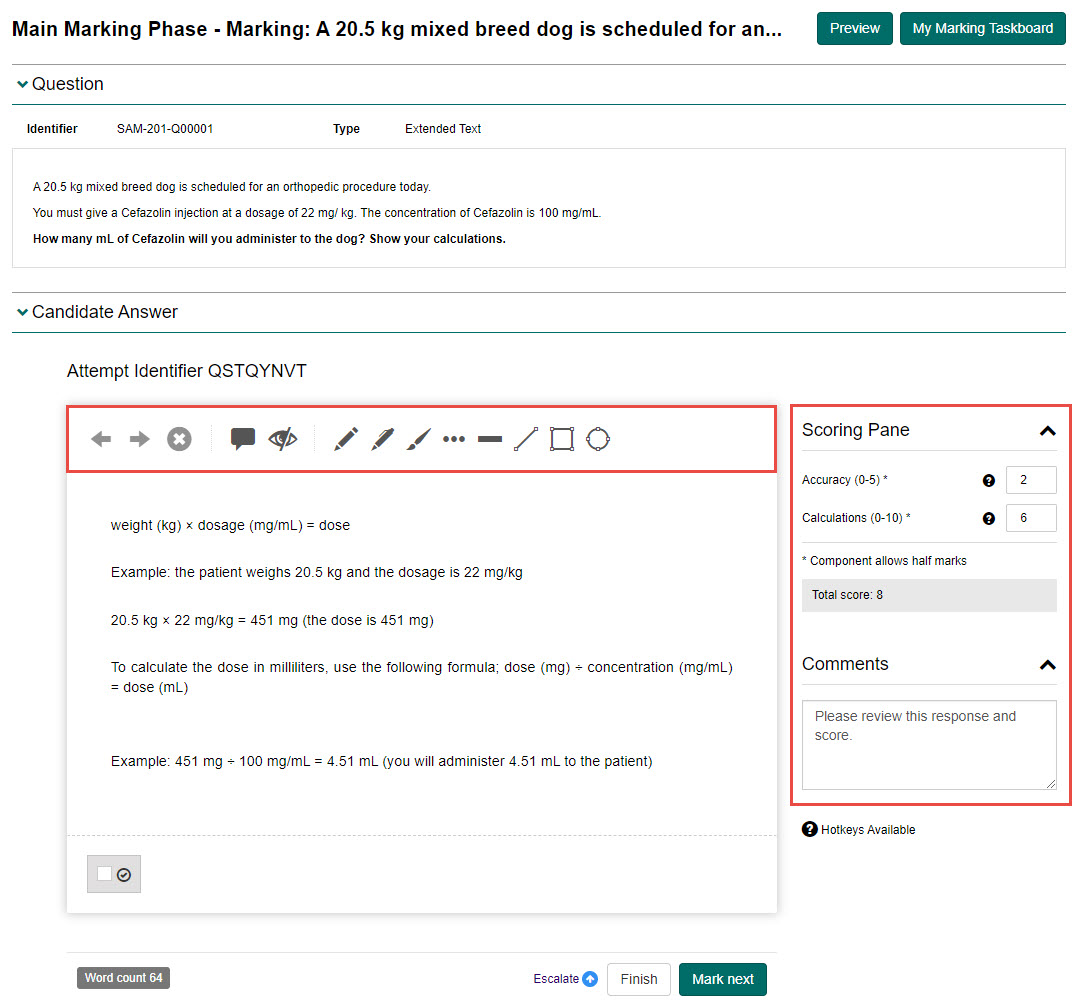
-
Select the Escalate, Finish or Mark next button as follows:
Option Description Escalate This will send the script with your scores to the Senior Marker. They will receive an email notification with a link to review the score. Finish This will save your scores and take you back to the marking taskboard. Mark next This will save your scores and take you to the next question to score. Important
Once a Marker has viewed a candidate answer, the script needs to be marked. If not, the script will move into the Requires Action (My scores) tab of the My scoring so far section.

-
Repeat until you have marked all scripts.
Mark composite questions
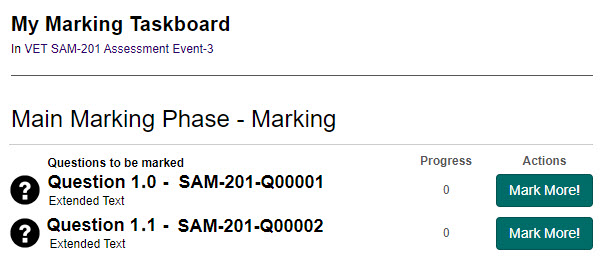
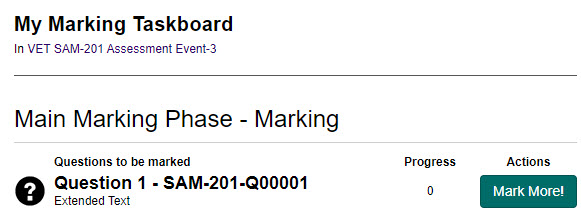
The way composite questions display in the My Marking Taskboard will depend on the settings configured in Marking Extended Settings > Marking Project Settings > Allow markers to mark multiple interactions of a composite item simultaneously.

With this setting disabled, the interactions of composite questions display as separate questions and the Marker will mark each interaction separately.
With this setting enabled, the composite questions display as one question and the Marker will mark both interactions from the same marking button.
View scoring so far
At the bottom of a Marker's taskboard is the My scoring so far expandable section. This is where Markers can view their progress.
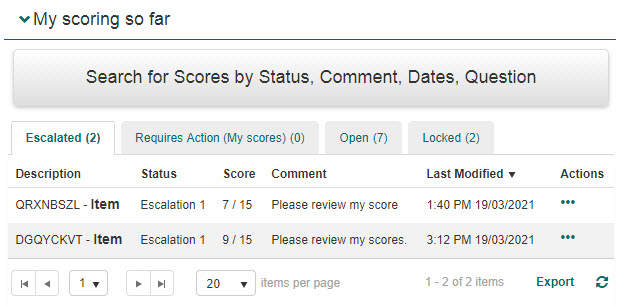
The different tabs will display different items as follows:
| Tab | Description |
|---|---|
| Escalated | Lists scripts you have escalated to your Senior Marker to review. |
| Requires Action (My scores) | Lists scripts requiring action, e.g. if you've viewed a script but not completed the marking. Select the Review scores button in the Actions column to access the marking page and view the action required. |
| Open | Lists the scripts within their grace period (if configured for the marking project). Markers are able to change their scores until the grace period expires. |
| Locked | Lists scripts which have exceeded the grace period (if configured for the marking project). Marking can no longer be edited for these scripts. |