Reference materials
Reference materials are stimulus resources attached to a test section, rather than to a single item. Use them when all items in a test section share a common resource, such as a formula sheet or periodic table.
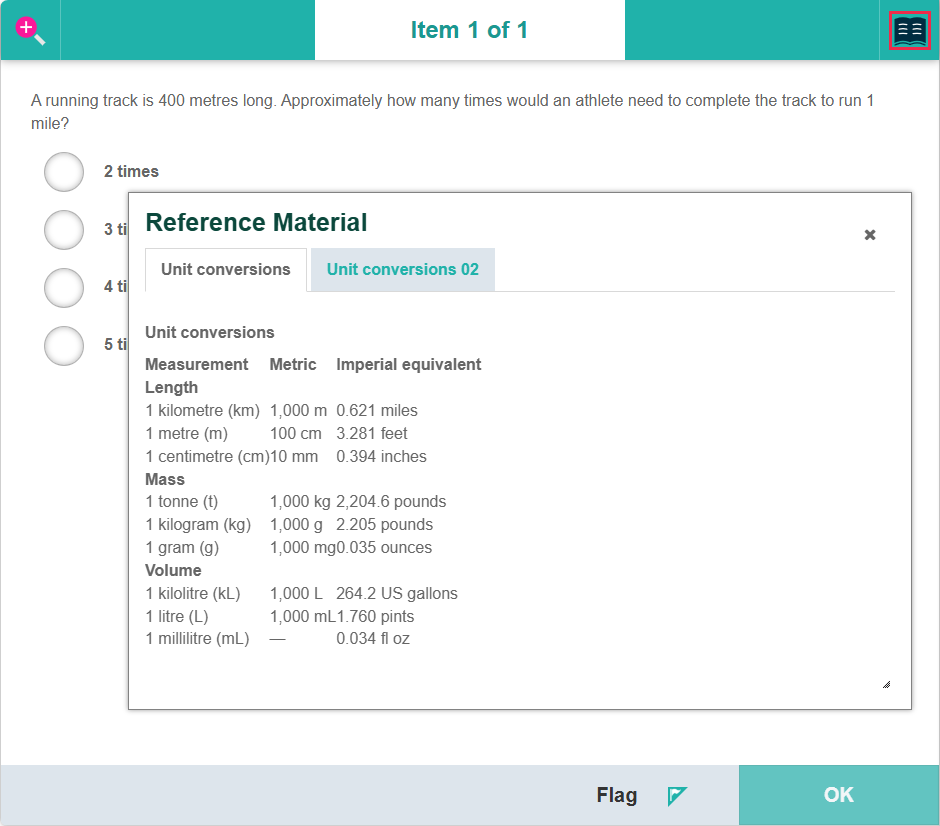
Test-takers access reference materials by selecting the Book icon in the top right of the Test Player.
Add reference material
You must create reference material before adding it to a test section.
Tip
Reference materials use stimuli as their source content. See Add a stimulus or stimuli to an item to learn how to create them.
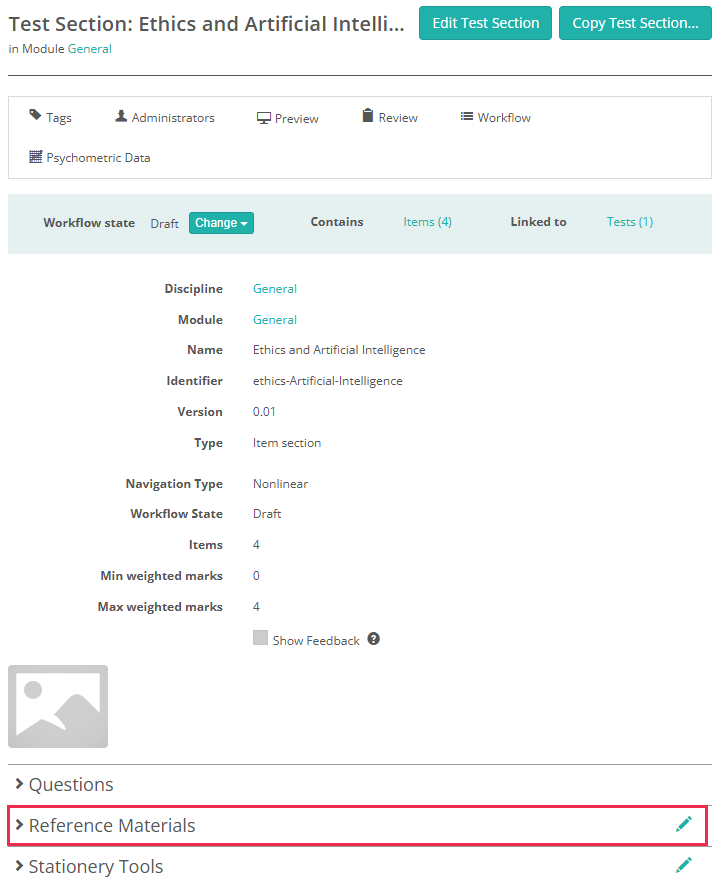
Open the test section, then select the Edit icon next to the Reference Materials expandable section.
-
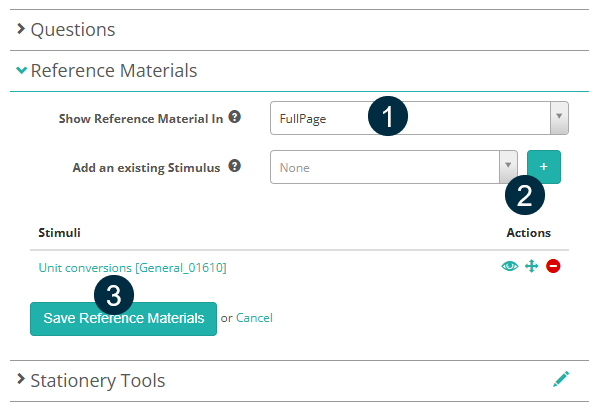
Select how reference material displays in the Test Player from the Show Reference Material In drop-down: FullPage covers the whole screen (the item is not visible), or PopUp shows it as a resizable overlay on the item.
-
Select an existing stimulus from the Add an existing Stimulus drop-down, then select the + icon to add it. Repeat for each stimulus you want to add. Added stimuli appear below.
-
Select Save Reference Materials.
Tip
Once added, you can use the icons in the Actions column to preview the stimulus, reorder the stimuli, or remove a stimulus from the reference material.
Preview reference material
Select Preview to see how the reference material appears to test-takers.
Select the Book icon to open the reference material. If the test section has multiple reference materials, they display as tabs within the panel.
Settings
Administrators can configure reference materials at Settings > Test Designer Settings, under the Test Section Options expandable section.
Important
Only administrators can access these settings.
Reference materials are disabled by default. To enable them, set Enable Full Page Reference Material Navigation Options to an enabled option. When enabled, the Reference Materials expandable section appears on each Test Section Details page.
Enable Full Page Reference Material Navigation Options — controls whether reference materials are available on test sections and sets the default navigation behaviour for new test sections. Options are:
- Disabled (Default: Do not Show Reference Material) — reference materials are not available.
- Enabled (Default: Do not show Reference material by default) — reference materials are enabled; test-takers must manually open them.
- Enabled (Default: Show Reference material first per section) — reference materials display automatically when a test-taker enters or re-enters a test section.
- Enabled (Default: Always show Reference material first per first question of section) — reference materials display when a test-taker reaches the first item in a section.