Test player preview tools
The preview tools offer features to help authors perform various checks on items, test sections, and tests.
You can conduct the following checks:
- View the test with linear or non-linear navigation.
- View substitute items for personal needs and preferences.
- View item and distractor order sequence.
- View and monitor scoring.
- Download responses if the tests contains file upload items.
When you preview a test, the preview tools display down the right hand side of the test player as highlighted in the screen capture below.
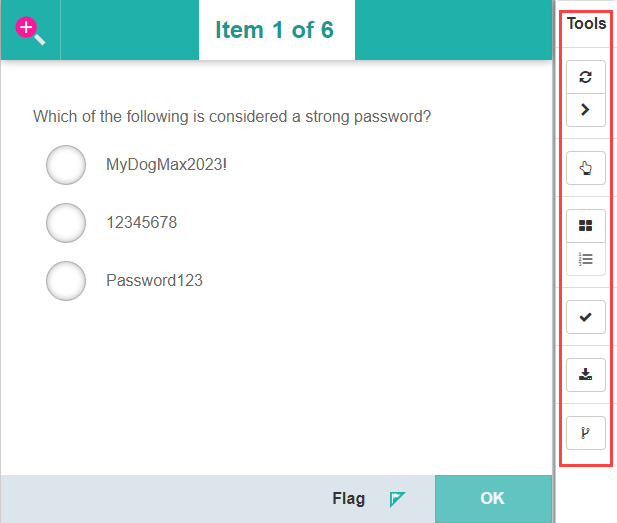
The tools available for previewing depend on where you initiate the preview. For instance, the option to 'randomise question order sequence' won't be accessible if you're previewing a single item.
Note
The preview is not a live test attempt; the system does not record any results during the preview.
Preview tests
You can preview items, test sections and tests from two locations, the entity list page and the entity details page.
Preview from the list page
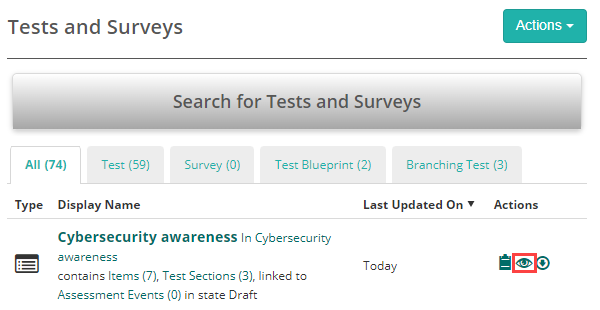
Navigate to Author > Test and Surveys, Test sections or Items and select the  eye icon. In this example, it's shown on the Tests and Surveys screen, but the preview icon is also available on the test section and item screens.
Preview from the details page
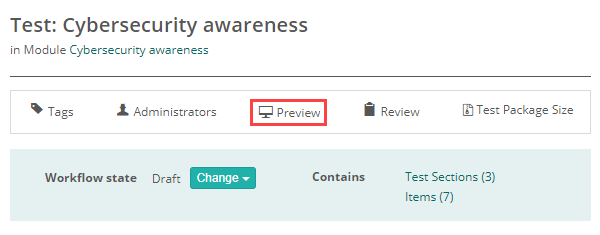
Open the test, test section or item and select the  Preview link.
Refresh
The refresh option deletes the progress of your attempt, for example, if you complete a item or test and wish to retest it.
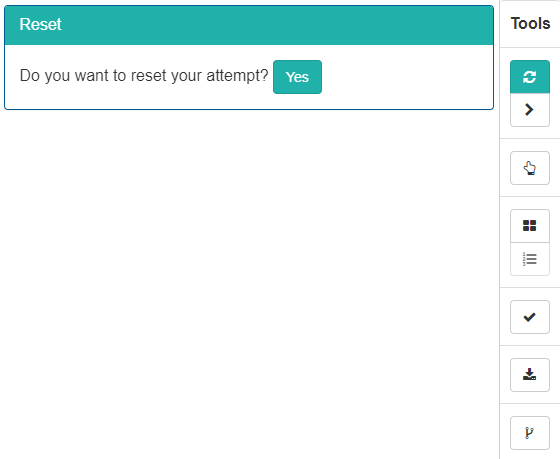
Navigation
With linear navigation, test-takers must answer the items in order and cannot skip ahead without answering the current item. They can revisit previous items, but their answers are not editable.
This tool allows authors to enable or disable linear navigation.
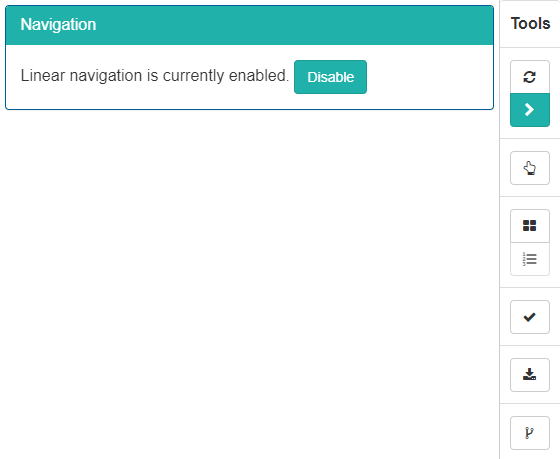
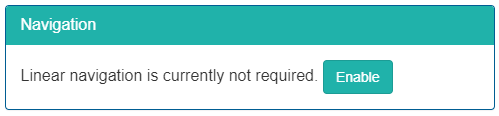
Once disabled, an option becomes available to enable it.
Personal needs and preference (PNP) codes
You can view the substitute version of an item using this tool. Read more about PNP codes.
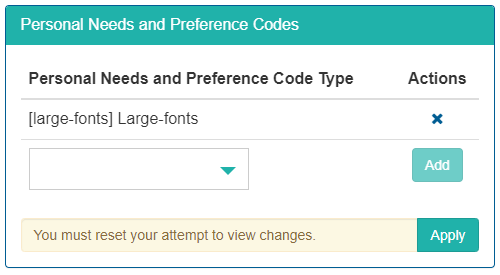
Select a Personal Needs and Preferences Code Type from the dropdown and then select the Add button.
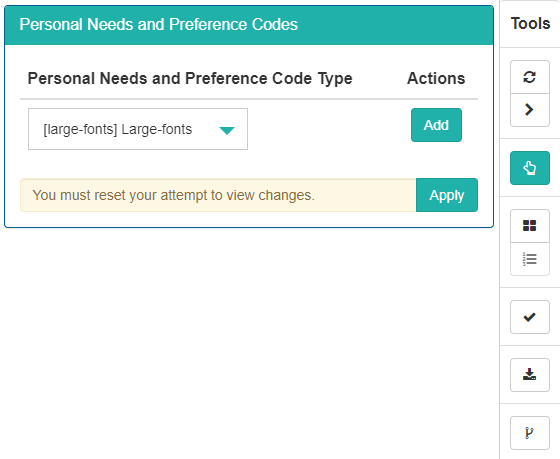
The added PNP displays above. Add further PNPs as required. Select the Apply button to reset your attempt and view the changes. The item or items in the test player will be the substitutes.
Item order sequence
Test creators can choose to present items to test-takers either in the original sequence of the test or in a randomised order. This tool allows you to view them either way, by randomising or arranging them.
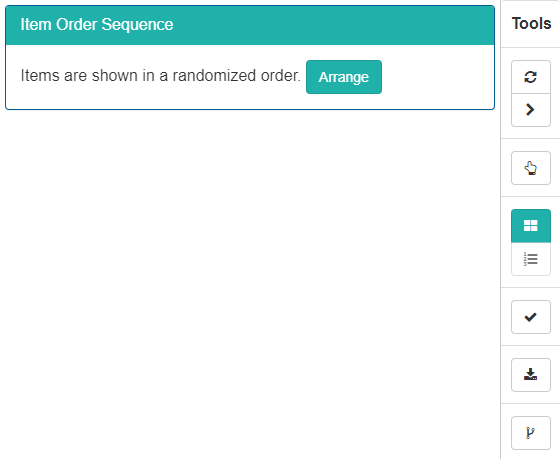
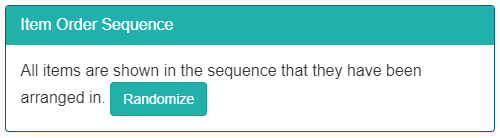
Once arranged, an option becomes available to Randomise the items.
Distractor order sequence
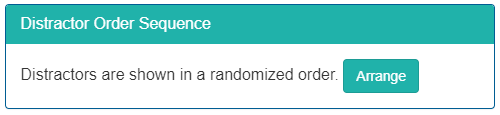
Test creators can choose to present item distractors to test-takers either in the original sequence of the item or in a randomised order. This tool allows you to view them either way, by randomising or arranging them.
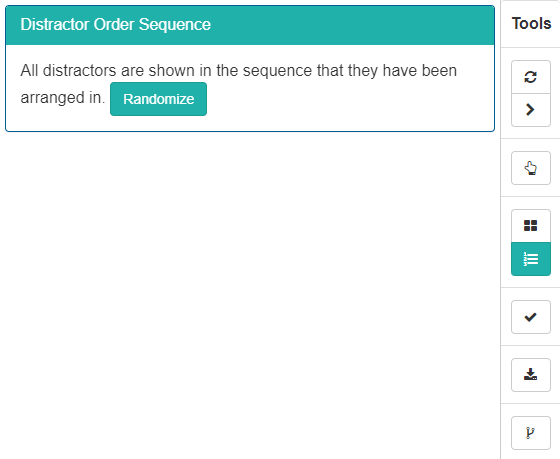
Once randomise, an option becomes available to Arrange the items.
Scoring
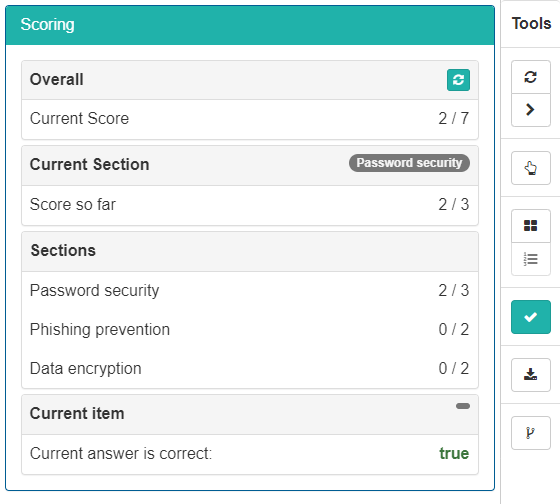
You can take the test and monitor your scores, including verifying whether the item author has configured the correct response for each item.
View the Current Question field to see if you have responded correctly to the item.
Download response
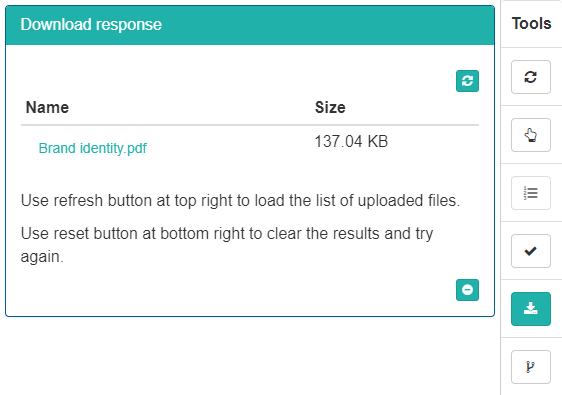
Where file upload is used as the item type, you can download the uploaded files.
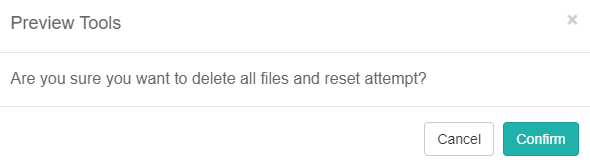
Select the  icon to delete all files and reset your attempt.
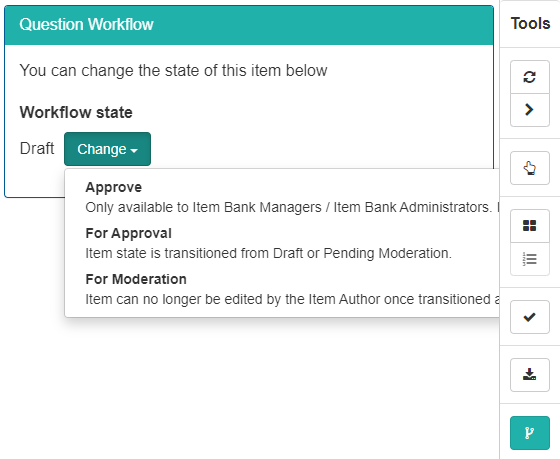
Workflow state
This option allows you to change the workflow state of an item. This icon will only display if you have workflows active on your site.