Stationery tools
Stationery tools display at the top of the Test Player and provide test-takers with common tools they may need to complete the test. Each test section has its own stationery tool settings — if you need different tools for different items, create additional sections as required.

Stationery tool types
Question flagging
Test-takers can use the Question Flagging button to mark an item for attention. Once flagged, they can unflag the item.
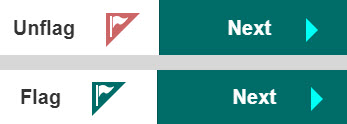
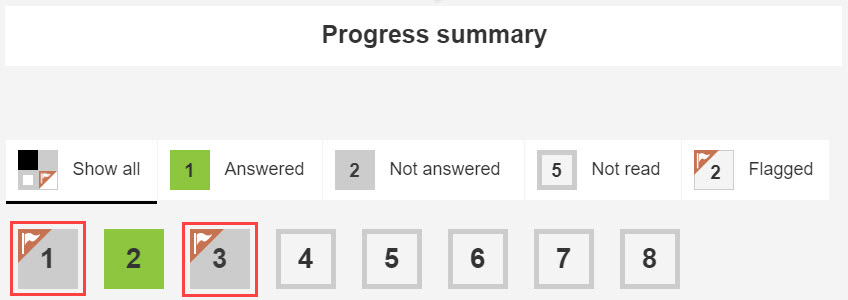
This is most useful in non-linear tests where test-takers can move backwards. Flagged items display on the Progress summary screen with a flag.
Ruler
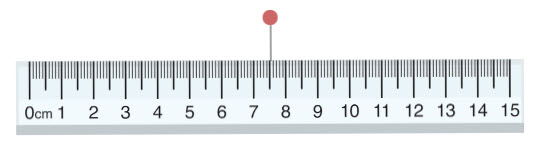
Test-takers can move the ruler by dragging it to the required location and rotate it by selecting the red circle.
Protractor
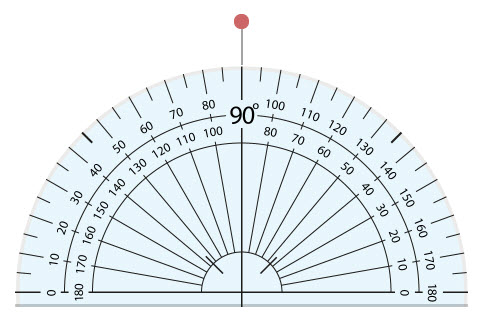
Test-takers can move the protractor by dragging it to the required location and rotate it by selecting the red circle.
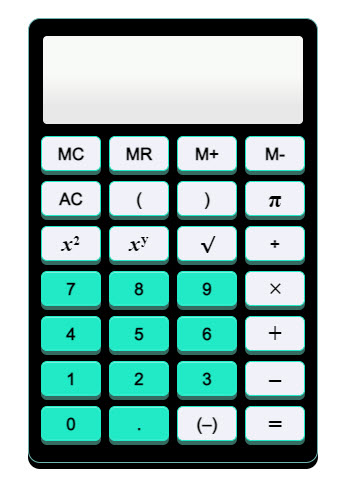
Calculator
Test-takers can use their keyboard or mouse to use the calculator.
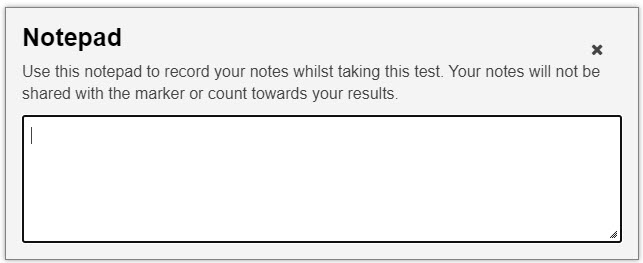
Notepad
Test-takers can use the notepad to record notes whilst taking the test. These notes are not submitted with the test.
Enable stationery tools
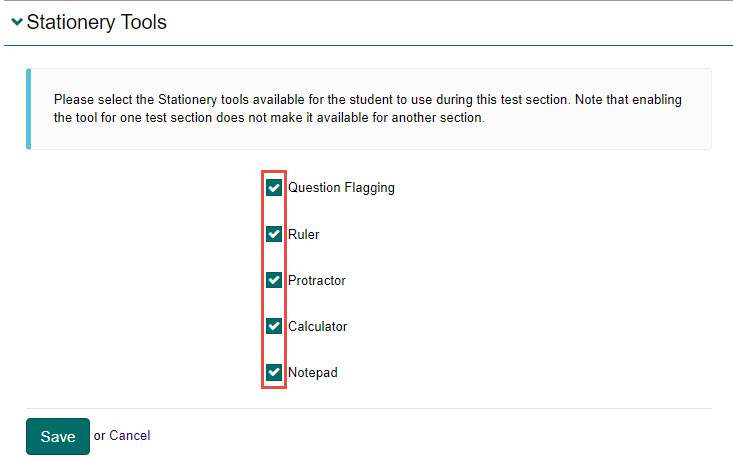
Open the required test section and select the Edit icon next to the Stationery Tools expandable section.

Select the stationery tools to make available to test-takers in the Test Player, then select Save.
Settings
There are no settings that affect stationery tools at the tenant or platform level. Authors configure stationery tools at the test section level.