Text spot interaction
A text spot interaction is a type of item where test takers select specific words or phrases within a given passage of text. Instead of entering text, users click on the appropriate words or phrases to answer the item.
Launch the practice test below to experience this item type.
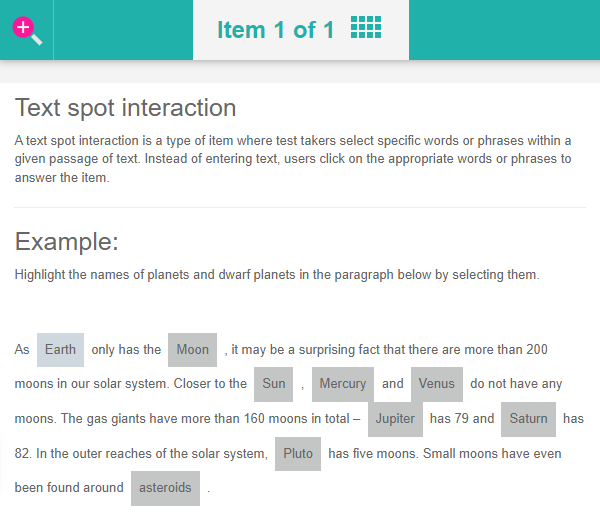
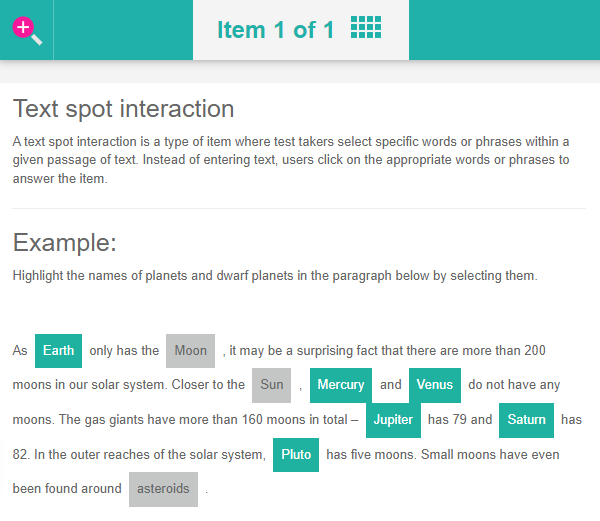
In the screen captures below you can view an example of a simple text spot interaction item type.
Practice test
Open this test in the Janison test player and complete an example of a text spot interaction item.
Move to the next slide to see the completed item.
Create text spot interaction
Navigate to Author > Items.
Select Add Test Item from the Actions drop-down.
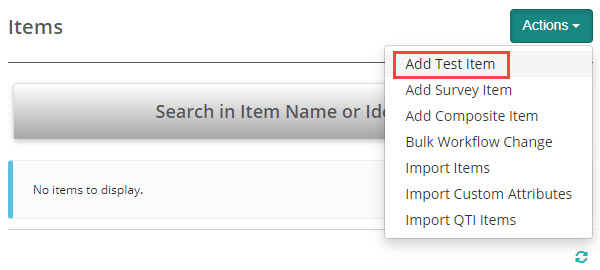
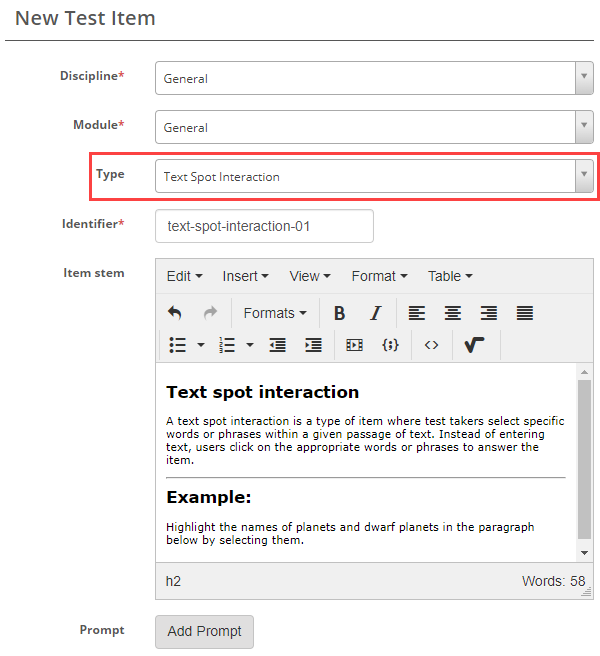
The New Test Item screen displays.
Complete the form as required. Below is an example of an new item we created.
Select Text Spot Interaction as the item type and enter the Item stem.
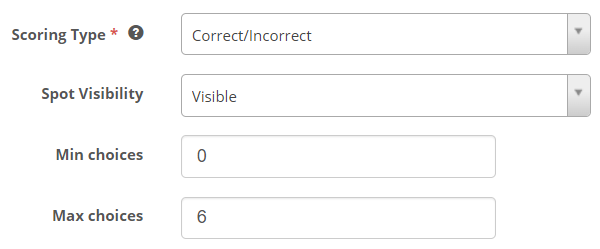
Scoring Type – The options are Correct/Incorrect and Per distractor. See the Setting scores and marking below to learn more about this.
Spot Visibility: You can choose between two options: Visible and Hidden.
Visible: Highlights will be visible to test-takers on the words. Hidden: Words will be highlighted only after being selected by the test-takers.
In the practice test above, we have included examples of both visible and hidden spot visibility options.
Max Choices
- This field defaults to 0, allowing test-takers to select all available options.
- In this example, setting the Max Choices field to 6 restricts test-takers to only six selections. Increasing this value removes the hint that only six options are correct, which can be useful to increase the difficulty of the item in certain scenarios.
Interaction Body
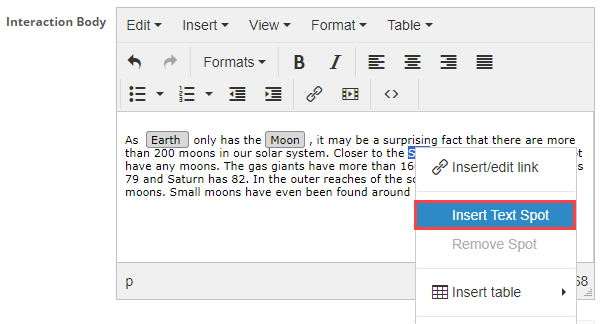
Enter your text into the Interaction Body field. To add text spots to the text, highlight the desired word or phrase and either:
- Select Insert and then Insert Text Spot.
- Right-click and select Insert Text Spot.
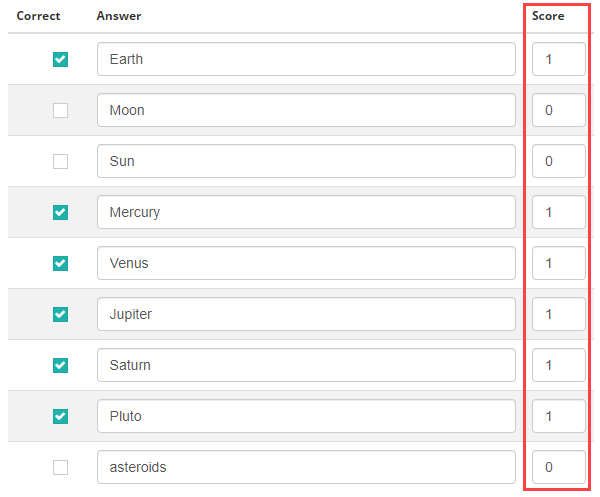
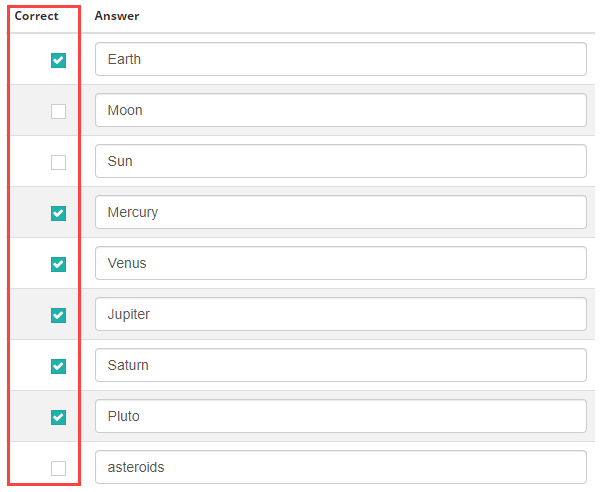
As you create the text spots, they display in the Answer column below.
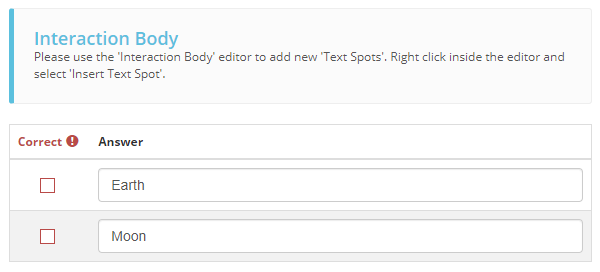
Once you have created the required text spots, check all correct options in the Correct column.
Setting scores and marking
Text spot interaction item types are system marked.
Scoring type
There are two scoring types available, correct/incorrect and per distractor.
Correct/Incorrect
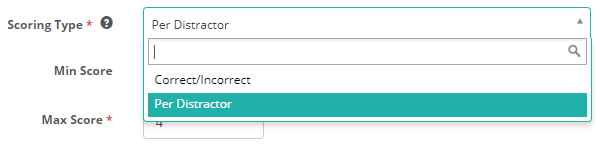
With this scoring type, the test-taker must select all correct responses to get the item correct.
Per distractor
With this scoring type, additional scoring options will become available to the item author, allowing them to add a score for each response.
Min Score – Setting a value in this field will determine the minimum score that the system can assign to the item. Max Score – Setting a value in this field will determine the maximum score that the system can assign to the item. Default Value – The system will use this value if a row doesn't have a value in the Score column.
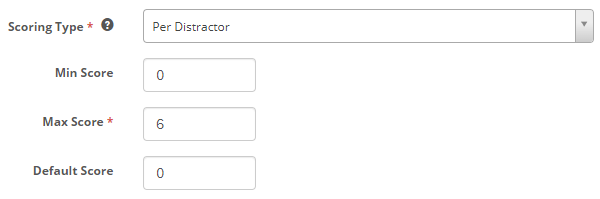
A scoring section becomes available below where item authors can set a score per distractor.