String resources
String resources are sections of text used throughout Janison Insights. Much of this text can be customised, which allows the system to be updated with terms and language relevant to your business or organisation. This might include:
- Changing text to match the terms used in your organisation — for example, renaming test 'question' to test 'item'
- Customising tooltips, instructions, warnings and messages to make the system more intuitive for your users
- Translating all text to a different language
Go to Settings > String Resources to see a list of all available string resources in the system.
- The Default Value column shows the system default value for a string resource
- The Value column shows any customised version of the string resource
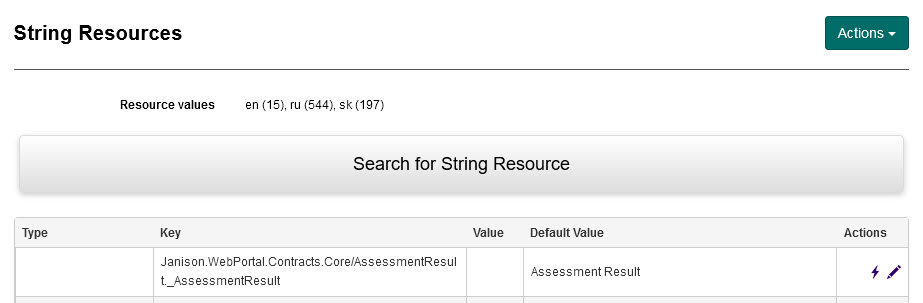
On this screen you can browse the list, search for a string resource, edit an individual string resource in full or via quick edit, delete a customised string resource to revert it to the system default, and view recent activities involving changes to string resources. The Actions dropdown provides bulk tasks — see Find and replace and Export and import string resources.
Search for a string resource
- Select the Search for String Resource expandable section.
-
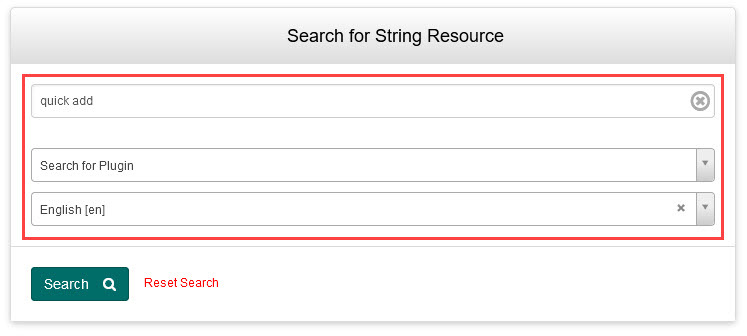
Enter the text you wish to search for in the Search for String Resource field. This searches all columns of the list:
- The Default Value column, containing the default version used in the system
- The Value column, containing any customised version
- The Type and Key columns, containing system identifiers for each string resource
-
Select a plugin from the Search for Plugin dropdown (optional). This limits results to a particular plugin. It is not always easy to identify the required plugin, but the URL of the page where the string resource appears can guide you — in the URL below, 'design' and 'test' are components of the URL, and the plugin is Janison.Test.Designer.

-
Select a language from the language dropdown (optional). If you use more than one language and translations have been made, select the required language to view the relevant translations.
-
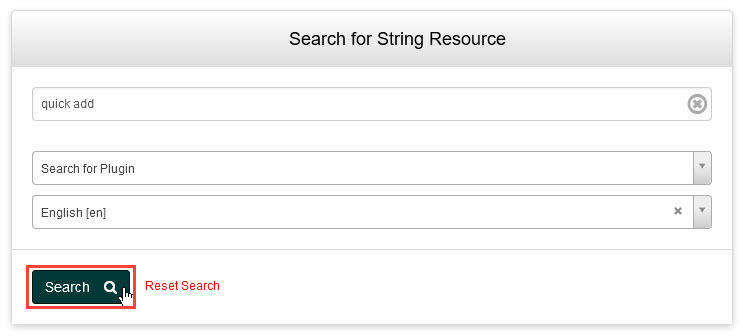
Select Search.
-
The results display in the string resources list.
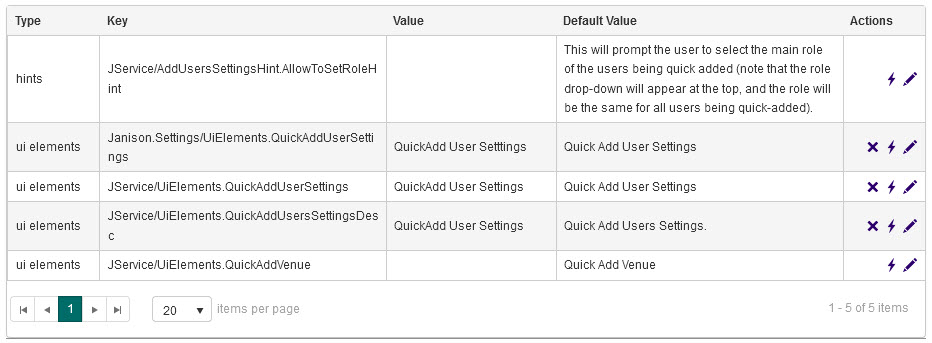
The number of results and pages shows at the bottom of the list. Select a column header to sort — for example, select Value to sort by string resources that do or don't have a customised value.
Edit a string resource in full
String resources can be edited in full on a separate screen, which shows more details than a quick edit.
-
Select the Edit icon next to the required string resource in the list.
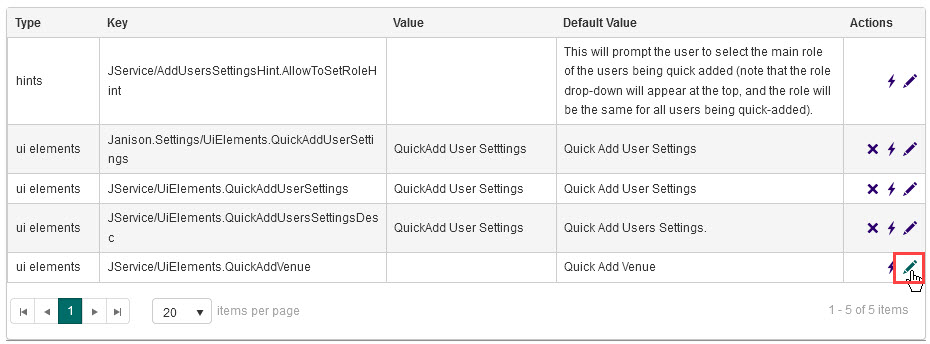
-
The screen that displays depends on whether the string resource already has a customised value.
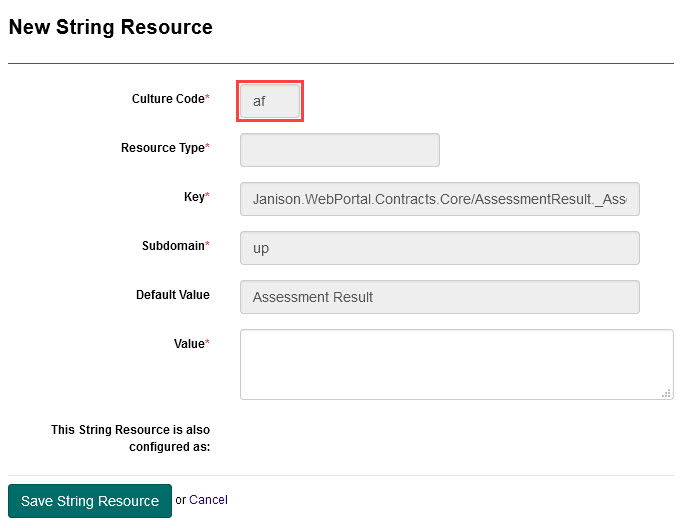
If it does not have a customised value, the New String Resource screen displays:
-
Enter the new value in the Value field.
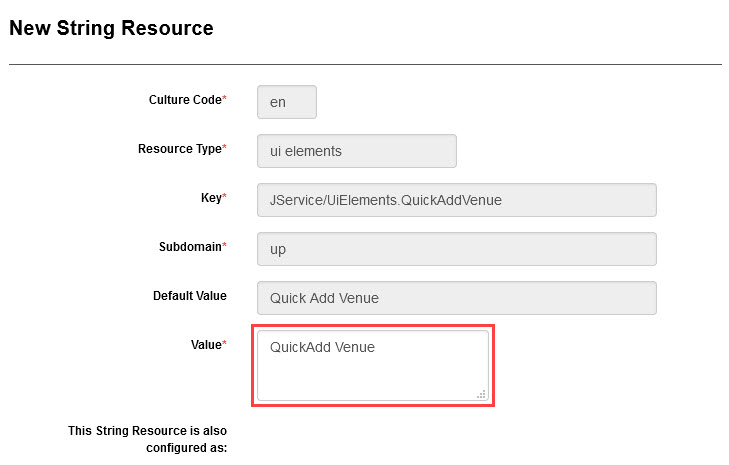
-
Select Save String Resource.
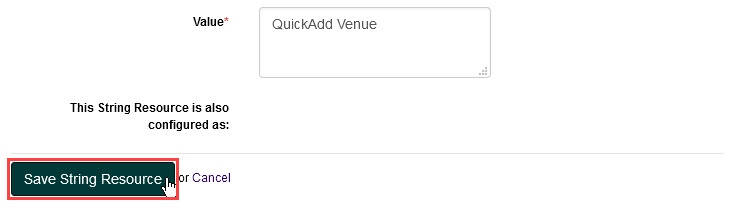
-
The new value displays in the Value column of the list.
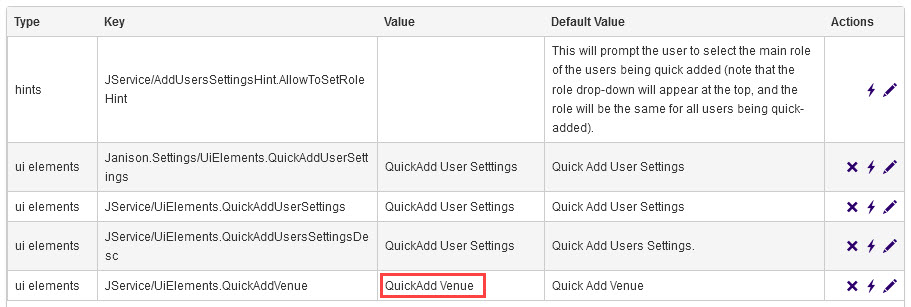
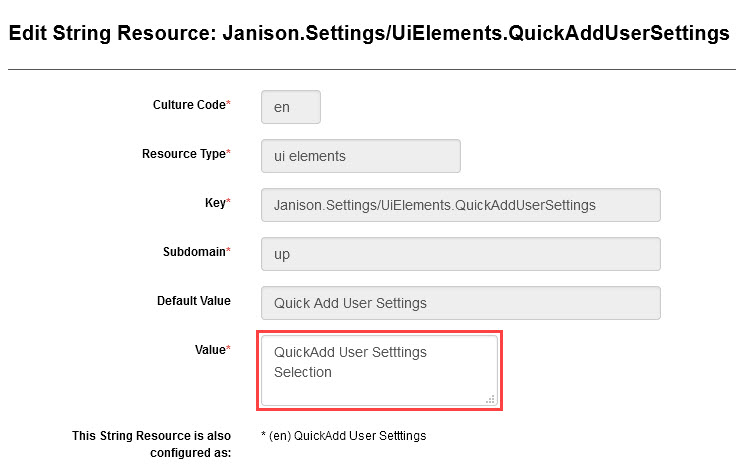
If it already has a customised value, the Edit String Resource screen displays, showing the current value and any translations next to the This String Resource is also configured as: label:
-
Edit the value in the Value field.
-
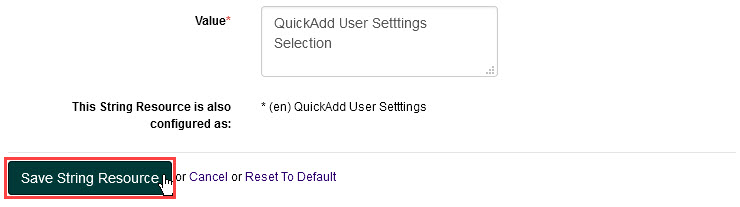
Select Save String Resource.
Tip
Selecting Reset to Default cancels without making the change and resets the string resource to its default value. This deletes any customised value assigned to the string resource.
-
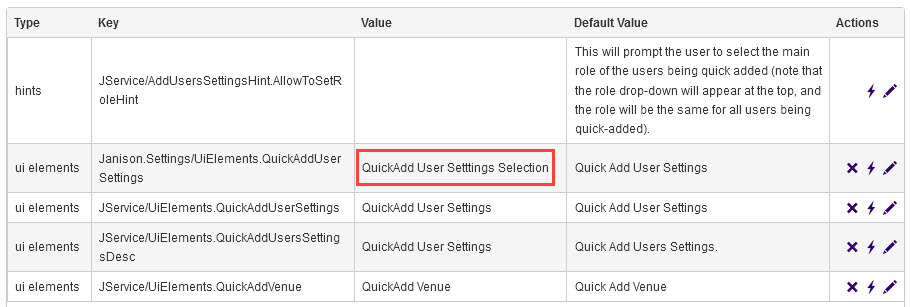
The new value displays in the Value column of the list.
-
Quick edit a string resource
String resources can also be edited in a popup on the String Resources screen, showing fewer details than a full edit.
-
Select the Quick Edit icon next to the required string resource.
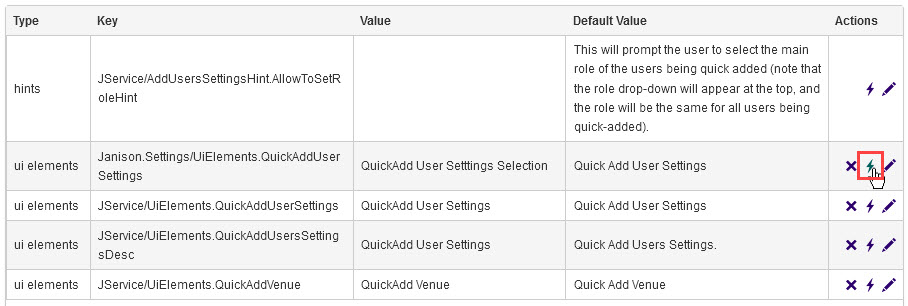
-
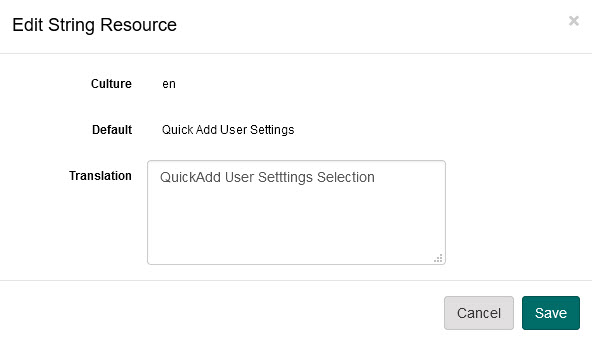
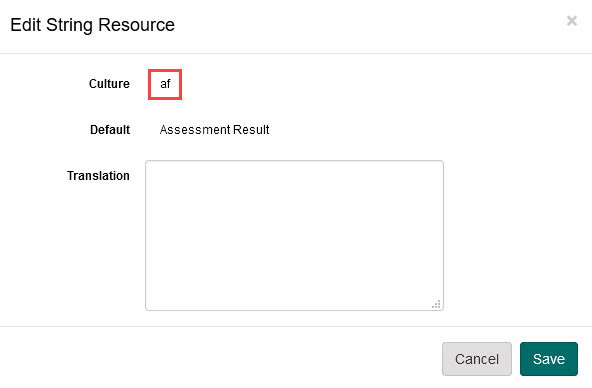
The Edit String Resource popup displays, containing:
- Culture – the language
- Default – the system default value
- Translation – the customised value (blank for string resources without one)
-
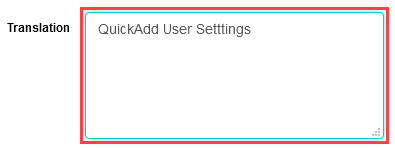
Make the required changes in the Translation field.
-
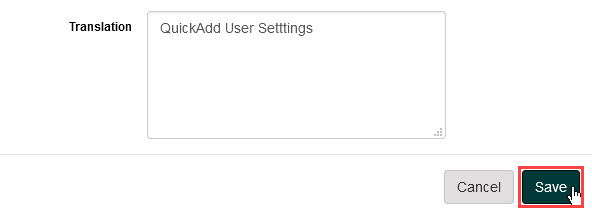
Select Save.
-
The updated value displays in the Value column of the list.
Delete a customised string resource value
Deleting a customised value reverts the string resource to the system default.
-
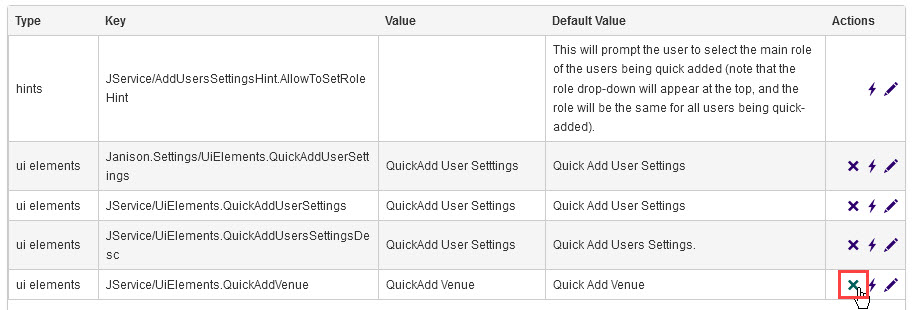
Select the Delete icon next to the required string resource.
Tip
The Delete icon is only available for string resources with a customised value.
-
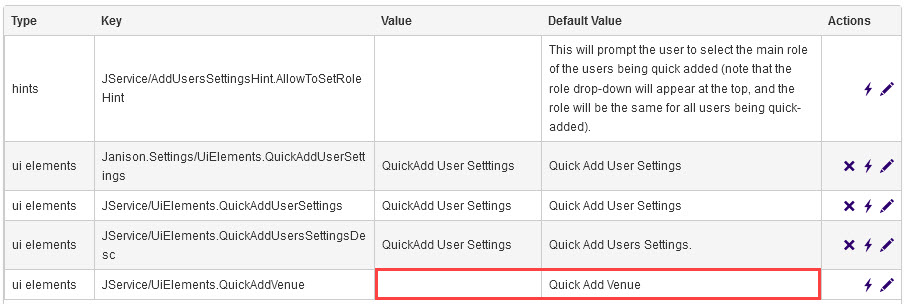
The system removes the customised value and reverts the string resource to the default value.
Find and replace
Bulk edits let you find and update more than one instance of a string resource at the same time.
- Go to Settings > String Resources.
-
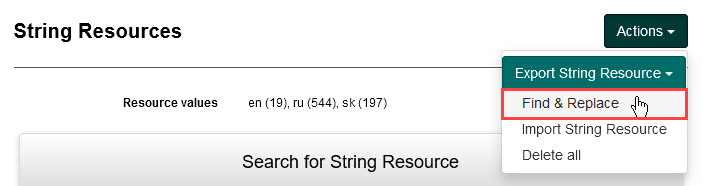
Select the Actions dropdown, then select Find & Replace.
-
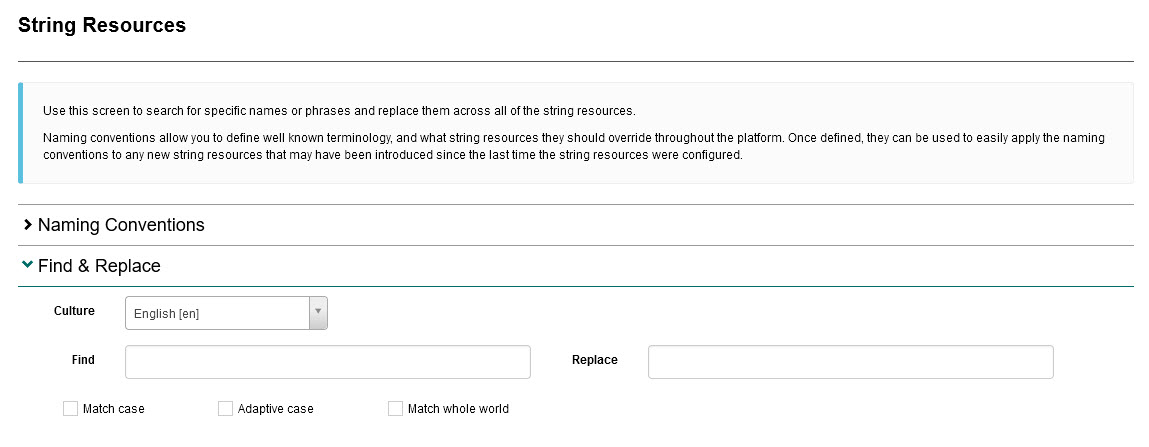
The screen that displays can be used to search for specific names, phrases or terminology and replace them across some or all instances in Janison Insights, using its expandable sections.
Multilingual support
Language support can be activated on your Janison Insights site. If it is active:
- The system checks the language set in the end user's browser to determine which language of string resources to deliver to that user.
- A language selector displays in the footer of the site. This allows an administrator to select a language so its string resources can be customised, and end users to select their preferred language.
Tip
Different versions of English can be set as languages — for example English (Australian) and English (Canada).
If your users are potentially from different English-speaking cultures and you want your string resource changes to target all of them, set the system to the parent category English before making changes. If you select English (Australian), for example, changes only apply to the Australian English version.
Activate multilingual support and select languages
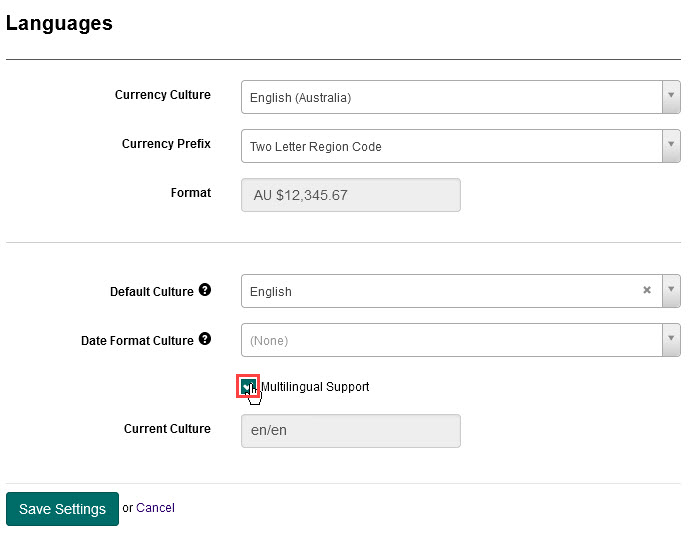
- Go to Settings > Languages.
-
The Languages screen displays. Check Multilingual Support.
-
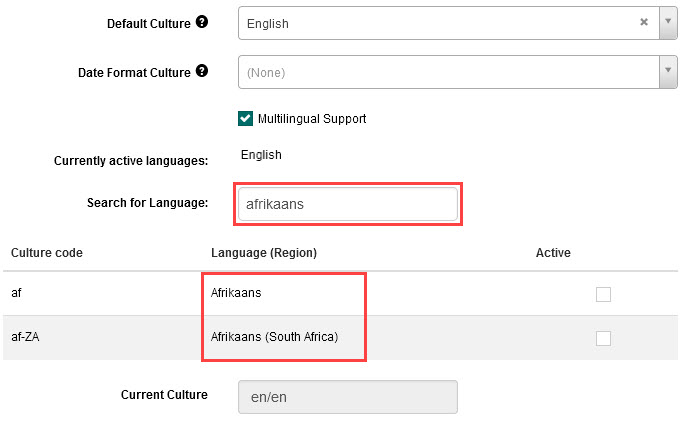
Browse for the required language, or filter the list using the Search for Language field.
-
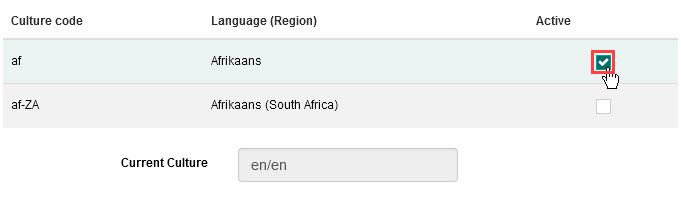
Check the box in the Active column next to each required language.
-
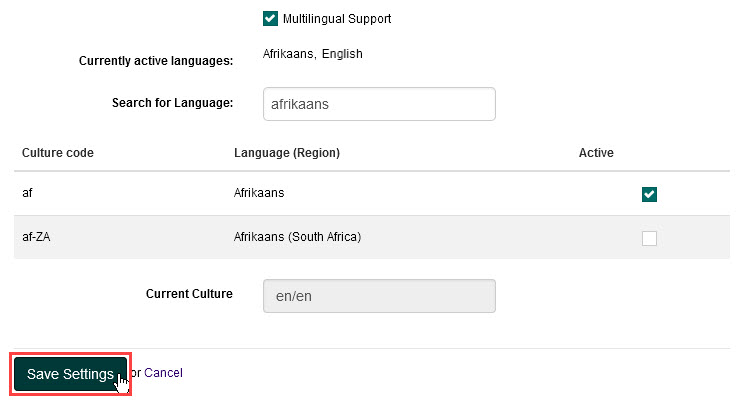
Select Save Settings.
-
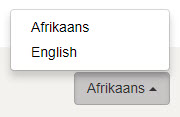
The activated languages now show in the language selector in the site footer. For example:
Edit string resource values for a language
Once languages are activated, selecting one from the footer dropdown sets the current culture and language, allowing you to edit that language's string resources.
- Go to Settings > String Resources.
-
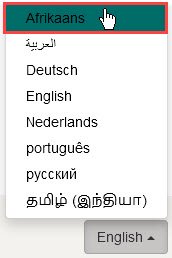
Select the required language from the language selector in the footer. For example:
-
Select the Edit or Quick Edit icon next to the required string resource.
-
The language you selected shows in the Culture Code field on the edit screen or popup. For example:
-
Update the value and save your changes. This is now the value shown to end users using the selected language.
Export and import string resources
String resources can be copied between Janison Insights tenants using an export and import process. For example, string resources can be customised and tested on a UAT or staging site, then exported and imported into a production site.
Tip
String resources are exported per culture/language. If string resources from multiple languages need to be transferred, carry out the export/import process for each language individually.
Export string resources
To export from the source tenant:
- Go to Settings > String Resources.
-
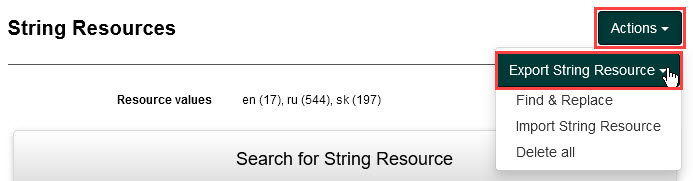
Select the Actions dropdown, then select Export String Resource.
-
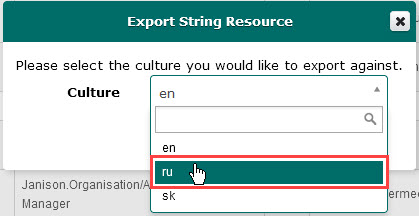
The Export String Resource popup displays. Select the required culture/language from the Culture dropdown.
-
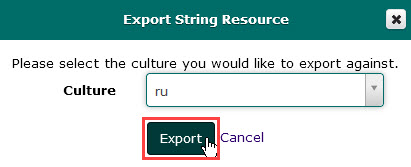
Select Export.
-
An XML file downloads to your device. Import this into the destination tenant in the next step.
Import string resources
To import into the destination tenant:
- Go to Settings > String Resources.
-
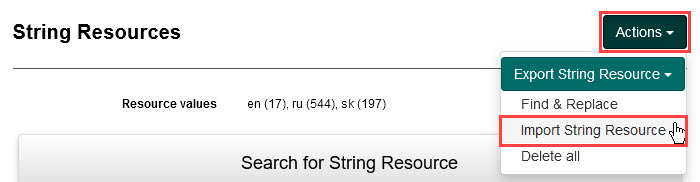
Select the Actions dropdown, then select Import String Resource.
-
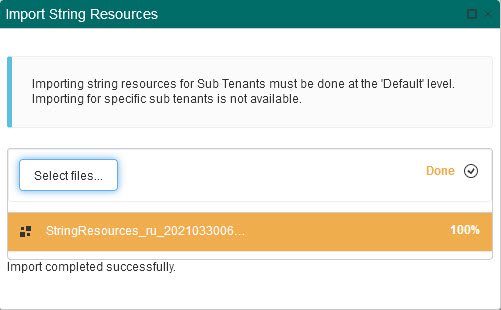
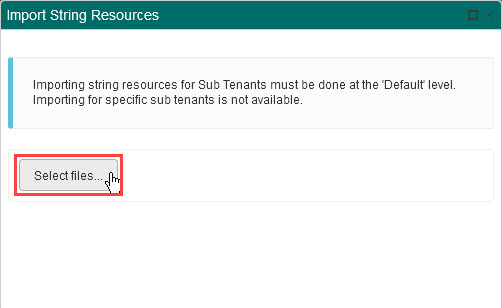
The Import String Resource popup displays. Select Select files and choose the XML file to import.
Important
The import starts as soon as the file is selected, so ensure you select the correct file.
-
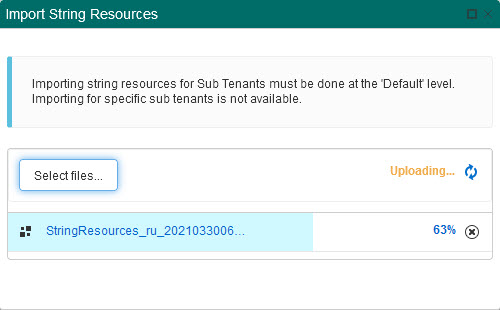
The import process starts.
-
Once complete, an Import completed successfully message displays.