Slider interaction
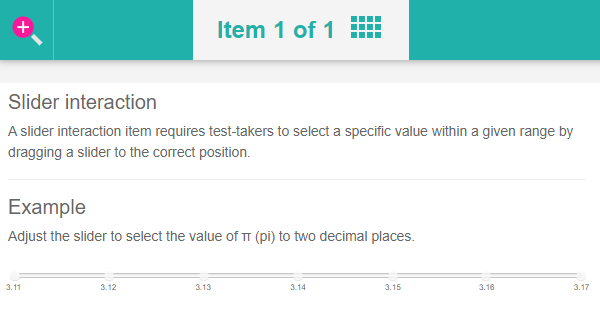
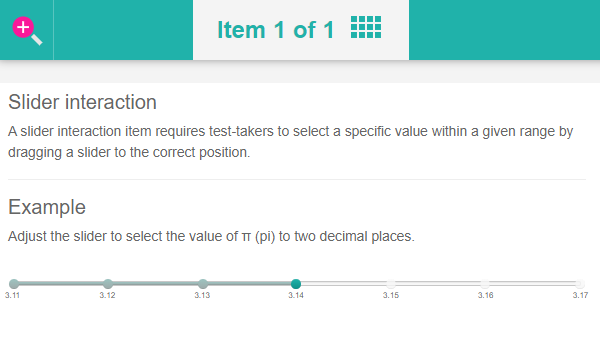
A slider interaction item requires test-takers to select a specific value within a given range by dragging a slider to the correct position. By moving the slider, test-takers can visually and dynamically choose their answers, making it an effective tool for gauging understanding in subjects that involve numerical values, measurements, or any scenario where a range of possible answers exists.
Try this item type in the practice test below. The slideshow further down shows an example of the item type.
Practice test
Open this test in the Janison test player to try an example of a slider interaction item.
Create a slider interaction item
- Navigate to Author > Items.
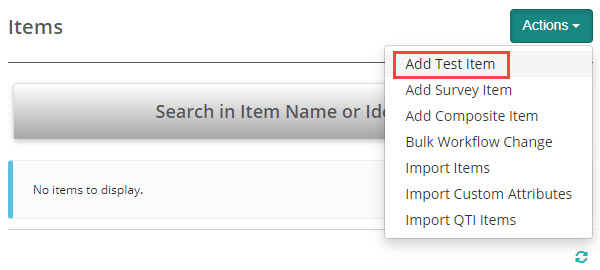
- Select Add Test Item from the Actions drop-down.
- The New Test Item screen displays.
-
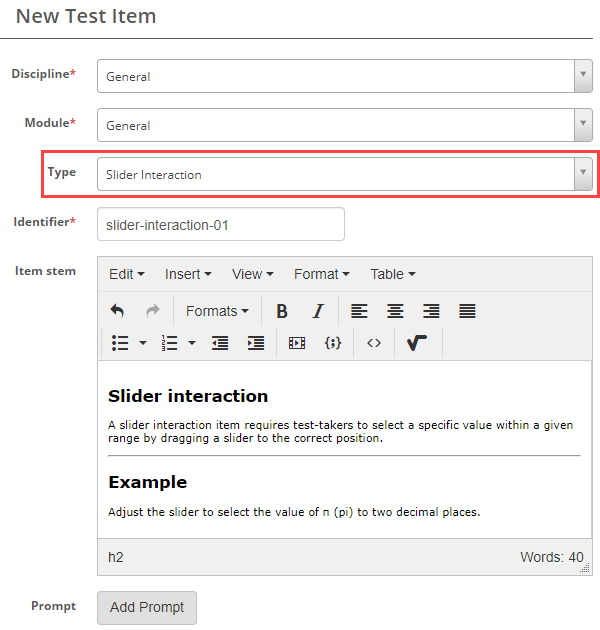
Complete the form as required. Below is an example of an new item we created.
-
Select Slider Interaction as the item Type and enter the Item stem.
-
In the next section we set the orientation and scoring type.

Orientation
The options are Horizontal and Vertical. This will determine if the slider displays to the test-taker horizontally or vertically. We have added examples of both these options in the example test.
Reverse orientation
The Reverse Orientation option will swap the highest and lowest values on the slider.
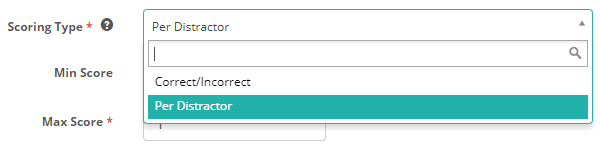
Scoring Type
The options are Correct/Incorrect and Per distractor.
Lower Bound and Upper Bounds
Lower Bound and Upper Bound refer to the minimum and maximum values that the slider can represent.
- Lower Bound: This is the minimum value on the slider. It represents the smallest possible value that a test-taker can select.
- Upper Bound: This is the maximum value on the slider. It represents the largest possible value that a test-taker can select.
Show Step Labels
This option displays markers or labels at the intervals along the slider, providing visual cues for the values at those points. These labels help test-takers gauge their selections more accurately by showing specific, predetermined values on the slider track.
Answer
Select the or enter the correct response.

Save your item and preview it to ensure it's working as expected.
Setting scores and marking
Slider interaction item types are system marked.
Scoring type
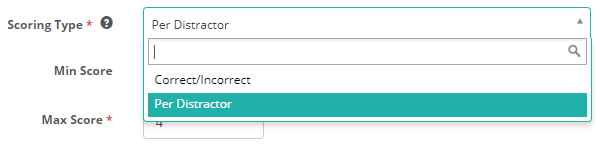
Correct/Incorrect
With this scoring type, the test-taker must select the correct responses to get the item correct.
Per distractor
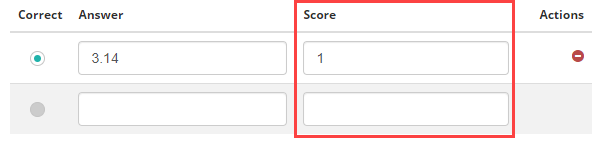
With this scoring type, additional scoring options will become available to the item author, allowing them to add a score for each response.
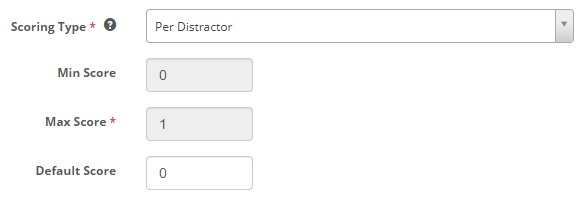
Min Score – Setting a value in this field will determine the minimum score that the system can assign to the item.
Max Score – Setting a value in this field will determine the maximum score that the system can assign to the item.
Default Value – The system will use this value if a row doesn't have a value in the Score column.
A Score column becomes available below where item authors can set a score per distractor.